Android

Jetpack Glance

Jetpack Glance: A Modern Way to Build App Widgets in Android

Widgets are one of the oldest and most-loved features of Android. They let users access app content directly from the home screen, offering convenience, quick interactions, and persistent information.

But let’s be honest — building widgets used to be a pain. If you’ve ever dealt with RemoteViews, you probably remember how clunky and restrictive it felt. From limited layout options to awkward state updates, it often felt like using outdated tools in a modern development world.

Enter Jetpack Glance— a fresh, modern, and composable way to build Android app widgets.

In this blog, we’ll explore what Jetpack Glance is, how it works, why it matters, and how you can start building beautiful widgets that feel right at home in 2025.

What is Jetpack Glance?

Jetpack Glance is an Android Jetpack library that lets developers build app widgets using a declarative Kotlin API, inspired by Jetpack Compose. It’s designed to bring the modern development experience of Compose to Android widgets — without completely replacing the underlying AppWidget system.

Glance provides a Compose-like DSL for creating UI elements, handling interactions, and managing widget state. Under the hood, it still translates your code to the RemoteViews used by the Android system, ensuring full compatibility with homescreens and launchers.

Why Jetpack Glance Matters

If you’ve ever built widgets with XML and RemoteViews, you know how painful it can be. Layout constraints, limited interactivity, and poor testability were common complaints.

Jetpack Glance solves this by offering:

  • Declarative UI: Say goodbye to boilerplate XML. Use familiar composables like Text, Image, Row, Column, and Box.
  • Kotlin-first Development: Leverage the benefits of modern Kotlin and Compose practices.
  • Theming Support: Build widgets that match your app’s Material design and even adapt to dynamic colors.
  • Improved Readability and Maintainability: Code that’s easier to read, test, and update.
  • Compatibility with AppWidget System: Works seamlessly with Android’s native widget infrastructure.

Building UI with Glance Composables

Jetpack Glance offers a minimal set of UI elements modeled after Compose. Here’s what you can expect:

  • Text, Button, Image — for basic elements.
  • Row, Column, Box — for layouts.
  • LazyColumn — for scrollable lists (with limitations).
  • Spacer, Modifier, Padding, Alignment — to structure your layout.

These components are optimized for the widget framework, so you can’t use every Compose API, but it’s still a huge leap forward compared to traditional methods.

Kotlin
@Composable
fun MyWidgetContent() {
    Column(
        modifier = GlanceModifier.padding(16.dp)
    ) {
        Text("Hello Widget!")
        Button(
            text = "Open App",
            onClick = actionStartActivity<MainActivity>()
        )
    }
}

Handling User Interactions

Widgets aren’t just for display — they should be interactive. Glance makes this easier by providing built-in Action APIs.

You can define actions such as:

  • Launching Activities
  • Triggering Services
  • Sending Broadcasts
  • Executing Callbacks (via actionCallback)
Kotlin
Button(
    text = "Launch",
    onClick = actionStartActivity<MyActivity>()
)

Handling interactions has never been this straightforward in a widget context.

Theming and Styling

Glance supports both Material 2 and Material 3 themes, including dynamic color integration on supported devices. You can wrap your UI in a GlanceTheme to ensure consistent styling.

Kotlin
@Composable
fun ThemedWidget() {
    GlanceTheme {
        Text("Styled with Material 3")
    }
}

Glance adapts to light/dark mode and the device’s color palette, ensuring your widget looks native and polished.

State Management and Updates

Unlike Compose, which is reactive by default, Glance widgets are stateless and passive. That means you control when and how the widget updates.

You’ll typically use:

  • GlanceAppWidget.update(context) — to trigger a UI refresh.
  • GlanceStateDefinition — to persist data across updates.

It’s your job to observe changes (e.g., LiveData, WorkManager, or repository data) and update the widget manually when needed.

How to Get Started

Let’s walk through a simple step-by-step guide to help you get started with building widgets using Jetpack Glance.

1. Add Dependencies

Kotlin
dependencies {
    implementation "androidx.glance:glance-appwidget:1.1.1"
    implementation "androidx.glance:glance-material3:1.1.1"
}

2. Enable Compose Support

Kotlin
android {
    buildFeatures {
        compose = true
    }
    composeOptions {
        kotlinCompilerExtensionVersion = "1.5.15"
    }
}

3. Define Your Widget

Kotlin
class MyGlanceWidget : GlanceAppWidget() {
    @Composable
    override fun Content() {
        MyWidgetContent() 
    }
}

4. Register the Widget

Update your AndroidManifest.xml and provide metadata via a resource XML file like res/xml/my_widget_info.xml.

Kotlin
<appwidget-provider
    xmlns:android="http://schemas.android.com/apk/res/android"
    android:resizeMode="horizontal|vertical"
    android:minWidth="250dp"
    android:minHeight="100dp"
    android:initialLayout="@layout/placeholder"
    android:updatePeriodMillis="1800000" />

Known Limitations

While Glance is a significant improvement, it’s still bound by the limitations of Android’s RemoteViews system:

  • No complex animations
  • Limited custom drawing or gestures
  • Limited real-time data updates

Expect more support in future releases, but for now, design within these constraints.

Conclusion

Jetpack Glance is a game-changer for Android widget development. It modernizes an aging system with a declarative approach that feels right at home in the Jetpack ecosystem.

Whether you’re updating legacy widgets or building new ones from scratch, Glance provides a smoother, more maintainable path forward.

So go ahead — give your users beautiful, functional widgets without the pain of XML and RemoteViews.

Jetpack Glance Media Playback

A Deep Dive into Using Jetpack Glance for Media Playback in Android Automotive OS

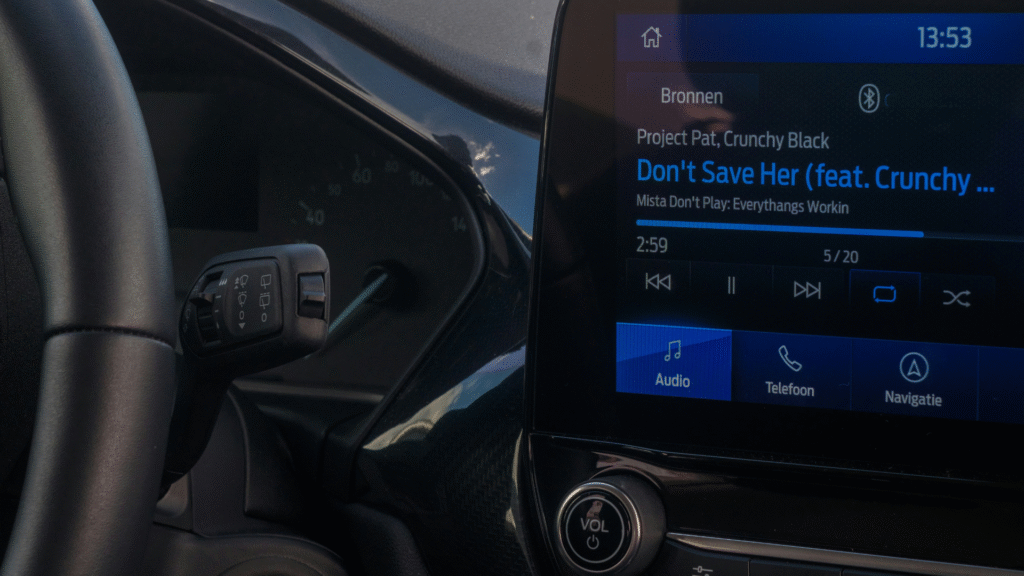
As vehicles evolve into digital experiences, the need for glanceable, fast, and distraction-free interfaces becomes paramount. In Android Automotive OS (AAOS), this demand has led to the emergence of the Jetpack Glance framework — a powerful tool for creating UI surfaces that are lightweight, fast to load, and safe for drivers to interact with.

In this blog post, we’ll explore how Jetpack Glance can be used to build a media playback card for Android Automotive OS. From setting up dependencies to implementing a full-featured glanceable media widget with play/pause/skip functionality — we’ll walk through the full picture with code, context, and best practices.

What is Jetpack Glance?

Jetpack Glance is a declarative UI library designed for building remote user interfaces, including:

  • App widgets (for Android homescreens)
  • Glanceable UIs for wearables (e.g., Tiles)
  • Future-facing vehicle dashboards and clusters in Android Automotive

Think of Glance as the Compose-inspired sibling of RemoteViews, but tailored for rendering quickly, efficiently, and safely on surfaces with strict interaction rules — like a car’s infotainment screen.

Why Use Glance in Android Automotive?

Using Glance in AAOS allows developers to:

  • Create lightweight UIs for media, navigation, or vehicle info
  • Ensure low distraction by adhering to system-level constraints
  • Maintain fast rendering even on constrained hardware
  • Leverage Jetpack Compose-like syntax without full Compose overhead

Key Use Cases in AAOS

Use CaseDescription
Media CardsDisplay now-playing info and basic playback controls
Navigation PreviewsShow turn-by-turn summaries or route cards
Vehicle StatusFuel, tire pressure, battery charge level
Contextual AlertsDoor open, low fuel, safety notifications

Setting Up Jetpack Glance in Your Project

Add Required Dependencies

Update your build.gradle with the latest Glance libraries:

Kotlin
dependencies {
    implementation "androidx.glance:glance:1.0.0"
    implementation "androidx.glance:glance-appwidget:1.0.0"
    implementation "androidx.glance:glance-wear-tiles:1.0.0" // optional
    implementation "androidx.core:core-ktx:1.12.0"
}

Tip: Glance is backward-compatible with Android 12 and above, making it suitable for most AAOS setups.

Creating a Glanceable Media Widget for AAOS

Let’s walk through a full example where we build a media playback widget that can be shown in a center display or cluster (with OEM support).

Define the Glance Widget

Kotlin
class MediaGlanceWidget : GlanceAppWidget() {
    @Composable
    override fun Content() {
        val title = "Song Title"
        val artist = "Artist Name"

        Column(
            modifier = GlanceModifier
                .fillMaxSize()
                .padding(16.dp)
                .background(Color.DarkGray),
            verticalAlignment = Alignment.CenterVertically,
            horizontalAlignment = Alignment.CenterHorizontally
        ) {
            Text("Now Playing", style = TextStyle(fontWeight = FontWeight.Bold, color = Color.White))
            Spacer(Modifier.height(8.dp))
            Text(title, style = TextStyle(color = Color.White))
            Text(artist, style = TextStyle(color = Color.LightGray))

            Spacer(Modifier.height(16.dp))
            Row(horizontalAlignment = Alignment.CenterHorizontally) {
                Image(
                    provider = ImageProvider(R.drawable.ic_previous),
                    contentDescription = "Previous",
                    modifier = GlanceModifier.size(32.dp).clickable {
                        actionStartService<MediaControlService>("ACTION_PREVIOUS")
                    }
                )
                Spacer(Modifier.width(16.dp))
                Image(
                    provider = ImageProvider(R.drawable.ic_play),
                    contentDescription = "Play",
                    modifier = GlanceModifier.size(32.dp).clickable {
                        actionStartService<MediaControlService>("ACTION_PLAY_PAUSE")
                    }
                )
                Spacer(Modifier.width(16.dp))
                Image(
                    provider = ImageProvider(R.drawable.ic_next),
                    contentDescription = "Next",
                    modifier = GlanceModifier.size(32.dp).clickable {
                        actionStartService<MediaControlService>("ACTION_NEXT")
                    }
                )
            }
        }
    }
}

Handling Playback Actions: MediaControlService

Since Glance doesn’t support direct onClick behavior like Compose, we use a Service to act on UI interactions.

Kotlin
class MediaControlService : Service() {
    override fun onStartCommand(intent: Intent?, flags: Int, startId: Int): Int {
        when (intent?.action) {
            "ACTION_PLAY_PAUSE" -> togglePlayPause()
            "ACTION_NEXT" -> skipToNext()
            "ACTION_PREVIOUS" -> skipToPrevious()
        }
        return START_NOT_STICKY
    }

    private fun togglePlayPause() {
        // Hook into MediaSession or ExoPlayer
    }

    private fun skipToNext() {
        // Forward playback command
    }

    private fun skipToPrevious() {
        // Rewind playback
    }

    override fun onBind(intent: Intent?): IBinder? = null
}

Integrating with AndroidManifest.xml

To register the widget and service:

Kotlin
<receiver
    android:name=".MediaGlanceWidgetReceiver"
    android:exported="true">
    <intent-filter>
        <action android:name="android.appwidget.action.APPWIDGET_UPDATE" />
    </intent-filter>
    <meta-data
        android:name="android.appwidget.provider"
        android:resource="@xml/media_widget_info" />
</receiver>

<service
    android:name=".MediaControlService"
    android:exported="false" />

Widget Configuration XML

In res/xml/media_widget_info.xml:

Kotlin
<appwidget-provider
    xmlns:android="http://schemas.android.com/apk/res/android"
    android:minWidth="180dp"
    android:minHeight="100dp"
    android:updatePeriodMillis="60000"
    android:widgetCategory="home_screen" />

Best Practices for Automotive Glance UI

  • Keep UI distraction-optimized
  • Use readable font sizes and sufficient contrast
  • Avoid overloading the interface — 2–3 actions max
  • Make controls large and touch-friendly
  • Always test on real AAOS hardware or emulator

Conclusion

Jetpack Glance is quickly becoming a go-to tool for developers looking to build safe, fast, and flexible UI surfaces across Android form factors. In the automotive space, it shines by helping deliver minimalist, glanceable media controls that respect both performance and safety constraints.

As AAOS continues to evolve, expect more OEM support for Glance in clusters, dashboards, and center displays — especially with the push toward custom car launchers and immersive media experiences

What Is KDoctor? The Essential Tool Every Kotlin Multiplatform Developer Must Know in 2025

If you’re diving into Kotlin Multiplatform Mobile (KMM) development in 2025, chances are you’ve already come across tools like Android Studio, Xcode, and Gradle. But there’s one small, powerful tool that can make or break your setup experience: KDoctor. In this blog, we’ll explore what KDoctor is, why it’s a must-have for Kotlin Multiplatform developers,...

Membership Required

You must be a member to access this content.

View Membership Levels

Already a member? Log in here
flutterVsReactNativeVsKMM

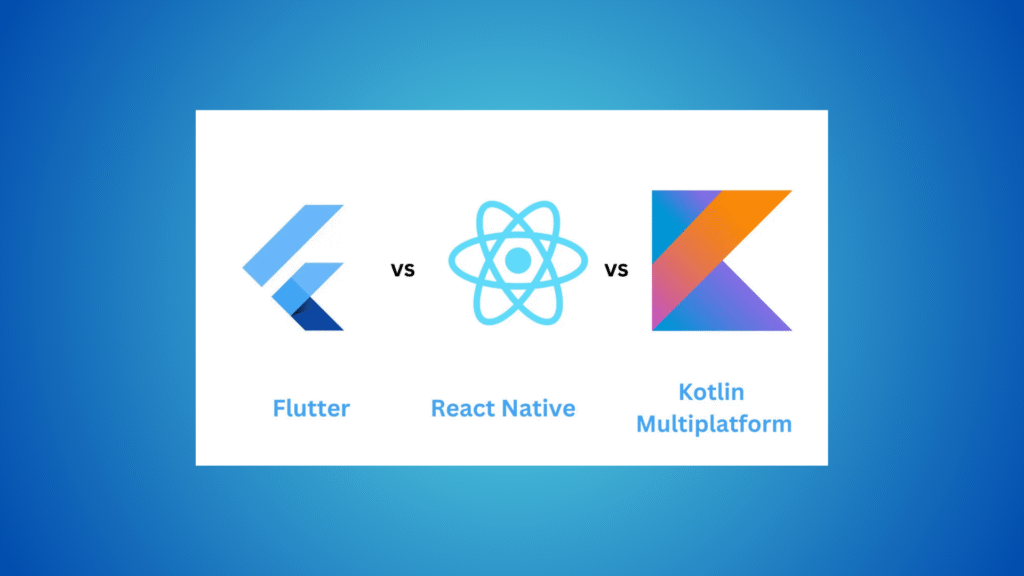
KMM vs Flutter vs React Native: Which Cross-Platform Tool Wins in 2025?

If you’re building mobile apps in 2025, there’s a good chance you’re thinking cross-platform. Why write separate code for Android and iOS when you can hit both with one codebase? That’s the promise — and the pain — of cross-platform development.

Three tools are dominating the conversation: Kotlin Multiplatform Mobile (KMM), Flutter, and React Native.

They’re all capable, widely used, and backed by big players (JetBrains/Google for KMM, Google for Flutter, Meta for React Native). But they each approach the problem in their own way — and the “best” choice depends on what you’re building, your team’s skills, and your priorities.

Let’s break down KMM vs Flutter vs React Native in 2025 — not with hype, but with facts, clear code examples, and practical insight.

What Are They?

Flutter

Flutter is Google’s UI toolkit for crafting beautiful, natively compiled applications for mobile, web, and desktop from a single codebase. It uses Dart and draws everything with its own rendering engine (Skia), which means you get consistent UI on every platform.

React Native

React Native lets you build mobile apps using JavaScript and React. Instead of rendering UI in the browser, it bridges to native components. This gives you a native look and feel while still writing most of your code in JS.

KMM (Kotlin Multiplatform Mobile)

KMM is JetBrains’ take on cross-platform. It lets you write shared business logic in Kotlin and keep native UIs (Jetpack Compose for Android, SwiftUI for iOS). It’s not a “write once, run everywhere” tool — it’s more like “share the smart stuff, build the UIs as they should be.”

Code Sharing: What’s Actually Shared?

FrameworkUI Shared?Business Logic Shared?
FlutterFull UI sharedFully shared
React NativeMostly sharedMostly shared
KMMUI not sharedLogic shared

Why It Matters

If you want to move fast and don’t care too much about pixel-perfect native design, Flutter and React Native let you go all-in on shared code. If you care deeply about platform-specific UX and want to reuse logic only, KMM gives you full control.

UI: Custom Widgets or Native Look?

Flutter: Custom All the Way

Flutter renders every pixel. That’s powerful — you’re not limited to native UI constraints — but it means you’re not getting “true” native widgets. It feels consistent, but not always familiar to end users.

React Native: Bridged Native

It taps into the device’s native UI components (buttons, sliders, etc.). That means it looks and feels like a native app, but sometimes needs native modules for advanced functionality — which can complicate things.

KMM: 100% Native UI

With KMM, you write your UIs twice — once for Android (Jetpack Compose or XML), and once for iOS (SwiftUI or UIKit). It’s more work, but the end result is completely native.

Performance: Who’s Fastest?

In 2025, performance differences are subtle but real.

  • Flutter is fast. It compiles ahead-of-time to native ARM code and renders with Skia. No JS bridge = fewer bottlenecks.
  • React Native performs well for most apps, but the bridge between JS and native can introduce lag in complex animations or large lists.
  • KMM is native where it counts. You write your UI using native tools, and the shared Kotlin logic is compiled down. There’s no runtime interpretation.

Winner for performance: KMM, if you can afford the extra UI work. Flutter is a close second.

Code Examples (Keep It Simple & Real)

Flutter (Dart)

Dart
import 'package:flutter/material.dart';

void main() => runApp(MyApp());

class MyApp extends StatelessWidget {
  @override
  Widget build(BuildContext context) {
    return MaterialApp(
      home: Scaffold(
        body: Center(child: Text('Hello Flutter')),
      ),
    );
  }
}

You write everything in Dart — layout, logic, behavior. It’s simple to get started, but then you’re locked into the Flutter ecosystem.

React Native (JavaScript)

JavaScript
import React from 'react';
import { View, Text } from 'react-native';

const App = () => (
  <View>
    <Text>Hello React Native</Text>
  </View>
);
export default App;

JS developers will feel right at home. React principles apply, and if you’ve used React for the web, the learning curve is gentle.

KMM (Kotlin + Native UI)

Shared Kotlin Logic:

Kotlin
class Greeting {
    fun greet(): String = "Hello from KMM"
}

Android (Jetpack Compose):

Swift
@Composable
fun GreetingView() {
    Text(text = Greeting().greet())
}

iOS (SwiftUI):

Swift
struct ContentView: View {
    var body: some View {
        Text(Greeting().greet())
    }
}

With KMM, you write the UI natively, but you avoid duplicating your business logic. Think of it as DRY architecture across platforms.

Developer Experience: Who’s Easier to Work With?

  • Flutter offers hot reload, great tooling, and strong IDE support. You get a complete, cohesive ecosystem.
  • React Native is flexible and battle-tested. There’s a rich ecosystem of plugins, and Metro bundler works great for fast reloads.
  • KMM is more opinionated. It integrates beautifully into existing Kotlin projects, but there’s a steeper learning curve if you’re new to native development.

Ecosystem and Community Support

  • Flutter is still growing fast. The package ecosystem is improving, but you’ll occasionally hit gaps.
  • React Native has the most third-party support and StackOverflow presence.
  • KMM is gaining traction, especially in enterprise and fintech, but its community is still niche.

When to Choose What (2025 Edition)

  • Use Flutter if you want a polished UI across multiple platforms and are okay with the Flutter way of doing things.
  • Use React Native if you’ve got a strong JavaScript/React team and need to move fast on mobile.
  • Use KMM if performance, native UI, and Kotlin are your top priorities — especially in large, enterprise-grade apps.

Conclusion

So, in the KMM vs Flutter vs React Native debate in 2025, there’s no universal winner — but there is a best fit for your situation.

  • Building a startup MVP? Flutter or React Native.
  • Want native performance and full control? KMM.
  • Need the broadest support and plugins? React Native.
  • Love beautiful, consistent UI? Flutter.
  • Already have a Kotlin Android app? KMM is a no-brainer.

The cross-platform world isn’t about choosing the “best” tool. It’s about choosing the right one for your team, product, and future.

TL;DR

KMM vs Flutter vs React Native: Which cross-platform framework is best in 2025?

  • Flutter: Best for unified UIs, fast dev, multi-platform targets.
  • React Native: Great for JavaScript teams and native-ish look.
  • KMM: Perfect for performance-critical apps that need shared logic but native UIs.
android in automotive industry

The Journey of Android in the Automotive Industry

Android has come a long way since powering our phones. Today, it’s in dashboards, infotainment systems, and even under the hood of cars. But how exactly did Android evolve from a smartphone OS to a critical player in the automotive world?

In this blog post, we’ll explore the fascinating journey of Android in the automotive industry, from its humble beginnings to the modern Android Automotive OS (AAOS). We’ll explain everything in a clear and easy-to-understand way, covering code examples, system architecture, and how this evolution affects developers, car manufacturers, and everyday drivers.

From Mobile OS to Infotainment: The Early Days

When Android was first introduced by Google in 2008, its open-source nature caught the attention of many industries — including automotive.

The Introduction of Android Auto

In 2015, Google officially launched Android Auto — a platform that allowed Android smartphones to project a simplified interface onto the car’s infotainment system. Drivers could use apps like Google Maps, Spotify, and WhatsApp with voice commands and touch input, enhancing safety and usability.

How It Works:
 Android Auto runs on the phone, not the car. The car merely acts as a display and controller.

Kotlin
// Example: Launching a voice command with Google Assistant
val intent = Intent(Intent.ACTION_VOICE_COMMAND)
startActivity(intent)

This architecture meant quick updates and a wide range of compatible vehicles. But it also had limitations — OEMs (Original Equipment Manufacturers) had little control over the UI or deep integration with car hardware.

The Rise of Android Automotive OS (AAOS)

Recognizing the limitations of projection-based systems, Google introduced Android Automotive OS — a full-fledged, car-ready version of Android that runs natively on the vehicle’s hardware.

What Makes Android Automotive OS Special?

  • Embedded OS: No need for a phone. The OS is pre-installed and controls the infotainment system.
  • Deeper Hardware Access: Unlike Android Auto, AAOS can integrate with HVAC, seat controls, vehicle telemetry, and more.
  • Customizable UI: OEMs can customize the look and feel while still leveraging the power of Android.

Architecture of Android Automotive OS

Let’s break down how Android Automotive OS works under the hood.

1. HAL (Hardware Abstraction Layer)

This layer interacts directly with the vehicle’s hardware. OEMs implement Vehicle HALs to expose data like speed, fuel level, and climate control to Android.

2. Vehicle HAL Interface (AIDL-based)

Android Automotive uses AIDL (Android Interface Definition Language) to define communication between system services and vehicle HALs.

Kotlin
// AIDL example to access vehicle property
interface IVehicle {
    int getProperty(int propertyId);
}

3. Car Services Layer

These are system services provided by AAOS (like CarSensorManager, CarInfoManager, etc.) that expose car-related data to apps.

Kotlin
val car = Car.createCar(context)
val sensorManager = car.getCarManager(Car.SENSOR_SERVICE) as CarSensorManager

Developer Experience: Building Apps for Android in Cars

With AAOS, developers now build apps that run directly on the car. These can be media, navigation, or communication apps.

App Categories Supported:

  • Media (e.g., Spotify)
  • Messaging (e.g., WhatsApp)
  • Navigation (e.g., Google Maps alternatives)

Sample Media App Setup

Android Automotive media apps are built on the MediaBrowserService framework:

Kotlin
class CarMediaService : MediaBrowserServiceCompat() {
    override fun onGetRoot(
        clientPackageName: String,
        clientUid: Int,
        rootHints: Bundle?
    ): BrowserRoot? {
        return BrowserRoot("root", null)
    }

    override fun onLoadChildren(
        parentId: String,
        result: Result<List<MediaItem>>
    ) {
        result.sendResult(emptyList()) // Placeholder
    }
}

This setup allows your media app to appear natively within the car’s infotainment system.

OEM Adoption and Industry Impact

More manufacturers are embracing Android in the automotive industry due to its flexibility and Google ecosystem support.

Popular Cars Running AAOS:

  • Volvo XC40 Recharge
  • Polestar 2
  • Renault Mégane E-Tech
  • GM, Honda, Ford, and Stellantis also announced future integration

OEMs can add their own app stores, integrate voice assistants like Alexa, and modify the interface, all while running on a solid Android foundation.

Privacy, Security & Updates

One of the major concerns with embedded software in cars is security. Google addresses this with:

  • Verified boot & partitioned OS layers
  • Google Play Protect (on supported systems)
  • Monthly security patches (when implemented by OEMs)
  • OTA (Over-the-Air) updates to push bug fixes and new features

What’s in It for You, the Driver?

Faster Access

No waiting for your phone to connect. No dropped Bluetooth. Everything just works.

Built-In Voice Control

“Hey Google, take me to the nearest gas station.” Simple, natural, and hands-free.

Fewer Distractions

Designed with safety in mind, the interface limits visual overload. You only see what you need, when you need it.

Better Personalization

Since AAOS runs directly in the car, it can save preferences across profiles and adapt to whoever’s behind the wheel.

The Future of Android in the Automotive Industry

We’re only scratching the surface of what Android can do for mobility.

Upcoming Trends:

  • Integration with EV battery data
  • Smart assistant for predictive driving
  • Multi-screen support (rear-seat entertainment)
  • Seamless phone-to-car sync with Android 15+

Google is also working on extending AI-powered user experiences using contextual data like location, calendar events, and habits to provide real-time driving recommendations and proactive assistance.

Conclusion

The journey of Android in the automotive industry showcases how adaptable and scalable the Android ecosystem truly is. From phone projection systems to embedded car platforms, it has revolutionized how drivers interact with their vehicles.

For developers, this is a golden era — you can now build apps not just for phones and tablets, but for the road itself. For OEMs, it’s an opportunity to build smarter, more connected vehicles. And for users, it means safer, more personalized, and enjoyable driving experiences.

As Android continues its journey on wheels, the road ahead looks smarter, safer, and more open than ever.

FAQ

Q: What is Android Automotive OS?
 A: Android Automotive OS (AAOS) is an operating system developed by Google that runs directly on a vehicle’s hardware, unlike Android Auto which runs on a smartphone.

Q: How is Android Auto different from Android Automotive OS?
 A: Android Auto is a projection system that mirrors apps from your phone. AAOS is a standalone OS installed in the car, offering deeper integration with vehicle functions.

Q: Can I build apps for Android Automotive?
 A: Yes! You can build navigation, media, and communication apps using standard Android tools and frameworks, with slight modifications for car compliance.

Q: Which cars use Android Automotive OS?
 A: Cars like the Polestar 2, Volvo XC40, and some models by GM, Honda, and Renault run Android Automotive OS.

Glanceable UI

Implementing Glanceable UI with Jetpack Glance in Android Automotive OS

Glanceable UI is a key pillar of in-car user experiences, especially in vehicles powered by Android Automotive OS (AAOS). With safety at the core, designing for “at-a-glance” interaction ensures drivers get the information they need with minimal distraction.

In this blog post, we’ll explore:

  • What Jetpack Glance is
  • How it helps build Glanceable UIs for AAOS
  • A practical example: Media playback glance widget
  • Best practices for in-car glance design

What Is Jetpack Glance?

Jetpack Glance is a lightweight UI toolkit by Google that allows developers to build glanceable app widgets using Jetpack Compose principles.

While it’s widely used for Android home screen widgets, it also plays a growing role in automotive contexts, where modular, safe, and context-aware UI components are essential.

Key Benefits:

  • Declarative UI (Compose-style)
  • Lightweight and fast
  • Surface-aware (homescreen, dashboard, etc.)
  • Seamlessly integrates with AAOS and Assistant

Why Glanceable UI Matters in Cars

An ideal in-car interface (for media, navigation, etc.) should be so intuitive, voice-driven, glanceable, and minimal that drivers can use it with little or no visual attention — keeping their eyes on the road and hands on the wheel.

Android Automotive is designed to operate under strict UX restrictions to reduce cognitive load and visual complexity while driving. Glanceable UI is about showing just enough information for a quick decision or action.

Example Use Cases:

  • Resume last media playback
  • Quick access to a recent contact
  • Show estimated time to destination
  • Weather or fuel level notifications

Setup: Adding Jetpack Glance to Your AAOS Project

First, make sure to add the required dependencies:

Kotlin
dependencies {
    implementation("androidx.glance:glance:1.1.1")
    implementation("androidx.glance:glance-appwidget:1.1.1")
}

Jetpack Glance is evolving, so make sure to check the latest versions here.

Example: Glanceable Media Playback Widget

Let’s say you want to display a media card with the currently playing song, a thumbnail, and basic controls like play/pause.

Step 1: Create Your Glance Widget

Kotlin
class MediaPlaybackWidget : GlanceAppWidget() {
    override suspend fun provideGlance(context: Context, id: GlanceId) {
        provideContent {
            MediaPlaybackContent()
        }
    }
}

Step 2: Build the UI Using Glance

Kotlin
@Composable
fun MediaPlaybackContent() {
    val mediaState = rememberMediaState()

    Column(
        modifier = GlanceModifier
            .fillMaxWidth()
            .padding(16.dp)
            .background(ImageProvider(R.drawable.widget_bg))
    ) {
        Text(
            text = mediaState.title,
            style = TextStyle(fontSize = 18.sp, fontWeight = FontWeight.Bold),
            maxLines = 1
        )
        Text(
            text = mediaState.artist,
            style = TextStyle(fontSize = 14.sp, color = Color.Gray),
            maxLines = 1
        )

        Row(
            horizontalAlignment = Alignment.CenterHorizontally,
            modifier = GlanceModifier.fillMaxWidth()
        ) {
            Image(
                provider = ImageProvider(R.drawable.ic_prev),
                contentDescription = "Previous",
                modifier = GlanceModifier.clickable { /* skipPrevious() */ }
            )
            Spacer(modifier = GlanceModifier.width(8.dp))
            Image(
                provider = if (mediaState.isPlaying)
                    ImageProvider(R.drawable.ic_pause)
                else
                    ImageProvider(R.drawable.ic_play),
                contentDescription = "Play/Pause",
                modifier = GlanceModifier.clickable { togglePlayback() }
            )
            Spacer(modifier = GlanceModifier.width(8.dp))
            Image(
                provider = ImageProvider(R.drawable.ic_next),
                contentDescription = "Next",
                modifier = GlanceModifier.clickable { /* skipNext() */ }
            )
        }
    }
}

Pro Tips for Designing Glanceable UI in AAOS

PrincipleGlanceable Design Tip
VisibilityLarge touch targets (min 48x48dp), no nested menus
Context AwarenessSurface-aware widgets (only show glance cards when relevant)
Minimized Screen TimeDisplay key actions only: Resume, Pause, Next
Distraction-Free UXAvoid animations, complex visuals, or swipe gestures
Test While Driving SimUse Android Emulator’s automotive mode or in-car dev hardware if possible

UX Restrictions You Must Follow

Google enforces strict glanceable design rules for AAOS:

  • No scrolling UI
  • No long lists
  • No non-essential buttons
  • Only relevant, context-sensitive info
  • Safety is non-negotiable: Design for drivers, not passengers

If your app violates these, it may be rejected or hidden when driving.

Conclusion

Jetpack Glance enables a new era of modular, composable, and glance-friendly UI for Android Automotive OS. By respecting the driving context and focusing on essential, actionable information, developers can create interfaces that enhance the in-car experience—without compromising safety.

Remember: In the car, less is more. Show less, do more.

Google Automotive Services (GAS)

What Is Google Automotive Services (GAS) and How It’s Transforming the In-Car Experience

Imagine stepping into your car, and it feels just like using your smartphone — personalized apps, Google Assistant ready to help, Maps guiding you smoothly, and even YouTube available for in-vehicle entertainment. This isn’t a far-off dream anymore. Thanks to Google Automotive Services (GAS), the in-car digital experience is becoming smarter, more connected, and refreshingly user-friendly.

In this post, we’ll explore what Google Automotive Services (GAS) really is, how it’s different from Android Auto, and how it’s revolutionizing the way we interact with our vehicles — backed by real-world examples and developer insights.

What Is Google Automotive Services (GAS)?

Google Automotive Services (GAS) is a suite of Google applications and services built directly into vehicles that run on Android Automotive OS. Think of it as the full Google ecosystem embedded into your car — not just projected from your phone (like in Android Auto), but deeply integrated with your car’s infotainment system.

The core GAS package typically includes:

  • Google Maps: Native, turn-by-turn navigation with real-time traffic.
  • Google Assistant: Voice-controlled help for navigation, music, calling, and more.
  • Google Play Store: Download media, navigation, and productivity apps.
  • YouTube, Google Podcasts, and more: Direct in-car media consumption.

GAS vs. Android Auto: What’s the Difference?

While Android Auto relies on your phone to run, Google Automotive Services (GAS) is embedded directly into the car’s hardware. That means:

Android Auto vs Google Automotive Services (GAS)

In simple terms, GAS makes your car feel like a standalone smart device, similar to a smartphone or tablet — but tailor-made for driving.

The In-Car Experience: Smarter, Safer, More Personalized

Let’s break down how Google Automotive Services (GAS) is transforming the driving experience.

1. Voice-First Control with Google Assistant

GAS makes your voice the ultimate command. From setting the cabin temperature to playing your favorite podcast — all you need is a simple “Hey Google.”

val intent = Intent(Intent.ACTION_VOICE_COMMAND).apply {
    putExtra("command", "navigate to nearest EV charging station")
}

startActivity(intent)

Explanation: This Kotlin snippet triggers a voice command that can be tied to Google Assistant in Android Automotive. It allows seamless voice navigation to places like gas stations, coffee shops, or EV chargers — essential while on the road.

2. Built-in Google Maps: Navigation Gets Contextual

Google Maps in GAS goes beyond standard navigation. It knows your car’s fuel or battery level and can suggest charging stations or gas stops along your route.

Benefits include:

  • Real-time traffic and hazard detection.
  • EV routing based on battery range.
  • Integration with car sensors for accurate data.

3. Google Play Store in the Dashboard

Yes, you can install apps like Spotify, Audible, YouTube Music, and even weather apps — right from your dashboard. Developers can create and publish apps specifically for Android Automotive OS through the automotive category in Google Play.

Here’s a glimpse of how an app manifest looks for Android Automotive:

<application>
    <meta-data
        android:name="com.google.android.gms.car.application"
        android:resource="@xml/automotive_app_desc" />
</application>

And your automotive_app_desc.xml might contain:

<automotiveApp>
    <uses name="media"/>
</automotiveApp>

Explanation: This configuration ensures your media app is discoverable and installable in GAS-enabled cars. It tells the system that your app is designed for in-car use.

4. Seamless OTA Updates

Thanks to GAS and Android Automotive, your car’s infotainment system gets regular over-the-air (OTA) updates — just like your smartphone. That means:

  • Up-to-date maps and apps.
  • New features rolled out regularly.
  • Improved safety and performance.

No more waiting for your next dealership visit to update your car’s software.

Why Automakers Are Choosing GAS

Leading brands like Volvo, Polestar, Honda, Renault, and General Motors are already integrating Google Automotive Services into their vehicles. Here’s why:

  • Quick time to market: No need to build a custom OS or app ecosystem.
  • Trusted services: Users are familiar with Google Maps, Assistant, and Play Store.
  • Extensible platform: Automakers can still customize branding, themes, and system behaviors while leveraging the power of GAS.

For Developers: Why GAS Matters

If you’re a developer, GAS opens new doors for building apps that directly enhance the in-car experience. From media and navigation to parking and weather apps, the automotive space is ripe for innovation.

Tip: Use Jetpack libraries and AndroidX support to build adaptive UIs for the in-car environment. Consider different screen sizes, rotary inputs, and driver distraction guidelines.

Example of media session using ExoPlayer:

val player = ExoPlayer.Builder(context).build().apply {
    setMediaItem(MediaItem.fromUri("https://spotify.com/podcast.mp3"))
    prepare()
    playWhenReady = true
}

Explanation: This code snippet uses ExoPlayer, a popular media library, to stream audio content. In GAS environments, you’d integrate this with your MediaBrowserService to create a complete playback experience.

The Future of In-Car Experiences

As Google Automotive Services (GAS) continues to grow, expect deeper personalization, better third-party app support, and smarter interactions across all your devices. With cars becoming more like smartphones on wheels, the lines between mobile and automotive tech are blurring.

And GAS is at the center of this transformation.

https://medium.com/softaai-blogs/android-automotive-unleashing-the-power-of-android-os-on-the-road-6587c4835ad7

Conclusion

Google Automotive Services (GAS) is not just about convenience — it’s about creating a smarter, safer, and more connected driving experience. Whether you’re a car buyer, developer, or automaker, GAS represents a major leap in how we think about cars and digital experiences.

If you’re driving a vehicle powered by GAS, you’re not just getting from point A to B. You’re stepping into a fully connected, intelligent ecosystem — powered by Google.

FAQ

Q: Is Google Automotive Services (GAS) the same as Android Auto?
 A: No, GAS is built into the car itself, while Android Auto mirrors your phone onto the infotainment screen.

Q: Can I install apps in GAS-powered cars?
 A: Yes, you can download compatible apps directly from the Google Play Store built into your vehicle.

Q: Which car brands support Google Automotive Services (GAS)?
 A: Volvo, Polestar, Renault, Honda, and several others are actively adopting GAS.

Q: Do I need an internet connection for GAS to work?
 A: For most services like Maps and Play Store, yes. But many features have offline capabilities too.

android auto to android automotive os

From Android Auto to Android Automotive OS: Why This Shift Is Revolutionizing In-Car Tech

For years, Android Auto has been the go-to solution for connecting smartphones to car infotainment systems. But there’s a new player in town — and it’s not just an upgrade; it’s a complete transformation. Say hello to Android Automotive OS.

This shift from Android Auto to Android Automotive OS isn’t just a tech tweak. It’s a fundamental change in how we interact with vehicles. Let’s break it down and explore why it’s such a game-changer for both carmakers and drivers.

What’s the Difference, Really?

Android Auto: A Mirror of Your Phone

Android Auto is basically your phone on your car’s screen. You plug it in (or go wireless), and it mirrors apps like Google Maps, Spotify, and WhatsApp. You control everything through your car’s touchscreen or voice commands, but your phone is doing all the heavy lifting.

Pros? Familiar interface. Easy setup. Solid voice control.

Cons? It relies heavily on your phone’s battery, signal, and data connection. And if your phone’s acting up, so is your car’s infotainment system.

Android Automotive OS: A Built-In Brain

Now imagine an operating system that doesn’t need your phone at all. That’s Android Automotive OS (AAOS). It runs natively on the car’s hardware, like the OS on your laptop or smart TV. Everything — from navigation to climate control to music — is handled directly through the car’s system.

It’s like giving your car its own brain.

Bottom line: Android Auto is phone-powered. Android Automotive OS is car-powered.

Why Automakers Are All In on Android Automotive OS

1. Deeper Vehicle Integration

AAOS doesn’t just run apps — it connects to the car’s internal systems. That means you can adjust the AC, check tire pressure, or heat your seats, all through the same interface. No more jumping between menus or pushing awkward physical buttons.

2. No More Phone Required

Everything is built in. You get Google Maps, Google Assistant, and even YouTube Music, straight from the dashboard — no phone needed. Your car is online and independent.

3. Seamless Updates

With over-the-air (OTA) updates, your infotainment system can evolve just like your smartphone. Carmakers can push new features, security fixes, or design changes without you needing to visit a dealer.

4. Consistent User Experience

AAOS provides a consistent, Google-designed interface. This means less confusion and a shorter learning curve for drivers. Plus, it supports multi-user profiles, so each driver gets personalized settings for seats, climate, music, and even app preferences.

What This Means for Developers

Developing for Android Automotive OS isn’t the same as building a regular Android app. You’re now creating for a vehicle environment — where safety, focus, and usability matter more than flashy design.

Google offers the Car App Library, which gives developers templates that are optimized for in-car use. These include:

  • NavigationTemplate – For apps like Waze or MapQuest.
  • ListTemplate – Perfect for music playlists or podcasts.
  • PaneTemplate – Useful for displaying text and buttons with minimal distractions.

A Simple Code Example for Android Automotive OS

Let’s say you’re building a simple music player for AAOS. Your AndroidManifest.xml might include:

Kotlin
<uses-feature
    android:name="android.hardware.type.automotive"
    android:required="true" />

You’ll also declare your CarAppService like this:

Kotlin
<service
    android:name=".YourCarAppService"
    android:exported="true">
    <intent-filter>
        <action android:name="androidx.car.app.CarAppService" />
    </intent-filter>
    <meta-data
        android:name="androidx.car.app.car_app_service"
        android:resource="@xml/automotive_app_desc" />
</service>

This setup tells the system your app is designed for in-car use and sets up a safe, minimal user experience.

The key? Always design for hands-free, glanceable interactions. You’re not building for a smartphone — you’re building for a moving vehicle.

Who’s Already Using Android Automotive OS?

Big names are jumping on board:

  • Polestar and Volvo were first to adopt it.
  • GM, Ford, and Renault-Nissan-Mitsubishi have announced plans to integrate AAOS.
  • Honda and BMW are expected to follow suit.

What’s interesting? These automakers aren’t just slapping Google into their dashboards. They’re customizing the OS to reflect their own brand experiences — while still leveraging Google’s app ecosystem.

What’s in It for You, the Driver?

Faster Access

No waiting for your phone to connect. No dropped Bluetooth. Everything just works.

Built-In Voice Control

“Hey Google, take me to the nearest charging station.” Simple, natural, and hands-free.

Fewer Distractions

Designed with safety in mind, the interface limits visual overload. You only see what you need, when you need it.

Better Personalization

Since AAOS runs directly in the car, it can save preferences across profiles and adapt to whoever’s behind the wheel.

Addressing the Privacy Piece

Of course, with great tech comes big questions: Who owns your data? What’s being tracked?

Google claims Android Automotive OS puts privacy controls in the driver’s hands. You can manage permissions and data sharing, much like on Android phones. Still, it’s something users — and automakers — need to stay transparent about.

So, Is Android Automotive OS the Future?

Absolutely. The move from Android Auto to Android Automotive OS signals a clear trend: cars are becoming connected computers on wheels.

It benefits everyone:

  • Carmakers get more control and flexibility.
  • Drivers enjoy a smoother, more personalized ride.
  • Developers have a new frontier to innovate.

This is just the beginning. As cars become more software-driven, Android Automotive OS is set to play a huge role in shaping that landscape.

Conclusion

The shift from Android Auto to Android Automotive OS isn’t just about replacing one tech with another. It’s a rethinking of what a car infotainment system can — and should — be.

If you’re a driver, expect a more intuitive, reliable, and smart driving experience.

If you’re a developer, there’s an exciting road ahead.

And if you’re an automaker? Buckle up. The future is here — and it’s running on Android.

how Android Automotive OS minimizes distractions and ensures road safety

How Android Automotive OS Achieves Fewer Distractions with Safety in Mind

In today’s connected car world, balancing functionality with driver safety is non-negotiable. That’s exactly why Android Automotive OS (AAOS) was designed with a “safety-first” philosophy. Unlike smartphones, AAOS runs directly on a vehicle’s infotainment system, where distractions can literally cost lives.

In this post, let’s explore how Android Automotive minimizes distractions and ensures road safety through thoughtful UX design, strict guidelines, and voice-first interactions.

1. Google’s Driver Distraction Guidelines (DDG)

At the heart of Android Automotive’s safety model is Google’s Driver Distraction Guidelines. These define what apps can and cannot do when the vehicle is in motion.

Key restrictions include:

  • Time-limited interactions: Users must complete interactions within a few seconds.
  • Limited content types: No video, games, or long texts while driving.
  • Predefined templates only: Prevents overly customized, complex UIs.

Google enforces these rules via the app review process and automated compliance checks.

2. Voice-First, Hands-Free Experience with Google Assistant

Voice interaction is central to Android Automotive. Using Google Assistant, drivers can:

  • Play music: “Play jazz on Spotify.”
  • Get directions: “Navigate to the nearest EV charger.”
  • Communicate: “Call Akki.”

This reduces screen interaction and keeps eyes on the road.

3. Template-Based UI: No Complex Layouts

AAOS requires apps to use specific, automotive-ready templates from the androidx.car.app library.

Common templates:

  • MediaTemplate: For media players
  • PaneTemplate: For text/info display
  • MessageTemplate: For short replies and confirmations

These templates:

  • Enforce large touch targets
  • Limit scrolling and nesting
  • Maintain visual consistency

4. Context-Aware UX with CarUxRestrictionsManager

Apps can dynamically adapt based on the vehicle’s motion state using CarUxRestrictionsManager. For example, disable input fields when the car is moving.

Kotlin
val carUxRestrictionsManager = CarUxRestrictionsManager(context, listener)
val restrictions = carUxRestrictionsManager.currentCarUxRestrictions

if (restrictions.isRequiresDistractionOptimization) {
    myEditText.isEnabled = false
}

This ensures the app complies with driving-related UX restrictions in real-time.

5. No Floating Windows or Multitasking

Multitasking is a no-go in AAOS. Apps cannot:

  • Show popups or overlays
  • Play videos in picture-in-picture
  • Run background services that demand user attention

This restriction minimizes visual clutter and interruptions.

6. Developer Tools for Safe App Design

Google provides tools to simulate restricted environments:

  • Automotive UX Restrictions Emulator: Test how your app behaves while driving.
  • Lint checks in Android Studio: Flag unsafe UI/UX patterns before submission.

These tools help developers build safety-compliant apps faster.

7. OEM-Specific Enhancements with Safety Layers

Car manufacturers (OEMs) can customize Android Automotive OS, but Google mandates they preserve core safety layers.

Examples:

  • Video allowed only when parked
  • Custom UIs still using safe templates
  • Seat sensors used to disable driver-inappropriate features

8. Limited App Categories = Less Risk

To prevent unsafe distractions, only specific app categories are allowed:

  • Navigation
  • Media/Audio
  • Communication
  • EV Charging
  • Vehicle Controls (OEMs only)

Any app outside these scopes is blocked from launching on Android Automotive.

AAOS: Safety-First by Design

FeaturePurpose
Driver Distraction GuidelinesPrevent complex, unsafe interactions
Voice-First with Google AssistantReduce screen time and distractions
Template-Based UILimit visual and cognitive load
Context-Aware RestrictionsDynamically adjust UX during motion
No Floating Apps or OverlaysEliminate unnecessary visual elements
OEM Safety LayersEnsure compliance, even with customization
Limited App CategoriesAllow only essential in-car functions
AAOS: Safety-First by Design

Conclusion

By tightly coupling design constraints with smart APIs and voice-first architecture, Android Automotive OS ensures that developers create engaging apps without compromising safety. As vehicles become more digital, this balance will remain crucial—not just for compliance, but for saving lives.

Jetpack Compose UI Components

The Ultimate Guide to Jetpack Compose UI Components

Jetpack Compose has revolutionized Android UI development by providing a declarative approach to building modern and dynamic user interfaces. If you’re new to Jetpack Compose or looking for a comprehensive guide on UI components, this blog will walk you through the essential elements used to create stunning Android apps. From basic text displays to complex interactive components, we’ve got it all covered.

Why Jetpack Compose?

Jetpack Compose simplifies UI development by allowing developers to create interfaces with less boilerplate code while improving performance and maintainability. Key benefits include:

  • Declarative UI: Define UI components with a reactive programming model.
  • Interoperability: Easily integrates with existing Views.
  • State Management: Works seamlessly with LiveData, Flow, and ViewModel.
  • Customization: Highly flexible and adaptable for various design needs.

Now, let’s explore the core UI components available in Jetpack Compose!

Basic UI Components

These foundational elements are the building blocks of any Compose-based UI.

1. Text

The Text composable is used to display text on the screen.

Kotlin
Text(text = "Hello, Jetpack Compose!")

2. Button

A simple button for user interactions.

Kotlin
Button(onClick = { /* Handle click */ }) {
    Text("Click Me")
}

3. OutlinedButton

A button with an outlined border.

Kotlin
OutlinedButton(onClick = { /* Handle click */ }) {
    Text("Outlined Button")
}

4. IconButton

A button designed to hold an icon.

Kotlin
IconButton(onClick = { /* Handle click */ }) {
    Icon(Icons.Default.Favorite, contentDescription = "Favorite")
}

5. FloatingActionButton (FAB)

A circular button often used for primary actions.

Kotlin
FloatingActionButton(onClick = { /* Handle click */ }) {
    Icon(Icons.Default.Add, contentDescription = "Add")
}

Input Components

Capture user input effectively with these components.

1. TextField

Enables users to enter text.

Kotlin
var text by remember { mutableStateOf("") }
TextField(value = text, onValueChange = { text = it }, label = { Text("Enter text") })

2. Checkbox

Used for boolean input.

Kotlin
var checked by remember { mutableStateOf(false) }
Checkbox(checked = checked, onCheckedChange = { checked = it })

3. Switch

A toggle switch for binary states.

Kotlin
var switched by remember { mutableStateOf(false) }
Switch(checked = switched, onCheckedChange = { switched = it })

4. RadioButton

For mutually exclusive options.

Kotlin
RadioButton(selected = true, onClick = { /* Handle selection */ })

Selection Components

1. DropdownMenu

A dropdown for multiple options.

Kotlin
DropdownMenu(expanded = true, onDismissRequest = { /* Handle dismiss */ }) {
    DropdownMenuItem(text = { Text("Option 1") }, onClick = { /* Handle click */ })
}

2. Slider

For selecting values within a range.

Kotlin
var sliderValue by remember { mutableStateOf(0f) }
Slider(value = sliderValue, onValueChange = { sliderValue = it }, valueRange = 0f..100f)

Layout Components

Create structured layouts using these flexible components.

1. Column

Arranges elements vertically.

Kotlin
Column {
    Text("Item 1")
    Text("Item 2")
}

2. Row

Arranges elements horizontally.

Kotlin
Row {
    Text("Left")
    Spacer(modifier = Modifier.width(8.dp))
    Text("Right")
}

3. Box

For overlaying components.

Kotlin
Box {
    Text("Hello in a Box!")
}

4. Card

A container with elevation and rounded corners.

Kotlin
Card(elevation = 4.dp) {
    Text("This is a card!")
}

List & Lazy Components

Efficiently display lists using these components.

1. LazyColumn

A vertically scrolling list optimized for performance.

Kotlin
LazyColumn {
    items(10) { index ->
        Text("Item #$index")
    }
}

2. LazyRow

A horizontally scrolling list.

Kotlin
LazyRow {
    items(10) { index ->
        Text("Item #$index")
    }
}

Dialogs & Notifications

1. AlertDialog

A pop-up dialog box.

Kotlin
AlertDialog(
    onDismissRequest = { /* Handle dismiss */ },
    confirmButton = {
        Button(onClick = { /* Confirm action */ }) { Text("OK") }
    },
    title = { Text("Dialog Title") },
    text = { Text("This is a dialog message.") }
)

2. Snackbar

Temporary notification messages.

Kotlin
val snackbarHostState = remember { SnackbarHostState() }
SnackbarHost(hostState = snackbarHostState)

Other UI Components

1. ProgressIndicator

Indicates loading states.

Kotlin
CircularProgressIndicator()

LinearProgressIndicator(progress = 0.5f)

2. Surface

For defining background and themes.

Kotlin
Surface(color = Color.Gray) {
    Text("Styled Surface")
}

Conclusion

Jetpack Compose simplifies UI development, providing a modern and scalable approach to building Android apps. By mastering these core UI components, you can create highly interactive and visually appealing applications with minimal effort.

error: Content is protected !!