In the world of mobile and embedded systems, efficient and high-performance graphics rendering is crucial to provide visually appealing and responsive user interfaces. Android, as one of the most popular mobile operating systems, employs theEGL (Embedded-system Graphics Library)to manage the interaction between the application’s graphics rendering code and the underlying hardware. In this blog, we will dive deep into the world of Android EGL, exploring its role, components, and significance in delivering a seamless graphical experience.
Introduction to Android EGL
EGL, or Embedded-system Graphics Library, is an open-standard interface for rendering graphics on embedded systems, designed to abstract the complexities of various display and rendering hardware. It acts as a bridge between the application’s rendering code and the underlying graphics hardware, enabling efficient communication and resource management.
In the context of Android, EGL is utilized for creating and managing rendering contexts, which are essential for efficient graphics operations. EGL forms a crucial part of Android’s graphics stack, working alongside other components like OpenGL ES (OpenGL for Embedded Systems) for rendering 2D and 3D graphics.
What is EGL?
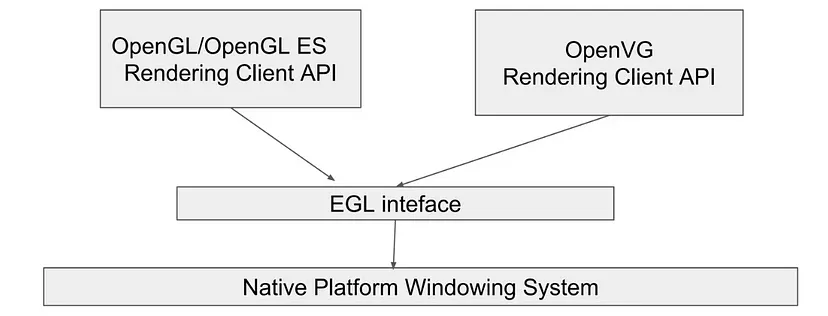
EGL (Embedded-system Graphics Library) is indeed an interface that serves as a bridge between Khronos rendering APIs like OpenGL, OpenGL ES, and OpenVG, and the underlying native platform’s windowing system. Its primary purpose is to facilitate graphics context management, surface and buffer creation, binding, rendering synchronization, and to enable high-performance mixed-mode 2D and 3D rendering using other Khronos APIs.
EGL provides a standardized way for applications to interact with the graphics hardware, regardless of the specific platform or device they are running on. By abstracting the complexities of the native windowing system and hardware, EGL offers developers a consistent interface to work with graphics rendering, making it easier to create visually appealing and efficient graphics-intensive applications.
Let’s break down the key points of EGL’s role
Interface for Rendering APIs:EGL acts as a bridge between various Khronos rendering APIs and the underlying platform’s windowing system. This allows applications to seamlessly use these rendering APIs for graphics operations while abstracting the platform-specific details.
Graphics Context Management:EGL manages the graphics context, which includes the state of OpenGL, OpenGL ES, or OpenVG rendering. The context holds information about shaders, textures, buffers, and other rendering resources. Efficient context management is crucial for optimizing rendering performance.
Surface and Buffer Handling:EGL is responsible for creating and managing rendering surfaces and buffers. These surfaces can be windows, off-screen images (pixmaps), or pixel buffers. EGL provides functions to create these surfaces, bind them to rendering contexts, and handle buffer swapping for display.
Rendering Synchronization:EGL ensures proper synchronization between the rendering operations and the native windowing system. This synchronization is crucial to prevent artifacts, tearing, and other visual inconsistencies during rendering.
Mixed-Mode 2D and 3D Rendering:EGL enables the integration of different Khronos APIs, allowing applications to seamlessly combine 2D and 3D graphics rendering. This is particularly valuable for creating rich and versatile graphical experiences.
High-Performance Graphics: By abstracting hardware-specific details and optimizing resource sharing, EGL contributes to achieving high-performance graphics rendering. This is especially important for resource-constrained environments like mobile devices and embedded systems.
Why Use EGL for Graphics Rendering?
When it comes to graphics rendering using APIs like OpenGL ES or OpenVG, EGL (Embedded-system Graphics Library) steps in as a crucial facilitator. It might seem like an extra layer, but it offers several important benefits that make it an essential part of the graphics pipeline. Let’s delve into why EGL is so important:
Managing Rendering Context:Before you start drawing any graphics, you need a “context” — it’s like a container that holds all the necessary settings and states for OpenGL ES or OpenVG. EGL creates and manages this context, ensuring that your graphics rendering has the right environment to work in.
Creating Surfaces:Think of surfaces as the canvas where your graphics will be painted. EGL provides mechanisms to create these surfaces. Whether you’re rendering to a window on the screen or an off-screen image (pixmap), EGL takes care of setting up the right surface for you.
Buffer Buffet: Surfaces come with buffers — memory areas where your graphics data resides. EGL lets you specify the type of buffers you need, ensuring that your graphics commands have a place to “draw” on.
Integration with OpenGL ES and OpenVG:APIs like OpenGL ES and OpenVG are the artists that create stunning visuals. But these artists need a studio (rendering context) and a canvas (surface) to work their magic. EGL creates a seamless connection between them, making sure they understand each other’s needs and collaborate effectively.
Abstraction from Hardware:Different devices and platforms have different ways of handling graphics. EGL acts as a translator between your graphics code and the underlying hardware, ensuring your code remains consistent even if you switch devices or platforms.
Efficient Resource Management: Managing resources like memory and processing power is crucial for performance. EGL helps in the efficient sharing of resources between surfaces and contexts, making sure you get the best out of your hardware.
Mixed-mode Rendering: Sometimes, you want to combine 2D and 3D graphics. EGL enables this harmonious blending of different graphic styles, resulting in richer and more versatile visuals.
Synchronization and Display: EGL takes care of the timing — it ensures that your beautifully rendered graphics appear on the screen at the right moment, without flickering or tearing. It’s like conducting an orchestra of pixels!
Cross-Platform Compatibility:Since EGL offers a standardized way of working with rendering contexts and surfaces, you can develop graphics-intensive applications that work across different devices and platforms without rewriting your code from scratch.
In a nutshell, EGL is like the director on a movie set — it coordinates all the elements, makes sure they work together seamlessly and ensures the final product is a masterpiece. So, the next time you see stunning graphics on your favorite mobile app or game, remember that EGL played a significant role in making it look and perform so well!
EGL Provides
EGL is an interface between graphics APIs and the underlying native window system. It provides mechanisms for:
Communicating with the native windowing system: EGL provides a way for graphics APIs to interact with the native windowing system of the device. This includes creating and managing windows and rendering graphics to those windows.
Querying the available types and configurations of drawing surfaces: EGL provides a way for graphics APIs to query the available types and configurations of drawing surfaces. This information can be used to choose the best drawing surface for a particular application.
Creating drawing surfaces: EGL provides a way for graphics APIs to create drawing surfaces. Drawing surfaces are the objects that graphics APIs use to render graphics to the screen.
Synchronizing rendering between OpenGL ES 3.0 and other graphics-rendering APIs: EGL provides a way for graphics APIs to synchronize their rendering with each other. This is important for applications that use multiple graphics APIs, such as OpenGL ES and OpenVG.
Managing rendering resources such as texture maps: EGL provides a way for graphics APIs to manage rendering resources such as texture maps. This includes creating, loading, and unloading texture maps.
Key Components of EGL
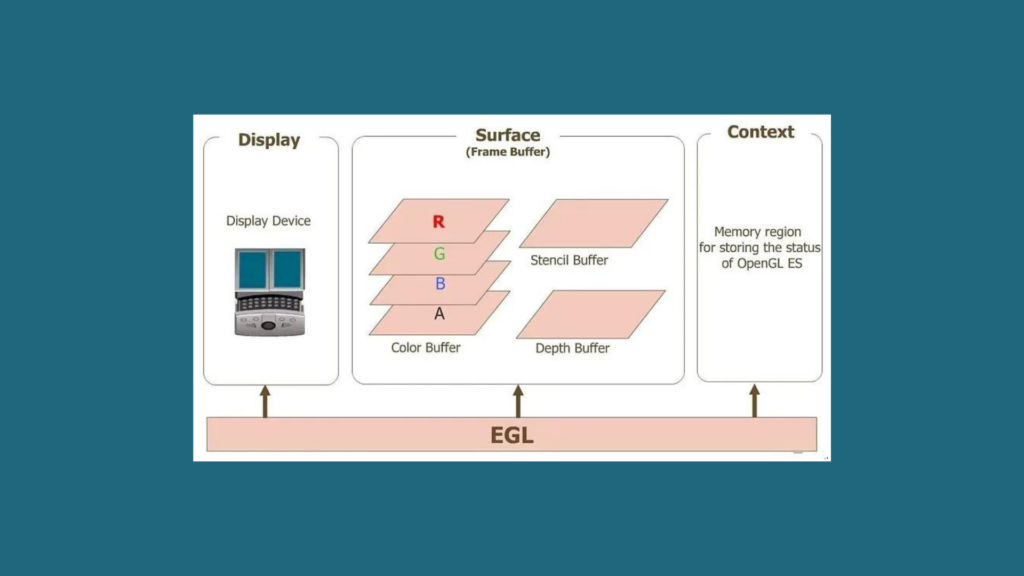
Display: The display is a fundamental concept in EGL, representing the rendering target. It could be a physical screen, a frame buffer, or any other rendering surface. EGL provides functions to enumerate and select displays based on their capabilities.
Surface: A surface represents an area on the display where graphics can be drawn. EGL supports different types of surfaces, including windows, pixmaps (off-screen images), and pbuffers (pixel buffers). Applications create surfaces to render graphics onto them.
Context: The context defines the state associated with OpenGL ES rendering, including shader programs, textures, and other rendering resources. EGL contexts enable efficient sharing of resources between multiple surfaces and threads, improving performance and memory utilization.
Configurations:EGL configurations specify the attributes of the rendering surface and the capabilities required for rendering. Applications can query available configurations and choose the most suitable one based on their requirements.
Working with EGL in Android
Understanding how EGL is used within the Android ecosystem can provide insight into its significance.
Initialization:The EGL initialization process involves querying and setting up the display, choosing an appropriate configuration, and creating a rendering context. This initialization is typically done when the application starts.
Surface Creation:Applications create surfaces using EGL functions, specifying the type of surface (window, pixmap, pbuffer) and the associated attributes. These surfaces serve as the canvas for rendering graphics.
Rendering: Once the surface is created and the context is set, applications can use OpenGL ES to render graphics. EGL manages the interaction between the rendering context and the surface, ensuring that the graphics commands are properly directed.
Buffer Swapping:EGL manages the presentation of rendered content on the display. Applications use the EGL function eglSwapBuffers() to swap the front and back buffers of the rendering surface, making the newly rendered content visible to the user.
Resource Management: EGL contexts allow efficient sharing of resources between surfaces and threads. This is crucial for optimizing memory usage and rendering performance, especially in scenarios where multiple surfaces need to be rendered simultaneously.
Significance of EGL in Android
Android EGL plays a pivotal role in delivering a smooth and visually appealing user experience. Its significance can be understood through the following points:
Hardware Abstraction: EGL abstracts the underlying graphics hardware, allowing applications to target a variety of devices without needing to deal with hardware-specific intricacies.
Optimized Rendering: By managing rendering contexts and resource sharing, EGL helps in optimizing graphics rendering, leading to improved performance and responsiveness.
Multiple Surfaces: EGL enables the creation and management of multiple rendering surfaces, essential for scenarios like split-screen multitasking and concurrent rendering.
Cross-Platform Compatibility: EGL is an open standard, making it possible to port graphics-intensive applications across different platforms that support EGL, not limited to Android.
Integration with OpenGL ES: EGL seamlessly integrates with OpenGL ES, providing a comprehensive graphics solution for Android applications.
Conclusion
In the realm of mobile and embedded systems, Android EGL stands as a cornerstone for efficient graphics rendering. By abstracting the complexities of hardware and offering a standardized interface, EGL empowers developers to create visually stunning and high-performance applications. Understanding the components and workings of EGL provides developers with the tools to leverage its power effectively, delivering engaging user experiences on a wide range of Android devices. As technology continues to advance, Android EGL will undoubtedly continue to play a vital role in shaping the future of graphics rendering in the embedded system landscape.
In the fast-paced world of automotive technology, every second counts, especially when it comes to ensuring the safety of both drivers and pedestrians. One crucial component in modern vehicles is the rearview camera, which provides drivers with a clear view of what’s behind them. However, the challenge arises when the camera system needs to be up and running within mere seconds of ignition, while the Android operating system, which controls many of the vehicle’s functions, takes significantly longer to boot. In this blog, we will explore a groundbreaking solution to this problem — the Exterior View System (EVS), a self-contained application designed to minimize the delay between ignition and camera activation.
Problem
In vehicles, there is a camera located at the rear (back) of the vehicle to provide the driver with a view of what’s behind them. This camera is useful for parking, reversing, and overall safety. However, there is a requirement that this rearview camera should be able to show images on the display screen within 2 seconds of the vehicle’s ignition (engine start) being turned on.
Challenge
The challenge is that many vehicles use the Android operating system to power their infotainment systems, including the display screen where the rearview camera’s images are shown. Android, like any computer system, takes some time to start up. In this case, it takes tens of seconds (meaning around 10 or more seconds) for Android to fully boot up and become operational after the ignition is turned on.
Solution is Exterior View System (EVS)
Exterior View System (EVS): To address the problem of the slow boot time of Android and ensure that the rearview camera can show images within the required 2 seconds, a solution called the Exterior View System (EVS) is proposed.
So, What is Exterior View System (EVS)
The Exterior View System (EVS) emerges as a pioneering solution to the problem of delayed camera activation. Unlike traditional camera systems that rely heavily on the Android OS, EVS is an independent application developed in C++. This approach drastically reduces the system’s dependency on Android, allowing EVS to become operational within a mere two seconds of ignition.
The Exterior View System (EVS) in Android Automotive is a hardware abstraction layer (HAL) that provides support for rearview and surround view cameras in vehicles. EVS enables OEMs to develop and deploy advanced driver assistance systems (ADAS) and other safety features that rely on multiple camera views.
The EVS HAL consists of a number of components, including:
A camera manager that provides access to the vehicle’s cameras
A display manager that controls the output of the camera streams
A frame buffer manager that manages the memory used to store camera frames
A sensor fusion module that combines data from multiple cameras to create a single, unified view of the vehicle’s surroundings.
EVS is a key component of Android Automotive’s ADAS and safety features. It enables vehicles to provide drivers with a comprehensive view of their surroundings, which can help to prevent accidents.
Here are some of the benefits of using EVS in Android Automotive:
Improved safety:EVS can help to prevent accidents by providing drivers with a comprehensive view of their surroundings. This is especially helpful in low-visibility conditions, such as at night or in bad weather.
Advanced driver assistance features: EVS can be used to power advanced driver assistance features, such as lane departure warning, blind spot monitoring, and parking assist. These features can help to make driving safer and more convenient.
Enhanced user experience:EVS can be used to enhance the user experience of Android Automotive by providing drivers with a more immersive view of their surroundings. This can be helpful for navigation, entertainment, and other tasks.
If you are looking for a safe and advanced driving experience, then Android Automotive with EVS is a great option.
Here are some examples of how EVS can be used in Android Automotive:
Rearview camera:A rearview camera can be used to provide drivers with a view of the area behind their vehicle. This can be helpful for backing up and parking.
Sideview cameras:Sideview cameras can be used to provide drivers with a view of the area to the sides of their vehicle. This can be helpful for changing lanes and avoiding obstacles.
Surround-view cameras:Surround-view cameras can be used to provide drivers with a 360-degree view of the area around their vehicle. This can be helpful for parking in tight spaces and maneuvering in difficult conditions.
Lane departure warning: Lane departure warning uses EVS to detect when the vehicle is drifting out of its lane. If the vehicle starts to drift, the system will alert the driver and may even apply the brakes to help keep the vehicle in its lane.
Blind spot monitoring:Blind spot monitoring uses EVS to detect vehicles in the driver’s blind spots. If a vehicle is detected in the blind spot, the system will alert the driver with a visual or audible warning.
Parking assist: Parking assist uses EVS to help drivers park their vehicles. The system will provide guidance on how to steer and brake, and it may even automatically control the steering wheel and brakes.
These are just a few examples of how EVS can be used in Android Automotive. As the technology continues to develop, we can expect to see even more innovative and advanced uses for EVS in the future.
BTW, Why EVS is introduced?
The introduction of the Exterior View System (EVS) serves several key purposes, each of which contributes to its significance:
SIMPLE: Support camera and view display with a simplified design
EVS is designed to provide a straightforward and uncomplicated way to manage camera input and display views. Its primary goal is to make it easy for developers to work with cameras and show what they capture on the screen. By offering a simplified design, EVS reduces complexity, making it more efficient to integrate camera functionality into applications.
EARLY: Intend to show display very early in the Android boot process
One of the primary motivations behind EVS is to ensure that camera views can be displayed as quickly as possible after the ignition of the vehicle. Traditional Android boot times can be relatively long, potentially delaying the display of camera feeds. EVS addresses this issue by functioning independently of the Android operating system and initiating the camera display within just a few seconds of starting the vehicle. This capability enhances user experience by providing prompt access to crucial camera information.
EXTENSIBLE: Enables advanced features to be implemented in user apps
EVS is designed with extensibility in mind, allowing developers to implement advanced features and functionalities within their applications. By providing a framework that can be built upon, EVS empowers app creators to integrate innovative and sophisticated camera-related features, enhancing the overall capabilities of their applications. This extensibility promotes creativity and enables the development of unique and tailored user experiences.
Overall, the introduction of EVS is driven by the desire to simplify camera and view display functionality, ensure early access to camera views during the Android boot process, and provide a platform for the implementation of advanced and customizable features within user applications. This approach aims to enhance the efficiency, responsiveness, and versatility of camera-related functionalities in the context of Android-based systems.
EVS stack in Android
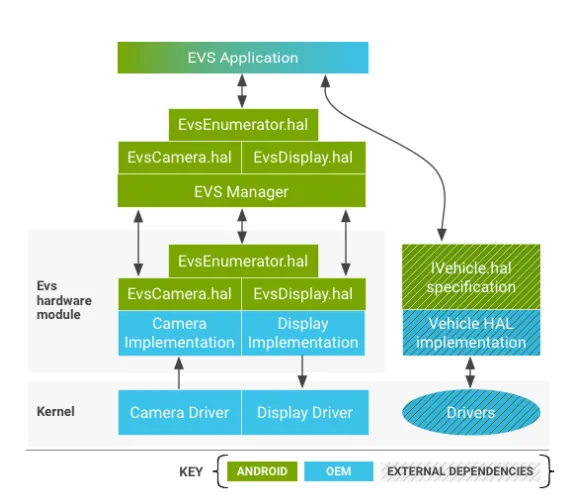
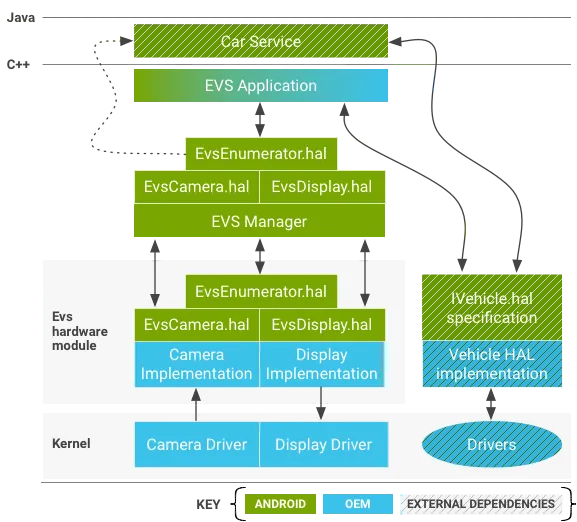
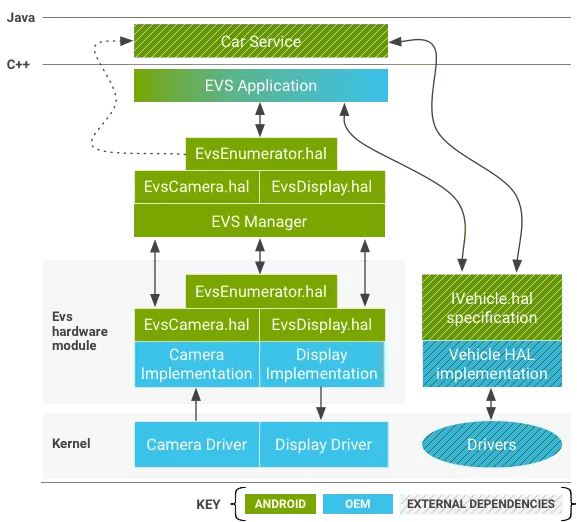
The EVS stack in Android consists of three main components that work together to facilitate the functioning of the Exterior View System:
EVS Stack in Android
EVS Application
The EVS application is composed of native code and is initiated by the init.rc (initialization script) during the system startup process. This application runs in the background even when it’s not actively being used by a user. Its primary purpose is to manage the processing and display of exterior camera views.
EVS Manager
The EVS Manager acts as an intermediary layer that connects the EVS application with the Hardware Abstraction Layer (HAL) and the user-facing applications. It essentially serves as a wrapper, facilitating communication and data exchange between these different components. Importantly, the EVS Manager can handle multiple concurrent clients, meaning that it can manage requests from multiple user applications that want to access and display camera views simultaneously.
EVS HAL (Hardware Abstraction Layer)
The EVS HAL is a crucial component that interacts with the underlying hardware and interfaces with the SurfaceFlinger module, which is responsible for rendering graphics on the screen. The EVS HAL is designed to be hardware-independent, meaning it can work with various types of hardware configurations. It plays a vital role in capturing camera data, processing it, and delivering it to the EVS Manager for further distribution to user applications.
Overall, the EVS stack in Android is structured to ensure efficient communication between the EVS application, the EVS Manager, and the EVS HAL. This stack enables the seamless management of exterior camera views, from capturing the data to processing it and finally displaying it to users through various applications.
Architecture
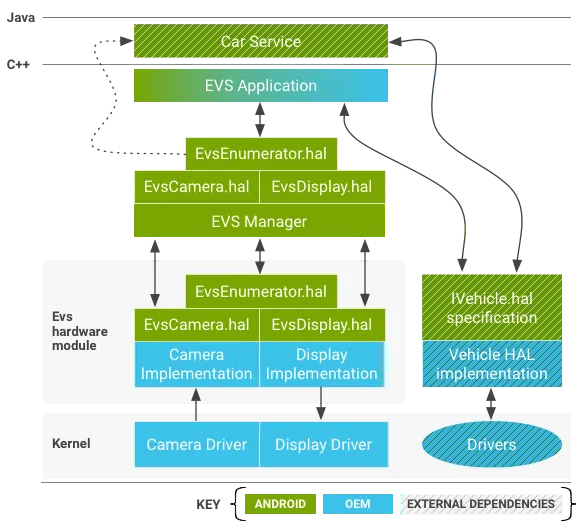
The Exterior View System’s architecture is designed to maximize efficiency and speed while maintaining a seamless user experience. The following system components are present in the EVS architecture:
EVS System components overview
EVS Application
There’s an EVS application example written in C++ that you can find at /packages/services/Car/evs/app. This example shows you how to use EVS. The job of this application is to ask the EVS Manager for video frames and then send these frames to the EVS Manager so they can be shown on the screen. It’s designed to start up as soon as the EVS and Car Service are ready, usually within two seconds after the car turns on. Car makers can change or use a different EVS application if they want to.
EVS Manager
The EVS Manager, located at /packages/services/Car/evs/manager, is like a toolbox for EVS applications. It helps these applications create different things, like showing a basic rearview camera view or even a complex 6DOF(Six degrees of freedom (6DOF) refers to the specific number of axes that a rigid body is able to freely move in three-dimensional space.) multi-camera 3D view. It talks to the applications through HIDL, a special communication way in Android. It can work with many applications at the same time.
Other programs, like the Car Service, can also talk to the EVS Manager. They can ask the EVS Manager if the EVS system is up and running or not. This helps them know when the EVS system is working.
EVS HIDL interface
The EVS HIDL interface is how the EVS system’s camera and display parts talk to each other. You can find this interface in the android.hardware.automotive.evs package. There’s an example version of it in /hardware/interfaces/automotive/evs/1.0/default that you can use to test things out. This example makes fake images and checks if they work properly.
The car maker (OEM) needs to make the actual code for this interface. The code is based on the .hal files in /hardware/interfaces/automotive/evs. This code sets up the real cameras, gets their data, and puts it in special memory areas that Gralloc (Gralloc is a type of shared memory that is also shared with the GPU)understands. The display part of the code has to make a memory area where the app can put its images (usually using something called EGL), and then it shows these images on the car screen. This display part is important because it makes sure the app’s images are shown instead of anything else on the screen. Car makers can put their own version of the EVS code in different places, like /vendor/… /device/… or hardware/… (for example, /hardware/[vendor]/[platform]/evs).
Kernel drivers
For a device to work with the EVS system, it needs special software called kernel drivers. If a device already has drivers for its camera and display, those drivers can often be used for EVS too. This can be helpful, especially for display drivers, because showing images might need to work together with other things happening in the device.
In Android 8.0, there’s an example driver based on something called v4l2 (you can find it in packages/services/Car/evs/sampleDriver). This driver uses the kernel for v4l2 support (a way to handle video) and uses something called SurfaceFlinger to show images.
It’s important to note that the sample driver uses SurfaceFlinger, which isn’t suitable for a real device because EVS needs to start quickly, even before SurfaceFlinger is fully ready. However, the sample driver is designed to work with different hardware and lets developers test and work on EVS applications at the same time as they develop EVS drivers.
EVS hardware interface description
In this section, we explain the Hardware Abstraction Layer (HAL) for the EVS (Exterior View System) in Android. Manufacturers need to create implementations of this HAL to match their hardware.
IEvsEnumerator
This object helps find available EVS hardware (cameras and the display) in the system.
getCameraList():Gets a list of all available cameras.
openCamera(string camera_id):Opens a specific camera for interaction.
closeCamera(IEvsCamera camera): Closes a camera.
openDisplay():Opens the EVS display.
closeDisplay(IEvsDisplay display):Closes the display.
getDisplayState():Gets the current display state.
IEvsCamera
This object represents a single camera and is the main interface for capturing images.
getCameraInfo():Gets information about the camera.
setMaxFramesInFlight(int32 bufferCount): Sets the maximum number of frames the camera can hold.
startVideoStream(IEvsCameraStream receiver):Starts receiving camera frames.
doneWithFrame(BufferDesc buffer):Signals that a frame is done being used.
It’s important to note that these interfaces help EVS applications communicate with the hardware and manage camera and display functionality. Manufacturers can customize these implementations to match their specific hardware features and capabilities.
IEvsCameraStream
The client uses this interface to receive video frames asynchronously.
deliverFrame(BufferDesc buffer):Called by the HAL whenever a video frame is ready. The client must return buffer handles using IEvsCamera::doneWithFrame(). When the video stream stops, this callback might continue as the pipeline drains. When the last frame is delivered, a NULL bufferHandle is sent, indicating the end of the stream. The NULL bufferHandle doesn’t need to be sent back using doneWithFrame(), but all other handles must be returned.
IEvsDisplay
This object represents the EVS display, controls its state, and handles image presentation.
getDisplayInfo():Gets basic information about the EVS display.
setDisplayState(DisplayState state): Sets the display state.
getDisplayState(): Gets the current display state.
getTargetBuffer():Gets a buffer handle associated with the display.
returnTargetBufferForDisplay(handle bufferHandle): Informs the display that a buffer is ready for display.
DisplayDesc
Describes the basic properties of an EVS display.
display_id:Unique identifier for the display.
vendor_flags:Additional information for a custom EVS Application.
DisplayState
Describes the state of the EVS display.
NOT_OPEN: Display has not been opened.
NOT_VISIBLE:Display is inhibited.
VISIBLE_ON_NEXT_FRAME:Will become visible with the next frame.
VISIBLE: Display is currently active.
DEAD:Display is not available, and the interface should be closed.
The IEvsCameraStream interface allows the client to receive video frames from the camera, while the IEvsDisplay interface manages the state and presentation of images on the EVS display. These interfaces help coordinate the communication between the EVS hardware and the application, ensuring smooth and synchronized operation.
EVS Manager
The EVS Manager is a component that acts as an intermediary between applications and the EVS Hardware API, which handles external camera views. The Manager provides shared access to cameras, allowing multiple applications to use camera streams concurrently. A primary EVS application is the main client of the Manager, with exclusive display access. Other clients can have read-only access to camera images.
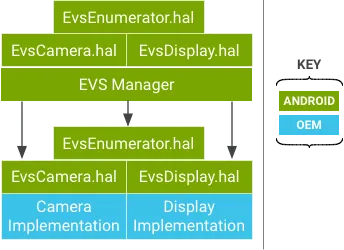
EVS Manager mirrors underlying EVS Hardware API
The EVS Manager offers the same API as the EVS Hardware drivers, except that the EVS Manager API allows concurrent camera stream access. The EVS Manager is, itself, the one allowed client of the EVS Hardware HAL layer, and acts as a proxy for the EVS Hardware HAL.
IEvsEnumerator
openCamera(string camera_id):Obtains an interface to interact with a specific camera. Multiple processes can open the same camera for video streaming.
IEvsCamera
startVideoStream(IEvsCameraStream receiver):Starts video streams independently for different clients. The camera starts when the first client begins.
doneWithFrame(uint32 frameId, handle bufferHandle): Returns a frame when a client is done with it. Other clients continue to receive all frames.
stopVideoStream(): Stops a video stream for a client, without affecting other clients.
setExtendedInfo(int32 opaqueIdentifier, int32 opaqueValue): Allows one client to affect another by sending driver-specific values.
IEvsDisplay
The EVS Manager passes the IEvsDisplay interface directly to the underlying HAL implementation.
In essence, the EVS Manager acts as a bridge, enabling multiple clients to utilize the EVS system simultaneously, while maintaining independent access to cameras. It provides flexibility and concurrent access to camera streams, enhancing the overall functionality of the EVS system.
Typical control flow
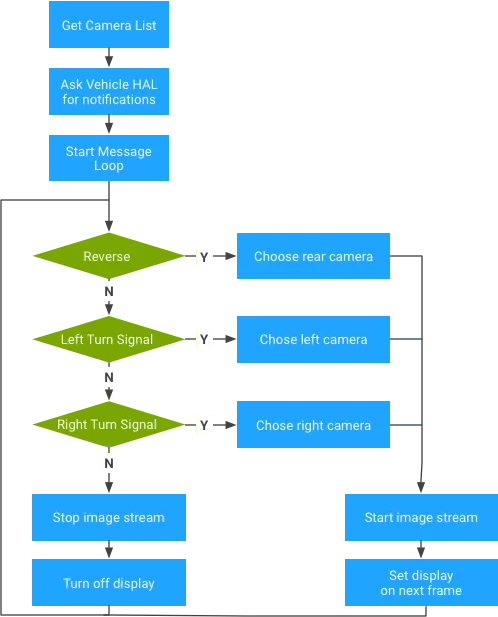
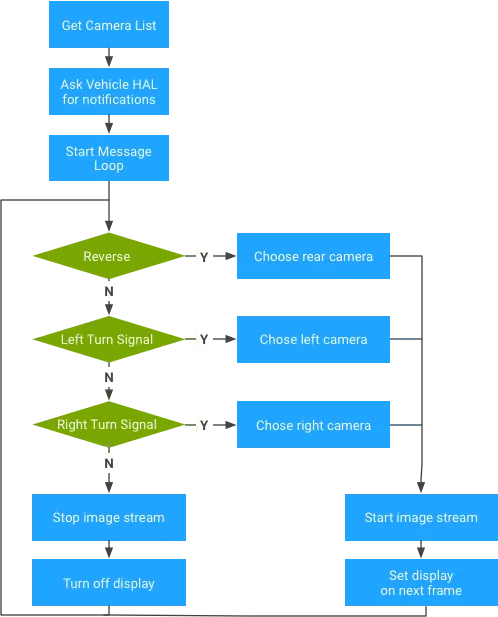
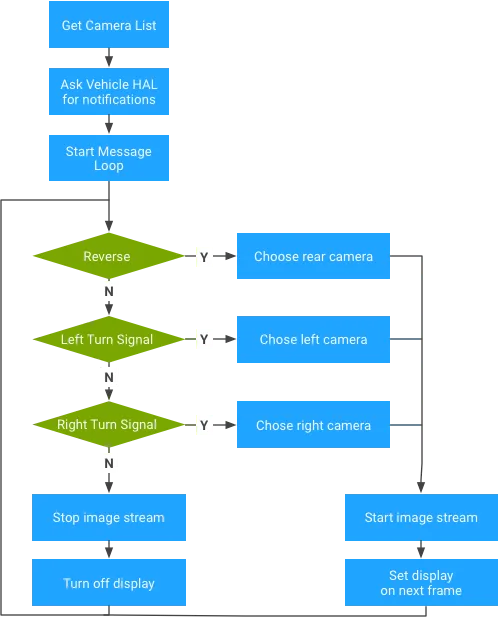
The EVS application in Android is a C++ program that interacts with the EVS Manager and Vehicle HAL to offer basic rearview camera functionality. It’s meant to start early in the system boot process and can show appropriate video based on available cameras and the car’s state (gear, turn signal). Manufacturers can customize or replace this application with their own logic and visuals.
EVS application sample logic, get camera list.
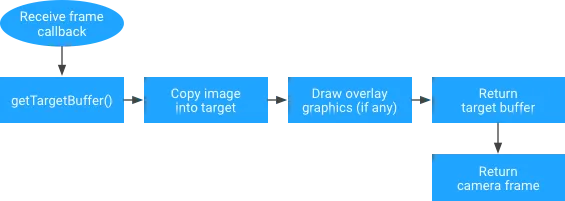
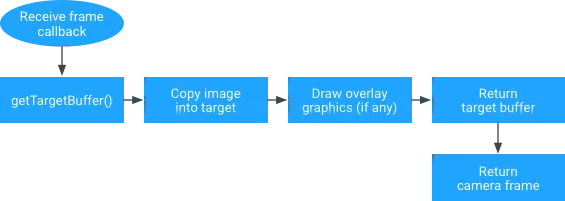
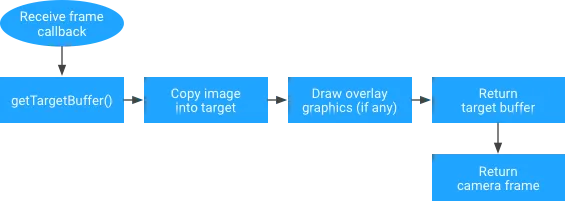
Since image data is provided in a standard graphics buffer, the application needs to move the image from the source buffer to the output buffer. This involves a data copy, but it also gives the app the flexibility to manipulate the image before displaying it.
For instance, the app could move pixel data while adding scaling or rotation. Alternatively, it could use the source image as an OpenGL texture and render a complex scene onto the output buffer, including virtual elements like icons, guidelines, and animations. More advanced applications might even combine multiple camera inputs into a single output frame for a top-down view of the vehicle surroundings.
Overall, the EVS application provides the essential connection between hardware and user presentation, allowing manufacturers to create custom and sophisticated visual experiences based on their specific vehicle designs and features.
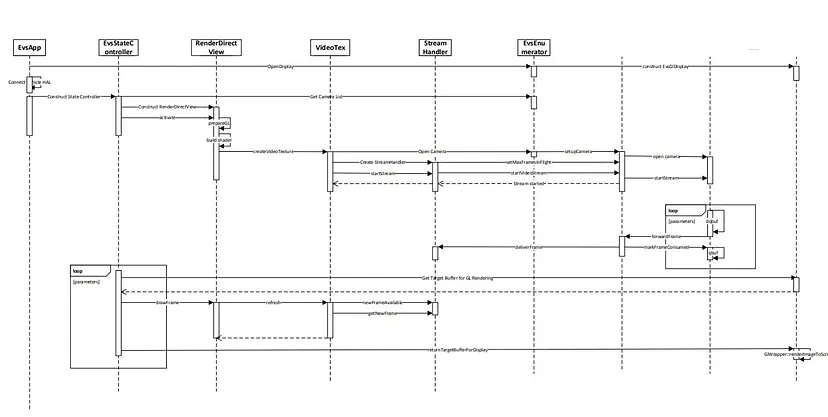
Boot Sequence Diagram
The boot sequence diagram outlines the steps involved in the initialization and operation of the Exterior View System (EVS) within the context of an Android-based system:
Communication with EVS Manager and Vehicle HAL
The process begins by establishing communication between the EVS Application and both the EVS Manager and the Vehicle HAL (Hardware Abstraction Layer). This communication enables the EVS Application to exchange information and commands with these two key components.
Infinite Loop for Monitoring Camera and Gear/Turn Signal State
Once communication is established, the EVS Application enters an infinite loop. This loop serves as the core operational mechanism of the system. Within this loop, the EVS Application constantly monitors two critical inputs: the camera state and the state of the vehicle’s gear or turn signals. These inputs help determine what needs to be displayed to the user.
Reaction to Camera and Vehicle State
Based on the monitored inputs, the EVS Application reacts accordingly. If the camera state changes (e.g., a new camera feed is available), the EVS Application processes the camera data. Similarly, if there’s a change in the gear or turn signal state, the system responds by updating the displayed content to provide relevant information to the driver.
Use of Source Image as OpenGL Texture and Rendering a Complex Scene
The EVS Application utilizes the source image from the camera feed as an OpenGL texture. OpenGL is a graphics rendering technology that enables the creation of complex visual scenes. The EVS Application takes advantage of this capability to render a sophisticated and informative scene. This scene, which includes data from the camera feed and potentially other elements, is then composed and prepared for display.
Rendering to the Output Buffer
The rendered scene is finally placed into the output buffer, which is essentially a designated area of memory used for displaying content on the screen. This process ensures that the composed scene, which combines the camera feed and other relevant information, is ready for presentation to the user.
In essence, the boot sequence diagram illustrates how the EVS Application interacts with the EVS Manager, the Vehicle HAL, and the hardware to continuously monitor camera and vehicle states, react to changes, create a visually informative scene, and render that scene for display on the screen. This orchestration ensures that the driver receives real-time and relevant exterior view information during the operation of the vehicle.
Boot Time Evaluation
The evaluation of boot time for the application involves ensuring that it is initiated promptly by the system’s initialization process. Specifically, the goal is for the application to start running as soon as the EVS Manager and the Vehicle HAL become available. This initiation is targeted to occur within a time frame of 2.0 seconds from the moment the power is turned on.
In simpler terms, the aim is to have the application up and running very quickly after the vehicle is powered on. This swift start time helps ensure that the Exterior View System (EVS) becomes operational without unnecessary delays, allowing the system to provide timely and accurate information to the user based on the exterior camera feeds and other relevant data.
Measured from Android first stage init
The evaluation of boot time is measured from the initial stage of the Android system’s initialization process. This means that the time it takes for the system to fully start up and become operational is calculated starting from the very beginning of the boot process. This measurement includes all the necessary tasks and processes that occur during the system’s startup sequence, such as loading essential components, initializing hardware, and launching applications.
In essence, boot time evaluation from Android first stage init provides a comprehensive view of the time it takes for the entire system to transition from a powered-off state to a fully functional state, including the initiation and execution of various components like the Exterior View System (EVS) application, EVS Manager, Vehicle HAL, and other crucial elements. The goal is to optimize and minimize this boot time to ensure efficient and timely access to the system’s functionalities and services.
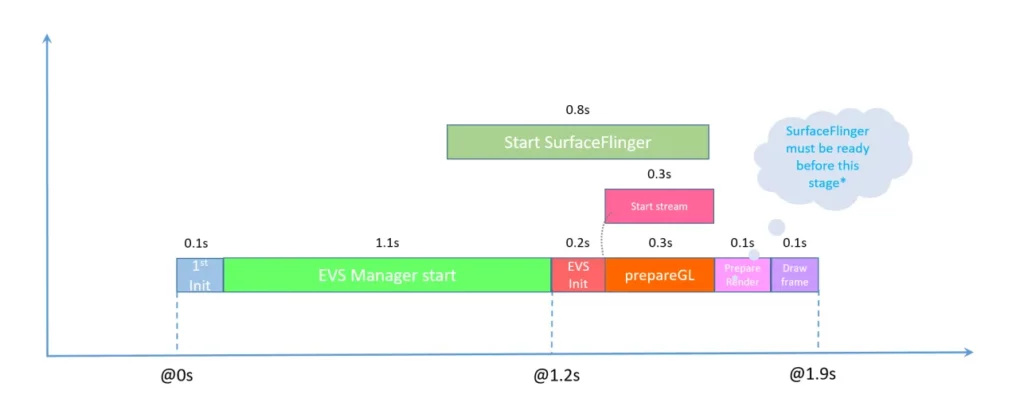
Quick Boot Optimization
Here’s an improved version with three steps to enhance the boot time of the system and the operation of the Exterior View System (EVS):
EVS App: Concurrent Camera Stream and GL Preparation
EVS App: Start Camera Stream with GL preparing concurrently
The EVS Application can be optimized to start the camera stream and simultaneously prepare the OpenGL (GL) rendering. By executing these tasks concurrently, the system can make more efficient use of available resources, reducing overall initialization time. This means that as the camera stream begins, the OpenGL components responsible for rendering the visuals are already being prepared, allowing for a smoother and quicker transition to displaying the camera views.
EVS HAL: Display Frames via Composer Service Early
EVS HAL: Display frames via composer service before SufaceFlinger is ready
The EVS Hardware Abstraction Layer (HAL) can be enhanced to leverage the composer service to display frames even before SurfaceFlinger is fully ready. By doing so, the system can start showing visual content sooner, improving the responsiveness of the user interface. This approach allows for an early display of camera frames and other graphics, enhancing the user experience by reducing any perceptible delay in visual feedback.
Android Init: Start EVS Services/HALs on Early-Init
Android Init: Start EVS related services/HALs earlier (on boot -> on early-init)
To further expedite the boot process and enable faster access to EVS-related functionalities, consider moving the initialization of EVS services and HALs to the “early-init” phase of the Android boot sequence. This adjustment ensures that essential EVS components are initiated earlier in the startup process, reducing the overall time it takes for the system to become fully operational. Starting EVS-related services and HALs at an earlier stage streamlines the boot process, making the EVS capabilities available to users more quickly after powering on the device.
By implementing these three steps, the boot time of the system can be significantly improved, and the operation of the Exterior View System can become more seamless and responsive, enhancing the overall user experience.
Optimization Breakdown
The optimization efforts yield significant improvements in the launch time of the Exterior View System (EVS) and the overall system boot time. Here’s a breakdown of the results:
Optimized EVS Launch Time
By implementing the proposed optimizations, the EVS launch time has been reduced to 1.1 seconds from the Android first stage initialization. This signifies a substantial improvement in getting the EVS system up and running promptly after the Android boot process starts.
Total System Boot Time
The total time required for the entire system to boot up, including bootloader and kernel time, has been reduced to approximately 3.0 seconds. This represents an impressive reduction in the time it takes for the system to become fully operational and ready for use.
Additionally, there’s an alternative scenario to consider:
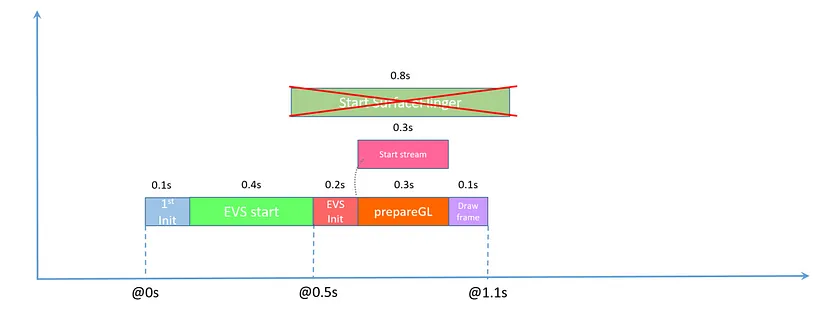
Reduced Texture Operations for Faster EVS Launch
If the GL (OpenGL) preparation and texture operations are removed from the EVS App, the launch time of EVS can be further decreased to 0.7 seconds. This change has a notable impact on getting the EVS system up and running even more swiftly after the Android boot process initiates.
Total Boot Time with Reduced Texture Operations
With the removal of texture operations, the total system boot time is reduced to approximately 2.6 seconds. This achievement demonstrates an even more streamlined boot process for the entire system.
Overall, the optimization efforts, along with the option to remove texture operations from the EVS App, have led to significant improvements in both the launch time of the EVS system and the overall boot time of the entire system on your hardware development board. These enhancements contribute to a more responsive and efficient user experience, allowing users to access and utilize the EVS functionality more quickly and effectively.
Display Sharing — EVS Priority and Mechanism
The integration of exterior cameras in vehicles has transformed the way drivers navigate their surroundings. From parallel parking to navigating tight spaces, these cameras offer valuable assistance. However, the challenge arises when determining how to seamlessly switch between the main display, which often serves multiple functions, and the exterior view provided by EVS. The solution lies in prioritizing EVS for display sharing.
EVS Priority over Main Display
The EVS application is designed to have priority over the main display. This means that when certain conditions are met, EVS can take control of the main display to show its content. The main display is the screen usually used for various functions, like entertainment, navigation, and other infotainment features.
Grabbing the Display
Whenever there’s a need to display images from an exterior camera (such as the rearview camera), the EVS application can “grab” or take control of the main display. This allows the camera images to be shown prominently to the driver, providing important visual information about the vehicle’s surroundings.
Example Scenario — Reverse Gear
One specific scenario where this display-sharing mechanism is used is when the vehicle’s reverse gear is selected. When the driver shifts the transmission into reverse, the EVS application can immediately take control of the main display to show the live feed from the rearview camera. This is crucial for assisting the driver in safely maneuvering the vehicle while reversing.
No Simultaneous Content Display
Importantly, there is no mechanism in place to allow both the EVS application and the Android operating system to display content simultaneously on the main display. In other words, only one of them can be active and show content at any given time.
In short, the concept of display sharing in this context involves the Exterior View System (EVS) having priority over the main display in the vehicle. EVS can take control of the main display whenever there’s a need to show images from an exterior camera, such as the rearview camera. This mechanism ensures that the driver receives timely and relevant visual information for safe driving. Additionally, it’s important to note that only one of the applications (EVS or Android) can display content on the main screen at a time; they do not operate simultaneously.
Conclusion
The Exterior View System (EVS) stands as a remarkable advancement in automotive technology, addressing the critical issue of swift camera activation during vehicle ignition. By employing a self-contained application with minimal dependencies on the Android operating system, EVS ensures that drivers have access to real-time camera images within a mere two seconds of starting the ignition. This breakthrough architecture, prioritized display sharing, and synchronized activation make EVS a game-changer in enhancing road safety and driver convenience.
As the automotive industry continues to evolve, innovations like the Exterior View System pave the way for a safer and more efficient driving experience. With EVS leading the charge, we can look forward to a future where technology seamlessly integrates with our everyday journeys, ensuring a smoother and more secure ride for all.
In the era of advanced driver assistance systems (ADAS) and autonomous vehicles, the integration of various sensors and cameras is crucial for ensuring safety and enhancing the overall driving experience. One integral component of this integration is the Vehicle Camera Hardware Abstraction Layer (HAL), a vital software framework that bridges the gap between hardware and software, enabling efficient communication and control over vehicle cameras. In this blog post, we will dive deep into the concept of Vehicle Camera HAL, its importance, architecture, and its role in shaping the future of automotive technology.
Vehicle Camera HAL
Android has a special part called the automotive HIDL Hardware Abstraction Layer (HAL), which helps with capturing and showing images right when Android starts up in cars. This part keeps working as long as the car system is on. It has something called the exterior view system (EVS) stack, which is like a set of tools to handle what the car’s cameras see. This is usually used for things like showing the rearview camera or a view of all around the car on the screen in cars with Android-based screens. The EVS system also helps to add fancy features to apps.
Android also has a special way for the EVS part to talk to the camera and screen (you can find it in /hardware/interfaces/automotive/evs/1.0). While you could make a rearview camera app using the normal Android camera and screen stuff, it might start too late when Android starts up. But using this special way (the dedicated HAL) makes it smoother and easier for the car maker to add the EVS system.
Architecture
The Exterior View System’s architecture is designed to maximize efficiency and speed while maintaining a seamless user experience. The following system components are present in the EVS architecture:
EVS System components overview
EVS Application
There’s an EVS application example written in C++ that you can find at /packages/services/Car/evs/app. This example shows you how to use EVS. The job of this application is to ask the EVS Manager for video frames and then send these frames to the EVS Manager so they can be shown on the screen. It’s designed to start up as soon as the EVS and Car Service are ready, usually within two seconds after the car turns on. Car makers can change or use a different EVS application if they want to.
EVS Manager
The EVS Manager, located at /packages/services/Car/evs/manager, is like a toolbox for EVS applications. It helps these applications create different things, like showing a basic rearview camera view or even a complex 6DOF(Six degrees of freedom (6DOF) refers to the specific number of axes that a rigid body is able to freely move in three-dimensional space.) multi-camera 3D view. It talks to the applications through HIDL, a special communication way in Android. It can work with many applications at the same time.
Other programs, like the Car Service, can also talk to the EVS Manager. They can ask the EVS Manager if the EVS system is up and running or not. This helps them know when the EVS system is working.
EVS HIDL interface
The EVS HIDL interface is how the EVS system’s camera and display parts talk to each other. You can find this interface in the android.hardware.automotive.evs package. There’s an example version of it in /hardware/interfaces/automotive/evs/1.0/default that you can use to test things out. This example makes fake images and checks if they work properly.
The car maker (OEM) needs to make the actual code for this interface. The code is based on the .hal files in /hardware/interfaces/automotive/evs. This code sets up the real cameras, gets their data, and puts it in special memory areas that Gralloc (Gralloc is a type of shared memory that is also shared with the GPU) understands. The display part of the code has to make a memory area where the app can put its images (usually using something called EGL), and then it shows these images on the car screen. This display part is important because it makes sure the app’s images are shown instead of anything else on the screen. Car makers can put their own version of the EVS code in different places, like /vendor/… /device/… or hardware/… (for example, /hardware/[vendor]/[platform]/evs).
Kernel drivers
For a device to work with the EVS system, it needs special software called kernel drivers. If a device already has drivers for its camera and display, those drivers can often be used for EVS too. This can be helpful, especially for display drivers, because showing images might need to work together with other things happening in the device.
In Android 8.0, there’s an example driver based on something called v4l2 (you can find it in packages/services/Car/evs/sampleDriver). This driver uses the kernel for v4l2support (a way to handle video) and uses something called SurfaceFlinger to show images.
It’s important to note that the sample driver uses SurfaceFlinger, which isn’t suitable for a real device because EVS needs to start quickly, even before SurfaceFlinger is fully ready. However, the sample driver is designed to work with different hardware and lets developers test and work on EVS applications at the same time as they develop EVS drivers.
EVS hardware interface description
In this section, we explain the Hardware Abstraction Layer (HAL) for the EVS (Exterior View System) in Android. Manufacturers need to create implementations of this HAL to match their hardware.
IEvsEnumerator
This object helps find available EVS hardware (cameras and the display) in the system.
getCameraList():Gets a list of all available cameras.
openCamera(string camera_id):Opens a specific camera for interaction.
closeCamera(IEvsCamera camera): Closes a camera.
openDisplay():Opens the EVS display.
closeDisplay(IEvsDisplay display):Closes the display.
getDisplayState():Gets the current display state.
IEvsCamera
This object represents a single camera and is the main interface for capturing images.
getCameraInfo():Gets information about the camera.
setMaxFramesInFlight(int32 bufferCount): Sets the maximum number of frames the camera can hold.
startVideoStream(IEvsCameraStream receiver):Starts receiving camera frames.
doneWithFrame(BufferDesc buffer):Signals that a frame is done being used.
It’s important to note that these interfaces help EVS applications communicate with the hardware and manage camera and display functionality. Manufacturers can customize these implementations to match their specific hardware features and capabilities.
IEvsCameraStream
The client uses this interface to receive video frames asynchronously.
deliverFrame(BufferDesc buffer):Called by the HAL whenever a video frame is ready. The client must return buffer handles using IEvsCamera::doneWithFrame(). When the video stream stops, this callback might continue as the pipeline drains. When the last frame is delivered, a NULL bufferHandle is sent, indicating the end of the stream. The NULL bufferHandle doesn\’t need to be sent back using doneWithFrame(), but all other handles must be returned.
IEvsDisplay
This object represents the EVS display, controls its state, and handles image presentation.
getDisplayInfo():Gets basic information about the EVS display.
setDisplayState(DisplayState state): Sets the display state.
getDisplayState(): Gets the current display state.
getTargetBuffer():Gets a buffer handle associated with the display.
returnTargetBufferForDisplay(handle bufferHandle): Informs the display that a buffer is ready for display.
DisplayDesc
Describes the basic properties of an EVS display.
display_id:Unique identifier for the display.
vendor_flags:Additional information for a custom EVS Application.
DisplayState
Describes the state of the EVS display.
NOT_OPEN: Display has not been opened.
NOT_VISIBLE:Display is inhibited.
VISIBLE_ON_NEXT_FRAME:Will become visible with the next frame.
VISIBLE: Display is currently active.
DEAD:Display is not available, and the interface should be closed.
The IEvsCameraStream interface allows the client to receive video frames from the camera, while the IEvsDisplay interface manages the state and presentation of images on the EVS display. These interfaces help coordinate the communication between the EVS hardware and the application, ensuring smooth and synchronized operation.
EVS Manager
The EVS Manager is a component that acts as an intermediary between applications and the EVS Hardware API, which handles external camera views. The Manager provides shared access to cameras, allowing multiple applications to use camera streams concurrently. A primary EVS application is the main client of the Manager, with exclusive display access. Other clients can have read-only access to camera images.
EVS Manager mirrors underlying EVS Hardware API
The EVS Manager offers the same API as the EVS Hardware drivers, except that the EVS Manager API allows concurrent camera stream access. The EVS Manager is, itself, the one allowed client of the EVS Hardware HAL layer, and acts as a proxy for the EVS Hardware HAL.
IEvsEnumerator
openCamera(string camera_id):Obtains an interface to interact with a specific camera. Multiple processes can open the same camera for video streaming.
IEvsCamera
startVideoStream(IEvsCameraStream receiver):Starts video streams independently for different clients. The camera starts when the first client begins.
doneWithFrame(uint32 frameId, handle bufferHandle): Returns a frame when a client is done with it. Other clients continue to receive all frames.
stopVideoStream(): Stops a video stream for a client, without affecting other clients.
setExtendedInfo(int32 opaqueIdentifier, int32 opaqueValue): Allows one client to affect another by sending driver-specific values.
IEvsDisplay
The EVS Manager passes the IEvsDisplay interface directly to the underlying HAL implementation.
In essence, the EVS Manager acts as a bridge, enabling multiple clients to utilize the EVS system simultaneously, while maintaining independent access to cameras. It provides flexibility and concurrent access to camera streams, enhancing the overall functionality of the EVS system.
EVS application
The EVS application in Android is a C++ program that interacts with the EVS Manager and Vehicle HAL to offer basic rearview camera functionality. It’s meant to start early in the system boot process and can show appropriate video based on available cameras and the car’s state (gear, turn signal). Manufacturers can customize or replace this application with their own logic and visuals.
EVS application sample logic, get camera list.
Since image data is provided in a standard graphics buffer, the application needs to move the image from the source buffer to the output buffer. This involves a data copy, but it also gives the app the flexibility to manipulate the image before displaying it.
For instance, the app could move pixel data while adding scaling or rotation. Alternatively, it could use the source image as an OpenGL texture and render a complex scene onto the output buffer, including virtual elements like icons, guidelines, and animations. More advanced applications might even combine multiple camera inputs into a single output frame for a top-down view of the vehicle surroundings.
Overall, the EVS application provides the essential connection between hardware and user presentation, allowing manufacturers to create custom and sophisticated visual experiences based on their specific vehicle designs and features.
Boot Sequence Diagram
The boot sequence diagram outlines the steps involved in the initialization and operation of the Exterior View System (EVS) within the context of an Android-based system:
Communication with EVS Manager and Vehicle HAL
The process begins by establishing communication between the EVS Application and both the EVS Manager and the Vehicle HAL (Hardware Abstraction Layer). This communication enables the EVS Application to exchange information and commands with these two key components.
Infinite Loop for Monitoring Camera and Gear/Turn Signal State
Once communication is established, the EVS Application enters an infinite loop. This loop serves as the core operational mechanism of the system. Within this loop, the EVS Application constantly monitors two critical inputs: the camera state and the state of the vehicle’s gear or turn signals. These inputs help determine what needs to be displayed to the user.
Reaction to Camera and Vehicle State
Based on the monitored inputs, the EVS Application reacts accordingly. If the camera state changes (e.g., a new camera feed is available), the EVS Application processes the camera data. Similarly, if there’s a change in the gear or turn signal state, the system responds by updating the displayed content to provide relevant information to the driver.
Use of Source Image as OpenGL Texture and Rendering a Complex Scene
The EVS Application utilizes the source image from the camera feed as an OpenGL texture. OpenGL is a graphics rendering technology that enables the creation of complex visual scenes. The EVS Application takes advantage of this capability to render a sophisticated and informative scene. This scene, which includes data from the camera feed and potentially other elements, is then composed and prepared for display.
Rendering to the Output Buffer
The rendered scene is finally placed into the output buffer, which is essentially a designated area of memory used for displaying content on the screen. This process ensures that the composed scene, which combines the camera feed and other relevant information, is ready for presentation to the user.
In essence, the boot sequence diagram illustrates how the EVS Application interacts with the EVS Manager, the Vehicle HAL, and the hardware to continuously monitor camera and vehicle states, react to changes, create a visually informative scene, and render that scene for display on the screen. This orchestration ensures that the driver receives real-time and relevant exterior view information during the operation of the vehicle.
Use the EGL/SurfaceFlinger in the EVS Display HAL
This section provides instructions on how to use the EGL/SurfaceFlinger in the EVS Display HAL implementation for Android 10. It includes details on building libgui for vendor processes, using binder in an EVS HAL implementation, SELinux policies, and building the EVS HAL reference implementation as a vendor process.
Building libgui for Vendor Processes
The libgui library is required to use EGL/SurfaceFlinger in EVS Display HAL implementations. To build libgui for vendor processes, create a new target in the build script that is identical to libgui but with some modifications by addition of two these fields:
For Android 8 (and higher), /dev/binder became exclusive to framework processes. Vendor processes should use /dev/hwbinder and convert AIDL interfaces to HIDL. You can use /dev/vndbinder to continue using AIDL interfaces between vendor processes.
Update your EVS HAL implementation to use /dev/binder for SurfaceFlinger:
#include <binder/ProcessState.h>

int main() {
    // ...

    // Use /dev/binder for SurfaceFlinger
    ProcessState::initWithDriver(\"/dev/binder\");

    // ...
}
SELinux Policies
Depending on your device’s implementation, SELinux policies may prevent vendor processes from using /dev/binder. You can modify SELinux policies to allow access to /dev/binder for your EVS HAL implementation:
# Allow to use /dev/binder
typeattribute hal_evs_driver binder_in_vendor_violators;

# Allow the driver to use the binder device
allow hal_evs_driver binder_device:chr_file rw_file_perms;
Building EVS HAL Reference Implementation as a Vendor Process
Modify your Android.mk file(packages/services/Car/evs/Android.mk) for the EVS HAL reference implementation to include libgui_vendor and set LOCAL_PROPRIETARY_MODULE to true:
# NOTE: It can be helpful, while debugging, to disable optimizations #LOCAL_CFLAGS += -O0 -g diff --git a/evs/sampleDriver/service.cpp b/evs/sampleDriver/service.cpp index d8fb31669..5fd029358 100644 --- a/evs/sampleDriver/service.cpp +++ b/evs/sampleDriver/service.cpp @@ -21,6 +21,7 @@ #include <utils/Errors.h> #include <utils/StrongPointer.h> #include <utils/Log.h> +#include <binder/ProcessState.h>
#include \"ServiceNames.h\" #include \"EvsEnumerator.h\" @@ -43,6 +44,9 @@ using namespace android; int main() { ALOGI(\"EVS Hardware Enumerator service is starting\"); + // Use /dev/binder for SurfaceFlinger + ProcessState::initWithDriver(\"/dev/binder\"); + // Start a thread to listen video device addition events. std::atomic<bool> running { true }; std::thread ueventHandler(EvsEnumerator::EvsUeventThread, std::ref(running)); diff --git a/evs/sepolicy/evs_driver.te b/evs/sepolicy/evs_driver.te index f1f31e9fc..632fc7337 100644 --- a/evs/sepolicy/evs_driver.te +++ b/evs/sepolicy/evs_driver.te @@ -3,6 +3,9 @@ type hal_evs_driver, domain, coredomain; hal_server_domain(hal_evs_driver, hal_evs) hal_client_domain(hal_evs_driver, hal_evs)
+# allow to use /dev/binder +typeattribute hal_evs_driver binder_in_vendor_violators; + # allow init to launch processes in this context type hal_evs_driver_exec, exec_type, file_type, system_file_type; init_daemon_domain(hal_evs_driver) @@ -22,3 +25,7 @@ allow hal_evs_driver ion_device:chr_file r_file_perms;
# Allow the driver to access kobject uevents allow hal_evs_driver self:netlink_kobject_uevent_socket create_socket_perms_no_ioctl; + +# Allow the driver to use the binder device +allow hal_evs_driver binder_device:chr_file rw_file_perms;
These instructions provide a step-by-step guide to incorporate EGL/SurfaceFlinger in your EVS Display HAL implementation for Android 10. Keep in mind that these steps might need further adaptation based on your specific device and implementation.
Conclusion
The Vehicle Camera Hardware Abstraction Layer (HAL) serves as a crucial link between the complex hardware of vehicle cameras and the software applications that leverage their capabilities. By abstracting hardware intricacies, standardizing interfaces, and optimizing performance, the HAL empowers automotive developers to focus on creating innovative applications and features that enhance driving safety and convenience. As the automotive industry continues to advance, the Vehicle Camera HAL will remain a cornerstone of the technology driving the vehicles of the future.
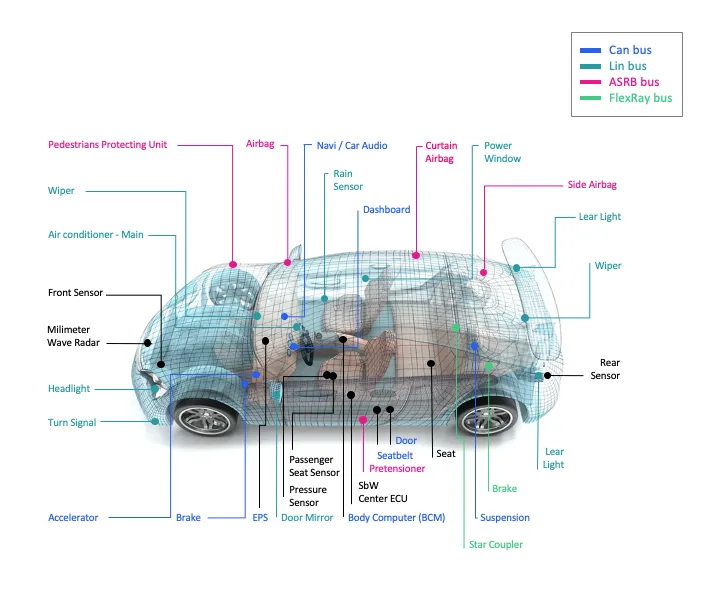
Android’s Vehicle Hardware Abstraction Layer (HAL) is a crucial component that facilitates communication between Android applications and the various sensors and signals within a vehicle. The Vehicle HAL stores information in the form of Vehicle Properties, which are often associated with signals on the vehicle bus. This blog will delve into the fundamental aspects of the Vehicle HAL, including Vehicle Properties, System Property Identifiers, extending VehicleProperty, and the essential functions defined in IVehicle.
Vehicle Hardware Abstraction Layer (Vehicle HAL / VHAL)
The Vehicle Hardware Abstraction Layer (VHAL) is like a bridge between Android software and the hardware inside a vehicle. It helps Android applications communicate with the different sensors and functions in a standardized way.
Think of the VHAL as a set of rules that the vehicle follows, telling it how to communicate with Android. These rules are called “properties.” Each property represents a specific function or piece of information inside the vehicle.
For example, one property could be the vehicle’s speed, another property could be the temperature setting for the heating system, and so on.
Properties have certain characteristics, like whether they contain whole numbers (integers) or decimal numbers (floats) and how they can be changed or accessed.
There are different ways to interact with properties:
Read: You can ask the vehicle for the current value of a property. For instance, you can read the speed property to know how fast the vehicle is going.
Write:You can set the value of a property programmatically. For example, you can write a new temperature setting to control the vehicle’s heating system.
Subscribe:You can subscribe to changes in a property, which means you will get notified whenever that property’s value changes. For instance, if you subscribe to the speed property, you will receive updates whenever the vehicle’s speed changes.
The VHAL interface provides a list of properties that vehicle manufacturers (OEMs) can implement in their vehicles. It also contains information about each property, such as what type of data it holds (int or float) and what change modes are allowed (e.g., reading, writing, or subscribing).
By following the VHAL rules and using properties, Android applications can communicate with the vehicle’s hardware without needing to know the specific details of each vehicle model. This abstraction makes it easier for developers to create apps that work across different types of vehicles, improving compatibility and user experience.
Vehicle properties
Vehicle Properties are pieces of information that represent various aspects of a vehicle’s hardware and functionality. Each property is uniquely identified by an integer (int32) key, which acts as its unique identifier.
Read-Only Properties
Definition:Read-only properties are those from which you can only retrieve information; you cannot change their values.
Usage:These properties provide information about the vehicle’s state or status, such as its current speed or fuel level.
Examples:The vehicle’s speed (FLOAT type), engine status (BOOLEAN type), or current timestamp (EPOCH_TIME type) are read-only properties.
Write-Only Properties
Definition: Write-only properties are used to send information to the Vehicle HAL; you cannot read their values.
Usage:These properties allow applications to pass data to the vehicle’s hardware or control certain functionalities.
Examples:Sending a command to turn on the headlights or adjusting the HVAC(Heating, Ventilation and Air Conditioning)system’s fan speed are actions facilitated by write-only properties.
Read-Write Properties
Definition:Read-write properties support both reading and writing operations, allowing you to both retrieve and change their values.
Usage:These properties enable two-way communication between applications and the vehicle’s hardware.
Examples: Setting the target temperature for the HVAC system (FLOAT type), adjusting the volume of the audio system (INT32 type), or configuring custom preferences (STRING type) are read-write properties.
Value Types
Vehicle Properties can have different value types, indicating the data format they use to store information. Some common value types include:
BYTES:Represents a sequence of raw binary data.
BOOLEAN:Represents a true/false value.
EPOCH_TIME: Represents a timestamp in the Unix Epoch time format (number of seconds since January 1, 1970).
FLOAT:Represents a single decimal number.
FLOAT[]: Represents an array of decimal numbers.
INT32: Represents a single whole number (integer).
INT32[]:Represents an array of whole numbers (integers).
INT64:Represents a single large whole number (long integer).
INT64[]: Represents an array of large whole numbers (long integers).
STRING:Represents a sequence of characters, such as text or words.
MIXED:Represents a combination of different data types within a single property.
Zoned Properties
Some properties are zoned, meaning they can have multiple values based on the number of zones supported. For example, a zoned property related to tire pressure may have different values for each tire. Zoned properties help account for variations across different parts of the vehicle.
Vehicle Properties in the Vehicle HAL can be read-only, write-only, or read-write, and each property has a specific value type associated with it. Zoned properties allow for multiple values based on the number of zones supported, catering to various parts or areas of the vehicle. Together, these properties facilitate seamless communication between Android applications and the vehicle’s hardware, enabling better control and monitoring of vehicle functionalities.
Area Types
Area Types in the Vehicle HAL define different areas within the vehicle, such as windows, mirrors, seats, doors, and wheels. Each area type serves as a category to organize and address specific parts of the vehicle.
The available Area Types are as follows:
GLOBAL:This area type represents a singleton area, which means it is a single entity with no multiple sub-areas.
WINDOW: This area type is based on windows and uses the VehicleAreaWindow enumeration to identify different window areas, such as front and rear windows.
MIRROR: This area type is based on mirrors and uses the VehicleAreaMirror enumeration to identify different mirror areas, such as left and right mirrors.
SEAT:This area type is based on seats and uses the VehicleAreaSeat enumeration to identify different seat areas, such as the front and rear seats.
DOOR:This area type is based on doors and uses the VehicleAreaDoor enumeration to identify different door areas, such as front and rear doors.
WHEEL:This area type is based on wheels and uses the VehicleAreaWheel enumeration to identify different wheel areas, such as the front-left and rear-right wheels.
Each zoned property must use a pre-defined area type, and each area type has a set of bit flags defined in its respective enum (e.g., VehicleAreaSeat has flags like ROW_1_LEFT, ROW_1_CENTER, ROW_1_RIGHT, etc.).
For example, the SEAT area defines VehicleAreaSeat enums:
ROW_1_LEFT = 0x0001
ROW_1_CENTER = 0x0002
ROW_1_RIGHT = 0x0004
ROW_2_LEFT = 0x0010
ROW_2_CENTER = 0x0020
ROW_2_RIGHT = 0x0040
ROW_3_LEFT = 0x0100
…
Area IDs
Zoned properties are addressed through Area IDs, which represent specific combinations of flags from their respective enum. Each zoned property may support one or more Area IDs to define the relevant areas within the vehicle.
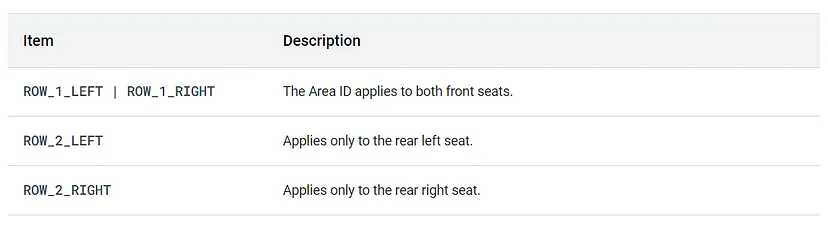
Area IDs
For example, if a property uses the VehicleAreaSeat area type, it might use the following Area IDs:
ROW_1_LEFT | ROW_1_RIGHT:This Area ID applies to both front seats, combining the flags for the left and right seats in the first row.
ROW_2_LEFT:This Area ID applies only to the rear left seat in the second row.
ROW_2_RIGHT:This Area ID applies only to the rear right seat in the second row.
By using Area IDs, zoned properties can target specific areas within the vehicle, allowing for more granular control and monitoring of different parts of the vehicle separately.
Property Status
Property Status in the Vehicle HAL indicates the current condition of a property’s value. Each property value is accompanied by a VehiclePropertyStatus value, which informs about the property’s availability and validity.
Every property value comes with a VehiclePropertyStatus value. This indicates the current status of the property:
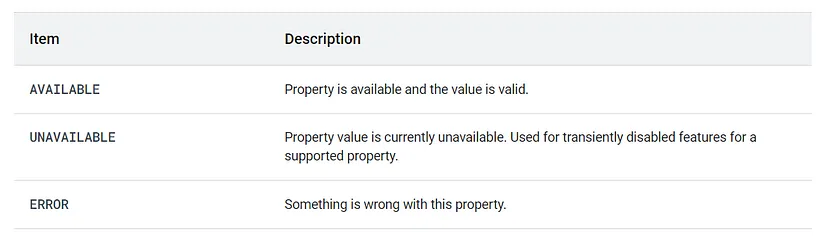
Property Status
Available Values of VehiclePropertyStatus:
AVAILABLE:This status indicates that the property is supported by the vehicle and the current value is valid and accessible. It means the property is ready to be read or written to.
UNAVAILABLE: When a property has the UNAVAILABLE status, it means the property value is currently unavailable or not accessible. This status is typically used for transient conditions, where a supported property might be temporarily disabled or unavailable. It is not meant to indicate that the property is unsupported in general.
ERROR:The ERROR status indicates that something is wrong with the property. This status might be used when there is a problem with retrieving or setting the property’s value, such as a communication issue or an internal error.
Important Note: It is essential to remember that if a property is not supported by the vehicle, it should not be included in the Vehicle HAL at all. In other words, unsupported properties should not be part of the VHAL interface. It is not acceptable to set the property status to UNAVAILABLE permanently just to denote an unsupported property.
Configuring a property
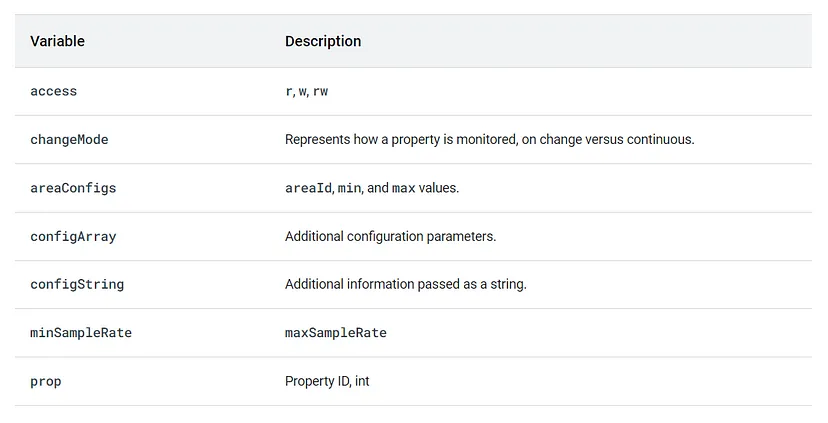
Configuring a property in the Vehicle HAL involves using the VehiclePropConfig structure to provide important configuration information for each property. This information includes various variables that help define how the property can be accessed, monitored, and controlled.
Use VehiclePropConfig to provide configuration information for each property. Information includes:
Configuring Property
Below are the details of the variables used in the configuration:
access
Description: The ‘access’ variable specifies the type of access allowed for the property.
Values: It can be set to one of the following:
1. Read-only access (Value: ‘r’):
Description: The property can be read but not modified.
Access Type: Read-only.
2.Write-only access (Value: ‘w’):
Description: The property can be written but not read.
Access Type: Write-only.
3. Read-write access (Value: ‘rw’):
Description: The property supports both reading and writing.
Access Type: Read-write.
changeMode
Description: The ‘changeMode’ variable represents how the property is monitored for changes.
Values: It can be set to either ‘ON_CHANGE’ or ‘CONTINUOUS.’
‘ON_CHANGE’:The property triggers an event only when its value changes.
‘CONTINUOUS’:The property is constantly changing, and the subscriber is notified at the sampling rate set.
areaConfigs
Description: The ‘areaConfigs’ variable contains configuration information for different areas associated with the property.
Information: It includes areaId, min, and max values.
areaId:Represents the Area ID associated with the property (e.g., ROW_1_LEFT, ROW_2_RIGHT).
min: Specifies the minimum valid value for the property.
max:Specifies the maximum valid value for the property.
configArray
Description: The ‘configArray’ variable is used to hold additional configuration parameters for the property.
Information: It can store an array of specific data related to the property.
configString
Description: The ‘configString’ variable is used to provide additional information related to the property as a string.
Information: It can hold any extra details or specifications for the property.
minSampleRate, maxSampleRate
Description: These variables specify the minimum and maximum sampling rates (measurement frequency) for the property when monitoring changes.
Information: They define how often the property values are checked for updates.
prop
Description: The ‘prop’ variable is the Property ID, an integer that uniquely identifies the property in the Vehicle HAL.
Information: Each property in the Vehicle HAL is assigned a specific Property ID, which acts as its unique identifier. This ID is used to access, configure, and interact with the property within the Vehicle HAL interface. It ensures that each property can be referenced uniquely, even if there are multiple properties with similar or related functionalities.
System Property Identifiers
System Property Identifiers in the Vehicle HAL are unique labels used to categorize and identify specific properties. They are marked with the tag “VehiclePropertyGroup:SYSTEM” to distinguish them from other types of properties.
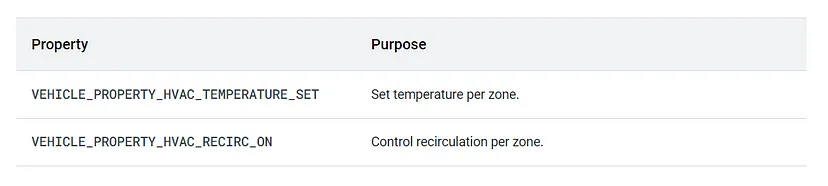
In Android 12, there are more than 150 such identifiers. Each identifier represents a different property related to the vehicle’s system and functionalities. For example, one of these identifiers is “HVAC_TEMPERATURE_SET,” which stands for the target temperature set for the vehicle’s HVAC system.
Let’s break down the details of the “HVAC_TEMPERATURE_SET” identifier:
Property Name:HVAC_TEMPERATURE_SET
Description:Represents the target temperature set for the HVAC (Heating, Ventilation, and Air Conditioning) system in the vehicle.
Change Mode:The property is monitored in the “ON_CHANGE” mode, which means an event is triggered whenever the target temperature changes.
Access: The property can be both read and written, allowing applications to retrieve the current target temperature and update it programmatically.
Unit:The temperature values are measured in Celsius (°C).
System Property Identifiers in the Vehicle HAL are unique labels that categorize different properties related to the vehicle’s system. They provide standardized access to various functionalities, such as setting the target temperature for the HVAC system. By using these identifiers, Android applications can seamlessly interact with the vehicle’s hardware, enhancing user experience and control over various vehicle features.
Handling zone properties
Handling zone properties involves dealing with collections of multiple properties, where each part can be accessed using a specific Area ID value. Here’s how the different calls work:
Get Calls:
When you make a “get” call for a zoned property, you must include the Area ID in the request.
As a result, only the current value for the requested Area ID is returned.
If the property is global (applies to all zones), the Area ID is set to 0.
Set Calls:
For a “set” call on a zoned property, you need to specify the Area ID.
This means that only the value for the requested Area ID will be changed.
Subscribe Calls:
A “subscribe” call generates events for all Area IDs associated with the property.
This means that whenever there is a change in any Area ID’s value, the subscribed function will be notified.
When dealing with zoned properties, using the Area ID allows you to access specific parts of the collection. “Get” calls return the current value for a specified Area ID, “Set” calls change the value for a requested Area ID, and “Subscribe” calls generate events for all Area IDs associated with the property.
Now, let’s look at specific scenarios for Get and Set calls:
Get Calls
During initialization, the value of the property may not be available yet due to pending vehicle network messages. In this case, the “get” call should return a special code, -EAGAIN, indicating that the value is not available yet.
Some properties, like HVAC (Heating, Ventilation, and Air Conditioning), have separate power properties to turn them on/off. When you “get” a property like HVAC Temperature and it’s powered off, it should return a status of UNAVAILABLE instead of an error.
Get HVAC temperature (CS = CarService, VHAL = Vehicle HAL)
Set Calls
A “set” call usually triggers a change request across the vehicle network. It’s ideally an asynchronous operation, returning as soon as possible, but it can also be synchronous if needed.
In some cases, a “set” call might require initial data that isn’t available during initialization. In such situations, the “set” call should return StatusCode#TRY_AGAIN to indicate that you should try again later.
For properties with separate power states (on and off), if the property is powered off and the “set” can’t be done, it should return StatusCode#NOT_AVAILABLE or StatusCode#NOT_AVAILABLE_DISABLED.
Until the “set” operation is complete and effective, the “get” call might not necessarily return the same value as what was set. For example, if you “set” the HVAC Temperature, the “get” call might not immediately reflect the new value until the change takes effect.
Set HVAC temperature (CS = CarService, VHAL = Vehicle HAL)
Handling custom properties
To support partner-specific needs, the VHAL allows custom properties that are restricted to system apps. Use the following guidelines when working with custom properties:
Property ID Generation:
Use the following format to generate the Property ID: VehiclePropertyGroup:VENDOR.
The VENDOR group should be used exclusively for custom properties.
Vehicle Area Type:
Select an appropriate area type(VehicleArea type) that best represents the scope of the custom property within the vehicle.
Vehicle Property Type:
Choose the proper data type for the custom property.
For most cases, the BYTES type is sufficient, allowing the passing of raw data.
Be cautious when adding a big payload, as frequently sending large data through custom properties can slow down the entire vehicle network access.
Property ID Format:
Choose a four-nibble ID for the custom property.
The format should consist of four hexadecimal characters.
Avoid Replicating Existing Vehicle Properties:
To prevent ecosystem fragmentation, do not use custom properties to replicate vehicle properties that already exist in the VehiclePropertyIds SDK.
In the VehiclePropConfig.configString field, provide a short description of the custom property. This helps sanity check tools flag accidental replication of existing vehicle properties. For example, you can use a description like “hazard light state.”
Accessing Custom Properties:
Access custom properties through CarPropertyManager for Java components or through the Vehicle Network Service API for native components.
Avoid modifying other car APIs to prevent future compatibility issues.
Permissions for Vendor Properties:
After implementing vendor properties, select only the permissions list in the VehicleVendorPermission enum for vendor properties.
Avoid mapping vendor permissions to system properties to prevent breaking the Compatibility Test Suite (CTS) and Vendor Test Suite (VTS).
By following these guidelines, you can create and manage custom properties in the VHAL effectively while ensuring compatibility and preventing fragmentation within the ecosystem.
Handling HVAC properties
Handling HVAC properties in the VHAL (Vehicle Hardware Abstraction Layer) involves controlling various aspects of the HVAC system in a vehicle. Most HVAC properties are zoned properties, meaning they can be controlled separately for different zones or areas in the vehicle. However, some properties are global, affecting the entire vehicle’s HVAC system.
HVAC properties
Above two sample-defined HVAC properties are:
VEHICLE_PROPERTY_HVAC_TEMPERATURE_SET:This property is used to set the temperature per zone in the vehicle.
VEHICLE_PROPERTY_HVAC_RECIRC_ON:This property is used to control recirculation per zone.
To see a complete list of available HVAC properties, you can search for properties starting with VEHICLE_PROPERTY_HVAC_* in the types.hal file.
When the HVAC property uses VehicleAreaSeat, there are additional rules for mapping a zoned HVAC property to Area IDs. Each available seat in the car must be part of an Area ID in the Area ID array.
Let’s take two examples to better understand how to map HVAC_TEMPERATURE_SET to Area IDs:
Example One:
Car Configuration: The car has two front seats (ROW_1_LEFT, ROW_1_RIGHT) and three back seats (ROW_2_LEFT, ROW_2_CENTER, ROW_2_RIGHT).
HVAC Units: The car has two temperature control units: one for the driver side and one for the passenger side.
A valid mapping set of Area IDs for HVAC_TEMPERATURE_SET is:
Driver side temperature control: ROW_1_LEFT | ROW_2_LEFT
Passenger side temperature control: ROW_1_RIGHT | ROW_2_CENTER | ROW_2_RIGHT
An alternative mapping for the same hardware configuration is:
Driver side temperature control: ROW_1_LEFT | ROW_2_LEFT | ROW_2_CENTER
Passenger side temperature control: ROW_1_RIGHT | ROW_2_RIGHT
Example Two:
Car Configuration: The car has three seat rows with two seats in the front row (ROW_1_LEFT, ROW_1_RIGHT), three seats in the second row (ROW_2_LEFT, ROW_2_CENTER, ROW_2_RIGHT), and three seats in the third row (ROW_3_LEFT, ROW_3_CENTER, ROW_3_RIGHT).
HVAC Units: The car has three temperature control units: one for the driver side, one for the passenger side, and one for the rear.
A reasonable way to map HVAC_TEMPERATURE_SET to Area IDs is as a three-element array:
Keep in mind that the exact mapping of HVAC properties to Area IDs may vary based on the vehicle’s hardware configuration and the HVAC system’s design. The examples provided above demonstrate how different seat configurations and HVAC units can influence the mapping of HVAC properties to specific zones in the vehicle.
Handling sensor properties
VHAL sensor properties are a way for apps to access real sensor data or policy information from the vehicle. Some sensor information, such as driving status and day/night mode, is accessible by any app without restriction. This is because this data is mandatory to build a safe vehicle application. Other sensor information, such as vehicle speed, is more sensitive and requires specific permissions that users can manage.
The supported sensor properties are defined in the types.hal file. This file lists all of the available sensor properties, along with their type, access permissions, and other metadata.
To access a VHAL sensor property, an app must first obtain a reference to the IVehicle interface. This interface provides methods for reading, writing, and subscribing to sensor properties.
Once the app has a reference to the IVehicle interface, it can use the get method to read the value of a sensor property. The get method takes the property ID as an argument and returns the value of the property.
The app can also use the set method to write the value of a sensor property. The set method takes the property ID and the new value as arguments.
To subscribe to a sensor property, the app can use the subscribe method. The subscribe method takes the property ID and a callback as arguments. The callback will be invoked whenever the value of the property changes.
Here is an example of how to access a VHAL sensor property:
// Get a reference to the IVehicle interface.
IVehicle vehicle = VehicleManager.getVehicle();

// Get the value of the driving status property.
int drivingStatus = vehicle.get(VehiclePropertyIds.DRIVING_STATUS);

// If the vehicle is driving, turn on the headlights.
if (drivingStatus == 1) {
  vehicle.set(VehiclePropertyIds.HEADLIGHTS, 1);
}
HAL interfaces
The Vehicle Hardware Abstraction Layer (VHAL) is a HAL interface that allows apps to access vehicle properties. The VHAL provides a number of interfaces that can be used to read, write, and subscribe to vehicle properties.
The getAllPropConfigs() interface returns a list of all the properties that are supported by the VHAL. The getPropConfigs() interface returns the configuration of a specific property. The set() interface allows you to write a value to a property. The subscribe() interface allows you to subscribe to a property so that you are notified when its value changes.
The VHAL also provides two callback interfaces: onPropertyEvent() and onPropertySetError(). The onPropertyEvent() interface is called whenever the value of a property that you are subscribed to changes. The onPropertySetError() interface is called if an error occurs when you try to set the value of a property.
Here is just a recap of the above example of how to use the VHAL to read the value of the driving status property:
// Get a reference to the IVehicle interface.
IVehicle vehicle = VehicleManager.getVehicle();

// Get the value of the driving status property.
int drivingStatus = vehicle.get(VehiclePropertyIds.DRIVING_STATUS);
Here is a brief explanation of the HAL interfaces:
VHAL Interfaces:
IVehicle.hal file
Please note that the below .hal files are not Java, C++ or scss files (I selected auto mode so it will take Java, C++, or scss)
BTW, What is .hal file?
A .hal file is a Hardware Abstraction Layer (HAL) file that defines the interface between a hardware device and the Android operating system. HAL files are written in the Hardware Interface Description Language (HIDL), which is a language for describing hardware interfaces in a platform-independent way.
package [email protected];
import IVehicleCallback;
interface IVehicle {
  /**
   * Returns a list of all property configurations supported by this vehicle
   * HAL.
   */
  getAllPropConfigs() generates (vec<VehiclePropConfig> propConfigs);
  /**
   * Returns a list of property configurations for given properties.
   *
   * If requested VehicleProperty wasn't found it must return
   * StatusCode::INVALID_ARG, otherwise a list of vehicle property
   * configurations with StatusCode::OK
   */
  getPropConfigs(vec<int32_t> props)
          generates (StatusCode status, vec<VehiclePropConfig> propConfigs);
  /**
   * Get a vehicle property value.
   *
   * For VehiclePropertyChangeMode::STATIC properties, this method must always
   * return the same value always.
   * For VehiclePropertyChangeMode::ON_CHANGE properties, it must return the
   * latest available value.
   *
   * Some properties like AUDIO_VOLUME requires to pass additional data in
   * GET request in VehiclePropValue object.
   *
   * If there is no data available yet, which can happen during initial stage,
   * this call must return immediately with an error code of
   * StatusCode::TRY_AGAIN.
   */
  get(VehiclePropValue requestedPropValue)
          generates (StatusCode status, VehiclePropValue propValue);
  /**
   * Set a vehicle property value.
   *
   * Timestamp of data must be ignored for set operation.
   *
   * Setting some properties require having initial state available. If initial
   * data is not available yet this call must return StatusCode::TRY_AGAIN.
   * For a property with separate power control this call must return
   * StatusCode::NOT_AVAILABLE error if property is not powered on.
   */
  set(VehiclePropValue propValue) generates (StatusCode status);
  /**
   * Subscribes to property events.
   *
   * Clients must be able to subscribe to multiple properties at a time
   * depending on data provided in options argument.
   *
   * @param listener This client must be called on appropriate event.
   * @param options List of options to subscribe. SubscribeOption contains
   *                information such as property Id, area Id, sample rate, etc.
   */
  subscribe(IVehicleCallback callback, vec<SubscribeOptions> options)
          generates (StatusCode status);
  /**
   * Unsubscribes from property events.
   *
   * If this client wasn't subscribed to the given property, this method
   * must return StatusCode::INVALID_ARG.
   */
  unsubscribe(IVehicleCallback callback, int32_t propId)
          generates (StatusCode status);
  /**
   * Print out debugging state for the vehicle hal.
   *
   * The text must be in ASCII encoding only.
   *
   * Performance requirements:
   *
   * The HAL must return from this call in less than 10ms. This call must avoid
   * deadlocks, as it may be called at any point of operation. Any synchronization
   * primitives used (such as mutex locks or semaphores) must be acquired
   * with a timeout.
   *
   */
  debugDump() generates (string s);
};
getAllPropConfigs():
This interface returns a list of all the properties that are supported by the VHAL. This list includes the property ID, property type, and other metadata.
Generates (vec<VehiclePropConfig> propConfigs).
Lists the configuration of all properties supported by the VHAL.
CarService uses supported properties only.
getPropConfigs(vec<int32_t> props):
This interface returns the configuration of a specific property. The configuration includes the property ID, property type, access permissions, and other metadata.
This interface allows you to subscribe to a property so that you are notified when its value changes. The callback that you provide will be called whenever the value of the property changes.
Generates (StatusCode status).
Starts monitoring a property value change.
For zoned properties, there is an additional unsubscribe(IVehicleCallback callback, int32_t propId) method to stop monitoring a specific property for a given callback.
VHAL Callback Interfaces:
IVehicleCallback.hal
package [email protected];
interface IVehicleCallback {
    /**
     * Event callback happens whenever a variable that the API user has
     * subscribed to needs to be reported. This may be based purely on
     * threshold and frequency (a regular subscription, see subscribe call's
     * arguments) or when the IVehicle#set method was called and the actual
     * change needs to be reported.
     *
     * These callbacks are chunked.
     *
     * @param values that has been updated.
     */
    oneway onPropertyEvent(vec<VehiclePropValue> propValues);
    /**
     * This method gets called if the client was subscribed to a property using
     * SubscribeFlags::SET_CALL flag and IVehicle#set(...) method was called.
     *
     * These events must be delivered to subscriber immediately without any
     * batching.
     *
     * @param value Value that was set by a client.
     */
    oneway onPropertySet(VehiclePropValue propValue);
    /**
     * Set property value is usually asynchronous operation. Thus even if
     * client received StatusCode::OK from the IVehicle::set(...) this
     * doesn't guarantee that the value was successfully propagated to the
     * vehicle network. If such rare event occurs this method must be called.
     *
     * @param errorCode - any value from StatusCode enum.
     * @param property - a property where error has happened.
     * @param areaId - bitmask that specifies in which areas the problem has
     *                 occurred, must be 0 for global properties
     */
    oneway onPropertySetError(StatusCode errorCode,
                              int32_t propId,
                              int32_t areaId);
};
After seeing this file you might be wondering about, what is a oneway method.
A oneway method in a HAL file is a method that does not require a response from the hardware device. Oneway methods are typically used for asynchronous operations, such as sending a command to the hardware device or receiving a notification from the hardware device.
Here is an example of a oneway method in a HAL file:
oneway void setBrightness(int brightness);
This method sets the brightness of the hardware device to the specified value. The method does not require a response from the hardware device, so the caller does not need to wait for the method to complete before continuing.
Oneway methods are often used in conjunction with passthrough HALs. Passthrough HALs are HALs that run in the same process as the calling application. This means that oneway methods in passthrough HALs can be invoked directly by the calling application, without the need for a binder call.
This callback is called whenever the value of a property that you are subscribed to changes. The callback will be passed a list of the properties that have changed and their new values.
A one-way callback function.
Notifies vehicle property value changes to registered callbacks.
This function should be used only for properties that have been subscribed to for monitoring.
This callback is called if an error occurs when you try to set the value of a property. The callback will be passed the error code and the property ID that was being set.
A one-way callback function.
Notifies errors that occurred during property write operations.
The error can be related to the VHAL level or specific to a property and an area (in the case of zoned properties).
These interfaces and callbacks form the core communication mechanism between the VHAL and other components, such as CarService and applications, allowing for the configuration, querying, writing, and monitoring of vehicle properties. The usage of these interfaces may vary depending on the specific implementation of the VHAL in different systems or platforms.
Properties Monitoring and Notification
In the context of the Vehicle Hardware Abstraction Layer (VHAL) and its properties, the IVehicle::subscribe method and IVehicleCallback::onChange callback are used for monitoring changes in vehicle properties. Additionally, there is a ChangeMode enum that defines how the properties behave in terms of their update frequency.
IVehicle::subscribe
The IVehicle::subscribe method is used to register a callback (implementing IVehicleCallback) to receive updates when the subscribed properties change.
This method allows applications to start monitoring specific vehicle properties for value changes.
IVehicleCallback::onChange
The IVehicleCallback::onChange callback function is invoked when there are updates to the subscribed properties.
When a property changes and the VHAL detects the change, it notifies all registered callbacks using this callback function.
ChangeMode Enum
The ChangeMode enum defines how a particular property behaves in terms of its update frequency. It has the following possible values:
STATIC:The property never changes.
ON_CHANGE: The property only signals an event when its value changes.
CONTINUOUS:The property constantly changes and is notified at a sampling rate set by the subscriber.
These definitions allow applications to subscribe to properties with different update behaviors based on their specific needs. For example, if an application is interested in monitoring the vehicle speed, it may subscribe to the speed property with the CONTINUOUS change mode to receive a continuous stream of speed updates at a certain sampling rate. On the other hand, if an application is interested in the vehicle’s daytime/nighttime mode, it may subscribe with the ON_CHANGE change mode to receive updates only when the mode changes from day to night or vice versa.
The use of these definitions and methods allows for efficient monitoring and notification of changes in vehicle properties, ensuring that applications can stay up-to-date with the latest data from the vehicle’s sensors and systems.
Conclusion
The Vehicle HAL is a critical component of the Android operating system that facilitates seamless communication between Android applications and a vehicle’s hardware and sensors. By utilizing Vehicle Properties and the various functions defined in the IVehicle interface, developers can access and control essential aspects of a vehicle’s state and functioning. Furthermore, the ability to extend Vehicle Properties using custom identifiers offers developers the flexibility to tailor their applications to specific vehicle hardware and functionalities, thereby enhancing the overall user experience. As Android continues to evolve, the Vehicle HAL is expected to play an even more significant role in shaping the future of automotive technology.
In the ever-evolving landscape of technology, where innovation and adaptability are paramount, Android has emerged as a dominant force. Beyond smartphones, Android’s influence has extended into various industries, including the automotive sector. A pivotal development in this journey has been the introduction of Project Treble and its subsequent integration into Android Automotive OS, ushering in a new era of modular advancements. This article delves into the essence of Project Treble and how its modular approach has transformed Android’s foray into the automotive realm.
Project Treble and Android Automotive OS
Project Treble is an initiative by Google introduced in Android 8.0 Oreo to address the challenges of Android fragmentation(Here Fragmentation refers to the situation where many Android devices run different versions of the operating system) and make it easier for device manufacturers to update their devices to newer Android versions. It separates the Android OS framework from the hardware-specific components, allowing manufacturers to update the Android OS without modifying the lower-level hardware drivers and firmware.
Project Treble
In the context of Android Automotive OS, Project Treble has a similar goal but is adapted to the specific needs of automotive infotainment systems. Android Automotive OS is built on top of the regular Android OS but is optimized for use in vehicles. It provides a customized user interface and integrates with car-specific hardware and features.
Project Treble in Android Automotive OS helps automotive manufacturers (OEMs) update their in-car infotainment systems more efficiently. Separating the Android OS framework from the hardware-specific components, allows OEMs to focus on developing and updating their unique infotainment features without being held back by delays caused by complex hardware integration.
Android Open Source Project (AOSP) Architecture
In the Android Open Source Project (AOSP) architecture, everything above the Android System Services is known as the “Android Framework,” and it is provided by Google. This includes various components like the user interface, app development framework, and system-level services.
AOSP Architecture
On the other hand, the Hardware Abstraction Layer (HALs) and the Kernel are provided by System on a Chip (SoC) and hardware vendors. The HALs act as a bridge between the Android Framework and the specific hardware components, allowing the Android system to work efficiently with different hardware configurations.
In a groundbreaking move, Google extended the Android Open Source Project (AOSP) to create a complete in-vehicle infotainment operating system(we will look in detail later). Here’s a simple explanation of the extensions:
Car System Applications:Google added specific applications designed for in-car use, such as music players, navigation apps, and communication tools. These applications are optimized for easy and safe use while driving.
Car APIs:Google introduced specialized Application Programming Interfaces (APIs) that allow developers to access car-specific functionalities. These APIs provide standardized ways for apps to interact with car features like sensors and controls.
Car Services:Car Services are system-level components that handle car-specific functionalities, such as managing car sensors, audio systems, and climate controls. These services provide a consistent and secure way for apps to interact with car hardware.
Vehicle Hardware Abstraction Layer:To interact with the unique hardware components of different vehicles, Google developed the Vehicle Hardware Abstraction Layer (HAL). It acts as a bridge between the Android system and the specific hardware, enabling a seamless and consistent experience across various cars.
By combining these extensions with the existing Android system, Google created a fully functional and adaptable in-vehicle infotainment operating system. This system can be used in different vehicles without the need for significant modifications, offering a unified and user-friendly experience for drivers and passengers.
Treble Components
Project Treble introduced several new components to the Android architecture to enhance modularity and streamline the update process for Android devices.
Showing what’s newly added by Treble
Let’s briefly explain each of these components:
New HAL types: These are Hardware Abstraction Layers (HALs) that help the Android system communicate with various hardware components in a standardized way. They allow easier integration of different hardware into the Android system.
Hardware Interface Definition Language (HIDL):HIDL is a language used to define interfaces between HALs and the Android framework. It makes communication between hardware and software more efficient.
New Partitions:Treble introduced new partitions in the Android system, like the /vendor partition. These partitions help separate different parts of the system, making updates easier and faster.
ConfigStore HAL:This component manages configuration settings for hardware components. It provides a standardized way to access and update configuration data.
Device Tree Overlays:Device Tree Overlays enable changes to hardware configuration without having to modify the kernel. It allows for easier customization of hardware.
Vendor NDK: The Vendor Native Development Kit (NDK) provides tools and libraries for device manufacturers to develop software specific to their hardware. It simplifies the integration of custom functionalities.
Vendor Interface Object:The Vendor Interface Object (VINTF) defines a stable interface between the Android OS and the vendor’s HAL implementations. It ensures compatibility and smooth updates.
Vendor Test Suite (VTS):VTS is a testing suite that ensures HAL implementations work correctly with the Android framework. It helps in verifying the compatibility and reliability of devices.
Project Treble’s components make Android more modular, efficient, and customizable. They streamline communication with hardware, separate system components, and allow device manufacturers to update and optimize their devices more easily, resulting in a better user experience and faster Android updates.
Modularity in Android Automotive with Treble
Thanks to the architectural changes brought about by Project Treble and the expanded use of partitions, the future of Android Automotive has become significantly more flexible and adaptable. This enhancement extends beyond just the Human-Machine Interface (HMI) layer and allows for potential replacements of the Android framework, Board Support Package (BSP), and even the hardware if necessary.
In simpler terms, the core components of the Android Automotive system have been made more independent and modular. This means that manufacturers now have the freedom to upgrade or customize specific parts of the system without starting from scratch. The result is a highly future-proof system that can readily embrace emerging technologies and cater to evolving user preferences.
Let’s delve into the transition and see how this modularity was achieved after the implementation of Project Treble:
HALs before Treble
Before Project Treble, HAL interfaces were defined as C header files located in the hardware/libhardware folder of the Android system. Each new version of Android required the HAL to support a new interface, which meant significant effort and changes for hardware vendors.
HALs before Treble
In simpler terms, HALs used to be tightly coupled with the Android framework, and whenever a new Android version was released, hardware vendors had to update their HALs to match the new interfaces. This process was time-consuming and complex, leading to delays in device updates and making it difficult to keep up with the latest Android features.
Project Treble addressed this issue by introducing the Hardware Interface Definition Language (HIDL). With HIDL, HAL interfaces are now defined in a more standardized and independent way, making it easier for hardware vendors to implement and update their HALs to support new Android versions. This change has significantly improved the efficiency of Android updates and allowed for a more flexible and future-ready Android ecosystem.
Pass-through HALs
In the context of Android Automotive, Pass-through HALs are special Hardware Abstraction Layers (HALs) that use the Hardware Interface Definition Language (HIDL) interface. The unique aspect of Pass-through HALs is that you can directly call them from your application’s process, without going through the usual Binder communication.
Pass-through HALs
To put it simply, when an app wants to interact with a regular HAL, it communicates using the Binder mechanism, which involves passing messages between different processes. However, with Pass-through HALs, you can directly communicate with the HAL from your app’s process. This direct calling approach can offer certain advantages in terms of efficiency and performance for specific tasks in the automotive context. It allows apps to access hardware functionalities with reduced overhead and faster response times.
Binderized HALs
In the Android Automotive context, Binderized HALs run in their dedicated processes and are accessible only through Binder Inter-Process Communication (IPC) calls. This setup ensures that the communication between the Android system and the HALs is secure and efficient.
Binderized HALs
Regarding Legacy HALs, Google has already created a wrapper to make them work in a Binderized environment. This wrapper acts as an intermediary layer, allowing the existing Legacy HALs to communicate with the Android framework through the Binder IPC mechanism. As a result, these Legacy HALs can seamlessly function alongside Binderized HALs, ensuring compatibility and a smooth transition to the new architecture.
In essence, the wrapper provides a bridge between the legacy hardware components and the modern Android system, enabling Legacy HALs to work cohesively in the Binderized environment. This approach ensures that the Android Automotive system can benefit from the improved performance and security of Binderized HALs while still supporting and integrating with older hardware that relies on Legacy HALs.
Ideal HALs
In an ideal scenario, Binderized HALs are the preferred approach for Hardware Abstraction Layers (HALs) in Android. Binderized HALs run in their dedicated processes and are accessed through the secure Binder Inter-Process Communication (IPC) mechanism. This design ensures efficient communication, better security, and separation of hardware functionalities from the Android system.
Ideal HALs
However, for some reasons, we didn’t bother implementing Binderized HALs as intended. Instead, we are using a different approach, possibly using legacy HALs that were not originally designed for Binder IPC. While this alternative approach may work, it might not provide the full benefits of Binderized HALs, such as improved performance and security.
It’s important to recognize that sticking to the ideal Binderized HALs offers several advantages and aligns with the best practices recommended by Google. If possible, it’s better to consider transitioning to Binderized HALs for a more robust and efficient Android Automotive system.
Detailed Architecture
Now, as you know, in Android 8.0, the Android operating system underwent a re-architecture to establish clear boundaries between the device-independent Android platform and device- or vendor-specific code. Before this update, Android had already defined interfaces called HAL interfaces, which were written in C headers located in hardware/libhardware.
With the re-architecture, these HAL interfaces were replaced by a new concept called HIDL (HAL Interface Definition Language). HIDL offers stable and versioned interfaces, which can be either written in Java or as client- and server-side HIDL interfaces in C++.
Detailed Architecture C++
The primary purpose of HIDL interfaces is to be used from native code, especially focused on enabling the auto-generation of efficient C++ code. This is because native code is generally faster and more efficient for low-level hardware interactions. However, to maintain compatibility and support various Android subsystems, some HIDL interfaces are also exposed directly to Java code.
Detailed Architecture / Java
For instance, certain Android subsystems like Telephony utilize Java HIDL interfaces to interact with underlying hardware components. This allows them to benefit from the stable and versioned interface definitions provided by HIDL, ensuring seamless communication between the device-independent Android platform and device-specific code.
Conclusion
Project Treble’s modular approach and Android Automotive OS’s tailored architecture have revolutionized Android’s adaptability for both devices and vehicles. By separating hardware-specific components, manufacturers can efficiently update their systems. The integration of specialized APIs and services in Android Automotive OS streamlines infotainment, while Project Treble’s HAL enhancements and modularity ensure seamless hardware communication. These advancements collectively promise a future-proof, user-friendly experience for both drivers and passengers.
The automotive industry is rapidly evolving, and with the integration of technology into vehicles, the concept of Android Automotive has gained significant traction. Android Automotive is an operating system designed to run directly on vehicles’ infotainment systems, providing a seamless user experience. In this comprehensive blog, we’ll delve into the core components of Android Automotive, focusing on the Car Service and Car Manager aspects. Additionally, we’ll explore the opportunities and challenges in developing third-party apps for this platform.
The Vehicle Hardware Abstraction Layer (HAL)
At the core of the Car Data Framework lies the Vehicle Hardware Abstraction Layer (HAL), a foundational native service layer. The HAL acts as a bridge between the hardware of the vehicle and the software framework. Its primary role is to implement communication plugins tailored to collect specific vehicle data and map them to predefined Vehicle property types defined in types.hal. Notably, the types.hal file establishes a standardized list of property IDs recognized by the Google framework.
Customizing the HAL
The flexibility of the Car Data Framework allows customization of the HAL to accommodate unique hardware configurations. This involves extending or modifying the types.hal file to introduce product-specific property IDs. These custom property IDs are marked as VENDOR, indicating that they are subject to VENDOR level policy enforcement. In essence, this facilitates the management and access control of data that is specific to a particular product.
For example, Let’s define a new property VENDOR_FOO as a VENDOR Property with property id as 0xf100.
In this code snippet, we’re defining a custom vehicle property named VENDOR_FOO within the VehicleProperty enumeration. Let’s break down each component:
enum VehicleProperty: @2.0::VehicleProperty { ... }:This line declares an enumeration named VehicleProperty with a version annotation of @2.0::VehicleProperty. It suggests that this enumeration is part of version 2.0 of the Vehicle HAL (Hardware Abstraction Layer).
VENDOR_FOO = (...):This defines a specific property within the enumeration named VENDOR_FOO.
0xf100: This hexadecimal value, 0xf100, is the unique identifier assigned to the VENDOR_FOO property. It distinguishes this property from others and can be used to reference it programmatically.
| VehiclePropertyGroup:VENDOR:This component indicates that the property belongs to the VENDOR group. Vehicle property groups are used to categorize properties based on their purpose or functionality.
| VehicleArea:GLOBAL:This indicates that the property is applicable to the entire vehicle, encompassing all areas. It suggests that the property’s relevance is not limited to a specific part of the vehicle.
| VehiclePropertyType:STRING:This part specifies that the data type of the property is STRING. This suggests that the property holds text-based information.
In short, this code snippet defines a custom vehicle property named VENDOR_FOO. This property has a unique identifier of 0xf100, belongs to the VENDOR group, holds text-based data of type STRING, and is applicable to the entire vehicle.
Diverse Car-Related Services
Sitting atop the HAL is the framework layer, which provides a comprehensive set of services and APIs for applications to access vehicle data efficiently. The android.car package plays a pivotal role in this layer by offering the car service, which acts as a conduit to the Vehicle HAL.
The framework encompasses a diverse range of car-related services, each catering to specific subsystems within the vehicle:
CarHVACManager: This service manages HVAC-related properties, allowing applications to interact with heating, ventilation, and air conditioning systems.
CarSensorManager: Facilitates the handling of various sensor-related data, providing insights into the vehicle’s environment.
CarPowerManager: Manages power modes and states, enabling applications to optimize power consumption.
CarInputService:Captures button events, making it possible for applications to respond to user inputs effectively.
In addition to subsystem-specific services, the VehiclePropertyService offers a generic interface for querying and altering data associated with PropertyIDs.
Understanding Android’s Car Service
At its core, Android’s Car Service is a system service that encapsulates vehicle properties and exposes them through a set of APIs. These APIs serve as valuable resources for applications to access and utilize vehicle-related data seamlessly. Whether it’s information about the vehicle’s speed, fuel consumption, or tire pressure, the Car Service provides a standardized way for apps to interact with these metrics.
Detailed architecture view
Implementation and Naming Conventions
The Car Service is implemented as a system service within the Android framework. It resides in a persistent system application named “com.android.car.” This naming convention ensures that the service is dedicated to handling vehicle-related functionalities without getting mixed up with other system or user apps.
To interact with the Car Service, developers can use the “android.car.ICar” interface. This interface defines the methods and communication protocols that allow applications to communicate with the Car Service effectively. By adhering to this interface, developers can ensure compatibility and seamless integration with the Android ecosystem.
Exploring the Inner Workings
To gain deeper insights into the Car Service’s functioning, the “dumpsys car_service” command proves to be invaluable. This command provides a detailed snapshot of the service’s current state, including active connections, APIs in use, and various operational metrics. Developers and enthusiasts can utilize this command to diagnose issues, monitor performance, and optimize their applications’ interactions with the Car Service.
The “-h” option of the “dumpsys car_service” command provides a list of available options, unlocking a plethora of diagnostic tools and information. This empowers developers to fine-tune their app’s interactions with the Car Service, ensuring a smooth user experience and efficient resource utilization.
Enhancing User Experience through Car Service APIs
The Car Service’s APIs offer a wide range of possibilities for enhancing the user experience within the vehicle. Applications can tap into these APIs to provide real-time information, create interactive dashboards, and even integrate voice commands for hands-free control. For instance, navigation apps can utilize the Car Service to display turn-by-turn directions on the vehicle’s infotainment system, while music apps can use it to provide a seamless playback experience.
Car Manager Interfaces: A Brief Overview
The Car Manager encompasses an array of 23 distinct interfaces, each tailored to manage specific aspects of the vehicle’s digital infrastructure. These interfaces serve as pathways through which different services and applications communicate, collaborate, and coexist harmoniously. From input management to diagnostic services, the Car Manager interfaces span a spectrum of functionalities that collectively enhance the driving experience.
Car Manager provides these 23 interfaces
PROPERTY_SERVICE
The PROPERTY_SERVICE interface plays a crucial role in the Car Manager ecosystem. It serves as a gateway to access and manage various vehicle properties. These properties encompass a wide range of information, including vehicle speed, fuel level, engine temperature, and more. Applications and services can tap into this interface to gather real-time data, enabling them to offer users valuable insights into their vehicle’s performance.
Developers can utilize the PROPERTY_SERVICE interface to create engaging dashboard applications, present personalized notifications based on vehicle conditions, and even optimize driving behaviors by leveraging real-time data.
INFO_SERVICE
The INFO_SERVICE interface serves as an information hub within the Car Manager framework. It facilitates the exchange of data related to the vehicle’s status, health, and performance. This interface enables applications to access diagnostic information, maintenance schedules, and any potential issues detected within the vehicle.
By leveraging the INFO_SERVICE interface, developers can design applications that provide proactive maintenance reminders, offer detailed insights into the vehicle’s health, and assist drivers in making informed decisions about their vehicle’s upkeep.
CAR_UX_RESTRICTION_SERVICE
As safety and user experience take center stage in the automotive industry, the CAR_UX_RESTRICTION_SERVICE interface emerges as a critical player. This interface is designed to manage and enforce user experience restrictions while the vehicle is in motion. It ensures that applications adhere to safety guidelines, preventing distractions that could compromise the driver’s focus on the road.
By integrating the CAR_UX_RESTRICTION_SERVICE interface, developers can create applications that seamlessly adapt to driving conditions. This ensures that drivers are presented with relevant and non-distracting information, enhancing both safety and user experience.
Diving Deeper: Exploring PROPERTY_SERVICE Car Manager Interfaces
Let’s dive deep into the functionality of the PROPERTY_SERVICE interface, exploring its role, capabilities, and underlying mechanisms.
The PROPERTY_SERVICE, also known as CarPropertyManager, plays a pivotal role in the Car Manager ecosystem. It acts as a simple yet powerful wrapper for the Vehicle Hardware Abstraction Layer (HAL) properties. This interface offers developers a standardized way to enumerate, retrieve, modify, and monitor vehicle properties. These properties encompass a wide range of data, including vehicle speed, fuel level, engine status, and more.
The key methods provided by the CarPropertyManager include:
Enumerate:Developers can use this method to obtain a list of all available vehicle properties. This enables them to explore the diverse range of data points they can access and utilize within their applications.
Get:The “get” method allows applications to retrieve the current value of a specific vehicle property. This real-time data access empowers developers to provide users with accurate and up-to-date information about their vehicle’s performance.
Set: Developers can utilize the “set” method to modify the value of a vehicle property, facilitating the execution of specific commands or actions within the vehicle’s systems.
Listen:The “listen” method enables applications to register listeners for specific vehicle properties. This functionality is particularly useful for creating real-time monitoring and notification systems.
Permissions and Security
One crucial aspect of the PROPERTY_SERVICE interface is its robust permission system. Access to vehicle properties is regulated, ensuring that applications adhere to strict security measures. Each property is associated with specific permissions that must be granted for an app to access it.
For instance, vendor-specific properties may require apps to possess the “PERMISSION_VENDOR_EXTENSION” permission at the “signature|privileged” level. This layered approach to permissions ensures that sensitive vehicle data remains protected and is only accessible to authorized applications.
Code and Implementation
The core functionality of the PROPERTY_SERVICE (CarPropertyManager) is implemented in the “CarPropertyManager.java” file, which resides within the “packages/services/Car/car-lib/src/android/car/hardware/property/” directory. This file encapsulates the methods, data structures, and logic required to facilitate seamless communication between applications and vehicle properties.
Diving Deeper: Exploring INFO_SERVICE Car Manager Interfaces
Let’s dive deep into the functionality of the INFO_SERVICE interface, exploring its role, capabilities, and underlying mechanisms.
Understanding INFO_SERVICE (CarInfoManager)
The INFO_SERVICE, more formally known as CarInfoManager, is a pivotal component within the Car Manager ecosystem. Its primary function is to facilitate the retrieval of static vehicle information, offering applications access to a wealth of data that encompasses various aspects of the vehicle’s identity and characteristics.
Key functionalities provided by the CarInfoManager include:
Vehicle Identification (VID):The CarInfoManager enables applications to obtain a unique identifier for the vehicle. This identifier, known as the Vehicle Identification Number (VIN), plays a crucial role in differentiating individual vehicles and accessing specific information related to them.
Model and Year:Developers can retrieve detailed information about the vehicle’s model and manufacturing year. This data provides context about the vehicle’s design, technology, and vintage.
Fuel Type: The CarInfoManager allows applications to access information about the type of fuel the vehicle utilizes. This data is essential for creating applications that offer insights into fuel efficiency, emissions, and sustainability.
Additional Static Details:Beyond the aforementioned attributes, the CarInfoManager can provide a plethora of additional static information, such as the vehicle’s make, body type, engine specifications, and more.
Permissions and Security
To ensure the security and privacy of vehicle information, the CarInfoManager enforces a robust permission system. Access to static vehicle information is governed by the “PERMISSION_CAR_INFO” permission, granted at the “normal” level. This approach guarantees that only authorized applications can access critical data about the vehicle.
Code and Implementation
The core functionality of the CarInfoManager is encapsulated within the “CarInfoManager.java” file. This file resides in the “packages/services/Car/car-lib/src/android/car/” directory and contains the methods, structures, and logic necessary for retrieving and presenting static vehicle information to applications.
Diving Deeper: Exploring CAR_UX_RESTRICTION_SERVICE Car Manager Interfaces
Let’s know more about CAR_UX_RESTRICTION_SERVICE interface, exploring its role, capabilities, and underlying mechanisms.
Understanding the CAR_UX_RESTRICTION_SERVICE
The CAR_UX_RESTRICTION_SERVICE, represented by the CarUxRestrictionsManager, is an integral part of the Android Automotive ecosystem. Its primary function is to provide a mechanism for assessing and communicating the level of distraction optimization required for the driving experience. Distraction optimization involves tailoring the in-car interactions to minimize distractions and cognitive load on the driver, thus enhancing safety.
Key Features and Functions:
Distraction Optimization Indication: The CarUxRestrictionsManager utilizes information from the CarDrivingStateManager to determine whether the driving conditions necessitate a higher level of distraction optimization. It then communicates this information to relevant components and applications.
Integration with CarDrivingStateManager:The CarDrivingStateManager provides crucial input to the CarUxRestrictionsManager. By analyzing factors such as vehicle speed, driving mode, and other contextual cues, the manager determines the appropriate level of distraction optimization required.
Promoting Safe Driving Practices: The primary aim of the CAR_UX_RESTRICTION_SERVICE is to promote safe driving practices by limiting potentially distracting activities when the driving conditions warrant it. This can include restricting certain in-car interactions or presenting information in a way that minimizes cognitive load.
Enhancing Driver Focus: By dynamically adjusting the user experience based on the current driving context, the CarUxRestrictionsManager ensures that drivers can focus on the road while still accessing essential information and functionalities.
Implementation and Code: CarUxRestrictionsManager.java
The core functionality of the CarUxRestrictionsManager is implemented in the CarUxRestrictionsManager.java file. This file can be found in the following directory: packages/services/Car/car-lib/src/android/car/drivingstate/. Within this file, you\’ll find the logic, methods, and data structures that facilitate the communication between the CarDrivingStateManager and other relevant components.
Design Structure of CarService
The CarService plays a crucial role in the Android Car Data Framework, providing a structured and organized approach to accessing a range of car-specific services. Here we aim to dissect the architecture and design of the CarService, focusing on its implementation and the interaction of various components. We’ll use the CarProperty service as an example to illustrate the design pattern, recognizing that a similar approach is adopted for other CarServices within the CarImpl.
The car-lib makes use of the reference to the CarProperty Android service by calling the getCarServices(“property”) AIDL method, as provided by ICar. This very generic and simple method is implemented by the CarService in ICarImpl to return the specific service requested through the getCarService method, specified with the name of the service as its parameter. Thus, ICarImpl follows the Factory pattern implementation, which returns the IBinder object for the requested service. Within the car-lib, Car.Java will obtain the service reference by calling the specific client interface using ICarProperty.Stub.asInterface(binder). With the returned service reference, the CarPropertyManager will access the methods as implemented by the CarPropertyService. As a result, the car service framework-level service access is abstracted following this implementation pattern, and applications will include car-lib and utilize Car.Java to return respective Manager class objects.
Here is a short summary of the flow:
Your application (car-lib) uses the Car service framework to access specific vehicle functionalities.
You request a specific service (e.g., CarProperty) using the getCarService method provided by ICarImpl.
ICarImpl returns a Binder object representing the requested service.
You convert this Binder object into an interface using .asInterface(binder).
This interface allows your application to interact with the service (e.g., CarPropertyService) in a more abstract and user-friendly manner.
Understanding the pattern of classes and their relationships is important when adding new services under CarServices or making modifications to existing service implementations, such as extending CarMediaService to add new capabilities or updating CarNavigationServices to enhance navigation information data.
Car Properties and Permissions
Accessing car properties through the Android Car Data Framework provides developers with a wealth of vehicle-specific data, enhancing the capabilities of automotive applications. However, certain properties are protected by permissions, requiring careful consideration and interaction with user consent. Let’s jump into the concepts of car properties, permissions, and the nuanced landscape of access within the CarService framework.
Understanding Car Properties
Car properties encapsulate various aspects of vehicle data, ranging from basic information like the car’s VIN (Vehicle Identification Number) to more intricate details.
All of the car properties are defined in the VehiclePropertyIds file. They can be read with CarPropertyManager. However, when trying to read the car VIN, a SecurityException is thrown. This means the app needs to request user permission to access this data.
Car Permissions
Just like a bouncer at a club, Android permissions control which apps can access specific services. This ensures that only the right apps get the keys to the digital kingdom. When it comes to the Car Service, permissions play a crucial role in determining which apps can tap into its features.
However, the Car Service is quite selective about who gets what. Here are a few permissions that 3rd party apps can ask for and possibly receive:
CAR_INFO:Think of this as your car’s digital diary. Apps with this permission can access general information about your vehicle, like its make, model, and year.
READ_CAR_DISPLAY_UNITS:This permission lets apps gather data about your car’s display units, such as screen size and resolution. It’s like letting apps know how big the stage is.
CONTROL_CAR_DISPLAY_UNITS: With this permission, apps can actually tweak your car’s display settings. It’s like allowing them to adjust the stage lighting to set the perfect ambiance.
CAR_ENERGY_PORTS: Apps with this permission can monitor the energy ports in your car, like charging points for electric vehicles. It’s like giving them the backstage pass to your car’s energy sources.
CAR_EXTERIOR_ENVIRONMENT:This permission allows apps to access data about the external environment around your car, like temperature and weather conditions. It’s like giving them a sensor to feel the outside world.
CAR_POWERTRAIN, CAR_SPEED, CAR_ENERGY:These permissions grant apps access to your car’s powertrain, speed, and energy consumption data. It’s like letting them peek under the hood and see how your car performs.
Now, here’s the twist: some permissions are VIP exclusive. They’re marked as “signature” or “privileged,” and only apps that are built by the original equipment manufacturer (OEM) and shipped with the platform can get them. These are like the golden tickets reserved for the chosen few — they unlock advanced features and deeper integrations with the Car Service.
Vehicle Property Permissions
In a vehicle system, properties are defined in a way that groups them as either SYSTEM or VENDOR properties. For example, as mentioned initially, consider the property VENDOR_FOO in the code snippet below. This property is assigned to the VENDOR group.
For properties in the VENDOR group, specific permissions are applied using the VENDOR_EXTENSION permissions, which can be of type Signature or System. This allows applications to access a special channel for vendor-specific information exchange.
<!-- Allows an application to access the vehicle vendor channel to exchange vendor-specific information. -->
<!-- <p>Protection level: signature|privileged -->

<permission
    android:name="android.car.permission.CAR_VENDOR_EXTENSION"
    android:protectionLevel="signature|privileged"
    android:label="@string/car_permission_label_vendor_extension"
    android:description="@string/car_permission_desc_vendor_extension" />
For properties not associated with the VENDOR group, permissions are set based on the property’s group. This is managed by adding the property to a permission group, as shown in the code snippet below.
Helper class to define which property IDs are used by PropertyHalService. This class binds the read and write permissions to the property ID. */
mProps.put(VehicleProperty.INFO_VIN, new Pair<>( Car.PERMISSION_IDENTIFICATION, Car.PERMISSION_IDENTIFICATION)); mProps.put(VehicleProperty.INFO_MAKE, new Pair<>( Car.PERMISSION_CAR_INFO, Car.PERMISSION_CAR_INFO));
In simpler terms, permissions control access to different vehicle properties. To access the property INFO_VIN, you need the PERMISSION_IDENTIFICATION permission. Similarly, INFO_MAKE requires PERMISSION_CAR_INFO permission. There’s a clear connection between the application service layer (VehiclePropertyIds.java) and the HAL layer (PropertyHalServiceIds.java) for all properties.
Navigating Permissions
Permissions serve as a gatekeeper, regulating access to sensitive car property data. The association between properties and permissions is defined through multiple layers:
VehiclePropertyIds: This file links properties to specific permissions using comments like:
/**
* Door lock
* Requires permission: {@link Car#PERMISSION_CONTROL_CAR_DOORS}.
*/
public static final int DOOR_LOCK = 371198722;
Car.java: Permissions are defined as strings within Car.java. For example:
/**
* Permission necessary to control the car's door.
* @hide
*/
@SystemApi
public static final String PERMISSION_CONTROL_CAR_DOORS = "android.car.permission.CONTROL_CAR_DOORS";
car.service.AndroidManifest.xml: Permissions are declared in the AndroidManifest.xml file, specifying protection levels and attributes:
Normal:Default permissions granted without user intervention.
Dangerous:Permissions requiring user consent at runtime.
Signature|Privileged: Restricted to system apps only.
Gaining Access to Signature|Privileged Properties
Properties protected by signature|privileged permissions are accessible solely to system apps. To emulate this access for your application, consider these steps:
Build Keys: Sign your application with the same build keysas the system apps. This method effectively disguises your app as a system app, enabling access to signature|privileged properties.
It’s essential to exercise caution when attempting to gain access to restricted properties, as this might lead to security risks and unintended consequences. Ensure that your intentions align with best practices and adhere to privacy and security principles.
ADB Commands for Car-Related Services
The Car System Service is a pivotal component within the Android Car Data Framework, providing a comprehensive platform for managing and interacting with various car-related services. Leveraging the power of Android Debug Bridge (ADB), developers gain the ability to access and manipulate car properties directly through the command line.
Accessing Car System Service via ADB
The Car System Service can be accessed through ADB commands, providing a direct line of communication to car-related services. The command structure follows the pattern:
adb shell dumpsys car_service <command> [options]
Let’s explore how this works in practice by querying a car property, specifically the door lock property:
get-property-value specifies the action to retrieve the value of a car property.
16200B02 is the hex value corresponding to the door lock property (371198722 in decimal).
1 indicates the vehicle area type, which could be VEHICLE_AREA_TYPE_GLOBAL in this case.
For further insights into available commands and options, you can utilize the -h flag:
adb shell dumpsys car_service -h
Car Apps
Here we will look into the diverse world of car apps, taking a closer look at their functionalities and the exciting possibilities they offer. We’ll explore a selection of these apps, each contributing to a seamless and immersive driving journey.
Diverse Range of Car Apps
Car apps form an integral part of the connected car ecosystem, enabling drivers and passengers to access a wide variety of features and services. These apps cater to different aspects of the driving experience, from entertainment and communication to navigation and vehicle control. Let’s explore some noteworthy examples of car apps:
CarLauncher:Serving as the car’s home screen, CarLauncher provides an intuitive interface that allows users to access various apps and features seamlessly. It serves as the digital command center for interacting with different functionalities within the vehicle.
CarHvacApp:This app takes control of the vehicle’s heating, ventilation, and air conditioning systems, ensuring optimal comfort for all occupants. Users can adjust temperature settings and airflow preferences to create a pleasant driving environment.
CarRadioApp: CarRadioApp brings the traditional radio experience to the digital realm, allowing users to tune in to their favorite radio stations and enjoy a wide range of content while on the road.
CarDialerApp:Designed specifically for in-car communication, CarDialerApp offers a safe and convenient way to make and receive calls while driving. Its user-friendly interface ensures that drivers can stay connected without compromising safety.
CarMapsPlaceholder: While not specified in detail, CarMapsPlaceholder hints at the integration of navigation services, providing drivers with real-time directions and ensuring they reach their destinations efficiently.
LocalMediaPlayer: This media player app allows users to enjoy their favorite music, podcasts, and audio content directly from their vehicle’s infotainment system, providing entertainment during their journeys.
CarMessengerApp: Keeping drivers informed and connected, CarMessengerApp handles messages and notifications, ensuring that essential communications are accessible without distractions.
CarSettings:CarSettings brings customization to the forefront, enabling users to tailor their driving experience by configuring various vehicle settings, preferences, and options.
EmbeddedKitchenSinkApp:As its name suggests, EmbeddedKitchenSinkApp is a comprehensive demo app that showcases a wide range of features, serving as a platform for testing and experimentation.
Third-Party Apps
In the dynamic realm of Android Automotive, third-party apps have emerged as a significant avenue for innovation and enhanced driving experiences. However, these apps operate within a carefully orchestrated ecosystem, designed to ensure driver safety and minimize distractions. Here, we delve into the intricate landscape of third-party apps for Android Automotive, exploring their access restrictions, design considerations, and the pivotal role they play in enhancing driver safety.
Access Restrictions and the Play Store for Auto
Unlike traditional Android apps, third-party apps for Android Automotive do not have direct access to the system APIs. This approach is a deliberate design choice aimed at maintaining system stability and safeguarding against potential security vulnerabilities. Apps available on the Play Store for Android Automotive OS and Android Auto undergo thorough scrutiny to ensure compliance with stringent design requirements. This ensures that apps meet specific standards of quality, functionality, and safety before being listed for users.
Minimizing Driver Distraction: A Core Principle
Driver distraction is a paramount concern in the development of third-party apps for Android Automotive. Given the potential risks associated with diverting a driver’s attention from the road, Google places significant emphasis on creating a distraction-free environment. Apps must adhere to strict guidelines to minimize any potential interference with the driver’s focus.
Key principles for minimizing driver distraction include:
Design Consistency:Apps must follow consistent design patterns that prioritize clarity and ease of use. Intuitive navigation and minimalistic interfaces ensure that users can interact with the app without confusion.
Voice Interaction:Voice commands are a pivotal aspect of reducing distraction. Apps should integrate voice-based interactions to allow drivers to perform tasks without taking their hands off the wheel.
Limited Visual Engagement:Apps should limit the frequency and complexity of visual interactions. Displaying large amounts of information or requiring frequent glances can divert the driver’s attention from the road.
Contextual Relevance:App content and notifications should be contextually relevant to the driving experience. This ensures that only essential and non-distracting information is presented.
Appropriate Testing and Evaluation:Developers are encouraged to rigorously test and evaluate their apps in simulated driving scenarios to identify potential distractions and address them before deployment.
Supported App Categories: Revolutionizing the Drive
Third-party apps for Android Automotive have expanded the possibilities of in-car technology, offering users diverse functionalities that seamlessly integrate into the driving experience. The following app categories are supported, each adding a layer of convenience and engagement to the road:
Media (Audio) Apps:These apps turn vehicles into personalized entertainment hubs, allowing users to enjoy their favorite music, podcasts, and audio content while on the go. The integration of media apps ensures a dynamic and enjoyable driving experience.
Messaging Apps: Messaging apps take communication to the next level by using text-to-speech and voice input technologies. Drivers can stay connected and informed through voice-enabled interactions, minimizing distraction and enhancing safety.
Navigation, Parking, and Charging Apps:These apps provide valuable support for drivers. Navigation apps offer real-time directions, while parking apps help locate available parking spaces. Charging apps aid electric vehicle drivers in finding charging stations, adding a layer of convenience to sustainable travel.
Impact on the Driving Experience
Third-party apps wield the power to reshape the driving experience, infusing it with innovation and convenience. Media apps transform mundane journeys into immersive musical experiences, while messaging apps ensure that communication remains seamless and hands-free. Navigation, parking, and charging apps not only guide drivers efficiently but also contribute to a greener and more sustainable travel ecosystem.
Guidelines for Quality and Safety
Google places paramount importance on quality and safety when it comes to third-party apps for Android Automotive. Google has provided a set of references and guidelines for developers:
Developers are encouraged to adhere to the quality guidelines outlined in the Android documentation. These guidelines ensure that apps are user-friendly, visually consistent, and minimize driver distraction.
Developing for Android Automotive
The realm of Android development has extended its reach beyond smartphones and tablets, embracing the automotive landscape with open arms. Developers now have the opportunity to create apps that enhance the driving experience, making vehicles smarter, safer, and more connected. In this context, let’s delve into exploring the tools, requirements, and considerations that drive this exciting endeavor.
Android Studio: The Gateway to Automotive Development
For developers venturing into the world of Android Automotive, Android Studio serves as an indispensable companion. This development environment provides dedicated Software Development Kits (SDKs) for Android versions R/11 and beyond, empowering developers to craft innovative applications tailored to vehicles’ unique needs.
Key highlights of developing for Android Automotive include:
SDK Availability: Android Studio offers automotive SDKs for Android versions R/11, S/12, and T/13. These SDKs extend their capabilities to the automotive domain, providing developers with the tools and resources they need to create engaging and functional automotive apps.
Minimum Android Studio Version: To develop automotive apps, developers need Android Studio version 4.2 or higher. This version includes the necessary tools and resources for automotive development, such as the Automotive Gradle plugin and the Automotive SDK.
Transition to Stability:Android Studio version 4.2 transitioned to a stable release in May 2021. This means that it is the recommended version for automotive development. However, developers can also use the latest preview versions of Android Studio, which include even more features and improvements for automotive development.
Automotive AVD for Android Automotive Car Service Development
The Automotive AVD (Android Virtual Device) provides developers with a platform to emulate Android Automotive systems, facilitating the refinement of apps and services before deployment to physical vehicles. Let’s explore the key components and aspects of the Automotive AVD.
SDK and System Image
The Automotive AVD operates within the Android 10.0 (Q) (latest T/13) software development kit (SDK). This SDK version is specifically tailored to the needs of Android Automotive Car Service. The AVD utilizes the “Automotive with Google Play Intel x86 Atom” system image, replicating the architecture and features of an Android Automotive environment on Intel x86-based hardware.
AVD Configuration
The AVD configuration is structured around the “Automotive (1024p landscape) API 29” and in the latest “Automotive (1024p landscape) API 32” setup. This configuration mimics a landscape-oriented 1024p (pixels) display, which is representative of the infotainment system commonly found in vehicles. This choice of resolution and orientation ensures that developers can accurately assess how their apps will appear and function within the context of an automotive display.
Additional Features
The Automotive AVD also includes a number of additional features that can be helpful for developers, such as:
Support for multiple displays:The Automotive AVD can be configured to support multiple displays, which is useful for developing apps that will be used in vehicles with large infotainment systems.
Support for sensors: The Automotive AVD can be configured to simulate a variety of sensors, such as the accelerometer, gyroscope, and magnetometer. This allows developers to test how their apps will behave in response to changes in the environment.
Support for connectivity:The Automotive AVD can be configured to connect to a variety of networks, such as Wi-Fi, cellular, and Bluetooth. This allows developers to test how their apps will behave when connected to the internet or other devices.
Testing and Experimentation
Developers can utilize the Automotive AVD for a range of purposes:
App Development:The AVD allows developers to test how their apps interact with the Android Automotive Car Service interface, ensuring compatibility and optimal performance.
User Experience:User interface elements, such as touch controls and voice interactions, can be evaluated in a simulated automotive environment.
Feature Integration:Developers can experiment with integrating their apps with Android Automotive Car Service features like navigation, voice commands, and media playback.
Advantages of Automotive AVD
Cost-Efficient:The Automotive AVD eliminates the need for dedicated physical hardware for testing, reducing costs and resource requirements.
Efficiency:Developers can rapidly iterate and debug apps within a controlled virtual environment.
Realistic Testing: The AVD closely emulates the behavior and constraints of an actual Android Automotive system, providing a realistic testing environment.
Customization:AVD configurations can be fine-tuned to match specific hardware and software requirements.
Embracing the Future: Considerations for Automotive Development
Developing for Android Automotive requires a strategic approach that takes into account the unique context of the driving environment. While the tools and SDKs provide a solid foundation, developers must also consider:
Driver Safety: Safety is paramount in the automotive domain. Apps should be designed with minimal driver distraction in mind, favoring voice interactions and intuitive interfaces that prioritize safe driving.
Contextual Relevance:The driving experience is distinct from other contexts. Apps should deliver information and services that are relevant to the road, such as navigation guidance, vehicle status, and communication functionalities.
User-Centric Design:User experience is key. Design apps that align with drivers’ needs, making interactions seamless and intuitive even in a dynamic and ever-changing driving environment.
Conclusion
Android Automotive represents a transformative leap in the automotive industry, seamlessly integrating technology into vehicles. The Car Service and Car Manager components facilitate communication between applications and the vehicle’s hardware, enhancing the user experience. As developers, exploring this ecosystem opens doors to innovative in-car applications while adhering to strict guidelines to ensure driver safety. With Android Automotive’s rapid advancement, the future promises even more exciting opportunities for both developers and car enthusiasts alike.
In the modern world, vehicles are no longer just modes of transportation; they have transformed into mobile entertainment hubs and communication centers. The integration of advanced audio systems in vehicles has revolutionized the driving experience, providing drivers and passengers with a seamless blend of music, navigation guidance, voice commands, and much more. However, what makes the audio in vehicles truly special goes beyond just the melodies and beats. In this blog, we delve into the intricacies of automotive audio systems, exploring the unique features that make them stand out.
What is special about audio in vehicles?
Automotive Audio is a feature of Android Automotive OS (AAOS) that allows vehicles to play infotainment sounds, such as media, navigation, and communications. AAOS is not responsible for chimes and warnings that have strict availability and timing requirements, as these sounds are typically handled by the vehicle’s hardware.
Here are some of the things that are special about audio in vehicles:
Many audio channels with special behaviors
In a vehicle, there can be many different audio channels, each with its own unique purpose. For example, there may be a channel for music, a channel for navigation instructions, a channel for phone calls, and a channel for warning sounds. Each of these channels needs to behave in a specific way in order to be effective. For example, the music channel should not be interrupted by the navigation instructions, and the warning sounds should be audible over all other channels.
Critical chimes and warning sounds
In a vehicle, it is important to be able to hear critical chimes and warning sounds clearly, even over loud music or other noise. This is why these sounds are often played through a separate set of speakers, or through the speakers at a higher volume.
Interactions between audio channels
The audio channels in a vehicle can interact with each other in a variety of ways. For example, the music channel may be muted when the navigation instructions are spoken, or the warning sounds may override all other channels. These interactions need to be carefully designed in order to ensure that the audio system is safe and effective.
Lots of speakers
In order to provide good sound quality in a vehicle, there are often many speakers installed. This is because the sound waves need to be able to reach all parts of the vehicle, even if the driver and passengers are not sitting directly in front of the speakers.
In addition to these special features, audio in vehicles is also subject to a number of challenges, such as:
Noise
There is often a lot of noise in a vehicle, from the engine, the road, and the wind. This noise can make it difficult to hear the audio system, especially the critical chimes and warning sounds.
Vibration
The vehicle can vibrate, which can also make it difficult to hear the audio system.
Temperature
The temperature in a vehicle can vary greatly, from very hot to very cold. This can also affect the performance of the audio system.
Despite these challenges, audio in vehicles is an important safety feature and can also be a great way to enjoy music and entertainment while driving.
Automotive Sounds and Streams
The world of automotive sounds and streams is a testament to the intersection of technology, design, and human experience. The symphony of sounds within a vehicle, coupled with the seamless integration of streaming services, creates a holistic journey that engages our senses and transforms the act of driving into an unforgettable adventure
In car audio systems using Android, different sounds and streams are managed:
Stream-centric architecture diagram
Logical Streams
Logical streams are the streams of audio data that are generated by Android apps. These streams are tagged with AudioAttributes, which provide details like where they come from, and information about the type of audio, such as its importance, latency requirements, and desired output devices.
Physical Streams
Physical streams are the streams of audio data that are output by the vehicle’s audio hardware. These are the actual sounds that come out of the speakers. These streams are not tagged with AudioAttributes, as they are not controlled by Android. They are made by mixing logical streams together. Some sounds, like important warnings, are managed separately from Android.
The main difference between logical streams and physical streams is that logical streams are controlled by Android, while physical streams are not. This means that Android can control the volume, routing, and focus of logical streams, but it cannot control the volume, routing, or focus of physical streams.
Android App Sounds
Apps make sounds, like music or navigation. These sounds are sent to a mixer and then to the speakers. The mixer combines different sounds and makes them into one.
External Sounds
External sounds are sounds that are generated by sources other than Android apps, such as seatbelt warning chimes. These sounds are managed outside of Android and are not subject to the same audio policies as Android sounds. Some sounds shouldn’t go through Android, so they go directly to the mixer. The mixer can ask Android to pause other sounds when these important sounds play.
External sounds are typically managed outside of Android because they have strict timing requirements or because they are safety-critical. For example, a seatbelt warning chime must be played immediately when the seatbelt is not buckled, and it must be audible over any other sounds that are playing. This is why external sounds are typically handled by the vehicle’s hardware, rather than by Android software.
Contexts
Contexts are used to identify the purpose of the audio data. This information is used by the system to determine how to present the audio, such as the volume level, the priority, and whether or not it should be interrupted by other sounds.
Buses
Buses are logical groups of physical streams that are routed to the same output device. This allows the system to mix multiple audio streams together before sending them to the speakers.
Audio Flinger
AudioFlinger is the system service that manages the audio output. It uses the context to mix logical streams down to physical streams called buses. This allows multiple logical streams to be mixed together, even if they are in different formats or have different priorities.
The IAudioControl::getBusForContextmethod maps from context to bus. This method is used by applications to get the bus that is associated with a particular context. This information can be used to route the audio output to the desired speakers.
For example, the NAVIGATION context could be routed to the driver’s side speakers. This would ensure that the navigation instructions are always audible, even if the music is playing.
The physical streams, contexts, and buses are an important part of the Android audio system. They allow the system to intelligently manage the audio output and ensure that the most important sounds are always audible.
Output Devices
Audio Flinger is like the conductor of an orchestra. It takes the different streams from each context and mixes them together into something called a “bus.” Think of a bus as a big container for mixed sounds.
In the Audio HAL (the part of the system that handles audio), there’s something called “AUDIO_DEVICE_OUT_BUS.”It’s like a general way to send sounds to the speakers in a car. The AUDIO_DEVICE_OUT_BUS device type is the only supported output device type in Android Automotive OS. This is because it allows for the most flexibility in terms of routing and mixing audio streams.
A system implementation can choose to use one bus port for all Android sounds, or it can use one bus port for each CarAudioContext. A CarAudioContext is a set of audio attributes that define the type of audio, such as its importance, latency requirements, and desired output devices.
If a system implementation uses one bus port for all Android sounds, then Android will mix everything together and deliver it as one stream. This is the simplest approach, but it may not be ideal for all use cases. For example, if you want to be able to play different sounds from different apps at the same time, then you will need to use one bus port for each CarAudioContext.
The assignment of audio contexts to output devices is done through the car_audio_configuration.xml file. This file is used to define the audio routing and mixing policies for the vehicle.
Microphone Input
When we want to record audio (like using a microphone), the Audio HAL gets a request called “openInputStream.” This request includes a way to process the microphone sound.
There’s a special type called “VOICE_RECOGNITION.”This is used for things like the Google Assistant. It needs sound from two microphones (stereo) and can cancel echoes. Other processing is done by the Assistant.
If there are more than two microphones, we use a special setting called “channel index mask.” This setting helps handle multiple microphones properly.
Here’s a simple example of how to set this up in code:
Java
// Setting up the microphone formatAudioFormataudioFormat = new AudioFormat.Builder() .setEncoding(AudioFormat.ENCODING_PCM_16BIT) .setSampleRate(44100) .setChannelIndexMask(0xf/* 4 channels, 0..3 */) .build();// Creating an AudioRecord object with the formatAudioRecordaudioRecord = new AudioRecord.Builder() .setAudioFormat(audioFormat) .build();// Choosing a specific microphone device (optional)audioRecord.setPreferredDevice(someAudioDeviceInfo);
If both “setChannelMask” and “setChannelIndexMask” are used, then “setChannelMask” (maximum of two channels) wins.
Starting from Android 10, the Android system can record from different sources at the same time, but there are rules to protect privacy. Some sources, like FM radio, can be recorded along with regular sources like the microphone. Apps using specific devices like bus microphones need to tell the system which one to use explicitly.
Audio Context
Audio contexts are groups of audio usages that are used to simplify the configuration of audio in Android Automotive OS. Let’s first discuss audio usage
Audio Usage
In Android Automotive OS (AAOS), AudioAttributes.AttributeUsages are like labels for sounds.They help control where the sound goes, how loud it is, and who has control over it. Each sound or request for focus needs to have a specific usage defined. If no usage is set, it’s treated as a general media sound.
Android 11 introduced system usages, which are special labels that require specific permissions to use. These are:
USAGE_EMERGENCY
USAGE_SAFETY
USAGE_VEHICLE_STATUS
USAGE_ANNOUNCEMENT
To set a system usage, you use AudioAttributes.Builder#setSystemUsage. If you try to mix regular usage with system usage, it won’t work.
Java
package com.softaai.automotive.audioimport android.media.AudioAttributes;/** * Created by amoljp19 on 8/12/2023. * softAai Apps. */publicclassAudioAttributesExample {publicstaticvoidmain(String[] args) {// Constructing AudioAttributes with system usageAudioAttributes.BuilderattributesBuilder = new AudioAttributes.Builder() .setSystemUsage(AudioAttributes.USAGE_ALARM); // Set a system usage (alarm)// You can also set a general usage, but not both a system usage and a general usage// attributesBuilder.setUsage(AudioAttributes.USAGE_MEDIA); // Uncommenting this line would cause an error// Building the AudioAttributes instanceAudioAttributesaudioAttributes = attributesBuilder.build();// Checking the associated system usage or usageintsystemUsage = audioAttributes.getSystemUsage();System.out.println("Associated System Usage: " + systemUsage); }}
In this example:
We use AudioAttributes.Builder to create an instance of audio attributes.
We use setSystemUsage to specify a system context for the audio, in this case, an alarm usage.
Attempting to set both a system usage and a general usage using setUsage would result in an error,so that line is commented out.
We then build the AudioAttributes instance using attributesBuilder.build().
Finally, we use audioAttributes.getSystemUsage() to retrieve the associated system usage and print it.
Audio Context
Audio contexts are used in Android to identify the purpose of a sound. This information is used by the system to determine how to present the sound, such as the volume level, the priority, and whether or not it should be interrupted by other sounds.
The following are the audio contexts that are currently defined in Android:
MUSIC: This is for playing music in the vehicle, like your favorite songs.
NAVIGATION:These are the directions your vehicle’s navigation system gives you to help you find your way.
VOICE_COMMAND:When you talk to the vehicle, like telling it to change settings or do something for you.
CALL_RING:When someone is calling you, this is the ringing sound you hear.
CALL:This is for when you’re having a conversation with someone on the phone while in the vehicle.
ALARM:A loud sound that might go off if something needs your immediate attention.
NOTIFICATION:These are little messages or reminders from the vehicle’s systems.
SYSTEM_SOUND:The sounds you hear when you press buttons or interact with the vehicle’s controls.
The following table summarizes the mapping between audio contexts and usages in Android Automotive OS:
The audio contexts in Android 11
The audio context for a sound can be specified by the application that is playing the sound. This is done by setting the context property of the AudioAttributes object that is used to create the sound.
The system uses the audio context to determine how to present the sound. For example, the volume level of a sound may be higher for the MUSIC context than for the NOTIFICATION context. The system may also choose to interrupt a sound of a lower priority with a sound of a higher priority.
Audio contexts are an important part of the Android audio system. They allow the system to intelligently manage the audio output and ensure that the most important sounds are always audible.
Multi-zone Audio
In cars, multiple people might want to listen to different things at the same time. Multi-zone audio makes this possible. For instance, the driver could be playing music in the front while passengers watch a video in the back.
Starting from Android 10, car makers (OEMs) can set up separate audio zones in the vehicle. Each zone is like a specific area with its own volume control, sound settings, and ways to switch between different things playing.
Imagine the main cabin is one zone, and the screens and headphone jacks in the back are another zone.
This setup is done using a special file called “car_audio_configuration.xml.” A part of the car’s system reads this and decides how sounds should move between zones. When you start a music or video player, the system knows where to send the sound based on the zone and what you’re doing.
Each zone can focus on its own sounds, so even if two people are listening to different things, their sounds won’t interfere with each other. This makes sure everyone gets their own audio experience.
Configure multi-zone audio
Zonesare collections of devices within the vehicle that are grouped together for audio routing and focus management. Each zone has its own volume groups, routing configuration for contexts, and focus management.
The zones are defined in car_audio_configuration.xml. This file is used to define the audio routing and focus policies for the vehicle.
When a player is created, CarAudioService determines for which zone the player is associated with. This is done based on the player’s uid and the audio context of the stream that it is playing.
Focus is also maintained independently for each audio zone. This means that applications in different zones can independently produce audio without interfering with each other.
CarZonesAudioFocus within CarAudioService is responsible for managing focus for each zone. This ensures that only one application can have an audio focus in a given zone at a time.
In a simpler way, multi-zone audio lets different parts of the car play different sounds at the same time, so everyone can enjoy what they want to hear.
Audio HAL
In automotive audio, the Android system uses something called the Audio HAL to manage audio devices. This helps control how sounds are sent to speakers and received from microphones.
Audio HAL Components:
IDevice.hal:Handles creating sound streams, controlling volume, and muting. It uses “createAudioPatch” to connect different devices for sound.
IStream.hal:Manages the actual streaming of audio to and from the hardware, both for input and output.
Automotive Device Types:
Here are some device types that matter for cars:
AUDIO_DEVICE_OUT_BUS:Main output for all Android sounds in the car.
AUDIO_DEVICE_OUT_TELEPHONY_TX: For sending audio to the phone for calls. Here “TX” stands for “transmit”. In general, TX refers to the device that is sending data.
AUDIO_DEVICE_IN_BUS:Used for inputs that don’t fit other categories.
AUDIO_DEVICE_IN_FM_TUNER:Only for radio input.
AUDIO_DEVICE_IN_LINE:For things like AUX input.
AUDIO_DEVICE_IN_BLUETOOTH_A2DP: For music from Bluetooth.
AUDIO_DEVICE_IN_TELEPHONY_RX:For audio from phone calls. Here “RX” stands for “receive.” In general, RX refers to the device that is receiving data.
Configuring Audio Devices:
To make audio devices work with Android, they must be defined in a file called “audio_policy_configuration.xml”.
module name: It specifies the type of device, like “primary” for automotive.
devicePorts:This is where you define different input and output devices with their settings.
mixPorts:It lists the different streams for audio, like what’s coming from apps.
routes:These are connections between devices and streams.
For example, you can define an output device called “bus0_phone_out” that mixes all Android sounds. You can also set the volume levels for it.
In simpler words, the Audio HAL helps manage how sounds come out of speakers and go into microphones in cars. Devices and settings are defined in a special file to make everything work correctly.
Chimes and warnings
Chimes and warnings within vehicles serve as auditory cues that communicate vital information to the driver and occupants. From seatbelt reminders to collision warnings, these sounds are designed to promptly draw attention to situations that require immediate action. These auditory cues enhance situational awareness and contribute to the overall safety of the driving experience.
Android’s Role in Automotive Audio
While Android has become a ubiquitous operating system for various devices, it presents certain considerations when it comes to automotive safety. Android, in its standard form, is not classified as a safety-critical operating system. Unlike dedicated safety-critical systems found in vehicles, Android’s primary focus is on delivering a versatile and user-friendly platform.
The Absence of an Early Audio Path
In the context of chimes and warnings, Android lacks an early audio path that is essential for producing regulatory and safety-related sounds. An early audio path would involve direct access to the audio hardware, ensuring that these crucial sounds are played promptly and without interruption. Android, being a multifunctional operating system, may not possess the mechanisms required for such instantaneous audio playback.
Regulatory Sounds Beyond Android
Given the critical nature of regulatory chimes and warnings, generating and delivering these sounds falls outside the Android operating system. To ensure that these sounds are reliable and timely, they are often generated and mixed independently from Android, later integrating into the vehicle’s overall audio output chain. This approach guarantees that regulatory sounds maintain their integrity, even in scenarios where Android might face limitations due to its primary focus on versatility.
Safety-Critical Considerations
The absence of an early audio path within Android highlights a broader concern related to the safety-critical nature of automotive audio. As vehicles continue to integrate advanced technologies, including infotainment systems and connectivity features, the challenge lies in finding the balance between innovation and safety. Regulatory bodies and automotive manufacturers collaborate to ensure that safety-critical elements, such as chimes and warnings, are given the utmost attention and reliability.
The Road Ahead: Safety and Technology Integration
The integration of technology, including operating systems like Android, into vehicles is a testament to the dynamic evolution of the automotive landscape. As the industry continues to innovate, addressing safety concerns remains paramount. The future promises advancements that bridge the gap between safety-critical needs and technological capabilities. This may involve further synchronization between Android and the vehicle’s safety systems, ensuring that critical alerts and warnings are delivered seamlessly and without compromise.
In short, the realm of chimes and warnings in automotive audio underscores the delicate balance between safety and technology. While Android contributes significantly to the modern driving experience, there are specific safety-critical aspects, such as regulatory sounds, that demand specialized attention. The collaborative efforts of regulatory bodies, automotive manufacturers, and technology providers will continue to shape a safer and more immersive driving journey for all.
Conclusion
The audio systems in modern vehicles have evolved far beyond their humble beginnings as simple radios. They have become intricate orchestras, harmonizing various audio contexts to provide an engaging and safe driving experience. The integration of multiple audio channels, critical warning sounds, seamless context interactions, and an abundance of speakers all contribute to the unique symphony that accompanies us on our journeys. As technology continues to advance, we can only anticipate further innovations that will elevate the in-car audio experience to new heights.
The Polestar 2 is the first car with Android Automotive OS
Get ready for an incredible driving experience as I unlock the secrets of Android Automotive! Just like your beloved gadgets and apps, now your car can deliver the same easy and exciting journey you’ve come to love. Picture this: seamless integration with your personal apps, an array of cutting-edge features, and a connection to the world at your fingertips!
The automotive industry is buzzing with excitement as Google’s Android Automotive OS takes the wheel. This sophisticated operating system is designed to elevate your driving experience to a whole new level — safe, connected, and entertaining.
Discover how car manufacturers worldwide are embracing Android Automotive OS. Some have already teamed up with Google to create state-of-the-art infotainment systems, powered by Google Automotive Services (GAS). Others are exploring the open-source AOSP with car extensions to craft their very own Android Automotive System.
Join me on this tech-filled journey as we dive into Android Automotive’s features, architecture, and compatibility, unlocking the full potential it holds for the future of transportation. Get ready to embrace the road ahead in style!
The concept of IVI can be traced back to the earliest car radios, which allowed drivers and passengers to enjoy music while on the road. Over the years, IVI systems have undergone a significant transformation, adapting to advancements in technology and consumer demands. The integration of navigation systems, CD players, and later, DVD players marked key milestones in the evolution of IVI.
However, the real breakthrough came with the advent of smartphones and touch-screen technology. IVI systems now offer seamless integration with smartphones, enabling drivers to access their contacts, make hands-free calls, and use navigation apps directly from the car’s dashboard.
BTW, What is In-Vehicle Infotainment?
In-Vehicle Infotainment, commonly known as IVI, refers to the integrated multimedia system found in vehicles that provides entertainment, information, connectivity, and navigation services to drivers and passengers. These systems are designed to offer a wide array of features while ensuring minimal distraction to the driver, prioritizing safety on the road.
Android in the Car: Evolution and Advancements
Android’s entry into the automotive realm can be traced back to 2014 with the introduction of Android Auto. This groundbreaking technology allowed users to mirror their smartphone screens onto the car’s head unit display, providing access to various apps and functionalities while promoting safe driving practices.
Android Auto enabled drivers to interact with apps like Google Maps, Spotify, and messaging services using voice commands or simplified interfaces, reducing distractions while on the road. Around the same time, Apple CarPlay also emerged, offering a similar experience for iPhone users.
The Rise of Android Automotive OS
As the demand for a more integrated and seamless experience grew, the concept of Android Automotive OS came into play in 2017. Unlike Android Auto, Android Automotive OS operates directly within the car’s head unit, creating a dedicated Android environment for the vehicle.
Android Automotive OS extends beyond just mirroring smartphone apps and instead provides a complete operating system optimized for in-vehicle use. This level of integration offers a more unified and responsive user experience, with access to native apps and functionalities right from the head unit.
Polestar 2: Pioneering the Android Automotive Experience
A significant milestone in the Android automotive journey was marked by the launch of the Polestar 2. As the first vehicle to embrace Android Automotive OS fully, the Polestar 2 set a new standard for in-car technology. Powered by Google services, this all-electric vehicle showcased the potential of a fully integrated Android ecosystem within a car.
The Polestar 2 is the first vehicle with Android Automotive OS
With Android Automotive OS, the Polestar 2 not only offered drivers seamless access to their favorite apps but also introduced intelligent voice assistants and personalized recommendations for an enhanced driving experience. Additionally, the system allowed over-the-air updates, ensuring that the vehicle’s software remained up-to-date with the latest features and improvements.
Android Open Source Project (AOSP) and Beyond
Behind the scenes, the Android Open Source Project (AOSP) has been the driving force behind the development of Android Automotive OS. AOSP serves as the foundation for Android, including its automotive variant, but it’s not a ready-to-deploy solution for automakers.
Automotive manufacturers require a front-end user interface, essential apps, and backend services to create a fully functional in-car experience. To address this, Google offers additional solutions and tools to assist automakers in developing custom interfaces and services on top of AOSP.
Google Automotive Services (GAS): Elevating the In-Car Experience
GAS provides a comprehensive set of integrated services, enhancing the functionality of Android Automotive OS. These services are akin to the familiar Google Mobile Services found on Android smartphones, ensuring a seamless user experience for drivers and passengers alike.
Play Store: GAS includes the Play Store, allowing users to discover and install a wide range of automotive and entertainment apps tailored for in-car use. This app marketplace opens up a world of possibilities, enabling drivers to customize their infotainment experience according to their preferences.
Google Assistant: With Google Assistant at their disposal, drivers can effortlessly interact with their vehicles using voice commands. From navigating to a destination to controlling media playback, Google Assistant’s natural language processing makes tasks while driving more convenient and safer.
Google Maps: The renowned mapping and navigation service, Google Maps, offers real-time traffic updates, turn-by-turn directions, and points of interest. Its integration in GAS ensures drivers have access to reliable and accurate navigation tools for a stress-free journey.
Operating with GAS: License Requirements and Quality Standards
To deploy GAS in their vehicles, automakers must obtain a per-unit license from Google. However, gaining access to GAS goes beyond just licensing; vehicles must also pass a series of tests, such as the Compatibility Test Suite (CTS), Vendor Test Suite (VTS), and Application Test Suite (ATS). These tests ensure that the integration of GAS meets Google’s stringent quality standards, providing a consistent and reliable experience across different car models.
Per-Unit License
When an automaker decides to integrate Google Automotive Services (GAS) into their vehicles, they must obtain a per-unit license from Google. This license is granted on a per-vehicle basis, meaning that for each individual car model that will use GAS, the automaker needs a separate license.
The per-unit license provides the automaker with the legal right to use Google’s suite of services, which includes popular applications such as the Play Store, Google Assistant, and Google Maps, as part of their infotainment system. These services enhance the overall user experience by offering access to a wide range of apps, voice-controlled assistance, and reliable navigation tools.
Quality Standards and Testing
To ensure a consistent and reliable experience for users across different car models and manufacturers, Google has established strict quality standards for GAS integration. These standards are verified through a series of tests:
Compatibility Test Suite (CTS): The Compatibility Test Suite evaluates whether the automaker’s implementation of GAS adheres to the defined standards and requirements set by Google. It checks if the system meets the necessary functionality, performance, and security criteria.
Vendor Test Suite (VTS): The Vendor Test Suite focuses on the hardware-specific aspects of the integration. It ensures that GAS functions seamlessly with the specific hardware components used in the infotainment system of each vehicle model.
Application Test Suite (ATS): The Application Test Suite assesses the compatibility of third-party apps with GAS. It ensures that apps from the Play Store, for example, work smoothly within the GAS environment and don’t cause conflicts or issues.
The automaker must thoroughly test their integration of GAS against these test suites and meet all the specified requirements. Successfully passing these tests is a crucial step in obtaining Google’s approval for using GAS in their vehicles.
Benefits of Meeting Quality Standards
Adhering to Google’s quality standards and passing the tests offers several significant benefits for the automaker and end-users:
Reliability: Meeting the quality standards ensures that the GAS integration functions reliably, minimizing potential glitches or disruptions in the in-car experience.
Consistency: A successful GAS integration means a consistent user experience across different car models from the same automaker or even across different manufacturers that have adopted GAS.
Access to Google Services: With GAS integration approved, the automaker gains access to a suite of Google services, offering users a familiar and feature-rich experience within their vehicles.
Future Compatibility: Complying with the quality standards ensures that the GAS integration will work well with future updates and improvements from Google, ensuring long-term support for the infotainment system.
Android Automotive Architecture
A high-level architecture diagram of the Android Automotive OS is given below.
The abstract layer architecture of Android Automotive with the division into four layers
It consists of the following four main generic components:
Application Framework
Application Framework layer, also known as the HMI (Human-Machine Interface) is responsible for providing the user interface for the car’s infotainment system. It includes both user applications, such as music players and navigation apps, as well as system applications, such as the car’s settings and the voice assistant.
It is important to design applications in this layer with most core business functions moved to the Services layer. This approach ensures scalability and easy updates for the future.
The Application Framework layer contains further parts, which are as follows:
1. Android Open Source Project (AOSP): The Android Open Source Project (AOSP) is the base software for Android devices. It includes all the necessary components like system apps, application frameworks, system services, and HAL interfaces. These components are organized as “GIT-tree packages.”
In AOSP, you find generic system apps like the default launcher, contacts app, and clock app. The application framework provides tools for app development. System services manage important functions like network connectivity and security. HAL interfaces help interact with device-specific hardware.
When you install Android on a device, all these components are stored in the /system partition, which is like the “core” of the Android system. Custom ROMs replace these files to offer different features and optimizations.
2. OEM and 3rd party applications: The OEM and 3rd party applications are the “face” of the car’s infotainment system. They’re the things that people see and interact with. The HMI is the way that people interact with those applications. And the application background services are the things that keep the whole system running smoothly.
BTW, What is OEM?
OEM stands for Original Equipment Manufacturer. In general, an OEM is a company that manufactures products that are sold under another company’s brand name. For example, Bose is an OEM for sound systems. They make sound systems that are sold under the brand names of other companies, such as Toyota, Ford, and Honda.
In other words, Bose is the company that actually makes the sound system, but Toyota, Ford, and Honda are the companies that sell the sound system to their customers.
In the context of Android Automotive OS architecture, an OEM is a car manufacturer that uses the Android Automotive OS as the operating system for its car’s infotainment system.
OEMs have a lot of flexibility in how they use the Android Automotive OS. They can customize the look and feel of the system, add their own applications, and integrate the system with their car’s other systems.
Here are some examples of OEMs that use the Android Automotive OS:
Volvo: Volvo is a Swedish car manufacturer that uses the Android Automotive OS in its XC40 Recharge electric car.
Renault: Renault is a French car manufacturer that uses the Android Automotive OS in its Megane E-Tech electric car.
Honda: Honda is a Japanese car manufacturer that uses the Android Automotive OS in its e:NS1 electric car.
These components are stored in the /product partition on the car’s hard drive. This is a separate partition from the /system partition, which contains the Android operating system itself. This separation allows OEMs and developers to customize the car’s infotainment system without affecting the underlying Android operating system.
Android Automotive System Services
This layer contains all the important System services that handle various essential functions in the Android Automotive system, like managing network connections, power, and security features.
One interesting aspect of this layer is that it acts like a protective shield of security for the system. Instead of allowing applications to directly communicate with the hardware through the Hardware Abstraction Layer (HAL), they interact with the System services. These services act as an intermediary between the applications and the hardware.
This approach has a significant advantage in terms of security. By using the Services layer as a middleman, OEMs can ensure that the hardware’s sensitive functionalities are accessed and controlled in a secure manner. It prevents direct access to the hardware from regular applications, reducing the risk of potential vulnerabilities or unauthorized access.
The Android Automotive System Services layer contains further parts, which are as follows:
1. Car Services: Car services are an important part of the Android Automotive Architecture Service Layer. They provide a consistent, secure, and efficient way for applications to interact with the car’s hardware and software. Some examples of these services include CarPropertyService, CarAudioService, CarClimateControlService, and CarNavigationService.
2. Car Managers: Car managers are a set of system managers that provide access to the car’s hardware and software. They are implemented as a set of classes, each of which is responsible for a specific area of the car, such as the audio system, the climate control system, or the navigation system.
Overview of the different Car Managers along with their respective descriptions
Hardware Abstraction Layer (HAL)
The Hardware Abstraction Layer (HAL) plays a crucial role. It acts as a bridge between the vehicle’s hardware, specifically the Electronic Control Units (ECUs), and the rest of the system, including the application framework and system services.
The HAL’s main purpose is to expose standardized interfaces that the system services can use to communicate with the different hardware components inside the vehicle. This creates a “vehicle-agnostic” architecture, meaning that the Android Automotive system doesn’t need to know the specific details of each car’s hardware.
By using the HAL, the system services can interact with the vehicle’s hardware in a consistent and standardized way. This enables data exchange and control of various car functionalities, such as handling sensors, managing displays, and controlling audio and climate systems.
Vehicle HAL: Vehicle HAL is a crucial component in Android Automotive architecture. Its main purpose is to provide a standardized and adaptable way for the system services to communicate with car-specific hardware and functionalities.
The Vehicle HAL provides access to a variety of car-specific features, including:
Signals to/from the ECUs in the vehicle: The ECUs (Electronic Control Units) are the electronic brains of the car. They control everything from the engine to the climate control system. The Vehicle HAL provides access to the signals that are sent between the ECUs, which allows the Android Automotive system to monitor and control the car’s systems.
Signals generated from the vehicle microcontroller unit to the IVI OS: The IVI OS (In-Vehicle Infotainment Operating System) is the software that runs on the car’s infotainment system. The Vehicle HAL provides access to the signals that are generated by the car’s microcontroller unit, which allows the IVI OS to interact with the car’s hardware.
Access to service-oriented functions available on the vehicle network (e.g.: SOME-IP):SOME-IP is a standard for service-oriented communication in vehicles. The Vehicle HAL provides access to the SOME-IP services that are available on the car’s network, which allows the Android Automotive system to communicate with other devices in the car.
Board Support Package (BSP)
In the Android Automotive architecture, BSP stands for “Board Support Package.” It is a crucial component that plays a vital role in making the Android Automotive system compatible with specific hardware configurations, especially System on a Chip (SoC) devices.
System on a Chip (SoC) refers to a type of semiconductor integrated circuit(IC) that incorporates multiple essential components of a computer or electronic system onto a single chip. It is a complete computing system on a single chip, including the central processing unit (CPU), memory, graphics processing unit (GPU), input/output interfaces, and various other components.
System on Chip (SoC): Brain of Smartphones, tablets, laptops, TVs, and cars.
The BSP is an important part of the Android Automotive architecture because it allows the operating system to interact with the car’s hardware. This is necessary for the operating system to run and for applications to function properly.
The BSP is also important because it allows OEMs to customize the car’s infotainment system. OEMs can extend the BSP with their own code and applications, which allows them to add features that are specific to their car.
The BSP is typically developed by the SoC vendor or by an OEM. It is then provided to the Android Automotive team, who integrate it into the Android Automotive operating system.
Linux Kernel: The BSP typically contains the Linux kernel image, which is the core of the operating system. The Linux kernel handles hardware interactions and provides a foundation for running Android on the given hardware platform.
AIDL & HIDL
In the Android Automotive architecture, both AIDL (Android Interface Definition Language) and HIDL (HAL Interface Definition Language) play essential roles in enabling communication between different components of the system.
AIDL (Android Interface Definition Language):
AIDL is a communication interface used primarily for inter-process communication (IPC) between applications running on the Android system.
In Android Automotive, AIDL is used for communication between user applications and system services. It enables apps to interact with system services and access certain functionalities provided by the Android framework.
AIDL is commonly used for remote method invocation, where one application can request services from another application running in a different process.
HIDL (HAL Interface Definition Language):
HIDL is a communication interface used for interacting with the Hardware Abstraction Layer (HAL).
In Android Automotive, HIDL allows system services and other components to communicate with the hardware-specific functionalities of the vehicle.
The HAL abstracts the hardware-specific details and exposes standardized interfaces through HIDL, allowing the rest of the system to interact with the vehicle’s hardware in a consistent manner.
So, AIDL is used for communication between user applications and system services, while HIDL facilitates communication between the Android system services and the Hardware Abstraction Layer (HAL).
Project Treble and Android Automotive OS
Project Treble is an initiative by Google introduced in Android 8.0 Oreo to address the challenges of Android fragmentation(Here Fragmentation refers to the situation where many Android devices run different versions of the operating system) and make it easier for device manufacturers to update their devices to newer Android versions. It separates the Android OS framework from the hardware-specific components, allowing manufacturers to update the Android OS without modifying the lower-level hardware drivers and firmware.
Project Treble
In the context of Android Automotive OS, Project Treble has a similar goal but is adapted to the specific needs of automotive infotainment systems. Android Automotive OS is built on top of the regular Android OS but is optimized for use in vehicles. It provides a customized user interface and integrates with car-specific hardware and features.
Project Treble in Android Automotive OS helps automotive manufacturers (OEMs) update their in-car infotainment systems more efficiently. Separating the Android OS framework from the hardware-specific components, allows OEMs to focus on developing and updating their unique infotainment features without being held back by delays caused by complex hardware integration.
Android Open Source Project (AOSP) Architecture
In the Android Open Source Project (AOSP) architecture, everything above the Android System Services is known as the “Android Framework,” and it is provided by Google. This includes various components like the user interface, app development framework, and system-level services.
AOSP Architecture
On the other hand, the Hardware Abstraction Layer (HALs) and the Kernel are provided by System on a Chip (SoC) and hardware vendors. The HALs act as a bridge between the Android Framework and the specific hardware components, allowing the Android system to work efficiently with different hardware configurations.
In a groundbreaking move, Google extended the Android Open Source Project (AOSP) to create a complete in-vehicle infotainment operating system(we will look in detail later). Here’s a simple explanation of the extensions:
Car System Applications:Google added specific applications designed for in-car use, such as music players, navigation apps, and communication tools. These applications are optimized for easy and safe use while driving.
Car APIs:Google introduced specialized Application Programming Interfaces (APIs) that allow developers to access car-specific functionalities. These APIs provide standardized ways for apps to interact with car features like sensors and controls.
Car Services:Car Services are system-level components that handle car-specific functionalities, such as managing car sensors, audio systems, and climate controls. These services provide a consistent and secure way for apps to interact with car hardware.
Vehicle Hardware Abstraction Layer:To interact with the unique hardware components of different vehicles, Google developed the Vehicle Hardware Abstraction Layer (HAL). It acts as a bridge between the Android system and the specific hardware, enabling a seamless and consistent experience across various cars.
By combining these extensions with the existing Android system, Google created a fully functional and adaptable in-vehicle infotainment operating system. This system can be used in different vehicles without the need for significant modifications, offering a unified and user-friendly experience for drivers and passengers.
Treble Components
Project Treble introduced several new components to the Android architecture to enhance modularity and streamline the update process for Android devices.
Showing what’s newly added by Treble
Let’s briefly explain each of these components:
New HAL types: These are Hardware Abstraction Layers (HALs) that help the Android system communicate with various hardware components in a standardized way. They allow easier integration of different hardware into the Android system.
Hardware Interface Definition Language (HIDL):HIDL is a language used to define interfaces between HALs and the Android framework. It makes communication between hardware and software more efficient.
New Partitions:Treble introduced new partitions in the Android system, like the /vendor partition. These partitions help separate different parts of the system, making updates easier and faster.
ConfigStore HAL:This component manages configuration settings for hardware components. It provides a standardized way to access and update configuration data.
Device Tree Overlays:Device Tree Overlays enable changes to hardware configuration without having to modify the kernel. It allows for easier customization of hardware.
Vendor NDK: The Vendor Native Development Kit (NDK) provides tools and libraries for device manufacturers to develop software specific to their hardware. It simplifies the integration of custom functionalities.
Vendor Interface Object:The Vendor Interface Object (VINTF) defines a stable interface between the Android OS and the vendor’s HAL implementations. It ensures compatibility and smooth updates.
Vendor Test Suite (VTS):VTS is a testing suite that ensures HAL implementations work correctly with the Android framework. It helps in verifying the compatibility and reliability of devices.
Project Treble’s components make Android more modular, efficient, and customizable. They streamline communication with hardware, separate system components, and allow device manufacturers to update and optimize their devices more easily, resulting in a better user experience and faster Android updates.
Modularity in Android Automotive with Treble
Thanks to the architectural changes brought about by Project Treble and the expanded use of partitions, the future of Android Automotive has become significantly more flexible and adaptable. This enhancement extends beyond just the Human-Machine Interface (HMI) layer and allows for potential replacements of the Android framework, Board Support Package (BSP), and even the hardware if necessary.
In simpler terms, the core components of the Android Automotive system have been made more independent and modular. This means that manufacturers now have the freedom to upgrade or customize specific parts of the system without starting from scratch. The result is a highly future-proof system that can readily embrace emerging technologies and cater to evolving user preferences.
Let’s delve into the transition and see how this modularity was achieved after the implementation of Project Treble:
HALs before Treble
Before Project Treble, HAL interfaces were defined as C header files located in the hardware/libhardware folder of the Android system. Each new version of Android required the HAL to support a new interface, which meant significant effort and changes for hardware vendors.
HALs before Treble
In simpler terms, HALs used to be tightly coupled with the Android framework, and whenever a new Android version was released, hardware vendors had to update their HALs to match the new interfaces. This process was time-consuming and complex, leading to delays in device updates and making it difficult to keep up with the latest Android features.
Project Treble addressed this issue by introducing the Hardware Interface Definition Language (HIDL). With HIDL, HAL interfaces are now defined in a more standardized and independent way, making it easier for hardware vendors to implement and update their HALs to support new Android versions. This change has significantly improved the efficiency of Android updates and allowed for a more flexible and future-ready Android ecosystem.
Pass-through HALs
In the context of Android Automotive, Pass-through HALs are special Hardware Abstraction Layers (HALs) that use the Hardware Interface Definition Language (HIDL) interface. The unique aspect of Pass-through HALs is that you can directly call them from your application’s process, without going through the usual Binder communication.
Pass-through HALs
To put it simply, when an app wants to interact with a regular HAL, it communicates using the Binder mechanism, which involves passing messages between different processes. However, with Pass-through HALs, you can directly communicate with the HAL from your app’s process. This direct calling approach can offer certain advantages in terms of efficiency and performance for specific tasks in the automotive context. It allows apps to access hardware functionalities with reduced overhead and faster response times.
Binderized HALs
In the Android Automotive context, Binderized HALs run in their dedicated processes and are accessible only through Binder Inter-Process Communication (IPC) calls. This setup ensures that the communication between the Android system and the HALs is secure and efficient.
Binderized HALs
Regarding Legacy HALs, Google has already created a wrapper to make them work in a Binderized environment. This wrapper acts as an intermediary layer, allowing the existing Legacy HALs to communicate with the Android framework through the Binder IPC mechanism. As a result, these Legacy HALs can seamlessly function alongside Binderized HALs, ensuring compatibility and a smooth transition to the new architecture.
In essence, the wrapper provides a bridge between the legacy hardware components and the modern Android system, enabling Legacy HALs to work cohesively in the Binderized environment. This approach ensures that the Android Automotive system can benefit from the improved performance and security of Binderized HALs while still supporting and integrating with older hardware that relies on Legacy HALs.
Ideal HALs
In an ideal scenario, Binderized HALs are the preferred approach for Hardware Abstraction Layers (HALs) in Android. Binderized HALs run in their dedicated processes and are accessed through the secure Binder Inter-Process Communication (IPC) mechanism. This design ensures efficient communication, better security, and separation of hardware functionalities from the Android system.
Ideal HALs
However, for some reasons, we didn’t bother implementing Binderized HALs as intended. Instead, we are using a different approach, possibly using legacy HALs that were not originally designed for Binder IPC. While this alternative approach may work, it might not provide the full benefits of Binderized HALs, such as improved performance and security.
It’s important to recognize that sticking to the ideal Binderized HALs offers several advantages and aligns with the best practices recommended by Google. If possible, it’s better to consider transitioning to Binderized HALs for a more robust and efficient Android Automotive system.
Detailed Architecture
Now, as you know, in Android 8.0, the Android operating system underwent a re-architecture to establish clear boundaries between the device-independent Android platform and device- or vendor-specific code. Before this update, Android had already defined interfaces called HAL interfaces, which were written in C headers located in hardware/libhardware.
With the re-architecture, these HAL interfaces were replaced by a new concept called HIDL (HAL Interface Definition Language). HIDL offers stable and versioned interfaces, which can be either written in Java or as client- and server-side HIDL interfaces in C++.
Detailed Architecture C++
The primary purpose of HIDL interfaces is to be used from native code, especially focused on enabling the auto-generation of efficient C++ code. This is because native code is generally faster and more efficient for low-level hardware interactions. However, to maintain compatibility and support various Android subsystems, some HIDL interfaces are also exposed directly to Java code.
Detailed Architecture / Java
For instance, certain Android subsystems like Telephony utilize Java HIDL interfaces to interact with underlying hardware components. This allows them to benefit from the stable and versioned interface definitions provided by HIDL, ensuring seamless communication between the device-independent Android platform and device-specific code.
Architecture of Android Automotive OS in Car
Android Automotive OS, a specialized version of the Android operating system, is designed to power in-car infotainment and other connected services. It serves as the primary operating system, providing access to various car services and applications.
It consists of three main components: the Vehicle HAL, Car Service, and Car Manager. Let’s take a closer look at how they work together.
Android Automotive OS Architecture
Starting at the bottom layer are the Electronic Control Units (ECUs) connected to the vehicle bus, typically a CAN(Controller Area Network) bus. ECUs are integral to the vehicle as they monitor and control various aspects of its operation.
On the Android side, we have the Vehicle Hardware Abstraction Layer (VHAL). VHAL translates signals from the vehicle bus into vehicle properties, with over 150 predefined “system” properties in Android 12. For example, “PERF_VEHICLE_SPEED” represents the vehicle’s speed in meters per second, and manufacturers can add their own “vendor” properties.
The Car Service builds upon these vehicle properties and enriches them with additional information from other sources, creating a set of useful services for applications.
Applications don’t directly call the Car Service; instead, they interact with the Car Manager library, which implements the android.car.* packages. Demo car apps in the Android Open Source Project (AOSP) showcase how these android.car classes are meant to be used. These apps are typically pre-installed by the vehicle manufacturer and can access low-level functions, such as controlling the car’s side windows.
Finally, there are third-party Auto apps available on the Play Store or other app stores. These apps have limited access to certain parts of the car and must adhere to guidelines to prevent driver distraction. They offer functionalities like music streaming, audio books, and navigation.
Android Automotive OS (AAOS) Detailed architecture view
Android Automotive’s software component architecture is a layered system that allows seamless interaction between Car Apps, Car Manager, Car Service, and the underlying Vehicle HAL and ECUs.
Detailed architecture view
This detailed architecture view enables developers and vehicle manufacturers to create innovative, safe, and user-friendly applications for an enhanced driving experience.
Vehicle HAL
The Vehicle HAL (Hardware Abstraction Layer) is a component that manages information about a vehicle and its functionalities. It stores this information as “Vehicle Properties.” These properties are like data points that represent various aspects of the vehicle.
For instance, some common Vehicle Properties include:
speed:a float value representing the vehicle’s speed in meters per second.
heating control setting:a float value indicating the temperature set for the heating system in degrees Celsius.
These properties are often linked to signals on the vehicle’s communication bus. When a signal changes on the bus, it can update the corresponding property in the Vehicle HAL. Additionally, these properties can be changed programmatically through an Android application.
In short, the Vehicle HAL manages and stores vehicle-related information as properties, and these properties can be updated both from signals on the vehicle bus and programmatically through an Android app.
System Property Identifiers
System Property Identifiers in the Vehicle HAL are unique labels used to categorize and identify specific properties. They are marked with the tag “VehiclePropertyGroup:SYSTEM” to distinguish them from other types of properties.
In Android 12, there are more than 150 such identifiers. Each identifier represents a different property related to the vehicle’s system and functionalities. For example, one of these identifiers is “HVAC_TEMPERATURE_SET,”which stands for the target temperature set for the vehicle’s HVAC system.
Let’s break down the details of the “HVAC_TEMPERATURE_SET” identifier:
Property Name:HVAC_TEMPERATURE_SET
Description:Represents the target temperature set for the HVAC (Heating, Ventilation, and Air Conditioning) system in the vehicle.
Change Mode:The property is monitored in the “ON_CHANGE” mode, which means an event is triggered whenever the target temperature changes.
Access:The property can be both read and written, allowing applications to retrieve the current target temperature and update it programmatically.
Unit:The temperature values are measured in Celsius (°C).
System Property Identifiers in the Vehicle HAL are unique labels that categorize different properties related to the vehicle’s system. They provide standardized access to various functionalities, such as setting the target temperature for the HVAC system. By using these identifiers, Android applications can seamlessly interact with the vehicle’s hardware, enhancing user experience and control over various vehicle features.
Extending VehicleProperty
The Vehicle HAL also allows developers to extend the range of available Vehicle Properties by adding their own identifiers marked with “VehiclePropertyGroup:VENDOR.” This capability allows developers to tailor their applications to specific vehicle hardware and functionalities.
Extending a VehicleProperty requires defining the identifier in native code as shown below:
In C++, we define a new constant called “VENDOR_EXAMPLE” with a hexadecimal value of 0x1001. We use bitwise OR (|) to combine it with flags for VehiclePropertyGroup, VehiclePropertyType, and VehicleArea. The flagsVehiclePropertyGroup::VENDOR indicate that it’s a vendor-specific property, VehiclePropertyType::INT32 indicates it’s an integer property, and VehicleArea::GLOBAL specifies that it applies globally to the vehicle.
Alternatively, it can be defined in Java as follows:
In Java, we define a new private static final variable called “VENDOR_EXAMPLE” with a hexadecimal value of 0x1001. We use bitwise OR (|) to combine it with flags for VehiclePropertyGroup, VehiclePropertyType, and VehicleArea. The flags VehiclePropertyGroup.VENDOR indicate that it’s a vendor-specific property, VehiclePropertyType.INT32 indicates it’s an integer property, and VehicleArea.GLOBAL specifies that it applies globally to the vehicle.
This code allows you to create a new vendor-specific property called “VENDOR_EXAMPLE” that can be accessed and used in both C++ and Java code. It’s an integer property applicable globally to the vehicle, and the unique identifier 0x1001 helps distinguish it as a vendor-specific property.
VHAL Interfaces (IVehicle):
IVehicle.hal file
Please note that the below .hal files are not Java, C++ or scss files (I selected “auto mode” so it will take Java, C++, or scss)
BTW, What is .hal file?
A .hal file is a Hardware Abstraction Layer (HAL) file that defines the interface between a hardware device and the Android operating system. HAL files are written in the Hardware Interface Description Language (HIDL), which is a language for describing hardware interfaces in a platform-independent way.
Java
package android.hardware.automotive.vehicle@2.0;import IVehicleCallback;interfaceIVehicle { /** * Returns a list of all property configurations supported by this vehicle * HAL. */getAllPropConfigs() generates (vec<VehiclePropConfig> propConfigs); /** * Returns a list of property configurations for given properties. * * If requested VehicleProperty wasn't found it must return * StatusCode::INVALID_ARG, otherwise a list of vehicle property * configurations with StatusCode::OK */getPropConfigs(vec<int32_t> props)generates (StatusCodestatus, vec<VehiclePropConfig> propConfigs); /** * Get a vehicle property value. * * For VehiclePropertyChangeMode::STATIC properties, this method must always * return the same value always. * For VehiclePropertyChangeMode::ON_CHANGE properties, it must return the * latest available value. * * Some properties like AUDIO_VOLUME requires to pass additional data in * GET request in VehiclePropValue object. * * If there is no data available yet, which can happen during initial stage, * this call must return immediately with an error code of * StatusCode::TRY_AGAIN. */get(VehiclePropValuerequestedPropValue)generates (StatusCodestatus, VehiclePropValuepropValue); /** * Set a vehicle property value. * * Timestamp of data must be ignored for set operation. * * Setting some properties require having initial state available. If initial * data is not available yet this call must return StatusCode::TRY_AGAIN. * For a property with separate power control this call must return * StatusCode::NOT_AVAILABLE error if property is not powered on. */set(VehiclePropValuepropValue) generates (StatusCodestatus); /** * Subscribes to property events. * * Clients must be able to subscribe to multiple properties at a time * depending on data provided in options argument. * * @paramlistener This client must be called on appropriate event. * @paramoptions List of options to subscribe. SubscribeOption contains * information such as property Id, area Id, sample rate, etc. */subscribe(IVehicleCallbackcallback, vec<SubscribeOptions> options)generates (StatusCodestatus); /** * Unsubscribes from property events. * * If this client wasn't subscribed to the given property, this method * must return StatusCode::INVALID_ARG. */unsubscribe(IVehicleCallbackcallback, int32_tpropId)generates (StatusCodestatus); /** * Print out debugging state for the vehicle hal. * * The text must be in ASCII encoding only. * * Performance requirements: * * The HAL must return from this call in less than 10ms. This call must avoid * deadlocks, as it may be called at any point of operation. Any synchronization * primitives used (such as mutex locks or semaphores) must be acquired * with a timeout. * */debugDump() generates (strings);};
getAllPropConfigs():
This interface returns a list of all the properties that are supported by the VHAL. This list includes the property ID, property type, and other metadata.
Generates (vec<VehiclePropConfig> propConfigs).
Lists the configuration of all properties supported by the VHAL.
CarService uses supported properties only.
getPropConfigs(vec<int32_t> props):
This interface returns the configuration of a specific property. The configuration includes the property ID, property type, access permissions, and other metadata.
This interface allows you to subscribe to a property so that you are notified when its value changes. The callback that you provide will be called whenever the value of the property changes.
Generates (StatusCode status).
Starts monitoring a property value change.
For zoned properties, there is an additional unsubscribe(IVehicleCallback callback, int32_t propId) method to stop monitoring a specific property for a given callback.
VHAL Callback Interfaces:
IVehicleCallback.hal
Java
package android.hardware.automotive.vehicle@2.0;interfaceIVehicleCallback { /** * Event callback happens whenever a variable that the API user has * subscribed to needs to be reported. This may be based purely on * threshold and frequency (a regular subscription, see subscribe call's * arguments) or when the IVehicle#set method was called and the actual * change needs to be reported. * * These callbacks are chunked. * * @paramvalues that has been updated. */ oneway onPropertyEvent(vec<VehiclePropValue> propValues); /** * This method gets called if the client was subscribed to a property using * SubscribeFlags::SET_CALL flag and IVehicle#set(...) method was called. * * These events must be delivered to subscriber immediately without any * batching. * * @paramvalue Value that was set by a client. */ oneway onPropertySet(VehiclePropValuepropValue); /** * Set property value is usually asynchronous operation. Thus even if * client received StatusCode::OK from the IVehicle::set(...) this * doesn't guarantee that the value was successfully propagated to the * vehicle network. If such rare event occurs this method must be called. * * @paramerrorCode - any value from StatusCode enum. * @paramproperty - a property where error has happened. * @paramareaId - bitmask that specifies in which areas the problem has * occurred, must be 0 for global properties */ oneway onPropertySetError(StatusCodeerrorCode,int32_tpropId,int32_tareaId);};
After seeing this file you might be wondering about, what is oneway method.
A oneway method in a HAL file is a method that does not require a response from the hardware device. Oneway methods are typically used for asynchronous operations, such as sending a command to the hardware device or receiving a notification from the hardware device.
Here is an example of a oneway method in a HAL file:
Java
oneway voidsetBrightness(int brightness);
This method sets the brightness of the hardware device to the specified value. The method does not require a response from the hardware device, so the caller does not need to wait for the method to complete before continuing.
Oneway methods are often used in conjunction with passthrough HALs. Passthrough HALs are HALs that run in the same process as the calling application. This means that oneway methods in passthrough HALs can be invoked directly by the calling application, without the need for a binder call.
This callback is called whenever the value of a property that you are subscribed to changes. The callback will be passed a list of the properties that have changed and their new values.
A one-way callback function.
Notifies vehicle property value changes to registered callbacks.
This function should be used only for properties that have been subscribed to for monitoring.
This callback is called if an error occurs when you try to set the value of a property. The callback will be passed the error code and the property ID that was being set.
A one-way callback function.
Notifies errors that occurred during property write operations.
The error can be related to the VHAL level or specific to a property and an area (in the case of zoned properties).
These interfaces and callbacks form the core communication mechanism between the VHAL and other components, such as CarService and applications, allowing for the configuration, querying, writing, and monitoring of vehicle properties. The usage of these interfaces may vary depending on the specific implementation of the VHAL in different systems or platforms.
Properties Monitoring and Notification
In the context of the Vehicle Hardware Abstraction Layer (VHAL) and its properties, the IVehicle::subscribe method and IVehicleCallback::onChange callback are used for monitoring changes in vehicle properties. Additionally, there is a ChangeMode enum that defines how the properties behave in terms of their update frequency.
IVehicle::subscribe
The IVehicle::subscribe method is used to register a callback (implementing IVehicleCallback) to receive updates when the subscribed properties change.
This method allows applications to start monitoring specific vehicle properties for value changes.
IVehicleCallback::onChange
The IVehicleCallback::onChange callback function is invoked when there are updates to the subscribed properties.
When a property changes and the VHAL detects the change, it notifies all registered callbacks using this callback function.
ChangeMode Enum
The ChangeMode enum defines how a particular property behaves in terms of its update frequency. It has the following possible values:
STATIC:The property never changes.
ON_CHANGE: The property only signals an event when its value changes.
CONTINUOUS:The property constantly changes and is notified at a sampling rate set by the subscriber.
These definitions allow applications to subscribe to properties with different update behaviors based on their specific needs. For example, if an application is interested in monitoring the vehicle speed, it may subscribe to the speed property with the CONTINUOUS change mode to receive a continuous stream of speed updates at a certain sampling rate. On the other hand, if an application is interested in the vehicle’s daytime/nighttime mode, it may subscribe with the ON_CHANGE change mode to receive updates only when the mode changes from day to night or vice versa.
The use of these definitions and methods allows for efficient monitoring and notification of changes in vehicle properties, ensuring that applications can stay up-to-date with the latest data from the vehicle’s sensors and systems.
Car Service
The car service is a system service that provides a number of APIs for applications to interact with the vehicle’s hardware and software. It is implemented as a persistent, system app named com.android.car. The service name is car_service, and the interface isandroid.car.ICar.
You can think of it like a special app that the car uses, called “com.android.car”. Its main job is to make sure the tools are available for other apps.
If you want to talk to Car Service, you use something called “android.car.ICar”. To get more information about the car service, you can use the dumpsys car_service command. This command will print out a list of all the available APIs and their descriptions. You can also use the -h option to get a list of all the available options.
The code for Car Service is located in a place called “packages/services/Car/service”.
Car Manager
The Car Manager is like a supervisor for the car-related tasks in Android. It’s made up of special classes that create a way for apps to work with car-related stuff. These classes are in the “android.car.*” group, and they make up the tools for Android Automotive.
You can think of Car Manager as a special set of instructions that apps can follow to interact with car-related things. If you want to learn more about these classes, you can check out the link “https://developer.android.com/reference/android/car/classes“.
Car Manager is a library that comes with the Android system and is located in a place called “/system/framework/android.car.jar”. This library helps the device manage car-related tasks and interactions.
The code that makes up Car Manager is in the “packages/services/Car/car-lib” location.
Car Manager Interfaces: A Brief Overview
The Car Manager encompasses an array of 23 distinct interfaces, each tailored to manage specific aspects of the vehicle’s digital infrastructure. These interfaces serve as pathways through which different services and applications communicate, collaborate, and coexist harmoniously. From input management to diagnostic services, the Car Manager interfaces span a spectrum of functionalities that collectively enhance the driving experience.
Car Manager provides these 23 interfaces
PROPERTY_SERVICE:
The PROPERTY_SERVICE interface plays a crucial role in the Car Manager ecosystem. It serves as a gateway to access and manage various vehicle properties. These properties encompass a wide range of information, including vehicle speed, fuel level, engine temperature, and more. Applications and services can tap into this interface to gather real-time data, enabling them to offer users valuable insights into their vehicle’s performance.
Permissions and Security
One crucial aspect of the PROPERTY_SERVICE interface is its robust permission system. Access to vehicle properties is regulated, ensuring that applications adhere to strict security measures. Each property is associated with specific permissions that must be granted for an app to access it.
Code and Implementation
The core functionality of the PROPERTY_SERVICE (CarPropertyManager) is implemented in the “CarPropertyManager.java” file, which resides within the “packages/services/Car/car-lib/src/android/car/hardware/property/” directory. This file encapsulates the methods, data structures, and logic required to facilitate seamless communication between applications and vehicle properties.
INFO_SERVICE:
The INFO_SERVICE interface serves as an information hub within the Car Manager framework. It facilitates the exchange of data related to the vehicle’s status, health, and performance. This interface enables applications to access diagnostic information, maintenance schedules, and any potential issues detected within the vehicle.
Permissions and Security
To ensure the security and privacy of vehicle information, the CarInfoManager enforces a robust permission system. Access to static vehicle information is governed by the “PERMISSION_CAR_INFO” permission, granted at the “normal” level. This approach guarantees that only authorized applications can access critical data about the vehicle.
Code and Implementation
The core functionality of the CarInfoManager is encapsulated within the “CarInfoManager.java” file. This file resides in the “packages/services/Car/car-lib/src/android/car/” directory and contains the methods, structures, and logic necessary for retrieving and presenting static vehicle information to applications.
CAR_UX_RESTRICTION_SERVICE:
As safety and user experience take center stage in the automotive industry, the CAR_UX_RESTRICTION_SERVICE interface emerges as a critical player. This interface is designed to manage and enforce user experience restrictions while the vehicle is in motion. It ensures that applications adhere to safety guidelines, preventing distractions that could compromise the driver’s focus on the road.
Implementation and Code: CarUxRestrictionsManager.java
The core functionality of the CarUxRestrictionsManager is implemented in the CarUxRestrictionsManager.java file. This file can be found in the following directory: packages/services/Car/car-lib/src/android/car/drivingstate/. Within this file, you’ll find the logic, methods, and data structures that facilitate the communication between the CarDrivingStateManager and other relevant components.
Design Structure of CarService
The CarService plays a crucial role in the Android Car Data Framework, providing a structured and organized approach to accessing a range of car-specific services. Here we aim to dissect the architecture and design of the CarService, focusing on its implementation and the interaction of various components. We’ll use the CarProperty service as an example to illustrate the design pattern, recognizing that a similar approach is adopted for other CarServices within the CarImpl.
The car-lib makes use of the reference to the CarProperty Android service by calling the getCarServices(“property”) AIDL method, as provided by ICar. This very generic and simple method is implemented by the CarService in ICarImpl to return the specific service requested through the getCarService method, specified with the name of the service as its parameter. Thus, ICarImpl follows the Factory pattern implementation, which returns the IBinder object for the requested service. Within the car-lib, Car.Java will obtain the service reference by calling the specific client interface using ICarProperty.Stub.asInterface(binder). With the returned service reference, the CarPropertyManager will access the methods as implemented by the CarPropertyService. As a result, the car service framework-level service access is abstracted following this implementation pattern, and applications will include car-lib and utilize Car.Java to return respective Manager class objects.
Here is a short summary of the flow:
Your application (car-lib) uses the Car service framework to access specific vehicle functionalities.
You request a specific service (e.g., CarProperty) using the getCarService method provided by ICarImpl.
ICarImpl returns a Binder object representing the requested service.
You convert this Binder object into an interface using .asInterface(binder).
This interface allows your application to interact with the service (e.g., CarPropertyService) in a more abstract and user-friendly manner.
Understanding the pattern of classes and their relationships is important when adding new services under CarServices or making modifications to existing service implementations, such as extending CarMediaService to add new capabilities or updating CarNavigationServices to enhance navigation information data.
Car Properties and Permissions
Accessing car properties through the Android Car Data Framework provides developers with a wealth of vehicle-specific data, enhancing the capabilities of automotive applications. However, certain properties are protected by permissions, requiring careful consideration and interaction with user consent. Let’s jump into the concepts of car properties, permissions, and the nuanced landscape of access within the CarService framework.
Understanding Car Properties
Car properties encapsulate various aspects of vehicle data, ranging from basic information like the car’s VIN (Vehicle Identification Number) to more intricate details.
All of the car properties are defined in the VehiclePropertyIds file. They can be read with CarPropertyManager. However, when trying to read the car VIN, a SecurityException is thrown. This means the app needs to request user permission to access this data.
Car Permissions
Just like a bouncer at a club, Android permissions control which apps can access specific services. This ensures that only the right apps get the keys to the digital kingdom. When it comes to the Car Service, permissions play a crucial role in determining which apps can tap into its features.
However, the Car Service is quite selective about who gets what. Here are a few permissions that 3rd party apps can ask for and possibly receive:
CAR_INFO:Think of this as your car’s digital diary. Apps with this permission can access general information about your vehicle, like its make, model, and year.
READ_CAR_DISPLAY_UNITS:This permission lets apps gather data about your car’s display units, such as screen size and resolution. It’s like letting apps know how big the stage is.
CONTROL_CAR_DISPLAY_UNITS: With this permission, apps can actually tweak your car’s display settings. It’s like allowing them to adjust the stage lighting to set the perfect ambiance.
CAR_ENERGY_PORTS: Apps with this permission can monitor the energy ports in your car, like charging points for electric vehicles. It’s like giving them the backstage pass to your car’s energy sources.
CAR_EXTERIOR_ENVIRONMENT:This permission allows apps to access data about the external environment around your car, like temperature and weather conditions. It’s like giving them a sensor to feel the outside world.
CAR_POWERTRAIN, CAR_SPEED, CAR_ENERGY:These permissions grant apps access to your car’s powertrain, speed, and energy consumption data. It’s like letting them peek under the hood and see how your car performs.
Now, here’s the twist: some permissions are VIP exclusive. They’re marked as “signature” or “privileged,” and only apps that are built by the original equipment manufacturer (OEM) and shipped with the platform can get them. These are like the golden tickets reserved for the chosen few — they unlock advanced features and deeper integrations with the Car Service.
Car Apps
Car apps form an integral part of the connected car ecosystem, enabling drivers and passengers to access a wide variety of features and services. These apps cater to different aspects of the driving experience, from entertainment and communication to navigation and vehicle control. Let’s explore some noteworthy examples of car apps:
CarLauncher:Picture this as your car’s home screen. The CarLauncher app greets you with a user-friendly interface, helping you access other apps and features effortlessly.
CarHvacApp: When you need to adjust the temperature in your car, the CarHvacApp steps in. It’s like a digital thermostat, allowing you to control the heating, ventilation, and air conditioning with ease.
CarRadioApp: The CarRadioApp is your virtual DJ, giving you access to radio stations and helping you tune in to your favorite music and shows.
CarDialerApp:Need to make a call while driving? The CarDialerApp is your go-to. It lets you make calls without taking your eyes off the road.
CarMapsPlaceholder:Although not specified, this app hints at the potential for navigation and maps. It could become your digital navigator, guiding you through unknown territories.
LocalMediaPlayer:If you’re in the mood for some tunes, the LocalMediaPlayer app has you covered. It’s your personal music player, allowing you to enjoy your favorite tracks during your drive.
CarMessengerApp:Stay connected without distractions using the CarMessengerApp. It handles messages and notifications, ensuring you can stay in touch while staying safe.
CarSettings: Just like the settings on your phone, the CarSettings app lets you personalize your driving experience. Adjust preferences, set up connections, and more, all from the driver’s seat.
EmbeddedKitchenSinkApp:This app is like a Swiss Army knife of demos! It showcases a variety of features and possibilities, giving you a taste of what your car’s technology can do.
These apps can be found in the “packages/apps/Car/” and “packages/services/Car/” directories. They’re designed to enhance your driving journey, making it safer, more enjoyable, and personalized. Whether you need navigation, communication, entertainment, or just a touch of convenience, Car Apps have you covered.
Third-Party Car Apps
When it comes to third-party apps for Car and Automotive, there are a few important things to keep in mind. These apps fall into specific categories, each offering unique functionalities while keeping driver distraction in check. Let’s take a look at the supported app categories:
Media (Audio) Apps: These apps transform your car into a mobile entertainment center. They allow you to enjoy your favorite music, podcasts, and audio content while driving, keeping you entertained throughout your journey.
Messaging Apps:Messaging apps take a hands-free approach. They use text-to-speech and voice input to let you stay connected without taking your hands off the wheel or your eyes off the road. You can receive and send messages while keeping your focus on driving.
Navigation, Parking, and Charging Apps (New in 2021):The latest addition to the lineup, these apps are your navigational companions. They help you find your way with turn-by-turn directions, locate parking spots, and even guide you to charging stations for electric vehicles.
To ensure that these third-party apps meet the highest standards of quality and safety, Google has provided a set of references and guidelines for developers:
These apps, available on platforms like the Play Store for Auto and Automotive, are tailored to provide a safe and streamlined experience while you’re on the road. Here’s what you should know:
Limited Access to System APIs:Third-party apps don’t have free reign over the car’s system APIs. They operate within controlled boundaries to ensure that your driving experience remains secure and focused.
Stricter Restrictions for Safety:The focus is squarely on safety. Third-party apps are subject to strict limitations to minimize any potential distractions for drivers. This ensures that your attention stays where it matters most: on the road.
Google’s Driver Distraction Guidelines:Google takes driver distraction seriously. Before an app can be listed on Google Play for Android Automotive OS and Android Auto, it must adhere to specific design requirements. These guidelines are in place to ensure that apps contribute to a safe driving environment.
It’s important to note that while third-party apps for Cars and Automotive may have certain limitations, they still play a valuable role in enhancing your driving experience. They provide convenience, entertainment, and useful features, all while maintaining a strong commitment to safety.
So, the next time you explore third-party apps for your car, remember that they’re designed with your well-being in mind.
Developing for Android Automotive
The realm of Android development has extended its reach beyond smartphones and tablets, embracing the automotive landscape with open arms. Developers now have the opportunity to create apps that enhance the driving experience, making vehicles smarter, safer, and more connected. In this context, let’s delve into exploring the tools, requirements, and considerations that drive this exciting endeavor.
Key highlights of developing for Android Automotive include:
SDK Availability:Android Studio offers automotive SDKs for Android versions R/11, S/12, and T/13. These SDKs extend their capabilities to the automotive domain, providing developers with the tools and resources they need to create engaging and functional automotive apps.
Minimum Android Studio Version: To develop automotive apps, developers need Android Studio version 4.2 or higher. This version includes the necessary tools and resources for automotive development, such as the Automotive Gradle plugin and the Automotive SDK.
Transition to Stability:Android Studio version 4.2 transitioned to a stable release in May 2021. This means that it is the recommended version for automotive development. However, developers can also use the latest preview versions of Android Studio, which include even more features and improvements for automotive development.
Automotive AVD for Android Automotive Car Service Development
The Automotive AVD (Android Virtual Device) provides developers with a platform to emulate Android Automotive systems, facilitating the refinement of apps and services before deployment to physical vehicles. Let’s explore the key components and aspects of the Automotive AVD.
SDK and System Image
The Automotive AVD operates within the Android 10.0 (Q) (latest T/13) software development kit (SDK). This SDK version is specifically tailored to the needs of Android Automotive Car Service. The AVD utilizes the “Automotive with Google Play Intel x86 Atom” system image, replicating the architecture and features of an Android Automotive environment on Intel x86-based hardware.
AVD Configuration
The AVD configuration is structured around the “Automotive (1024p landscape) API 29” and in the latest “Automotive (1024p landscape) API 32” setup. This configuration mimics a landscape-oriented 1024p (pixels) display, which is representative of the infotainment system commonly found in vehicles. This choice of resolution and orientation ensures that developers can accurately assess how their apps will appear and function within the context of an automotive display.
Exterior View System (EVS)
In the fast-paced world of automotive technology, every second counts, especially when it comes to ensuring the safety of both drivers and pedestrians. One crucial component in modern vehicles is the rearview camera, which provides drivers with a clear view of what’s behind them. However, the challenge arises when the camera system needs to be up and running within mere seconds of ignition, while the Android operating system, which controls many of the vehicle’s functions, takes significantly longer to boot. Here we will explore a groundbreaking solution to this problem — the Exterior View System (EVS), a self-contained application designed to minimize the delay between ignition and camera activation.
Problem
In vehicles, there is a camera located at the rear (back) of the vehicle to provide the driver with a view of what’s behind them. This camera is useful for parking, reversing, and overall safety. However, there is a requirement that this rearview camera should be able to show images on the display screen within 2 seconds of the vehicle’s ignition (engine start) being turned on.
Challenge
The challenge is that many vehicles use the Android operating system to power their infotainment systems, including the display screen where the rearview camera’s images are shown. Android, like any computer system, takes some time to start up. In this case, it takes tens of seconds (meaning around 10 or more seconds) for Android to fully boot up and become operational after the ignition is turned on.
Solution
Exterior View System (EVS): To address the problem of the slow boot time of Android and ensure that the rearview camera can show images within the required 2 seconds, a solution called the Exterior View System (EVS) is proposed.
So, What is Exterior View System (EVS)
The Exterior View System (EVS) emerges as a pioneering solution to the problem of delayed camera activation. Unlike traditional camera systems that rely heavily on the Android OS, EVS is an independent application developed in C++. This approach drastically reduces the system’s dependency on Android, allowing EVS to become operational within a mere two seconds of ignition.
The Exterior View System (EVS) in Android Automotive is a hardware abstraction layer (HAL) that provides support for rearview and surround view cameras in vehicles. EVS enables OEMs to develop and deploy advanced driver assistance systems (ADAS) and other safety features that rely on multiple camera views.
The EVS HAL consists of a number of components, including:
A camera manager that provides access to the vehicle’s cameras
A display manager that controls the output of the camera streams
A frame buffer manager that manages the memory used to store camera frames
A sensor fusion modulethat combines data from multiple cameras to create a single, unified view of the vehicle’s surroundings.
Architecture
The Exterior View System’s architecture is designed to maximize efficiency and speed while maintaining a seamless user experience. The following system components are present in the EVS architecture:
EVS System components overview
EVS Application
There’s an EVS application example written in C++ that you can find at /packages/services/Car/evs/app. This example shows you how to use EVS. The job of this application is to ask the EVS Manager for video frames and then send these frames to the EVS Manager so they can be shown on the screen. It’s designed to start up as soon as the EVS and Car Service are ready, usually within two seconds after the car turns on. Car makers can change or use a different EVS application if they want to.
EVS Manager
The EVS Manager, located at /packages/services/Car/evs/manager, is like a toolbox for EVS applications. It helps these applications create different things, like showing a basic rearview camera view or even a complex 6DOF(Six degrees of freedom (6DOF) refers to the specific number of axes that a rigid body is able to freely move in three-dimensional space.) multi-camera 3D view. It talks to the applications through HIDL, a special communication way in Android. It can work with many applications at the same time.
Other programs, like the Car Service, can also talk to the EVS Manager. They can ask the EVS Manager if the EVS system is up and running or not. This helps them know when the EVS system is working.
EVS HIDL interface
The EVS HIDL interface is how the EVS system’s camera and display parts talk to each other. You can find this interface in the android.hardware.automotive.evs package. There’s an example version of it in /hardware/interfaces/automotive/evs/1.0/default that you can use to test things out. This example makes fake images and checks if they work properly.
The car maker (OEM) needs to make the actual code for this interface. The code is based on the .hal files in /hardware/interfaces/automotive/evs. This code sets up the real cameras, gets their data, and puts it in special memory areas that Gralloc (Gralloc is a type of shared memory that is also shared with the GPU)understands. The display part of the code has to make a memory area where the app can put its images (usually using something called EGL), and then it shows these images on the car screen. This display part is important because it makes sure the app’s images are shown instead of anything else on the screen. Car makers can put their own version of the EVS code in different places, like /vendor/… /device/… or hardware/… (for example, /hardware/[vendor]/[platform]/evs).
Kernel drivers
For a device to work with the EVS system, it needs special software called kernel drivers. If a device already has drivers for its camera and display, those drivers can often be used for EVS too. This can be helpful, especially for display drivers, because showing images might need to work together with other things happening in the device.
In Android 8.0, there’s an example driver based on something called v4l2 (you can find it in packages/services/Car/evs/sampleDriver). This driver uses the kernel for v4l2 support (a way to handle video) and uses something called SurfaceFlinger to show images.
It’s important to note that the sample driver uses SurfaceFlinger, which isn’t suitable for a real device because EVS needs to start quickly, even before SurfaceFlinger is fully ready. However, the sample driver is designed to work with different hardware and lets developers test and work on EVS applications at the same time as they develop EVS drivers.
Typical control flow
The EVS application in Android is a C++ program that interacts with the EVS Manager and Vehicle HAL to offer basic rearview camera functionality. It’s meant to start early in the system boot process and can show appropriate video based on available cameras and the car’s state (gear, turn signal). Manufacturers can customize or replace this application with their own logic and visuals.
EVS application sample logic, get camera list.
Since image data is provided in a standard graphics buffer, the application needs to move the image from the source buffer to the output buffer. This involves a data copy, but it also gives the app the flexibility to manipulate the image before displaying it.
For instance, the app could move pixel data while adding scaling or rotation. Alternatively, it could use the source image as an OpenGL texture and render a complex scene onto the output buffer, including virtual elements like icons, guidelines, and animations. More advanced applications might even combine multiple camera inputs into a single output frame for a top-down view of the vehicle surroundings.
Overall, the EVS application provides the essential connection between hardware and user presentation, allowing manufacturers to create custom and sophisticated visual experiences based on their specific vehicle designs and features.
Display Sharing — EVS Priority and Mechanism
The integration of exterior cameras in vehicles has transformed the way drivers navigate their surroundings. From parallel parking to navigating tight spaces, these cameras offer valuable assistance. However, the challenge arises when determining how to seamlessly switch between the main display, which often serves multiple functions, and the exterior view provided by EVS. The solution lies in prioritizing EVS for display sharing.
EVS Priority over Main Display
The EVS application is designed to have priority over the main display. This means that when certain conditions are met, EVS can take control of the main display to show its content. The main display is the screen usually used for various functions, like entertainment, navigation, and other infotainment features.
Grabbing the Display
Whenever there’s a need to display images from an exterior camera (such as the rearview camera), the EVS application can “grab” or take control of the main display. This allows the camera images to be shown prominently to the driver, providing important visual information about the vehicle’s surroundings.
Example Scenario — Reverse Gear
One specific scenario where this display-sharing mechanism is used is when the vehicle’s reverse gear is selected. When the driver shifts the transmission into reverse, the EVS application can immediately take control of the main display to show the live feed from the rearview camera. This is crucial for assisting the driver in safely maneuvering the vehicle while reversing.
No Simultaneous Content Display
Importantly, there is no mechanism in place to allow both the EVS application and the Android operating system to display content simultaneously on the main display. In other words, only one of them can be active and show content at any given time.
In short, the concept of display sharing in this context involves the Exterior View System (EVS) having priority over the main display in the vehicle. EVS can take control of the main display whenever there’s a need to show images from an exterior camera, such as the rearview camera. This mechanism ensures that the driver receives timely and relevant visual information for safe driving. Additionally, it’s important to note that only one of the applications (EVS or Android) can display content on the main screen at a time; they do not operate simultaneously.
Automotive Audio
In today’s contemporary world, cars have surpassed their basic role of transportation. They’re now a vital part of our lives, providing comfort, connectivity, and an experience that goes beyond the road. The audio system inside vehicles plays a major role in enhancing this experience. The domain of car audio is intricate and captivating, marked by its distinct challenges and innovations. In this piece, we’ll delve into automotive audio systems and the exceptional features that set them apart.
What is special about audio in vehicles?
Automotive Audio is a feature of Android Automotive OS that allows vehicles to play infotainment sounds, such as media, navigation, and communications. AAOS is not responsible for chimes and warnings that have strict availability and timing requirements, as these sounds are typically handled by the vehicle’s hardware.
Here are some of the things that are special about audio in vehicles:
Many audio channels with special behaviors
In a vehicle, there can be many different audio channels, each with its own unique purpose. For example, there may be a channel for music, a channel for navigation instructions, a channel for phone calls, and a channel for warning sounds. Each of these channels needs to behave in a specific way in order to be effective. For example, the music channel should not be interrupted by the navigation instructions, and the warning sounds should be audible over all other channels.
Critical chimes and warning sounds
In a vehicle, it is important to be able to hear critical chimes and warning sounds clearly, even over loud music or other noise. This is why these sounds are often played through a separate set of speakers, or through the speakers at a higher volume.
Interactions between audio channels
The audio channels in a vehicle can interact with each other in a variety of ways. For example, the music channel may be muted when the navigation instructions are spoken, or the warning sounds may override all other channels. These interactions need to be carefully designed in order to ensure that the audio system is safe and effective.
Lots of speakers
In order to provide good sound quality in a vehicle, there are often many speakers installed. This is because the sound waves need to be able to reach all parts of the vehicle, even if the driver and passengers are not sitting directly in front of the speakers.
In addition to these special features, audio in vehicles is also subject to a number of challenges, such as:
Noise
There is often a lot of noise in a vehicle, from the engine, the road, and the wind. This noise can make it difficult to hear the audio system, especially the critical chimes and warning sounds.
Vibration
The vehicle can vibrate, which can also make it difficult to hear the audio system.
Temperature
The temperature in a vehicle can vary greatly, from very hot to very cold. This can also affect the performance of the audio system.
Despite these challenges, audio in vehicles is an important safety feature and can also be a great way to enjoy music and entertainment while driving.
Automotive Sounds and Streams
The world of automotive sounds and streams is a testament to the intersection of technology, design, and human experience. The symphony of sounds within a vehicle, coupled with the seamless integration of streaming services, creates a holistic journey that engages our senses and transforms the act of driving into an unforgettable adventure
In car audio systems using Android, different sounds and streams are managed:
Stream-centric architecture diagram
Logical Streams
Logical streams are the streams of audio data that are generated by Android apps. These streams are tagged with AudioAttributes, which provide details like where they come from, and information about the type of audio, such as its importance, latency requirements, and desired output devices.
Physical Streams
Physical streams are the streams of audio data that are output by the vehicle’s audio hardware. These are the actual sounds that come out of the speakers. These streams are not tagged with AudioAttributes, as they are not controlled by Android. They are made by mixing logical streams together. Some sounds, like important warnings, are managed separately from Android.
The main difference between logical streams and physical streams is that logical streams are controlled by Android, while physical streams are not. This means that Android can control the volume, routing, and focus of logical streams, but it cannot control the volume, routing, or focus of physical streams.
Android App Sounds
Apps make sounds, like music or navigation. These sounds are sent to a mixer and then to the speakers. The mixer combines different sounds and makes them into one.
External Sounds
External sounds are sounds that are generated by sources other than Android apps, such as seatbelt warning chimes. These sounds are managed outside of Android and are not subject to the same audio policies as Android sounds. Some sounds shouldn’t go through Android, so they go directly to the mixer. The mixer can ask Android to pause other sounds when these important sounds play.
External sounds are typically managed outside of Android because they have strict timing requirements or because they are safety-critical. For example, a seatbelt warning chime must be played immediately when the seatbelt is not buckled, and it must be audible over any other sounds that are playing. This is why external sounds are typically handled by the vehicle’s hardware, rather than by Android software.
Contexts
Contexts are used to identify the purpose of the audio data. This information is used by the system to determine how to present the audio, such as the volume level, the priority, and whether or not it should be interrupted by other sounds.
Buses
Buses are logical groups of physical streams that are routed to the same output device. This allows the system to mix multiple audio streams together before sending them to the speakers.
Audio Flinger
AudioFlinger is the system service that manages the audio output. It uses the context to mix logical streams down to physical streams called buses. This allows multiple logical streams to be mixed together, even if they are in different formats or have different priorities.
The IAudioControl::getBusForContextmethod maps from context to bus. This method is used by applications to get the bus that is associated with a particular context. This information can be used to route the audio output to the desired speakers.
For example, the NAVIGATION context could be routed to the driver’s side speakers. This would ensure that the navigation instructions are always audible, even if the music is playing.
The physical streams, contexts, and buses are an important part of the Android audio system. They allow the system to intelligently manage the audio output and ensure that the most important sounds are always audible.
Audio Context
Audio contexts are groups of audio usages that are used to simplify the configuration of audio in Android Automotive OS. Let’s first discuss audio usage
Audio Usage
In Android Automotive OS (AAOS), AudioAttributes.AttributeUsages are like labels for sounds.They help control where the sound goes, how loud it is, and who has control over it. Each sound or request for focus needs to have a specific usage defined. If no usage is set, it’s treated as a general media sound.
Android 11 introduced system usages, which are special labels that require specific permissions to use. These are:
USAGE_EMERGENCY
USAGE_SAFETY
USAGE_VEHICLE_STATUS
USAGE_ANNOUNCEMENT
To set a system usage, you use AudioAttributes.Builder#setSystemUsage. If you try to mix regular usage with system usage, it won’t work.
Java
package com.softaai.automotive.audioimport android.media.AudioAttributes;/** * Created by amoljp19 on 8/12/2023. * softAai Apps. */publicclassAudioAttributesExample {publicstaticvoidmain(String[] args) {// Constructing AudioAttributes with system usageAudioAttributes.BuilderattributesBuilder = new AudioAttributes.Builder() .setSystemUsage(AudioAttributes.USAGE_ALARM); // Set a system usage (alarm)// You can also set a general usage, but not both a system usage and a general usage// attributesBuilder.setUsage(AudioAttributes.USAGE_MEDIA); // Uncommenting this line would cause an error// Building the AudioAttributes instanceAudioAttributesaudioAttributes = attributesBuilder.build();// Checking the associated system usage or usageintsystemUsage = audioAttributes.getSystemUsage();System.out.println("Associated System Usage: " + systemUsage); }}
In this example:
We use AudioAttributes.Builder to create an instance of audio attributes.
We use setSystemUsage to specify a system context for the audio, in this case, an alarm usage.
Attempting to set both a system usage and a general usage using setUsage would result in an error,so that line is commented out.
We then build the AudioAttributes instance using attributesBuilder.build().
Finally, we use audioAttributes.getSystemUsage() to retrieve the associated system usage and print it.
Audio Context
Audio contexts are used in Android to identify the purpose of a sound. This information is used by the system to determine how to present the sound, such as the volume level, the priority, and whether or not it should be interrupted by other sounds.
The following are the audio contexts that are currently defined in Android:
MUSIC: This is for playing music in the vehicle, like your favorite songs.
NAVIGATION:These are the directions your vehicle’s navigation system gives you to help you find your way.
VOICE_COMMAND:When you talk to the vehicle, like telling it to change settings or do something for you.
CALL_RING:When someone is calling you, this is the ringing sound you hear.
CALL:This is for when you’re having a conversation with someone on the phone while in the vehicle.
ALARM:A loud sound that might go off if something needs your immediate attention.
NOTIFICATION:These are little messages or reminders from the vehicle’s systems.
SYSTEM_SOUND:The sounds you hear when you press buttons or interact with the vehicle’s controls.
The following table summarizes the mapping between audio contexts and usages in Android Automotive OS:
The audio contexts in Android 11
The audio context for a sound can be specified by the application that is playing the sound. This is done by setting the context property of the AudioAttributes object that is used to create the sound.
The system uses the audio context to determine how to present the sound. For example, the volume level of a sound may be higher for the MUSIC context than for the NOTIFICATION context. The system may also choose to interrupt a sound of a lower priority with a sound of a higher priority.
Audio contexts are an important part of the Android audio system. They allow the system to intelligently manage the audio output and ensure that the most important sounds are always audible.
Chimes and warnings
Chimes and warnings within vehicles serve as auditory cues that communicate vital information to the driver and occupants. From seatbelt reminders to collision warnings, these sounds are designed to promptly draw attention to situations that require immediate action. These auditory cues enhance situational awareness and contribute to the overall safety of the driving experience.
Android’s Role in Automotive Audio
While Android has become a ubiquitous operating system for various devices, it presents certain considerations when it comes to automotive safety. Android, in its standard form, is not classified as a safety-critical operating system. Unlike dedicated safety-critical systems found in vehicles, Android’s primary focus is on delivering a versatile and user-friendly platform.
The Absence of an Early Audio Path
In the context of chimes and warnings, Android lacks an early audio path that is essential for producing regulatory and safety-related sounds. An early audio path would involve direct access to the audio hardware, ensuring that these crucial sounds are played promptly and without interruption. Android, being a multifunctional operating system, may not possess the mechanisms required for such instantaneous audio playback.
Regulatory Sounds Beyond Android
Given the critical nature of regulatory chimes and warnings, generating and delivering these sounds falls outside the Android operating system. To ensure that these sounds are reliable and timely, they are often generated and mixed independently from Android, later integrating into the vehicle’s overall audio output chain. This approach guarantees that regulatory sounds maintain their integrity, even in scenarios where Android might face limitations due to its primary focus on versatility.
Safety-Critical Considerations
The absence of an early audio path within Android highlights a broader concern related to the safety-critical nature of automotive audio. As vehicles continue to integrate advanced technologies, including infotainment systems and connectivity features, the challenge lies in finding the balance between innovation and safety. Regulatory bodies and automotive manufacturers collaborate to ensure that safety-critical elements, such as chimes and warnings, are given the utmost attention and reliability.
The Road Ahead: Safety and Technology Integration
The integration of technology, including operating systems like Android, into vehicles is a testament to the dynamic evolution of the automotive landscape. As the industry continues to innovate, addressing safety concerns remains paramount. The future promises advancements that bridge the gap between safety-critical needs and technological capabilities. This may involve further synchronization between Android and the vehicle’s safety systems, ensuring that critical alerts and warnings are delivered seamlessly and without compromise.
In short, the realm of chimes and warnings in automotive audio underscores the delicate balance between safety and technology. While Android contributes significantly to the modern driving experience, there are specific safety-critical aspects, such as regulatory sounds, that demand specialized attention. The collaborative efforts of regulatory bodies, automotive manufacturers, and technology providers will continue to shape a safer and more immersive driving journey for all.
Conclusion
Android Automotive represents a tailored adaptation of the Android operating system for automobiles. This evolution brings about the implementation of key components such as the Vehicle Hardware Abstraction Layer (VHAL), Car Service, and Car Manager. These additions contribute to a more integrated and seamless experience for both drivers and passengers.
Furthermore, Android Automotive extends its capabilities by accommodating external cameras, providing enhanced visibility and safety features. This inclusion aligns with the contemporary emphasis on comprehensive vehicle awareness.
Within the realm of audio, Android Automotive introduces notable advancements. The concept of audio zones or buses offers a nuanced approach to audio management, permitting various audio sources to be directed to specific areas within the vehicle. Additionally, context-based routing enhances the overall auditory experience by adapting audio output to suit the immediate surroundings and conditions.
As the automotive landscape continues to evolve, Android Automotive emerges as a platform that not only transforms the in-car experience but also sets a precedent for the convergence of technology and mobility. The introduction of these features underscores Android’s commitment to redefining the future of driving, focusing on comfort, safety, and innovation.