

Animations are one of those things that feel easy until you actually try to wire them into a real screen. You start with a simple fade or size change, and suddenly you’re juggling state, re-composition, and timing issues that don’t behave the way you expected.
I ran into this while building a product listing screen. Small interactions like expanding cards, animating filters, and handling loading states quickly became messy. That’s when the Jetpack Compose Animation System started to make sense — not as a set of APIs, but as a model tied directly to state.
This post breaks that down in a practical way.
What the Jetpack Compose Animation System Actually Is
The core idea is straightforward:
Your UI depends on state, and animations happen when that state changes.
You don’t trigger animations manually. You describe what the UI should look like for a given state, and Compose handles the transition.
Instead of writing something like “start animation on click”, you write:
- if expanded → height = 200dp
- if collapsed → height = 100dp
When the state changes, Compose animates between those values.
Understanding this mental model will make everything else click. In Compose, your UI is a function of state:
UI = f(state) — When state changes, Compose re-renders the UI. Animations are just a smooth interpolation between two states over time. You don’t “run” an animation — you change state and tell Compose how to animate the transition.
The animation system in Compose has three layers, and it’s worth knowing which layer you’re working at:
Layer 1 — High-level APIs: AnimatedVisibility, AnimatedContent, Crossfade. These handle the most common cases with zero configuration needed.
Layer 2 — Value-based APIs: animate*AsState, updateTransition, InfiniteTransition. These animate specific values (Float, Dp, Color, etc.) that you then apply in your composables.
Layer 3 — Low-level APIs: Animatable, coroutine-based. Full manual control for complex sequencing, interruptions, or physics-based motion.
The golden rule: start at the highest level that solves your problem. Only go deeper when you genuinely need more control. Most production animations live happily in layers 1 and 2.
The Core Building Blocks
Before writing any animations, it helps to understand the main APIs you’ll actually use:
1. animate*AsState
For simple, one-off animations tied to a single value.
2. updateTransition
For animating multiple values based on the same state.
3. AnimatedVisibility
For showing and hiding composables with animation.
4. AnimatedContent
For switching between UI states.
5. rememberInfiniteTransition
For looping animations.
You don’t need all of them at once. Most real screens use 1–2 of these consistently.
Why This Model Works Well
Once you lean into this approach, a few things improve right away:
- No need to manage animation lifecycle
- No manual cancellation logic
- UI stays consistent with state
- Less glue code
This becomes especially useful when multiple properties change together. You don’t coordinate them manually. You just describe the end result.
Your First Real Animation
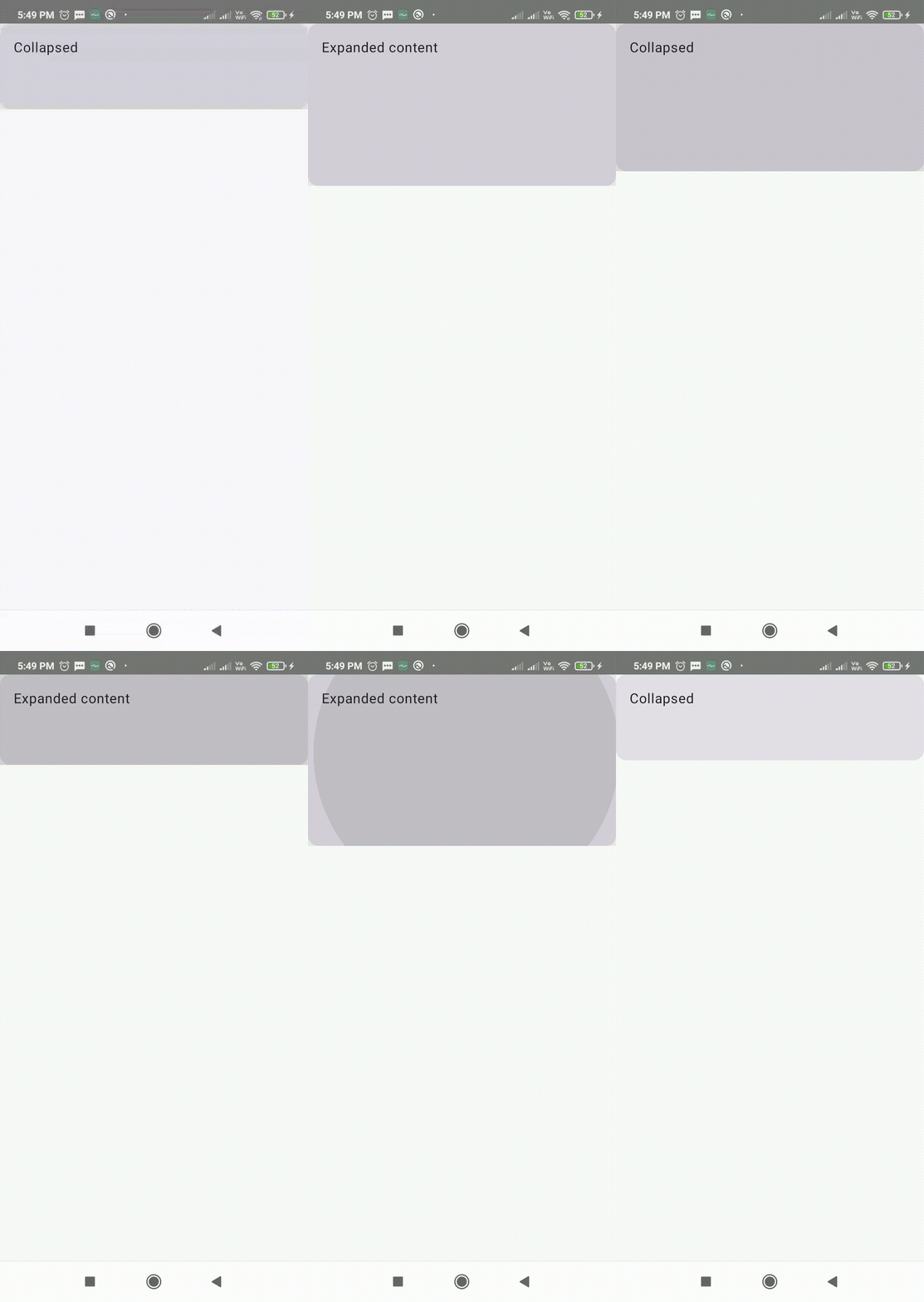
Let’s build something practical: a card that expands when clicked.
Step 1: Define State
@Composable
fun ExpandableCard() {
    var expanded by remember { mutableStateOf(false) }
This is the trigger. Everything depends on this boolean.
Step 2: Animate a Value
val height by animateDpAsState(
        targetValue = if (expanded) 200.dp else 100.dp,
        label = "cardHeight"
    )
What’s happening here:
targetValuechanges whenexpandedchanges- Compose animates between old and new values
- The result (
height) updates continuously during animation
You don’t write animation logic. You describe the end state.
Step 3: Apply It to UI
Card(
        modifier = Modifier
            .fillMaxWidth()
            .height(height)
            .clickable { expanded = !expanded }
    ) {
        Text(
            text = if (expanded) "Expanded content" else "Collapsed",
            modifier = Modifier.padding(16.dp)
        )
    }
}
That’s it. No animator objects, no listeners.
Full Code with Working Preview
@Composable
fun ExpandableCard() {
    var expanded by remember { mutableStateOf(false) }

    val height by animateDpAsState(
        targetValue = if (expanded) 200.dp else 100.dp,
        label = "cardHeight"
    )
    Card(
        modifier = Modifier
            .fillMaxWidth()
            .height(height)
            .clickable { expanded = !expanded }
    ) {
        Text(
            text = if (expanded) "Expanded content" else "Collapsed",
            modifier = Modifier.padding(16.dp)
        )
    }
}

@Preview(showBackground = true)
@Composable
private fun ExpandableCardPreview() {
    MaterialTheme {
        ExpandableCard1()
    }
}
Controlling Animation Behavior
The default animation works, but real apps need control.
Custom Animation Spec
val height by animateDpAsState(
    targetValue = if (expanded) 200.dp else 100.dp,
    animationSpec = tween(
        durationMillis = 500,
        easing = FastOutSlowInEasing
    ),
    label = "cardHeight"
)
Now you control:
- Duration
- Easing curve
Spring Animation
animationSpec = spring(
    dampingRatio = Spring.DampingRatioMediumBouncy,
    stiffness = Spring.StiffnessLow
)
Spring animations feel more natural for things like cards or draggable UI.
Animating Multiple Properties Together
This is where updateTransition becomes useful.
Let’s animate both height and color based on the same state.
val transition = updateTransition(
    targetState = expanded,
    label = "cardTransition"
)
Animate Height
val height by transition.animateDp(
    label = "height"
) { state ->
    if (state) 200.dp else 100.dp
}
Animate Color
val backgroundColor by transition.animateColor(
    label = "color"
) { state ->
    if (state) Color.Blue else Color.Gray
}
Apply to UI
Card(
    modifier = Modifier
        .fillMaxWidth()
        .height(height)
        .clickable { expanded = !expanded },
    colors = CardDefaults.cardColors(containerColor = backgroundColor)
) {
    Text(
        text = "Tap to expand",
        modifier = Modifier.padding(16.dp)
    )
}
Now both properties animate in sync, driven by the same state.
Showing and Hiding Content
For visibility changes, don’t animate alpha manually. Use AnimatedVisibility.
AnimatedVisibility(visible = expanded) {
    Text(
        text = "Extra details shown here",
        modifier = Modifier.padding(16.dp)
    )
}
By default, it fades and expands. You can customize it:
AnimatedVisibility(
    visible = expanded,
    enter = fadeIn() + expandVertically(),
    exit = fadeOut() + shrinkVertically()
) {
    Text("Details")
}
This keeps your intent clear: you’re not animating alpha, you’re controlling visibility.
Switching Between UI States
For replacing content, use AnimatedContent.
AnimatedContent(targetState = expanded, label = "content") { state ->
    if (state) {
        Text("Expanded View")
    } else {
        Text("Collapsed View")
    }
}
This automatically animates between the two layouts.
Infinite Animations
For loaders or subtle UI effects:
val infiniteTransition = rememberInfiniteTransition(label = "pulse")val scale by infiniteTransition.animateFloat(
    initialValue = 1f,
    targetValue = 1.1f,
    animationSpec = infiniteRepeatable(
        animation = tween(800),
        repeatMode = RepeatMode.Reverse
    ),
    label = "scale"
)
Apply it:
Box(
    modifier = Modifier
        .size(100.dp)
        .scale(scale)
        .background(Color.Blue)
)
Good for:
- Loading indicators
- Attention hints
- Micro-interactions
Conclusion
The Jetpack Compose Animation System feels strange at first because it flips the mental model. You’re not telling the UI how to animate. You’re describing how it should look in different states.
Once that clicks, animations become predictable.
Start small:
- Animate size
- Then color
- Then combine them
After a few screens, you’ll stop thinking about “animations” entirely and just think in terms of state transitions.
That’s when Compose starts to feel natural.