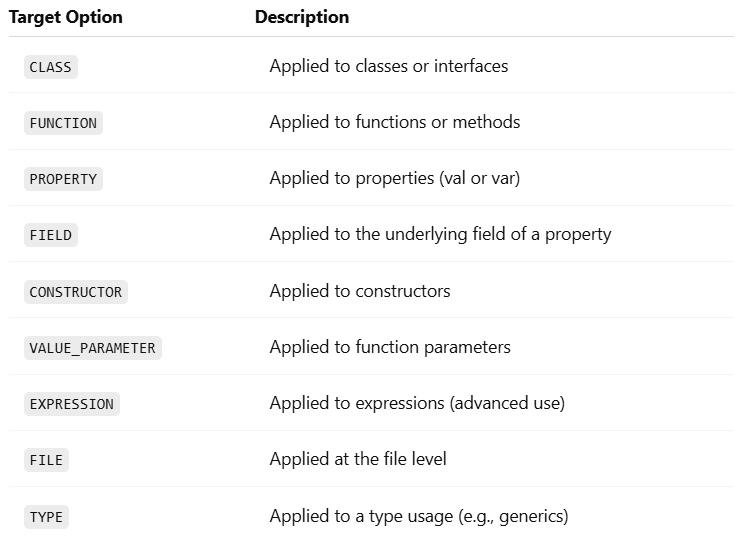
In Kotlin, annotations can target multiple elements of a declaration — such as a field, getter, or constructor parameter. When you apply an annotation without explicitly specifying a use-site target (e.g., @MyAnnotation instead of @field:MyAnnotation), Kotlin tries to infer the most appropriate placement.
This default behavior often works well — but in some cases, especially when interoperating with Java frameworks, it can produce unexpected results. Let’s dive into how it works, and what’s changing with Kotlin 2.2.0.
Default Target Inference in Kotlin (Before 2.2.0)
If the annotation supports multiple targets (defined via its @Target declaration), Kotlin infers where to apply the annotation based on context. This is especially relevant for primary constructor properties.
In this case, Kotlin might apply @MyAnnotation to the constructor parameter, property, or field—depending on what @MyAnnotation allows.
Approximate Priority Order:
When multiple targets are applicable, Kotlin historically followed a rough order of priority:
param – Constructor parameter
property – The Kotlin property itself
field – The backing field generated in bytecode
But this is not a strict rule — the behavior varies by context and Kotlin version.
Interop with Java Frameworks: Why Target Matters
Kotlin properties can generate several elements in Java bytecode:
A backing field
A getter method (and setter for var)
A constructor parameter (for primary constructor properties)
Java frameworks (like Jackson, Spring, Hibernate) often look for annotations in specific places — typically on the field or getter. If Kotlin places the annotation somewhere else (e.g., the property), the framework might not recognize it.
Kotlin
classUser(@JsonProperty("username") val name: String)
If @JsonProperty is placed on the property instead of the field, Jackson may not detect it correctly. The fix is to use an explicit target:
Only the targets supported in the annotation’s @Target list will be applied.
Best Practices
Here’s how to work with Kotlin annotations effectively:
Scenario
Recommendation
Using annotations with Java frameworks
Use explicit use-site targets (@field:, @get:)
Want consistent defaulting
Enable -Xannotation-default-target=param-property
Want broad annotation coverage
Use @all: (if supported by the annotation)
Unsure where an annotation is being applied
Use the Kotlin compiler flag -Xemit-jvm-type-annotations and inspect bytecode or decompiled Java
Conclusion
While Kotlin’s inferred annotation targets are convenient, they don’t always align with Java’s expectations. Starting with Kotlin 2.2.0, you get more control and predictability with:
Explicit use-site targets
A refined defaulting flag (-Xannotation-default-target)
The @all: meta-target for multi-component coverage
By understanding and controlling annotation placement, you’ll avoid hidden bugs and ensure smooth Kotlin–Java interop.
Annotations are a powerful feature in Kotlin that let you add metadata to your code. Whether you’re working with frameworks like Spring, Dagger, or Jetpack Compose, or building your own tools, knowing how to apply annotations in Kotlincan drastically improve your code’s readability, structure, and behavior.
In this guide, we’ll walk through everything step by step, using real examples to show how annotations work in Kotlin. You’ll see how to use them effectively, with clean code and clear explanations along the way..
What Are Annotations in Kotlin?
Annotations are like sticky notes for the compiler. They don’t directly change the logic of your code but tell tools (like compilers, IDEs, and libraries) how to handle certain elements.
If you use @JvmStatic, Kotlin will generate a static method that Java can call without needing to create an object. It helps bridge Kotlin and Java more smoothly.?
This makes printMessage() callable from Java without creating an instance of Utils.
How to Apply Annotations in Kotlin
To apply an annotation in Kotlin, you use the @ symbol followed by the annotation’s name at the beginning of the declaration you want to annotate. You can apply annotations to functions, classes, and other code elements. Let’s see some examples:
Here’s an example using the JUnit framework, where a test method is marked with the @Test annotation:
In Kotlin, annotations can have parameters. Let’s take a look at the @Deprecated annotation as a more interesting example. It has a replaceWith parameter, which allows you to provide a replacement pattern to facilitate a smooth transition to a new version of the API. The following code demonstrates the usage of annotation arguments, including a deprecation message and a replacement pattern:
In this case, when someone uses the remove function in their code, the IDE will not only show a suggestion to use removeAt instead, but it will also offer a quick fix to automatically replace the remove function with removeAt. This makes it easier to update your code and follow the recommended practices.
Annotations in Kotlin can have arguments of specific types, such as primitive types, strings, enums, class references, other annotation classes, and arrays of these types. The syntax for specifying annotation arguments is slightly different from Java:
To specify a class as an annotation argument, use the ::class syntax:
When you want to specify a class as an argument for an annotation, you can use the ::class syntax.
Kotlin
@MyAnnotation(MyClass::class)
In this case, let’s say you have a custom annotation called @MyAnnotation, and you want to pass a class called MyClass as an argument to that annotation. In this case, you can use the ::class syntax like this: @MyAnnotation(MyClass::class).
By using ::class, you are referring to the class itself as an object. It allows you to pass the class reference as an argument to the annotation, indicating which class the annotation is associated with.
To specify another annotation as an argument, don’t use the @ character before the annotation name:
when specifying an annotation as an argument for another annotation, you don’t need to use the “@” symbol before the annotation name.
In the above example, the @Deprecated annotation. It allows you to provide a replacement pattern using the ReplaceWith annotation. In this case, you simply specify the ReplaceWith annotation without the “@” symbol when using it as an argument for @Deprecated .
By omitting the “@” symbol, you indicate that the argument is another annotation.
To specify an array as an argument, use the arrayOf function:
if you want to specify an array as an argument for an annotation, you can use the arrayOf function.
For example, let’s say you have an annotation called @RequestMapping with a parameter called path, and you want to pass an array of strings ["/foo", "/bar"] as the value for that parameter. In this case, you can use the arrayOf function like this:
Kotlin
@RequestMapping(path = arrayOf("/foo", "/bar"))
However, if the annotation class is declared in Java, you don’t need to use the arrayOf function. In Java, the parameter named value in the annotation is automatically converted to a vararg parameter if necessary. This means you can directly provide the values without using the arrayOf function.
To use a property as an annotation argument, you need to mark it with a const modifier:
In Kotlin, annotation arguments need to be known at compile time, which means you cannot refer to arbitrary properties as arguments. However, you can use the const modifier to mark a property as a compile-time constant, allowing you to use it as an annotation argument.
To use a property as an annotation argument, follow these steps:
Declare the property using the const modifier at the top level of a file or inside an object.
Initialize the property with a value of a primitive type or a String.
Here’s an example using JUnit’s @Test annotation that specifies a timeout for a test:
In this example, TEST_TIMEOUT is declared as a const property with a value of 100L. The timeout parameter of the @Test annotation is then set to the value of TEST_TIMEOUT. This allows you to specify the timeout value as a constant that can be reused and easily changed if needed.
Remember that properties marked with const need to be declared at the top level of a file or inside an object, and they must be initialized with values of primitive types or String. Using regular properties without the const modifier will result in a compilation error with the message “Only ‘const val’ can be used in constant expressions.”
Best Practices for Using Annotations
Using annotations the right way keeps your Kotlin code clean and powerful. Here are some tips:
1. Use Target and Retention Wisely
@Target specifies where your annotation can be applied: classes, functions, properties, etc.
@Retention controls how long the annotation is kept: source code only, compiled classes, or runtime.
Use RUNTIME if your annotation will be read by reflection.
2. Keep Annotations Lightweight
Avoid stuffing annotations with too many parameters. Use defaults whenever possible to reduce clutter.
Kotlin
annotationclassAudit(val user: String = "system")
3. Document Custom Annotations
Treat annotations like part of your public API. Always include comments and KDoc.
Kotlin
/** * Indicates that the method execution time should be logged. */@Target(AnnotationTarget.FUNCTION)@Retention(AnnotationRetention.RUNTIME)annotationclassLogExecutionTime
Example: Logging Execution Time
Let’s say you want to log how long your functions take to execute. You can create a custom annotation and use reflection to handle it.
Here, @Module, @Provides, and @InstallIn drive the dependency injection system. Once you learn how to apply annotations in Kotlin, libraries like Dagger become far less intimidating.
Conclusion
Annotations in Kotlin are more than decoration — they’re metadata with a purpose. Whether you’re customizing behavior, interfacing with Java, or using advanced frameworks, knowing how to apply annotations in Kotlin gives you a real edge.
Quick Recap:
Use annotations to add metadata.
Apply built-in annotations to boost interoperability and performance.
Create your own annotations for clean, reusable logic.
Follow best practices: target, retention, defaults, and documentation.
With the right approach, annotations make your Kotlin code smarter, cleaner, and easier to scale.
Kotlin is known for being expressive, concise, and fully interoperable with Java. But when working with annotations in Kotlin, especially when defining your own, you might encounter something called @Target. If you’re wondering what @Target in Kotlin is, why it matters, and how to use it effectively—this guide is for you.
Let’s break it down, step-by-step.
What Is @Target in Kotlin?
In Kotlin, @Target is a meta-annotation. That means it’s an annotation used to annotate other annotations. It specifies where your custom annotation can be applied in the code.
For example, can your annotation be used on a class? A function? A property? That’s what @Target defines.
Kotlin uses the AnnotationTarget enum to list all possible valid locations.
This lets you use @AuditLog on multiple types of declarations.
Example: Creating a Custom Annotation
Let’s say you’re building a system where you want to mark certain functions as “experimental”.
Step 1: Define the Annotation
Kotlin
@Target(AnnotationTarget.FUNCTION)@Retention(AnnotationRetention.RUNTIME)annotationclassExperimentalFeature(val message: String = "This is experimental")
@Target(AnnotationTarget.FUNCTION): Only allows this annotation on functions.
@Retention(RUNTIME): Keeps the annotation at runtime (optional but useful).
Step 2: Use the Annotation
Kotlin
@ExperimentalFeature("Might be unstable in production")funnewAlgorithm() {println("Running experimental algorithm...")}
Step 3: Read the Annotation at Runtime (Optional)
Kotlin
funcheckExperimentalAnnotations() {val method = ::newAlgorithmvalannotation = method.annotations.find { it is ExperimentalFeature } as? ExperimentalFeatureif (annotation != null) {println("Warning: ${annotation.message}") }}
This prints:
Kotlin
Warning: Mightbeunstableinproduction
Tips for Using @Target in Kotlin
Be specific: The more targeted your annotation, the less chance of misuse.
Use multiple targets wisely: Don’t overgeneralize.
Pair with @Retention: Decide whether your annotation should be available at runtime, compile time, or source level.
Think Java Interop: If you’re interoperating with Java, know that @Target in Kotlin maps to @Target in Java too.
Conclusion
@Target in Kotlin is more than just a syntactic detail. It controls how annotations behave, where they’re valid, and how your tools (including the compiler and IDE) handle them.
If you’re building libraries, frameworks, or just want clean annotation usage, understanding @Target in Kotlin is essential. With the right @Target settings, your custom annotations stay safe, purposeful, and powerful.
New to Kotlin and wondering what the @ symbol means? That symbol introduces Kotlin annotations — a simple yet powerful feature that adds useful metadata to your code, making it smarter, cleaner, and easier to manage.
This quick guide will show you what Kotlin annotations are, why they matter, and how to use them effectively. No complex jargon, just the essentials — all in under 10 minutes.
What Are Kotlin Annotations?
Annotations in Kotlin are a way to attach metadata to code elements such as classes, functions, properties, and parameters. Metadata is like extra information about the code that can be used by the compiler, libraries, or even runtime frameworks.
Think of Kotlin annotations as digital sticky notes. They’re not actual instructions for logic, but they tell tools how to treat your code.
Kotlin
@Deprecated("Use newFunction() instead", ReplaceWith("newFunction()"))funoldFunction() {println("This function is deprecated.")}
Here,
@Deprecated tells both the developer and the compiler that oldFunction() shouldn’t be used.
@Nullable and @NonNull — help with null safety, especially in Java interop.
@Parcelize — works with Kotlin’s Parcelize plugin to simplify Parcelable implementation.
Kotlin
@ParcelizedataclassUser(val name: String, val age: Int) : Parcelable
This eliminates boilerplate, making Android dev smoother.
Best Practices When Using Kotlin Annotations
Be intentional. Don’t slap annotations on everything. Know what they do.
Check retention policies. Source-retained annotations won’t be available at runtime.
Avoid clutter. Annotations should clarify, not complicate.
Test interop. If you’re writing code to be used in Java, test how annotations behave.
Conclusion
Kotlin annotations might seem like just extra syntax, but they play a powerful role in shaping how your code behaves, communicates, and integrates with other systems.
They reduce boilerplate, enforce contracts, and help the compiler help you.
Whether you’re building Android apps, writing libraries, or just learning the ropes, understanding Kotlin annotations will make you a stronger, more fluent Kotlin developer.
Unit testing in Kotlin isn’t just about making sure your code works. It’s about writing tests that prove your code works, stays reliable over time, and catches bugs before they hit production. Google engineers treat testing as a core development skill, not an afterthought. And you can do the same.
In this guide, we’ll break down unit testing in Kotlin in a simple way. We’ll show you how to write clean, maintainable tests just like a pro. Whether you’re building Android apps or server-side Kotlin applications, this blog will give you the confidence to write bulletproof unit tests.
What is Unit Testing in Kotlin?
Unit testing is the process of testing individual units of code (like functions or classes) in isolation to ensure they work as expected. Unlike integration or UI tests, unit tests focus on your own logic, not external libraries or frameworks.
“Unit Test is a piece of code that is not a part of your application. It can create and call all of your application’s public classes and methods… You want to verify whether application code works as you expect.”
Why Google Engineers Prioritize Unit Testing
Fast feedback: Tests run in milliseconds. You catch bugs fast.
Safe refactoring: When you change code, tests confirm nothing breaks.
Confidence in deployment: You ship faster because you trust your code.
Documents behavior: Tests show how code is supposed to work.
Now let’s get to the fun part — how to actually do this in Kotlin.
Setting Up Unit Testing in Kotlin
Most Kotlin projects use JUnit as the test framework. Android Studio and IntelliJ IDEA make setup easy:
1. Add JUnit to your project dependencies (usually already included in Android projects). Use JUnit5 for unit testing in Kotlin. It’s modern, fast, and integrates well.
2. Create a test class for the code you want to test.
3. Write test methods using the @Test annotation.
Basic Unit Test in Kotlin
Let’s say you have a function that adds two numbers:
Kotlin
funadd(a: Int, b: Int): Int = a + b
Here’s how you write a test for it:
Kotlin
import org.junit.jupiter.api.Assertions.*import org.junit.jupiter.api.TestclassMathUtilsTest {@Testfun`add should return sum of two numbers`() {val result = add(3, 4)assertEquals(7, result) }}
What’s happening here?
@Test marks the method as a test case.
assertEquals checks the expected and actual values.
The function name is written in backticks for clarity.
Best Practices for Unit Testing in Kotlin
Google engineers follow these principles to ensure effective unit testing in Kotlin:
1. Keep Tests Small and Focused
Each test should verify one behavior or scenario. This makes tests easy to read and maintain.
2. Use Immutable Test Data
Initialize objects as val and avoid mutating shared state between tests. This prevents flaky tests and makes debugging easier.
3. Leverage Kotlin Features
Kotlin’s concise syntax (like data classes and extension functions) makes tests more readable and expressive.
4. Test Lifecycle Annotations
@Before: Setup code before each test.
@After: Cleanup after each test.
@TestInstance(Lifecycle.PER_CLASS): Reuse test class instance for all tests (avoids static members).
5. Mock Dependencies
Use libraries like MockK or Mockito to replace dependencies with mock objects, so you only test your own code’s logic.
Testing with Mocks in Kotlin
Sometimes, your code depends on external systems (like APIs or databases). For true unit testing in Kotlin, you should mock those dependencies.
Use runBlocking to execute suspending functions in tests.
For more advanced coroutine testing, use CoroutineTestRule and TestCoroutineDispatcher to control coroutine execution and skip delays.
Running and Maintaining Tests
Run tests frequently: Use your IDE or command line to run all tests after every change.
Fix failing tests immediately: Don’t ignore red tests.
Refactor tests as needed: Keep them clean and up-to-date as your code evolves.
Tips for Writing Great Unit Tests
Name tests clearly: Describe what the test checks.
Test one thing at a time: Keep tests focused.
Keep tests fast: No real network/database.
Avoid logic in tests: Use literal values.
Use setup methods for repetitive boilerplate.
Common Mistakes to Avoid
Testing too much in one test
Using real APIs in unit tests
Not asserting outcomes
Ignoring failed tests
Skipping tests because “it works on my machine”
Conclusion
Unit Testing in Kotlin isn’t just for Google engineers — it’s a superpower for every developer. By writing small, focused tests, leveraging Kotlin’s features, and using the right tools, you’ll catch bugs early and build robust applications with confidence.
Start small, keep practicing, and soon unit testing will be second nature..!
Gradle has long been the go-to build tool for JVM projects, especially Android. But if you’ve been around for a while, you probably remember the old Groovy-based build.gradle files. They got the job done, but let’s be honest—they were hard to read, easy to mess up, and even harder to debug.
Now, Kotlin DSL (Domain-Specific Language) is becoming the new standard for writing Gradle scripts. In this post, we’ll break down why Kotlin DSL is taking over, how it improves your development experience, and how to start using it today — even if you’re new to Gradle.
What Is Kotlin DSL?
Kotlin DSL lets you write your Gradle build scripts in Kotlin instead of Groovy. That means you get all the benefits of a statically typed language, including smart autocompletion, better IDE support, and fewer runtime errors.
So instead of this Groovy-based Gradle file:
Kotlin
plugins { id 'com.android.application' id 'kotlin-android'}
The syntax is cleaner, the tooling is smarter, and the benefits are real.
Why Kotlin DSL Is Winning
1. IDE Autocompletion and Type Safety
With Kotlin DSL, your IDE (like IntelliJ IDEA or Android Studio) can understand your build scripts. You get real-time suggestions, error checking, and documentation pop-ups. No more guessing what properties are available or what their types are.
2. Better Refactoring Support
Refactoring a Groovy-based script is often risky. You don’t know if changes will break until runtime. Kotlin DSL is type-safe, so changes are validated during development.
3. Unified Language for App and Build
If you’re already writing your app in Kotlin, using Kotlin for build scripts keeps everything consistent. No context switching between Groovy and Kotlin.
4. Readable and Maintainable Scripts
Groovy is powerful but can be cryptic. Kotlin DSL is more verbose in a good way — your scripts become easier to understand and maintain.
Getting Started with Kotlin DSL
Ready to switch? Here’s how to get started with Kotlin DSL in a new or existing Gradle project.
1. Use the Right File Extension
Replace your build.gradle files with build.gradle.kts. The .kts extension tells Gradle to treat them as Kotlin scripts.
2. Update Your settings.gradle File
This file should also be renamed to settings.gradle.kts:
Kotlin
rootProject.name = "MyApp"include(":app")
3. Convert Plugin Declarations
Old Groovy:
Kotlin
plugins { id 'java'}
Kotlin DSL:
Kotlin
plugins {id("java")}
Or for plugins with versions:
Kotlin
plugins {id("org.jetbrains.kotlin.jvm") version "1.9.0"}
You get autocompletion on configurations (implementation, testImplementation, etc.) and even on group IDs and versions if using a buildSrc setup.
5. Customize Build Logic
Using tasks in Kotlin DSL is straightforward:
Kotlin
tasks.register("hello") {doLast {println("Hello from Kotlin DSL!") }}
The register method is preferred over create for lazy configuration, improving performance.
Migrating an Existing Project
Switching from Groovy to Kotlin DSL can be done gradually. Start by converting one module at a time. Gradle allows mixing Groovy and Kotlin DSL in a multi-module project, so you don’t need to do it all at once.
Also, check out IntelliJ’s “Convert to Kotlin DSL” tool for basic migration. But review the changes manually — the conversion isn’t always perfect.
Common Pitfalls (And How to Avoid Them)
Syntax Confusion: Kotlin is stricter than Groovy. Be sure to wrap strings with " and use parentheses correctly.
Plugin Resolution: Some plugins behave differently in Kotlin DSL. Double-check the plugin documentation.
Tooling Bugs: Kotlin DSL support has improved, but bugs still happen. Make sure you’re using the latest Gradle and Android Studio versions.
Conclusion
Kotlin DSL is the future of Gradle scripting. It’s cleaner, safer, and integrates better with modern development tools. Whether you’re building Android apps or JVM libraries, switching to Kotlin DSL will make your builds easier to manage and debug.
And the best part is..! Once you get used to it, you’ll never want to go back.
Ever heard the phrase “don’t fix what isn’t broken”? In coding, a similar mindset applies: don’t load what you don’t need. This is where Lazy Initialization in Kotlin comes in — a slick way to optimize performance, cut unnecessary processing, and keep your codebase clean.
In this post, we’ll break down what lazy initialization is, how it works in Kotlin, and why it can be a game-changer for your Android apps or any Kotlin-based project.
What Is Lazy Initialization?
Lazy initialization is a technique where you delay the creation of an object or the execution of code until it’s actually needed.
Instead of doing this:
Kotlin
val userProfile = loadUserProfile() // called immediately
You can do this:
Kotlin
val userProfile bylazy { loadUserProfile() } // called only when accessed
That one small change tells Kotlin: “Hey..!, don’t run this until someone actually tries to use userProfile.”
Why Use Lazy Initialization in Kotlin?
Kotlin makes lazy initialization incredibly simple and safe. Here are a few reasons to use it:
Improved performance: Avoid heavy operations at startup.
Memory efficiency: Delay creating large objects until necessary.
Cleaner code: Encapsulate logic without creating unnecessary setup.
Now the ViewModel only gets initialized when you first access viewModel, which can save resources if your fragment has optional UI states or features.
How Lazy Works Under the Hood
When you use by lazy { ... }, Kotlin creates a delegate object that handles initialization. The first time the variable is accessed, the lambda runs and the result is stored. Every future access returns that cached value.
SYNCHRONIZED: Safe for multithreaded access. Overhead of synchronization.
PUBLICATION: May run initializer multiple times on concurrent access, but only one result is stored.
NONE: No thread safety. Fastest, but use only in single-threaded contexts.
Custom Lazy Initialization
Want full control? You can create your own lazy-like delegate:
Kotlin
classCustomLazy<T>(val initializer: () -> T) {// 1. Private backing field to hold the actual valueprivatevar _value: T? = null// 2. Public property to access the value, with a custom gettervalvalue: Tget() {// 3. Check if the value has been initialized yetif (_value == null) {// 4. If not, execute the initializer lambda _value = initializer() }// 5. Return the (now initialized) valuereturn _value!! // !! asserts that _value is not null }}val config = CustomLazy { loadConfig() }.value///////////////////////////////////////////////////////////////////////////////////////////////////// Working Code////////////////////////////////////// 1. Define your CustomLazy classclassCustomLazy<T>(val initializer: () -> T) {privatevar _value: T? = nullvalvalue: Tget() {if (_value == null) {println("--- Calling initializer (loadConfig()) for the first time... ---") _value = initializer()println("--- Initializer finished. ---") } else {println("--- Value already initialized, returning cached value. ---") }return _value!! }}// 2. A sample function that simulates loading configuration// (e.g., from a file, network, or complex calculation)funloadConfig(): String {println(">>> Executing actual loadConfig() function... (This is an expensive operation)")// Simulate some delay or heavy computation Thread.sleep(1000) // Sleep for 1 secondreturn"Application Configuration Data Loaded!"}// 3. Main function to demonstrate the usagefunmain() {println("Application starting...")// This line creates the CustomLazy object, but loadConfig() is NOT called yet.// The lambda { loadConfig() } is merely stored.val lazyConfigInstance = CustomLazy { loadConfig() }println("\nCustomLazy instance created, but config is not loaded yet.")println("You can do other things here before accessing config...\n") Thread.sleep(500) // Simulate some workprintln("Now, let's access the config value for the first time.")// This is where .value is accessed, triggering loadConfig()val config1 = lazyConfigInstance.valueprintln("Config (first access): \"$config1\"")println("\n------------------------------------------------------")println("Accessing config value again (should be instant and not re-run loadConfig())...")// This access will use the cached value; loadConfig() will NOT be called again.val config2 = lazyConfigInstance.valueprintln("Config (second access): \"$config2\"")println("------------------------------------------------------\n")// Another example: If you create a new CustomLazy instance,// loadConfig() will run again when its value is first accessed.println("Creating another CustomLazy instance and accessing it immediately...")val configImmediatelyLoaded = CustomLazy { loadConfig() }.valueprintln("Config (immediately loaded): \"$configImmediatelyLoaded\"")println("\nApplication finished.")}
This is just for learning purposes — Kotlin’s built-in lazy does the job better in most cases.
Pitfalls to Watch Out For
Heavy lambdas: If the initializer does too much, you’re just delaying pain.
Non-idempotent initializers: The initializer should always produce the same result or be side-effect free.
Overuse: Don’t lazy-initialize everything. Use it where it adds real benefit.
Conclusion
Lazy Initialization in Kotlin is a powerful yet simple tool. It shines when you want to keep your app responsive and your code clean. Whether you’re building Android apps, desktop tools, or backend services, Kotlin’s by lazy is an elegant way to write smarter code.
Try it out in your project. Start small. Refactor a few variables. You’ll likely see performance gains with very little effort. And that’s the beauty of Kotlin: it lets you do more with less.
When working with strings in Kotlin — especially dynamic ones that embed variables — developers have long enjoyed the flexibility of string interpolation. But if you’ve ever had to include literal dollar signs in multiline strings, you’ve likely run into messy workarounds that hurt readability and feel clunky.
With the release of Kotlin 2.2.0-RC, JetBrains has introduced a powerful feature that’s both subtle and impactful: Multi-Dollar String Interpolation. This feature addresses the pain points around dollar sign usage in multiline strings, offering a clean, intuitive way to balance literal characters and string interpolation.
Note: Multi-dollar string interpolation, introduced as an experimental feature in Kotlin 2.1, is becoming stable in version 2.2.
In this post, we’ll explore what multi-dollar string interpolation is, why it matters, and how it simplifies real-world Kotlin code — especially when generating formats like JSON or dealing with currency values.
Quick Refresher: What Is String Interpolation?
String interpolation is the process of embedding variables or expressions directly into a string.
Here’s the basic syntax in Kotlin:
Kotlin
val name = "Amol"println("Hello, $name") // Output: Hello, Amol
You can also interpolate expressions:
Kotlin
println("2 + 2 = ${2 + 2}") // Output: 2 + 2 = 4
This works beautifully in single-line strings. But once you step into multiline strings, things get a little more complicated — especially when your string includes literal dollar signs.
The Problem: Dollar Signs in Multiline Strings
In single-line strings, Kotlin allows escaping special characters like so:
Kotlin
val price = "\$100"
But in multiline strings — which use triple quotes ("""), Kotlin doesn’t support backslash escaping.
Let’s say you want to create a JSON template inside a multiline string that contains dollar signs for things like currency or schema declarations:
Kotlin
val json = """{ "$schema": "https://example.com/schema", "price": "$100"}"""
Oops..! Kotlin will try to interpolate $schema and $100 as variables—likely leading to a compile-time error or unintended behavior.
The Workaround (Before Kotlin 2.2)
Previously, the only way to escape a dollar sign in multiline strings was to use:
Kotlin
"${'$'}"
So your JSON would look like this:
Kotlin
val json = """{ "${'$'}schema": "https://example.com/schema", "price": "${'$'}100"}"""
Technically correct — but let’s be honest, it’s ugly and hard to read, especially when you have multiple dollar signs in a single string.
The Solution: Multi-Dollar String Interpolation (Kotlin 2.2)
Kotlin 2.2 introduces multi-dollar string interpolation, which lets you define how many dollar signs are needed to trigger interpolation. This makes it easier to include literal dollar signs without messy escaping.
How It Works
Instead of starting a multiline string with """, you prefix it with $$""" or $$$"""—depending on how many dollar signs should be treated as interpolation triggers.
$$$""" tells Kotlin: only $$$ triggers interpolation.
So $ and $$ stay literal in the string.
$$$productName gets interpolated to "Amul".
This is incredibly helpful in scenarios like:
Generating JSON or XML.
Embedding currency symbols.
Working with configuration files.
Using template engines or schema definitions.
Why This Matters: Cleaner, Safer Code
Multi-dollar interpolation isn’t just a syntactic sugar. It:
Improves readability in strings with many dollar signs.
Reduces errors caused by mistaken interpolations.
Eliminates the awkward ${'$'} pattern.
Enhances maintainability when dealing with external formats like JSON, HTML, or YAML.
And importantly, it allows developers to express their intent more clearly: whether you’re writing a literal value or embedding a variable.
Conclusion
Multi-dollar string interpolation might seem like a small change, but for Kotlin developers who regularly deal with multiline strings, templates, or embedded formats, it’s a massive win. It cleans up your code, improves safety, and makes your intentions more explicit — all while keeping Kotlin’s expressive syntax intact.
If you’re working on data-heavy applications, web services, or even Android development with Kotlin DSLs or Compose, this is a feature you’ll definitely want to adopt.
Kotlin has always been loved for its expressive syntax and focus on developer productivity. With Kotlin 2.2, JetBrains continues that tradition by introducing several enhancements — and one of the most impactful is support for guard conditions in when expressions with a subject (when guards).
If you’ve ever wished you could use if-style conditions inside a when statement that uses a subject, you’re going to love this update. It’s a small change, but it goes a long way in reducing boilerplate and making your code cleaner and easier to read.
You might’ve noticed I’ve mentioned the term “subject” a few times — but what exactly does that mean in a Kotlin when statement? Let’s clear that up before we dive in further.
What is a “Subject” in Kotlin’s when Expression?
In Kotlin, the “subject” of a when expression is the value or variable you’re evaluating — it’s what the expression is checking to decide which block of code to run.
Think of it like this:
The subject is the value you’re comparing against.
You declare it once at the start of the when.
Each branch then checks something about that subject — almost like asking questions: “Is it red?”, “Is it a cat?”, “Is it greater than 10?”
with a Subject
The subject is explicitly provided in parentheses right after the when keyword.
Kotlin
when (subject) {// branches}
Kotlin
val number = 3when (number) {1->println("One")2->println("Two")3->println("Three")else->println("Unknown number")}
Here,
number is the subject.
Each case like 1, 2, 3 is being compared to the subject.
This is called whenwith a subject, because we are checking different conditions against a single known value.
Without a Subject
You can also write a when expression without a subject, like this:
Kotlin
when { // <-- No subject here condition1 -> { /* code */ } condition2 -> { /* code */ }else-> { /* code */ }}
Kotlin
val number = 3when { number == 1->println("One") number == 2->println("Two") number == 3->println("Three")else->println("Unknown number")}
Here, there’s no subject. Each branch is an independent condition.
This form is useful when:
You want to evaluate different expressions.
You need to compare multiple values, not just one.
Why Use a Subject?
Using a subject makes the code:
Cleaner — no need to repeat the value you’re checking.
More readable — it communicates intent better.
Safer — the compiler checks exhaustiveness for enums and sealed classes when a subject is used.
Understanding the Problem (Before Kotlin 2.2)
In versions prior to Kotlin 2.2, you could use guard conditions (i.e., if statements) only in a when expression without a subject. That looked like this:
This works fine, but you lose the ability to declare the subject once and reuse it cleanly in each branch. You’d often find yourself repeating logic or working around this limitation, especially in complex branching.
On the flip side, if you did use a subject:
Kotlin
when (value) {1->println("One")2->println("Two")//Can't use custom `if` conditions here pre-2.2else->println("Other")}
— you couldn’t use guard clauses like if (value % 2 == 0) in combination with pattern matching.
Kotlin 2.2 Fixes This: Introducing Guard Conditions in when with Subject
Starting in Kotlin 2.2, you can now write when expressions with a subject and use guard conditions (if) directly inside each branch. Here’s how:
Kotlin
val number = 42when (number) {in1..100if number % 2 == 0->println("Even and between 1 and 100")in1..100->println("Odd and between 1 and 100")else->println("Out of range")}
Now that’s clean, expressive, and Kotlin-esque..!
FYI
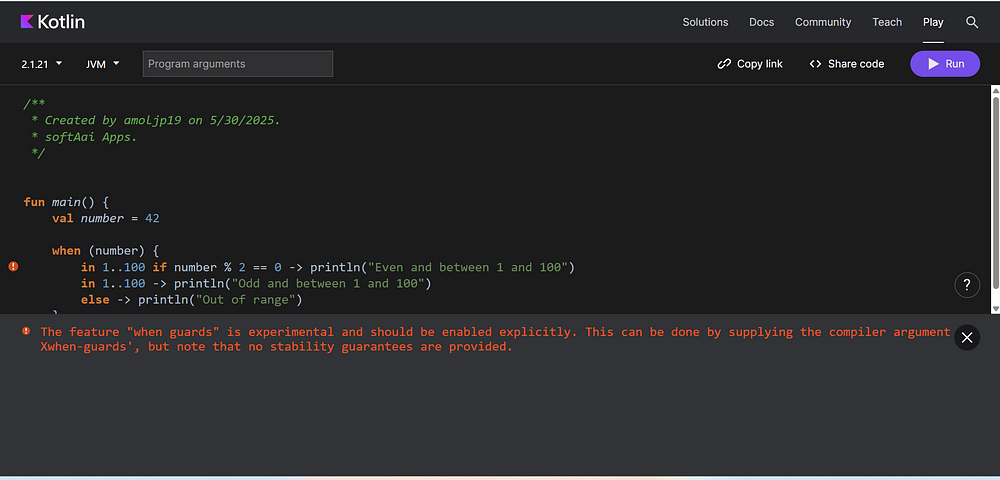
If we try the same code in Kotlin versions below 2.2, we’ll get an error like this.
Error: The feature “when guards” is experimental and should be enabled explicitly. This can be done by supplying the compiler argument ‘-Xwhen-guards’, but note that no stability guarantees are provided.
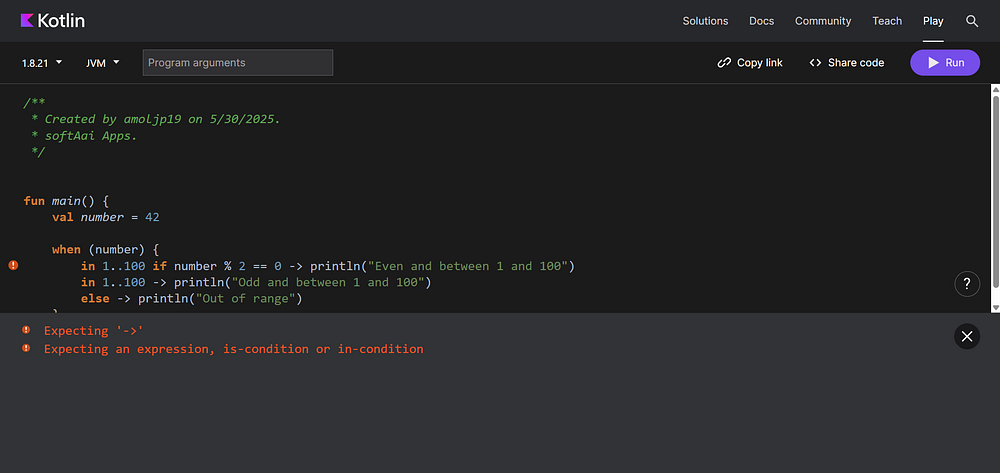
And if we run the same code in Kotlin versions before 2.0, we’ll get an error like this.
Real-World Example: API Response Handling
Imagine you’re building a mobile app with a sealed class representing different API states:
With Kotlin 2.2, your when statement becomes more expressive and readable:
Kotlin
funhandleResponse(response: ApiResponse) {when (response) {is ApiResponse.Success if response.data.contains("welcome", ignoreCase = true) ->println("Greeting received: ${response.data}")is ApiResponse.Success ->println("Success with data: ${response.data}")is ApiResponse.Error if response.code == 401->println("Unauthorized. Please login again.")is ApiResponse.Error ->println("Error with code ${response.code}") ApiResponse.Loading ->println("Loading...") }}// Note - Since Success, Error, and Loading are nested inside the sealed class ApiResponse, you must use ApiResponse. to reference them unless you import or alias them.
This pattern simplifies what would otherwise require deeply nested if checks or multiple when blocks.
Another Practical Use Case: Enum Matching with Context
Here’s how you can add guard logic to when with enums:
This approach provides extremely readable and maintainable access control logic, ideal for mobile apps, backend services, or web platforms.
How to Enable Kotlin 2.2 in Your Project
To use features introduced in Kotlin 2.2, such as “when guards” (officially known as “Guard conditions in when with a subject”), ensure your Kotlin compiler is version 2.2 or later.
As of today (May 30, 2025), Kotlin 2.2.0-RC (Release Candidate) is the latest available version.
What exactly is an RC or Release Candidate version? A Release Candidate is a pre-release version that is feature-complete and nearly final, but not yet officially marked as stable. It’s made available to users for testing, feedback, and final validation before the official stable release.
Because “when guards” is an experimental feature (introduced as a preview in Kotlin 2.1.0), you might encounter a compiler error like:
Kotlin
"The feature "when guards" is experimental and should be enabled explicitly"
To enable it, you need to explicitly opt-in to the experimental feature in your project. This is typically done in your build.gradle.kts (for Kotlin DSL) or build.gradle (for Groovy DSL) file.
Here’s how you can enable it:
For Android or JVM Projects (Kotlin DSL — build.gradle.kts):
Update your plugin version and add the compiler argument:
Kotlin
plugins {kotlin("jvm") version "2.2.0-RC"// or kotlin("android") for Android apps}kotlinOptions { freeCompilerArgs += "-Xexperiment-when-guards"}
For Groovy DSL (build.gradle):
Groovy
plugins { id 'org.jetbrains.kotlin.jvm' version '2.2.0-RC'// or 'org.jetbrains.kotlin.android' for Android apps}kotlinOptions { freeCompilerArgs += ['-Xexperiment-when-guards']}
For Android Studio Users:
If you are using the latest version of Android Studio with Gradle’s version catalog, update your Kotlin plugin version in your libs.versions.toml file:
TOML
[versions]kotlin = "2.2.0-RC"# Update this to the desired Kotlin version[libraries]# Your existing other entries here
Additionally, ensure that the Kotlin plugin in Android Studio itself is updated to version 2.2.0 or higher. This feature may not work correctly if your IDE’s Kotlin plugin is outdated, even if your Gradle configuration is up to date.
Note — The feature will only be fully usable in Kotlin 2.2.0 stable (likely coming very soon).
Why It Matters for Developer Productivity
Guard conditions in when with subject:
Reduce repetitive code
Increase clarity in control flow
Enable more expressive and context-aware logic
Minimize bugs by localizing logic per branch
This feature might seem small on paper, but in practice, it leads to more elegant and bug-resistant code.
FAQ
Q: What is guard condition in Kotlin’s when expression? A guard condition is an additional if clause that allows you to add more complex checks inside each when branch.
Q: Can I use if with when in Kotlin 2.2? Yes. Starting in Kotlin 2.2, you can use if conditions inside a when expression that uses a subject, which was previously not allowed.
Q: How do I enable Kotlin 2.2 features? Update your Kotlin plugin and Gradle configuration to use version 2.2.0 or higher.
Q: Why is this useful in real-world projects? It simplifies conditional logic in APIs, enums, sealed classes, and makes branching more readable and maintainable.
Conclusion
Kotlin continues to evolve with thoughtful enhancements that make a real impact on everyday development. The introduction of guard conditions in when with subject might look like a small change, but it helps you write cleaner, safer, and more expressive logic.
If you’re already using Kotlin in production — especially for mobile or backend development — upgrading to Kotlin 2.2 is a smart move. With each release, Kotlin becomes more intuitive, letting you focus on building great software without fighting the language.
Give it a try, and you’ll notice how natural things start to feel.
If you’re diving into Kotlin Multiplatform Mobile (KMM) development in 2025, chances are you’ve already come across tools like Android Studio, Xcode, and Gradle. But there’s one small, powerful tool that can make or break your setup experience: KDoctor. In this blog, we’ll explore what KDoctor is, why it’s a must-have for Kotlin Multiplatform developers,...