Jetpack Compose

CompositionLocal

CompositionLocal Deep Dive: Writing Scalable UI in Jetpack Compose

When building Android apps with Jetpack Compose, you’ll often need to share data across your UI tree. Passing parameters down every Composable quickly becomes messy. That’s where CompositionLocal comes in.

Think of CompositionLocal as a smart way to provide values (like theme, locale, or user preferences) to multiple Composables without having to manually thread them through function parameters. It’s like dependency injection — but scoped to the Compose world.

In this post, we’ll explore how CompositionLocal works, why it matters for building scalable UI, and how you can use it effectively.

What is CompositionLocal?

CompositionLocal is a mechanism that allows you to define and access values that are automatically propagated down the Composable hierarchy.

  • It provides contextual values (like theme colors or configurations).
  • It removes the need to pass arguments everywhere.
  • It helps you scale UI architecture by keeping components decoupled.

Jetpack Compose already uses CompositionLocal under the hood for things like MaterialTheme, text styles, and layout direction.

Defining a CompositionLocal

You start by creating a CompositionLocal with a default value:

Kotlin
val LocalUser = compositionLocalOf<String> { 
    error("No user provided") 
}

Here:

  • compositionLocalOf creates a CompositionLocal with a default (or error if missing).
  • We’re saying: “If no user is provided, throw an error.”

Providing a Value

To inject a value, you use CompositionLocalProvider:

Kotlin
@Composable
fun AppContent() {
    CompositionLocalProvider(LocalUser provides "amol pawar") {
        UserProfile()
    }
}

Inside AppContent, any child Composable can access LocalUser.

Consuming a CompositionLocal

To read the value, use .current:

Kotlin
@Composable
fun Dashboard() {
    Column {
        CompositionLocalProvider(LocalUser provides "akshay") {
            UserProfile() // shows "Hello, askhay!"
        }
        UserProfile() // shows "Hello, amol pawar!"
    }
}

Output:

Hello, amol pawar!

No need to pass user down as a parameter—CompositionLocal handles it.

Why Use CompositionLocal?

Let’s break it down with a practical example. Imagine a large app with:

  • Theme data (colors, typography).
  • User session info.
  • App settings like dark mode, locale, etc.

Passing these manually would be a nightmare. With CompositionLocal, you define them once and let the UI tree consume them where needed.

Scoped Values for Flexibility

One powerful feature is scoping. You can override a CompositionLocal in a subtree without affecting the rest of the app.

Kotlin
@Composable
fun Dashboard() {
    Column {
        CompositionLocalProvider(LocalUser provides "akshay") {
            UserProfile() // shows "Hello, askhay!"
        }
        UserProfile() // shows "Hello, amol pawar!"
    }
}

The value depends on where the Composable is in the hierarchy. This makes it perfect for context-specific overrides (like previewing different themes).

Best Practices for CompositionLocal

  1. Don’t abuse it. Use CompositionLocal for global or contextual data, not just to avoid passing parameters.
  2. Keep defaults meaningful. Provide safe defaults or throw an error if the value is critical.
  3. Use for ambient context. Theme, locale, user, system settings — these are ideal use cases.
  4. Avoid hidden dependencies. If a Composable always needs a value, prefer explicit parameters for clarity.

Theme System with CompositionLocal

Let’s create a mini theme system:

Kotlin
data class MyColors(val primary: Color, val background: Color)

val LocalColors = staticCompositionLocalOf<MyColors> {
    error("No colors provided")
}

@Composable
fun MyTheme(content: @Composable () -> Unit) {
    val colors = MyColors(primary = Color.Blue, background = Color.White)
    CompositionLocalProvider(LocalColors provides colors) {
        content()
    }
}

@Composable
fun ThemedButton() {
    val colors = LocalColors.current
    Button(onClick = {}) {
        Text("Click Me", color = colors.primary)
    }
}

Usage:

Kotlin
@Composable
fun App() {
    MyTheme {
        ThemedButton()
    }

Here, ThemedButton gets its styling from LocalColors without needing parameters.

CompositionLocal vs Parameters

  • Use parameters when data is essential to the Composable.
  • Use CompositionLocal when data is contextual, like theming or configuration.

This balance keeps your UI scalable and maintainable.

Conclusion

CompositionLocal is one of the most powerful tools in Jetpack Compose for writing scalable UI. It keeps your code cleaner, reduces boilerplate, and makes context handling a breeze.

By using CompositionLocal wisely, you can:

  • Share contextual data easily
  • Override values locally
  • Keep UI components decoupled and reusable

Next time you’re passing a value through five different Composables, stop and ask yourself — could CompositionLocal handle this better?

Scrollable Sticky Table/Grid UIs in Jetpack Compose

Build Scrollable Sticky Table/Grid UIs in Jetpack Compose Like a Pro

If you’ve ever built dashboards, spreadsheets, or financial apps, you know how important tables are. But a plain table isn’t enough — you often need a Scrollable Sticky Table/Grid where headers stay in place while data scrolls smoothly.

In the past, building this in Android XML layouts was painful. With Jetpack Compose, you can achieve it with clean Kotlin code, no hacks, and full flexibility.

In this guide, we’ll walk through how to build a professional Scrollable Sticky Table/Grid in Jetpack Compose — from the basics to a fully data-driven version that adapts to any dataset.

Why Scrollable Sticky Tables Matter

A Scrollable Sticky Table/Grid is more than eye candy. It solves real usability problems:

  • Sticky headers: Keep column labels visible while scrolling.
  • Row headers: Let users track rows without losing context.
  • Independent scrolls: Row IDs can scroll separately from the table, making it easier to navigate large datasets.
  • Dynamic structure: Tables should adapt to n rows and m columns—no hardcoding.

Think Google Sheets, Excel, or analytics dashboards. The same principles apply here.

A Basic Scrollable Table

Let’s start with the simplest version: rows and columns that scroll.

Kotlin
@Composable
fun ScrollableGridDemo() {
    val rowCount = 20
    val columnCount = 10

    LazyColumn {
        items(rowCount) { rowIndex ->
            Row(
                modifier = Modifier
                    .horizontalScroll(rememberScrollState())
            ) {
                repeat(columnCount) { colIndex ->
                    Box(
                        modifier = Modifier
                            .size(100.dp)
                            .border(1.dp, Color.Gray)
                            .padding(8.dp),
                        contentAlignment = Alignment.Center
                    ) {
                        Text("R$rowIndex C$colIndex")
                    }
                }
            }
        }
    }
}

This gives you a grid that scrolls vertically and horizontally. But headers vanish when you scroll.

Adding Sticky Column Headers

With stickyHeader, we can lock the top row.

Kotlin
@Composable
fun ScrollableStickyTable() {
    val rowCount = 20
    val columnCount = 10

    LazyColumn {
        // Sticky Header Row
        stickyHeader {
            Row(
                modifier = Modifier
                    .background(Color.LightGray)
                    .horizontalScroll(rememberScrollState())
            ) {
                repeat(columnCount) { colIndex ->
                    Box(
                        modifier = Modifier
                            .size(100.dp)
                            .border(1.dp, Color.Black)
                            .padding(8.dp),
                        contentAlignment = Alignment.Center
                    ) {
                        Text("Header $colIndex", fontWeight = FontWeight.Bold)
                    }
                }
            }
        }

        // Table Rows
        items(rowCount) { rowIndex ->
            Row(
                modifier = Modifier
                    .horizontalScroll(rememberScrollState())
            ) {
                repeat(columnCount) { colIndex ->
                    Box(
                        modifier = Modifier
                            .size(100.dp)
                            .border(1.dp, Color.Gray)
                            .padding(8.dp),
                        contentAlignment = Alignment.Center
                    ) {
                        Text("R$rowIndex C$colIndex")
                    }
                }
            }
        }
    }
}

Headers now stick to the top as you scroll.

Adding Row Headers

Sometimes you need a first column (row IDs) that doesn’t disappear when you scroll horizontally. The trick is to split the table into two sections:

  • Row header column → vertical scroll only.
  • Main table → vertical + horizontal scroll.

And make them sit side by side.

Making It Dynamic (n Rows, m Columns)

Hardcoding row and column counts isn’t practical. Let’s build a reusable, data-driven composable.

Kotlin
@Composable
fun DataDrivenStickyTable(
    rowHeaders: List<String>,            // Row labels
    columnHeaders: List<String>,         // Column labels
    tableData: List<List<String>>        // 2D grid of values [row][col]
) {
    Row {
        // Row Header Column
        LazyColumn(
            modifier = Modifier.width(100.dp)
        ) {
            // Sticky Row Header Title
            stickyHeader {
                Box(
                    modifier = Modifier
                        .fillMaxWidth()
                        .height(50.dp)
                        .background(Color.DarkGray)
                        .border(1.dp, Color.Black),
                    contentAlignment = Alignment.Center
                ) {
                    Text("Row#", color = Color.White, fontWeight = FontWeight.Bold)
                }
            }

            // Dynamic Row Headers
            items(rowHeaders.size) { rowIndex ->
                Box(
                    modifier = Modifier
                        .fillMaxWidth()
                        .height(50.dp)
                        .background(Color.Gray)
                        .border(1.dp, Color.Black),
                    contentAlignment = Alignment.Center
                ) {
                    Text(rowHeaders[rowIndex], fontWeight = FontWeight.Medium)
                }
            }
        }

        // Main Table
        LazyColumn(
            modifier = Modifier.weight(1f)
        ) {
            // Sticky Column Headers
            stickyHeader {
                Row(
                    modifier = Modifier
                        .horizontalScroll(rememberScrollState())
                        .background(Color.LightGray)
                ) {
                    columnHeaders.forEach { header ->
                        Box(
                            modifier = Modifier
                                .size(width = 100.dp, height = 50.dp)
                                .border(1.dp, Color.Black),
                            contentAlignment = Alignment.Center
                        ) {
                            Text(header, fontWeight = FontWeight.Bold)
                        }
                    }
                }
            }

            // Dynamic Rows
            items(rowHeaders.size) { rowIndex ->
                Row(
                    modifier = Modifier
                        .horizontalScroll(rememberScrollState())
                ) {
                    tableData[rowIndex].forEach { cell ->
                        Box(
                            modifier = Modifier
                                .size(width = 100.dp, height = 50.dp)
                                .border(1.dp, Color.LightGray),
                            contentAlignment = Alignment.Center
                        ) {
                            Text(cell)
                        }
                    }
                }
            }
        }
    }
}

You can generate as many rows and columns as you want dynamically:

Kotlin
@Composable
fun TableDemo() {
    val rowHeaders = List(20) { "Row $it" }
    val columnHeaders = List(10) { "Col $it" }
    val tableData = List(rowHeaders.size) { rowIndex ->
        List(columnHeaders.size) { colIndex ->
            "R$rowIndex C$colIndex"
        }
    }

    DataDrivenStickyTable(
        rowHeaders = rowHeaders,
        columnHeaders = columnHeaders,
        tableData = tableData
    )
}

Now your table works with any dataset — whether it’s 5×5 or 100×100.

Check out the complete project on my GitHub repository

Performance Tips

  • Use LazyColumn + LazyRow for large datasets—they recycle views efficiently.
  • If your dataset is small, you can simplify with Column + Row.
  • Use rememberLazyListState() and rememberScrollState() if you need to sync scrolling between row headers and table content.

Conclusion

With Jetpack Compose, building a Scrollable Sticky Table/Grid is no longer a headache. You can:

  • Show sticky headers for both rows and columns.
  • Keep row headers independent or sync them with the table.
  • Dynamically generate n rows and m columns from real datasets.

This approach is clean, scalable, and production-ready. The next time you need a spreadsheet-like UI, you’ll know exactly how to do it — like a pro.

Jetpack Compose LazyColumn Sticky Header

Jetpack Compose LazyColumn Sticky Header: Complete Implementation Guide

When you’re building long lists in Jetpack Compose, sometimes you need certain sections to stand out and stay visible while scrolling. That’s exactly where Sticky Header comes in. Imagine scrolling through a contacts app — the alphabet letter headers (A, B, C…) stick at the top while you browse through names. Jetpack Compose makes this easy with LazyColumn and stickyHeader.

In this guide, I’ll walk you through how to implement Sticky Header in Jetpack Compose with clear explanations.

What is a Sticky Header?

A Sticky Header is a UI element that “sticks” at the top of a scrollable list until the next header pushes it off. It’s commonly used in:

  • Contact lists
  • Calendar apps
  • Shopping category lists
  • News feeds with date separators

This improves navigation and makes large lists easier to scan.

Why Use Sticky Header in Jetpack Compose?

With Jetpack Compose, you don’t need RecyclerView adapters or complex custom views. The LazyColumn component handles large, scrollable lists efficiently, and stickyHeader makes adding sticky sections straightforward.

Benefits:

  • Simple syntax, no XML layouts.
  • Clean and declarative code.
  • Works seamlessly with Compose state management.

LazyColumn and stickyHeader Basics

Here’s the basic structure of a LazyColumn with a Sticky Header:

Kotlin
@Composable
fun StickyHeaderExample() {
    val sections = listOf(
        "Fruits" to listOf("Apple", "Banana", "Orange"),
        "Vegetables" to listOf("Carrot", "Potato", "Tomato"),
        "Dairy" to listOf("Milk", "Cheese", "Yogurt")
    )

    LazyColumn {
        sections.forEach { (header, items) ->
            stickyHeader {
                Text(
                    text = header,
                    modifier = Modifier
                        .fillMaxWidth()
                        .background(Color.LightGray)
                        .padding(8.dp),
                    style = MaterialTheme.typography.subtitle1
                )
            }

            items(items) { item ->
                Text(
                    text = item,
                    modifier = Modifier
                        .fillMaxWidth()
                        .padding(8.dp)
                )
            }
        }
    }
}

Let’s break it down:

Data Setup

Kotlin
val sections = listOf(
    "Fruits" to listOf("Apple", "Banana", "Orange"),
    "Vegetables" to listOf("Carrot", "Potato", "Tomato"),
    "Dairy" to listOf("Milk", "Cheese", "Yogurt")
)

Here, each section has a header (like “Fruits”) and a list of items.

LazyColumn

Kotlin
LazyColumn { ... }

Displays the entire list efficiently. Only visible items are composed, so it’s memory-friendly.

stickyHeader

Kotlin
stickyHeader {
    Text(
        text = header,
        modifier = Modifier
            .fillMaxWidth()
            .background(Color.LightGray)
            .padding(8.dp)
    )
}

This is the star of the show. The header stays pinned at the top while scrolling through its section.

items()

Kotlin
items(items) { item -> ... }

Renders each element under the sticky header.

Customizing Sticky Headers

You can style sticky headers to fit your app’s design. For example:

  • Add icons to headers.
  • Change background color based on section.
  • Apply elevation or shadows for better separation.

Example with custom styling:

Kotlin
stickyHeader {
    Surface(
        color = Color.DarkGray,
        shadowElevation = 4.dp
    ) {
        Text(
            text = header,
            modifier = Modifier
                .fillMaxWidth()
                .padding(12.dp),
            color = Color.White,
            style = MaterialTheme.typography.h6
        )
    }
}

When to Use and When Not To

Use Sticky Header when:

  • The list is grouped (categories, dates, sections).
  • Users need quick context while scrolling.

Avoid Sticky Header if:

  • The list is flat (no categories).
  • Too many headers clutter the UI.

Performance Considerations

LazyColumn with stickyHeader is optimized, but keep these in mind:

  • Keep headers lightweight (avoid heavy Composables inside).
  • Reuse stateful items outside of the list when possible.
  • Test on lower-end devices if you have very large datasets.

Conclusion

The Sticky Header in Jetpack Compose makes complex, sectioned lists much easier to build and navigate. With just a few lines of code inside a LazyColumn, you can create polished, user-friendly experiences without dealing with RecyclerView boilerplate.

If you’re building apps with grouped data — contacts, shopping categories, or event timelines — Sticky Header is a feature you’ll definitely want to use.

Sticky Header in Jetpack Compose

How to Create a Sticky Header in Jetpack Compose

If you’ve ever scrolled through a long list in an app and noticed that the section title stays pinned at the top until the next section appears, you’ve seen a sticky header. Sticky headers make lists easier to navigate, especially when content is grouped by category.

In this post, we’ll learn step by step how to implement a Sticky Header in Jetpack Compose using LazyColumn. Don’t worry if you’re just getting started with Compose—the explanation will stay simple, with code examples and clear breakdowns.

What is a Sticky Header?

A sticky header is a UI element that remains visible at the top of a scrolling list while the content beneath it scrolls. It’s often used in apps like Contacts (where the alphabet letters stick as you scroll) or e-commerce apps (where categories like “Shoes,” “Bags,” or “Clothing” stay pinned).

Jetpack Compose makes this much easier to implement compared to the old RecyclerView approach in XML.

Why Use Sticky Headers in Jetpack Compose?

Adding a Sticky Header in Jetpack Compose improves:

  • Readability: Users instantly know which section they’re in.
  • Navigation: Helps users scan through grouped content quickly.
  • User Experience: Feels modern, polished, and professional.

The Key Composable: stickyHeader

Jetpack Compose provides a built-in modifier inside LazyColumn called stickyHeader. This allows you to define a composable item that “sticks” to the top while scrolling.

Basic Code Example

Here’s a simple example of creating a Sticky Header in Jetpack Compose:

Kotlin
@Composable
fun StickyHeaderList() {
    val groupedItems = mapOf(
        "Fruits" to listOf("Apple", "Banana", "Mango", "Orange"),
        "Vegetables" to listOf("Carrot", "Potato", "Tomato"),
        "Drinks" to listOf("Water", "Juice", "Soda")
    )

    LazyColumn {
        groupedItems.forEach { (header, items) ->
            stickyHeader {
                Text(
                    text = header,
                    modifier = Modifier
                        .fillMaxWidth()
                        .background(Color.LightGray)
                        .padding(16.dp),
                    fontWeight = FontWeight.Bold
                )
            }

            items(items) { item ->
                Text(
                    text = item,
                    modifier = Modifier
                        .fillMaxWidth()
                        .padding(12.dp)
                )
            }
        }
    }
}

Let’s break it down so it’s crystal clear:

Grouped Data

  • We created a Map with categories as keys ("Fruits", "Vegetables", "Drinks") and a list of items under each.

LazyColumn

  • Works like a RecyclerView but in Compose. It’s efficient for large lists.

stickyHeader

  • This is the magic. Whatever you put inside stickyHeader will remain stuck at the top until another header replaces it.
  • We used a Text with background color and padding so it looks like a section header.

items()

  • Displays each element in the list under its header.

Styling the Sticky Header

You don’t want your sticky header to look boring. Here are a few tweaks you can add:

Kotlin
stickyHeader {
    Surface(
        modifier = Modifier.fillMaxWidth(),
        color = Color.DarkGray,
        shadowElevation = 4.dp
    ) {
        Text(
            text = header,
            modifier = Modifier.padding(16.dp),
            color = Color.White,
            fontSize = 18.sp,
            fontWeight = FontWeight.Bold
        )
    }
}

This adds:

  • Background color (DarkGray)
  • Shadow elevation for depth
  • White text for contrast

When to Use Sticky Headers

Sticky headers are perfect for:

  • Contact lists grouped alphabetically
  • Shopping apps with categories
  • News apps with sections (e.g., Sports, Tech, Business)
  • Music playlists grouped by artist or album

Common Mistakes to Avoid

  • Too many sticky headers: Don’t overuse them — it can feel cluttered.
  • No visual distinction: Make sure headers look different from list items.
  • Performance issues: For extremely large datasets, consider lazy loading.

Conclusion

Creating a Sticky Header in Jetpack Compose is simple, thanks to the stickyHeader API inside LazyColumn. With just a few lines of code, you can build a smooth, user-friendly list that looks polished and professional.

As Compose continues to evolve, features like these make UI development faster, cleaner, and more intuitive. Whether you’re building a contacts app, a shopping app, or just experimenting, sticky headers will give your lists a better structure and improve the user experience.

Pro Tip: Always test on different screen sizes to make sure your headers remain clear and readable.

Now it’s your turn — try adding a sticky header to your own Jetpack Compose project and see the difference!

State Hoisting in Jetpack Compose

State Hoisting in Jetpack Compose: Best Practices for Scalable Apps

When building Android apps with Jetpack Compose, state management is one of the most important pieces to get right. If you don’t handle state properly, your UI can become messy, tightly coupled, and hard to scale. That’s where State Hoisting in Jetpack Compose comes in.

In this post, we’ll break down what state hoisting is, why it matters, and how you can apply best practices to make your Compose apps scalable, maintainable, and easy to debug.

What Is State Hoisting in Jetpack Compose?

In simple terms, state hoisting is the process of moving state up from a child composable into its parent. Instead of a UI component directly owning and mutating its state, the parent holds the state and passes it down, while the child only receives data and exposes events.

This separation ensures:

  • Reusability: Components stay stateless and reusable.
  • Single Source of Truth: State is managed in one place, reducing bugs.
  • Scalability: Complex UIs are easier to extend and test.

A Basic Example of State Hoisting

Let’s say you have a simple text field. Without state hoisting, the child manages its own state like this:

Kotlin
@Composable
fun SimpleTextField() {
    var text by remember { mutableStateOf("") }

    TextField(
        value = text,
        onValueChange = { text = it }
    )
}

This works fine for small apps, but the parent composable has no control over the value. It becomes difficult to coordinate multiple composables.

Now let’s apply state hoisting:

Kotlin
@Composable
fun SimpleTextField(
    text: String,
    onTextChange: (String) -> Unit
) {
    TextField(
        value = text,
        onValueChange = onTextChange
    )
}

And in the parent:

Kotlin
@Composable
fun ParentComposable() {
    var text by remember { mutableStateOf("") }

    SimpleTextField(
        text = text,
        onTextChange = { text = it }
    )
}

Here’s what changed

  • The parent owns the state (text).
  • The child only displays the state and sends updates back via onTextChange.

This is the core idea of State Hoisting in Jetpack Compose.

Why State Hoisting Matters for Scalable Apps

As your app grows, different UI elements will need to communicate. If each composable owns its own state, you’ll end up duplicating data or creating inconsistencies.

By hoisting state:

  • You centralize control, making it easier to debug.
  • You avoid unexpected side effects caused by hidden internal state.
  • You enable testing, since state management is separated from UI rendering.

Best Practices for State Hoisting in Jetpack Compose

1. Keep Composables Stateless When Possible

A good rule of thumb: UI elements should be stateless and only care about how data is displayed. The parent decides what data to provide.

Example: A button shouldn’t decide what happens when it’s clicked — it should simply expose an onClick callback.

2. Use remember Wisely in Parents

State is usually managed at the parent level using remember or rememberSaveable.

  • Use remember when state only needs to survive recomposition.
  • Use rememberSaveable when you want state to survive configuration changes (like screen rotations).
Kotlin
var text by rememberSaveable { mutableStateOf("") }

3. Follow the Unidirectional Data Flow Pattern

Compose encourages Unidirectional Data Flow (UDF):

  1. Parent owns state.
  2. State is passed down to child.
  3. Child emits events back to parent.

This clear flow makes apps predictable and avoids infinite loops or messy side effects.

4. Keep State Close to Where It’s Used, But Not Too Close

Don’t hoist all state to the top-level of your app. That creates unnecessary complexity. Instead, hoist it just far enough up so that all dependent composables can access it.

For example, if only one screen needs a piece of state, keep it inside that screen’s parent composable rather than in the MainActivity.

5. Use ViewModels for Shared State Across Screens

For larger apps, when multiple screens or composables need the same state, use a ViewModel.

Kotlin
class LoginViewModel : ViewModel() {
    var username by mutableStateOf("")
        private set

    fun updateUsername(newValue: String) {
        username = newValue
    }
}

Then in your composable:

Kotlin
@Composable
fun LoginScreen(viewModel: LoginViewModel = viewModel()) {
    SimpleTextField(
        text = viewModel.username,
        onTextChange = { viewModel.updateUsername(it) }
    )
}

This pattern keeps your UI clean and separates business logic from presentation.

Common Mistakes to Avoid

  • Keeping state inside deeply nested children: This makes it impossible to share or control at higher levels.
  • Over-hoisting: Don’t hoist state unnecessarily if no other composable needs it.
  • Mixing UI logic with business logic: Keep state handling in ViewModels where appropriate.

Conclusion

State Hoisting in Jetpack Compose is more than just a coding pattern — it’s the backbone of building scalable, maintainable apps. By lifting state up, following unidirectional data flow, and keeping components stateless, you set yourself up for long-term success.

To summarize:

  • Keep state in the parent, not the child.
  • Pass data down, send events up.
  • Use ViewModels for shared or complex state.

By applying these best practices, you’ll build apps that are not only functional today but also easy to scale tomorrow.

State Management in Jetpack Compose

Mastering State Management in Jetpack Compose: A Comprehensive Guide

State management is one of the most critical aspects of building dynamic and interactive Android applications. With Jetpack Compose, Android’s modern UI toolkit, managing state becomes more intuitive, but it also introduces new paradigms that developers need to understand. In this blog, we’ll explore state management in Jetpack Compose in detail. We’ll break down essential...

Membership Required

You must be a member to access this content.

View Membership Levels

Already a member? Log in here
collectAsStateWithLifecycle

Lifecycle-Aware State in Compose: Why collectAsStateWithLifecycle Outperforms collectAsState

Jetpack Compose makes UI state management feel almost magical — you observe a Flow, call collectAsState(), and your composable stays up to date.
 But here’s the catch: not all flows are equal when it comes to lifecycle awareness.

If you’re building Android apps today, you should almost always be reaching for collectAsStateWithLifecycle instead of the collectAsState.

Let’s break down why, with explanations, examples, and practical advice.

Understanding the Basics

What is collectAsState?

collectAsState() is an extension function in Jetpack Compose that collects values from a Flow (or StateFlow) and exposes them as Compose State.
 Every time the flow emits a new value, your composable re-renders with the updated data.

Kotlin
@Composable
fun UserProfileScreen(viewModel: UserProfileViewModel) {
    val userName by viewModel.userNameFlow.collectAsState(initial = "Loading...")
    Text(text = "Hello, $userName!")
}

Here, userNameFlow is a Flow<String> that might emit whenever the user’s name changes.

The Problem with collectAsState

collectAsState doesn’t know when your composable is visible. It starts collecting as soon as the composable enters the composition — and keeps doing so even if the screen is not in the foreground.

That means:

  • You could be running unnecessary background work.
  • Network calls or database queries might happen when the user isn’t looking.
  • Your app wastes CPU cycles and battery.

In other words, it’s not lifecycle-aware.

collectAsStateWithLifecycle

Google introduced collectAsStateWithLifecycle (in androidx.lifecycle:lifecycle-runtime-compose) to solve exactly this issue.

Instead of collecting forever, it automatically pauses collection when your composable’s lifecycle is not in a certain state — usually STARTED.

Kotlin
@Composable
fun UserProfileScreen(viewModel: UserProfileViewModel) {
    val userName by viewModel.userNameFlow.collectAsStateWithLifecycle(initialValue = "Loading...")
    Text(text = "Hello, $userName!")
}

The big difference? If the user navigates away from UserProfileScreen, the flow stops collecting until the screen comes back.

Why It’s Better — The Lifecycle Advantage

1. Automatic Lifecycle Awareness

You don’t need to manually tie your collection to the lifecycle. The function does it for you using Lifecycle.repeatOnLifecycle() under the hood.

2. Battery & Performance Friendly

Since it stops collecting when not visible, you avoid wasted CPU work, unnecessary recompositions, and background data processing.

3. Safe with Expensive Flows

If your flow triggers heavy database or network calls, collectAsStateWithLifecycle ensures they run only when needed.

4. Future-Proof Best Practice

Google’s Compose + Flow documentation now recommends lifecycle-aware collection as the default. This isn’t just a “nice-to-have” — it’s the right way to do it going forward.

Comparison

Let’s make it crystal clear:

FeaturecollectAsStatecollectAsStateWithLifecycle
Lifecycle-awareNoYes
Stops collecting when not visibleNoYes
Prevents wasted workNoYes
Recommended by GoogleNoYes

Code Walkthrough

ViewModel:

Kotlin
class UserProfileViewModel : ViewModel() {
    private val _userName = MutableStateFlow("Guest")
    val userNameFlow: StateFlow<String> = _userName

    init {
        // Simulate data updates
        viewModelScope.launch {
            delay(2000)
            _userName.value = "Alex"
        }
    }
}

Composable with collectAsState:

Kotlin
@Composable
fun UserProfileScreenLegacy(viewModel: UserProfileViewModel) {
    val userName by viewModel.userNameFlow.collectAsState() // Not lifecycle-aware
    Text("Hello, $userName")
}

If you navigate away from the screen, this still collects and recomposes unnecessarily.

Composable with collectAsStateWithLifecycle:

Kotlin
@Composable
fun UserProfileScreen(viewModel: UserProfileViewModel) {
    val userName by viewModel.userNameFlow.collectAsStateWithLifecycle()
    Text("Hello, $userName")
}

Now, when the screen goes to the background, collection stops — no wasted updates.

When to Still Use collectAsState

collectAsStateWithLifecycle is better in most UI-bound cases.
 However, if you:

  • Need continuous background collection regardless of visibility, or
  • Are already handling lifecycle manually

…then collectAsState might be fine.

But for UI-driven flows, always prefer lifecycle-aware collection.

Conclusion

collectAsStateWithLifecycle isn’t just a small optimization — it’s an important shift toward writing responsible, lifecycle-safe Compose code.
 It keeps your app snappy, battery-friendly, and future-proof.

So next time you’re writing a Compose screen that collects from a Flow, skip the old habit. Reach for:

Kotlin
val state by flow.collectAsStateWithLifecycle()

Your users (and their batteries) will thank you.

Why Side-Effect APIs Matter in Jetpack Compose

Why Side-Effect APIs Matter in Jetpack Compose — And How to Use Them the Right Way

Jetpack Compose has completely changed how we build Android UIs. With its declarative approach, you just describe what your UI should look like, and Compose takes care of the rest. But here’s the thing: your app isn’t only about drawing screens.

There are things like showing a toast, requesting a permission, or launching a background task. These aren’t UI elements, but they’re essential for real app behavior. That’s where Side-Effect APIs in Jetpack Compose come into the picture.

If you use them the wrong way, you could run into bugs, sluggish performance, or actions triggering more often than they should. But when used correctly, your app behaves smoothly and predictably.

In this post, we’ll walk through what side-effects are, why they matter, and how to use these APIs the right way — with clear examples and tips that make sense even if you’re new to Compose.

What Is a Side-Effect in Jetpack Compose?

In Compose, a side-effect is any operation that affects or relies on something outside the scope of the composable function itself. These operations should not happen during recomposition. Examples include:

  • Showing a snackbar
  • Launching a coroutine
  • Reading from a database or shared preferences
  • Navigating to another screen

Since composables can recompose multiple times, these side-effects need to be controlled to avoid repeating them unnecessarily. That’s exactly what the Side-Effect APIs in Jetpack Compose are designed for.

The Core Side-Effect APIs in Jetpack Compose

1. LaunchedEffect

Use this when you want to launch a coroutine tied to a specific key or lifecycle. It cancels and relaunches if the key changes.

Kotlin
@Composable
fun GreetingScreen(userId: String) {
    LaunchedEffect(userId) {
        val user = fetchUserFromApi(userId)
        println("Fetched user: $user")
    }
    Text("Welcome!")
}

Here, the API call only runs when userId changes. If the composable recomposes but userId stays the same, the effect won’t run again.

2. rememberCoroutineScope

This gives you a stable coroutine scope to launch coroutines in response to user actions.

Kotlin
@Composable
fun ButtonWithAction() {
    val scope = rememberCoroutineScope()

    Button(onClick = {
        scope.launch {
            delay(1000)
            println("Action complete")
        }
    }) {
        Text("Click Me")
    }
}

Why it matters: Avoids relaunching the coroutine on every recomposition, and keeps your coroutine tied to the UI lifecycle.

3. SideEffect

Use this to perform an action after every successful recomposition. It’s mostly useful for synchronizing with external systems.

Kotlin
@Composable
fun LogRecomposition() {
    SideEffect {
        println("Recomposition happened!")
    }
    Text("Observe recomposition")
}

When to use it: When you need to trigger updates outside of Compose, like analytics or logging.

4. DisposableEffect

Perfect for setting up and cleaning up resources.

Kotlin
@Composable
fun TrackLifecycle(lifecycleOwner: LifecycleOwner) {
    DisposableEffect(lifecycleOwner) {
        val observer = LifecycleEventObserver { _, event ->
            println("Lifecycle event: $event")
        }
        lifecycleOwner.lifecycle.addObserver(observer)
        onDispose {
            lifecycleOwner.lifecycle.removeObserver(observer)
        }
    }
}

Why it’s powerful: Ensures cleanup is done properly when the composable leaves the composition.

5. rememberUpdatedState

Helps prevent stale data in coroutines or callbacks by always using the latest value.

Kotlin
@Composable
fun Timer(onTimeout: () -> Unit) {
    val currentOnTimeout = rememberUpdatedState(onTimeout)
    LaunchedEffect(Unit) {
        delay(5000)
        currentOnTimeout.value()
    }
}

Use case: Passing latest lambdas to long-lived effects like coroutines without triggering unnecessary re-launches.

Best Practices for Side-Effect APIs in Jetpack Compose

  1. Don’t run side-effects in composables directly. Always use the appropriate API.
  2. Avoid using LaunchedEffect with Unit unless you really need a one-time effect.
  3. Use keys wisely. The key in LaunchedEffect or DisposableEffect controls when the effect restarts.
  4. Use remember for state you don’t want to reset on recomposition.

Common Pitfalls and How to Avoid Them

  • Mistake: Triggering network requests during every recomposition. Fix: Wrap the request in LaunchedEffect with a proper key.
  • Mistake: Memory leaks from observers or listeners. Fix: Use DisposableEffect and onDispose to clean up.
  • Mistake: Stale references inside LaunchedEffect. Fix: Use rememberUpdatedState to always get the latest values.

Conclusion

Side-Effect APIs in Jetpack Compose are critical tools that help you manage real-world app behavior safely and efficiently. They prevent bugs, improve performance, and keep your UI logic clean and reactive.

Learning how and when to use them correctly is one of the key steps to becoming proficient in Jetpack Compose.

Stay declarative, stay clean, and let side-effects do the heavy lifting — the right way.

Demystifying SideEffect, LaunchedEffect & DisposableEffect in Jetpack Compose

Demystifying SideEffect, LaunchedEffect & DisposableEffect in Jetpack Compose

Jetpack Compose, Android’s modern UI toolkit, introduces a declarative approach to building user interfaces. With this shift comes a new way of thinking about side effects — operations that interact with the outside world or perform actions outside the scope of a composable function. Understanding how to manage these side effects properly is crucial to building reliable, efficient, and reactive Compose applications. 

In this article, we’ll dive into three key APIs provided by Compose for handling side effects: SideEffect, LaunchedEffect, and DisposableEffect. Each serves a distinct purpose and understanding their differences can help you write cleaner, more predictable UI code.

What Are Side Effects in Jetpack Compose?

In Jetpack Compose, a side effect is any change that happens outside the scope of a composable function. This might include updating a database, logging analytics, showing a toast, or triggering a network call. Because composable functions can be re-executed (recomposed) frequently and unpredictably — whenever state or parameters change — running side-effect code directly inside them can lead to bugs or performance issues, such as duplicate network requests or inconsistent UI states.

Why Do We Need Side-Effect APIs in Jetpack Compose?

The declarative paradigm means you describe what the UI should look like, and Compose decides how and when to update it. However, this also means you can’t control exactly when your composable functions run. If you place side-effect code (like a network call) directly in a composable, it might run multiple times — once for every recomposition — which is usually not what you want.

Side-Effect APIs in Jetpack Compose are designed to solve this problem. They provide safe, predictable ways to perform actions that reach outside the Compose runtime, such as:

  • Triggering one-time operations
  • Cleaning up resources
  • Synchronizing Compose state with external systems

Key Side-Effect APIs in Jetpack Compose

Let’s explore the most commonly used Side-Effect APIs in Jetpack Compose, when to use each, and see them with simple code examples.

1. SideEffect

What it does:

Runs code after every successful recomposition of the parent composable.

When to use:

  • For actions that should happen every time the UI updates, like logging or updating analytics.
  • When you need to synchronize Compose state with an external system, but not for heavy or asynchronous operations.

Example: Logging Analytics on Recomposition

Kotlin
@Composable
fun ExampleSideEffect(name: String) {
    Text("Hello, $name")
    SideEffect {
        Log.d("ExampleSideEffect", "Composed with name: $name")
    }
}

Here, every time the name parameter changes and ExampleSideEffect recomposes, the log statement runs—perfect for analytics or debug logging.

2. LaunchedEffect

What it does:

Launches a coroutine tied to the lifecycle of the composable. Runs only when the specified key(s) change.

When to use:

  • For one-off or asynchronous operations, like fetching data from a network or starting animations.
  • When you want to avoid running code on every recomposition.

Example: Fetching Data Once

Kotlin
@Composable
fun FetchDataScreen(userId: String) {
    var data by remember { mutableStateOf<String?>(null) }

    LaunchedEffect(userId) {
        data = fetchDataFromNetwork(userId)
    }
    Text(text = data ?: "Loading...")
}

Here,
LaunchedEffect ensures the network call runs only when userId changes—not on every recomposition—preventing duplicate requests and wasted resources.

3. DisposableEffect

What it does:

Performs setup and cleanup logic tied to the lifecycle of the composable. Runs setup when the key(s) change, and cleanup when the composable leaves the composition.

When to use:

  • For managing resources like listeners, callbacks, or broadcast receivers that need explicit teardown.
  • When you want to perform cleanup when a composable is removed from the UI tree.

Example: Registering and Unregistering a Listener

Kotlin
@Composable
fun LifecycleAwareComponent() {
    val lifecycleOwner = LocalLifecycleOwner.current

    DisposableEffect(lifecycleOwner) {
        val observer = LifecycleEventObserver { _, event ->
            if (event == Lifecycle.Event.ON_RESUME) {
                // Do something when resumed
            }
        }
        lifecycleOwner.lifecycle.addObserver(observer)
        onDispose {
            lifecycleOwner.lifecycle.removeObserver(observer)
        }
    }
}

This ensures the observer is added when the composable enters the composition and removed when it leaves, preventing memory leaks.

Common Mistakes and How to Avoid Them

  • Running Expensive Operations in SideEffect:
    Avoid using SideEffect for network calls or other heavy operations—it runs on every recomposition, which can lead to performance issues and duplicate work.
  • Ignoring Cleanup:
    If you add listeners or callbacks, always use DisposableEffect to remove them when the composable is disposed.
  • Not Using Keys Properly:
    For LaunchedEffect and DisposableEffect, always specify appropriate keys to control when effects should re-run.

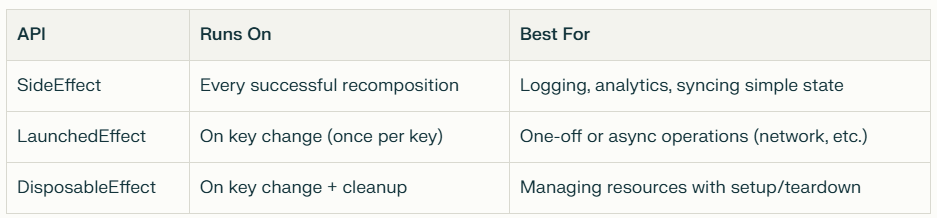
Choosing the Right Side-Effect API

Conclusion

Side-Effect APIs in Jetpack Compose are essential for bridging the gap between declarative UI and imperative side effects. By understanding and using SideEffect, LaunchedEffect, and DisposableEffect correctly, you can:

  • Prevent bugs and performance issues caused by unwanted repeated side effects
  • Build responsive, robust, and maintainable Compose apps
  • Ensure your app interacts safely with the outside world

Remember:

  • Use SideEffect for lightweight, repeatable actions after recomposition
  • Use LaunchedEffect for one-time or asynchronous tasks
  • Use DisposableEffect for managing resources with setup and teardown

Mastering these tools will help you write cleaner, more reliable Compose code — and take your Android apps to the next level.

Jetpack Glance Media Playback

A Deep Dive into Using Jetpack Glance for Media Playback in Android Automotive OS

As vehicles evolve into digital experiences, the need for glanceable, fast, and distraction-free interfaces becomes paramount. In Android Automotive OS (AAOS), this demand has led to the emergence of the Jetpack Glance framework — a powerful tool for creating UI surfaces that are lightweight, fast to load, and safe for drivers to interact with.

In this blog post, we’ll explore how Jetpack Glance can be used to build a media playback card for Android Automotive OS. From setting up dependencies to implementing a full-featured glanceable media widget with play/pause/skip functionality — we’ll walk through the full picture with code, context, and best practices.

What is Jetpack Glance?

Jetpack Glance is a declarative UI library designed for building remote user interfaces, including:

  • App widgets (for Android homescreens)
  • Glanceable UIs for wearables (e.g., Tiles)
  • Future-facing vehicle dashboards and clusters in Android Automotive

Think of Glance as the Compose-inspired sibling of RemoteViews, but tailored for rendering quickly, efficiently, and safely on surfaces with strict interaction rules — like a car’s infotainment screen.

Why Use Glance in Android Automotive?

Using Glance in AAOS allows developers to:

  • Create lightweight UIs for media, navigation, or vehicle info
  • Ensure low distraction by adhering to system-level constraints
  • Maintain fast rendering even on constrained hardware
  • Leverage Jetpack Compose-like syntax without full Compose overhead

Key Use Cases in AAOS

Use CaseDescription
Media CardsDisplay now-playing info and basic playback controls
Navigation PreviewsShow turn-by-turn summaries or route cards
Vehicle StatusFuel, tire pressure, battery charge level
Contextual AlertsDoor open, low fuel, safety notifications

Setting Up Jetpack Glance in Your Project

Add Required Dependencies

Update your build.gradle with the latest Glance libraries:

Kotlin
dependencies {
    implementation "androidx.glance:glance:1.0.0"
    implementation "androidx.glance:glance-appwidget:1.0.0"
    implementation "androidx.glance:glance-wear-tiles:1.0.0" // optional
    implementation "androidx.core:core-ktx:1.12.0"
}

Tip: Glance is backward-compatible with Android 12 and above, making it suitable for most AAOS setups.

Creating a Glanceable Media Widget for AAOS

Let’s walk through a full example where we build a media playback widget that can be shown in a center display or cluster (with OEM support).

Define the Glance Widget

Kotlin
class MediaGlanceWidget : GlanceAppWidget() {
    @Composable
    override fun Content() {
        val title = "Song Title"
        val artist = "Artist Name"

        Column(
            modifier = GlanceModifier
                .fillMaxSize()
                .padding(16.dp)
                .background(Color.DarkGray),
            verticalAlignment = Alignment.CenterVertically,
            horizontalAlignment = Alignment.CenterHorizontally
        ) {
            Text("Now Playing", style = TextStyle(fontWeight = FontWeight.Bold, color = Color.White))
            Spacer(Modifier.height(8.dp))
            Text(title, style = TextStyle(color = Color.White))
            Text(artist, style = TextStyle(color = Color.LightGray))

            Spacer(Modifier.height(16.dp))
            Row(horizontalAlignment = Alignment.CenterHorizontally) {
                Image(
                    provider = ImageProvider(R.drawable.ic_previous),
                    contentDescription = "Previous",
                    modifier = GlanceModifier.size(32.dp).clickable {
                        actionStartService<MediaControlService>("ACTION_PREVIOUS")
                    }
                )
                Spacer(Modifier.width(16.dp))
                Image(
                    provider = ImageProvider(R.drawable.ic_play),
                    contentDescription = "Play",
                    modifier = GlanceModifier.size(32.dp).clickable {
                        actionStartService<MediaControlService>("ACTION_PLAY_PAUSE")
                    }
                )
                Spacer(Modifier.width(16.dp))
                Image(
                    provider = ImageProvider(R.drawable.ic_next),
                    contentDescription = "Next",
                    modifier = GlanceModifier.size(32.dp).clickable {
                        actionStartService<MediaControlService>("ACTION_NEXT")
                    }
                )
            }
        }
    }
}

Handling Playback Actions: MediaControlService

Since Glance doesn’t support direct onClick behavior like Compose, we use a Service to act on UI interactions.

Kotlin
class MediaControlService : Service() {
    override fun onStartCommand(intent: Intent?, flags: Int, startId: Int): Int {
        when (intent?.action) {
            "ACTION_PLAY_PAUSE" -> togglePlayPause()
            "ACTION_NEXT" -> skipToNext()
            "ACTION_PREVIOUS" -> skipToPrevious()
        }
        return START_NOT_STICKY
    }

    private fun togglePlayPause() {
        // Hook into MediaSession or ExoPlayer
    }

    private fun skipToNext() {
        // Forward playback command
    }

    private fun skipToPrevious() {
        // Rewind playback
    }

    override fun onBind(intent: Intent?): IBinder? = null
}

Integrating with AndroidManifest.xml

To register the widget and service:

Kotlin
<receiver
    android:name=".MediaGlanceWidgetReceiver"
    android:exported="true">
    <intent-filter>
        <action android:name="android.appwidget.action.APPWIDGET_UPDATE" />
    </intent-filter>
    <meta-data
        android:name="android.appwidget.provider"
        android:resource="@xml/media_widget_info" />
</receiver>

<service
    android:name=".MediaControlService"
    android:exported="false" />

Widget Configuration XML

In res/xml/media_widget_info.xml:

Kotlin
<appwidget-provider
    xmlns:android="http://schemas.android.com/apk/res/android"
    android:minWidth="180dp"
    android:minHeight="100dp"
    android:updatePeriodMillis="60000"
    android:widgetCategory="home_screen" />

Best Practices for Automotive Glance UI

  • Keep UI distraction-optimized
  • Use readable font sizes and sufficient contrast
  • Avoid overloading the interface — 2–3 actions max
  • Make controls large and touch-friendly
  • Always test on real AAOS hardware or emulator

Conclusion

Jetpack Glance is quickly becoming a go-to tool for developers looking to build safe, fast, and flexible UI surfaces across Android form factors. In the automotive space, it shines by helping deliver minimalist, glanceable media controls that respect both performance and safety constraints.

As AAOS continues to evolve, expect more OEM support for Glance in clusters, dashboards, and center displays — especially with the push toward custom car launchers and immersive media experiences

error: Content is protected !!