In Kotlin, a side effect is a change in the state of a program that occurs outside of the current function. A side effect can be caused by modifying a variable outside of a local scope(don’t worry we will look in detail), modifying the state of a database, making a network request, or updating a...
Kotlin is a modern programming language that has been gaining popularity in recent years, thanks to its combination of pragmatic design, concise syntax, and a strong focus on safety. Developed by JetBrains, the company behind popular IDEs like IntelliJ IDEA, Kotlin is a statically typed language that runs on the Java Virtual Machine (JVM), Android, and JavaScript.
As I mentioned earlier Kotlin is a statically typed programming language, just like Java. This means that the type of every expression in a program is known at compile time, and the compiler can validate that the methods and fields you’re trying to access exist on the objects you’re using. This allows for benefits such as faster method calling, fewer crashes at runtime, and easier code maintenance.
When it comes to functional programming, Kotlin offers benefits such as conciseness, safe multithreading, and easier testing. By working with first-class functions, immutability, and pure functions without side effects, developers can write code that is easier to test and debug.
In this article, we’ll explore some of the key features of Kotlin and how they can benefit our development workflow.
Pragmatic Design
Kotlin is designed to be a practical language that solves real-world problems. Its syntax is concise, making it easy to read and write. This is especially beneficial when working on large projects where you need to add new features or fix bugs quickly.
Kotlin also has a strong focus on tooling. It integrates seamlessly with IntelliJ IDEA, Android Studio, and other popular IDEs, providing features like code completion, refactoring, and debugging. This makes it easy to develop Kotlin applications without worrying about the details of the underlying language.
Concise Syntax
Kotlin’s concise syntax makes it easy to write code that is easy to read and understand. For example, Kotlin supports type inference, which means you don’t always have to specify the type of a variable explicitly. The compiler can often infer the type based on the value assigned to the variable.
Kotlin also supports first-class functions, which means you can pass functions as parameters and return them from other functions. This allows you to write more concise and expressive code.
Safety
Kotlin is designed to be a safe language, which means it provides features to help prevent certain kinds of errors in your code. For example, Kotlin’s type system ensures that you can’t call methods on objects that don’t support them. This helps prevent runtime errors that might otherwise crash your application.
Kotlin also supports immutability and pure functions. Immutable objects can’t be changed once they are created, which helps prevent bugs caused by unexpected changes in the object state. Pure functions don’t have side effects and always return the same value for the same inputs, which makes them easier to test and reason about.
Interoperability
One of the key advantages of Kotlin is its interoperability with Java. Kotlin code can call Java code and vice versa, making it easy to use existing Java libraries and frameworks. This is especially useful when working on Android applications, where many libraries are written in Java.
To use Kotlin in your Java project, you need to add the Kotlin runtime library to your classpath. You can then write Kotlin code and compile it to a Java-compatible bytecode that can be used in your Java application.
Functional Programming
The key concepts of functional programming are first-class functions, immutability, and no side effects. First-class functions allow you to work with functions as values, store them in variables, pass them as parameters, or return them from other functions. Immutability ensures that objects’ states cannot change after their creation, and pure functions that don’t modify the state of other objects or interact with the outside world are used to avoid side effects.
Writing code in the functional style can bring several benefits, such as conciseness, safe multithreading, and easier testing. Concise code is easier to read and maintain, and safe multithreading can help prevent errors in multithreaded programs. Functions without side effects can be tested in isolation without requiring a lot of setup code to construct the entire environment that they depend on.
Kotlin on the Server Side
Kotlin enables developers to create a variety of server-side applications, including web applications that return HTML pages to a browser, backends of mobile applications that expose a JSON API over HTTP, and microservices that communicate with other microservices over an RPC protocol. Kotlin’s focus on interoperability allows developers to use existing libraries, call Java methods, extend Java classes and implement interfaces, apply Java annotations to Kotlin classes, and more.
Conclusion
Kotlin is a powerful and versatile programming language that can be used for a wide range of applications. Its pragmatic design, concise syntax, and focus on safety make it a popular choice among developers. With its seamless interoperability with Java and strong tooling support, Kotlin is agreat choice for any project that requires a modern and reliable language.
Kotlin Sealed classes are a powerful tool for implementing a type hierarchy with a finite set of classes. A sealed class can have several subclasses, but all of them must be defined within the same file. This restriction allows the compiler to determine all possible subclasses of a sealed class, making it possible to use...
I had the opportunity to work with the TCA (The Composable Architecture) in the past and would like to share my knowledge about it with our community. This architecture has gained popularity as a reliable way to create robust and scalable applications. TCA is a composable, unidirectional, and predictable architecture that helps developers to build applications that are easy to test, maintain and extend. In this blog, we’ll explore TCA in Android and how it can be implemented using Kotlin code.
What is TCA?
The Composable Architecture is a pattern that is inspired by Redux and Elm. It aims to simplify state management and provide a clear separation of concerns. TCA achieves this by having a strict unidirectional data flow and by breaking down the application into smaller, reusable components.
The basic components of TCA are:
State: The single source of truth for the application’s data.
Action: A description of an intent to change the state.
Reducer: A pure function that takes the current state and an action as input and returns a new state.
Effect: A description of a side-effect, such as fetching data from an API or showing a dialog box.
Environment: An object that contains dependencies that are needed to perform side-effects.
TCA uses a unidirectional data flow, meaning that the flow of data in the application goes in one direction. Actions are dispatched to the reducer, which updates the state, and effects are executed based on the updated state. This unidirectional flow makes the architecture predictable and easy to reason about.
Implementing TCA in Android using Kotlin
To implement TCA in Android using Kotlin, we will use the following libraries:
Kotlin Coroutines: For handling asynchronous tasks.
Kotlin Flow: For creating reactive streams of data.
Compose: For building the UI.
Let’s start by creating a basic TCA structure for our application.
1. State
The State is the single source of truth for the application’s data. In this example, we will create a simple counter app, where the state will contain an integer value representing the current count.
Kotlin
dataclassCounterState(val count: Int = 0)
2. Action
Actions are descriptions of intents to change the state. In this example, we will define two actions, one to increment the count and another to decrement it.
Reducers are pure functions that take the current state and an action as input and return a new state. In this example, we will create a reducer that updates the count based on the action.
Effects are descriptions of side-effects, such as fetching data from an API or showing a dialog box. In this example, we don’t need any effects.
Kotlin
sealedclassCounterEffect
5. Environment
The Environment is an object that contains dependencies that are needed to perform side-effects. In this example, we don’t need any dependencies.
Kotlin
classCounterEnvironment
6. Store
The Store is the central component of TCA. It contains the state, the reducer, the effect handler, and the environment. It also provides a way to dispatch actions and subscribe to state changes.
We create a MutableStateFlowto hold the current state of the application. We also define a StateFlowto provide read-only access to the state. The dispatchfunction takes an action, passes it to the reducer, and updates the state accordingly. Finally, the disposefunction cancels thejob to clean up any ongoing coroutines when the store is no longer needed.
7. Compose UI
Now that we have our TCA components in place, we can create a simple UI to interact with the counter store. We will use Compose to create the UI, which allows us to define the layout and behavior of the UI using declarative code.
We define a CounterScreen composable function that takes a CounterStore as a parameter. We use the collectAsStatefunction to create a state holder for the current state of the store. Inside the Column, we display the current count and two buttons to increment and decrement the count. When a button is clicked, we dispatch the corresponding action to the store.
8. Putting it all together
To put everything together, we can create a simple MainActivity that creates a CounterStore and displays the CounterScreen.
We create a CounterStore instance and pass it to the CounterScreen composable function in the setContent block. We also call disposeon the store when the activity is destroyed to clean up any ongoing coroutines.
Let’s take a look at a real-world example to gain a clearer understanding of this concept in action and see how it can be applied to solve practical problems.
Here’s another example of TCA in action using a Weather App an example.
1. State
Let’s start by defining the state of our weather app:
Our state consists of the current location, the temperature at that location, a flag indicating whether the app is currently fetching data, and an error message if an error occurs.
2. Action
Next, we define the actions that can be performed in our weather app:
We define four actions:UpdateLocation to update the current location, FetchData to fetch the weather data for the current location, DataFetched to update the temperature after the data has been fetched, and Error to handle errors that occur during the fetch.
3. Reducer
Our reducer takes the current state and an action and returns a new state based on the action:
Our effect uses a suspend function getTemperatureForLocation to fetch the weather data for the current location. We emit a DataFetched action if the data is fetched successfully and an Error action if an exception occurs.
5. Environment
Our environment provides dependencies required by our effect:
In this implementation, we’re using the OkHttpClient library to make an HTTP request to the OpenWeatherMap API. The API returns a JSON response, which we parse using the JSONObject class from the org.json package. We then extract the temperature from the JSON response and return it as a Double.
Note that the API_KEY placeholder in the URL should be replaced with a valid API key obtained from OpenWeatherMap.
6. Store
Our store holds the current state and provides functions to dispatch actions and read the current state:
Our store initializes the state with default values and provides a dispatch function to update the state based on actions. We use a CoroutineScope to run our effects and dispatch new actions as required.
In the init block, we fetch the weather data for the current location and dispatch a DataFetched action with the temperature.
In the dispatch function, we update the state based on the action and run our effect to fetch the weather data. If an UpdateLocation or FetchData action is dispatched, we launch a new coroutine to run our effect and dispatch a new action based on the result.
That’s a simple example of how TCA can be used in a real-world application. By using TCA, we can easily manage the state of our application and handle complex interactions between different components.
Testing in TCA
In TCA, the reducer is the most important component as it is responsible for managing the state of the application. Hence, unit testing the reducer is essential. However, there are other components in TCA such as actions, environment, and effects that can also be tested.
Actions can be tested to ensure that they are constructed correctly and have the intended behavior when dispatched to the reducer. Environment can be tested to ensure that it provides the necessary dependencies to the reducer and effects. Effects can also be tested to ensure that they produce the expected results when executed.
Unit Testing For Reducer
Kotlin
import kotlinx.coroutines.test.TestCoroutineDispatcherimport org.junit.Assert.assertEqualsimport org.junit.TestclassWeatherReducerTest {privateval testDispatcher = TestCoroutineDispatcher()@Testfun`update location action should update location in state`() {val initialState = WeatherState(location = "Satara")val expectedState = initialState.copy(location = "Pune")val actualState = weatherReducer( initialState, WeatherAction.UpdateLocation("Pune") )assertEquals(expectedState, actualState) }@Testfun`fetch data action should update fetching state and clear error`() {val initialState = WeatherState(isFetching = false, error = "Some error")val expectedState = initialState.copy(isFetching = true, error = null)val actualState = weatherReducer(initialState, WeatherAction.FetchData)assertEquals(expectedState, actualState) }@Testfun`data fetched action should update temperature and reset fetching state`() {val initialState = WeatherState(isFetching = true, temperature = 0.0)val expectedState = initialState.copy(isFetching = false, temperature = 20.0)val actualState = weatherReducer( initialState, WeatherAction.DataFetched(20.0) )assertEquals(expectedState, actualState) }@Testfun`error action should update error and reset fetching state`() {val initialState = WeatherState(isFetching = true, error = null)val expectedState = initialState.copy(isFetching = false, error = "Some error")val actualState = weatherReducer( initialState, WeatherAction.Error("Some error") )assertEquals(expectedState, actualState) }@Testfun`fetch data effect should emit data fetched action with temperature`() {val initialState = WeatherState(isFetching = false, temperature = 0.0)val expectedState = initialState.copy(isFetching = false, temperature = 20.0)val fetchTemperature = { 20.0 }val actualState = performActionWithEffect( initialState, WeatherAction.FetchData, fetchTemperature, testDispatcher )assertEquals(expectedState, actualState) }@Testfun`fetch data effect should emit error action with message`() {val initialState = WeatherState(isFetching = false, error = null)val expectedState = initialState.copy(isFetching = false, error = "Failed to fetch temperature")val fetchTemperature = { throwException("Failed to fetch temperature") }val actualState = performActionWithEffect( initialState, WeatherAction.FetchData, fetchTemperature, testDispatcher )assertEquals(expectedState, actualState) }}
In this example, we test each case of the when expression in the weatherReducer function using different test cases. We also test the effect that is dispatched when the FetchData action is dispatched. We create an initial state and define an expected state after each action is dispatched or effect is performed. We then call the weatherReducer function with the initial state and action to obtain the updated state. Finally, we use assertEquals to compare the expected and actual states.
To test the effect, we define a function that returns a value or throws an exception, depending on the test case. We then call the performActionWithEffect function, passing in the initial state, action, and effect function, to obtain the updated state after the effect is performed. We then use assertEquals to compare the expected and actual states.
Furthermore, integration testing can also be performed to test the interactions between the components of the TCA architecture. For example, integration testing can be used to test the flow of data between the reducer, effects, and the environment.
Overall, while the reducer is the most important component in TCA, it is important to test all components to ensure the correctness and robustness of the application.
Advantages:
Predictable state management: TCA provides a strict, unidirectional data flow, which makes it easy to reason about the state of your application. This helps reduce the possibility of unexpected bugs and makes it easier to maintain and refactor your codebase.
Testability: The unidirectional data flow in TCA makes it easier to write tests for your application. You can test your reducers and effects independently, which can help you catch bugs earlier in the development process.
Modularity:With TCA, your application is broken down into small, composable pieces that can be easily reused across your codebase. This makes it easier to maintain and refactor your codebase as your application grows.
Error handling: TCA provides a clear path for error handling, which makes it easier to handle exceptions and recover from errors in your application.
Disadvantages:
Learning curve: TCA has a steep learning curve, especially for developers who are new to functional programming. You may need to invest some time to learn the concepts and get comfortable with the syntax.
Overhead: TCA can introduce some overhead, especially if you have a small application. The additional boilerplate code required to implement TCA can be a barrier to entry for some developers.
More verbose code:The strict, unidirectional data flow of TCA can lead to more verbose code, especially for more complex applications. This can make it harder to read and maintain your codebase.
Limited tooling:TCA is a relatively new architecture, so there is limited tooling and support available compared to more established architectures like MVP or MVVM. This can make it harder to find solutions to common problems or get help when you’re stuck.
Summary
In summary, each architecture has its own strengths and weaknesses, and the best architecture for your project depends on your specific needs and requirements. TCA can be a good choice for projects that require predictable state management, testability, and modularity, but it may not be the best fit for every project.
Kotlin is a modern programming language that is designed to be both functional and object-oriented. One of the features that makes Kotlin stand out is its support for higher-order functions. In Kotlin, functions are first-class citizens, which means they can be treated as values and passed around as parameters. In this blog, we will explore...
Plugins are modules that provide additional functionality to the build system in Android Studio. They can help you perform tasks such as code analysis, testing, or building and deploying your app.
New Plugin Convention
The new plugin convention for Android Studio was introduced in version 3.0 of the Android Gradle plugin, which was released in 2017. While the new plugin convention was officially introduced in Android Studio 3.0, it is still being used and recommended in recent versions of Android Studio.
To define plugins in the build.gradle file, you can add the plugin’s ID to the plugins block.
Groovy
// Top-level build file where you can add configuration options common to all sub-projects/modules.plugins { id 'com.android.application' version '7.4.2' apply false id 'com.android.library' version '7.4.2' apply false id 'org.jetbrains.kotlin.android' version '1.8.0' apply false}
In this example, the plugins block is used to define three different plugins: ‘com.android.application’, ‘com.android.library’, and ‘org.jetbrains.kotlin.android’. Each plugin is identified by its unique ID, and a specific version is specified as well. The ‘apply false’ statement means that the plugin is not applied to the current module yet — it will only be applied when explicitly called later on in the file.
Once you’ve defined your plugins in the build.gradle file, you can fetch them from the settings file. The settings file is typically located in the root directory of your project, and is named settings.gradle. You can add the following code to the settings.gradle file to fetch your plugins:
This is an example of the new convention for the settings.gradle file in Android Studio, which includes the pluginManagement and dependencyResolutionManagement blocks.
In the pluginManagement block, repositories are defined where Gradle can search for plugin versions. In this example, gradlePluginPortal(), google(), and mavenCentral() are included as repositories. These repositories provide access to a wide range of plugins that can be used in your Android project.
In the dependencyResolutionManagement block, repositories for dependency resolution are defined. The repositoriesMode is set to FAIL_ON_PROJECT_REPOS, which means that if a repository is defined in a module’s build.gradle file that conflicts with one of the repositories defined here, the build will fail. This helps to ensure that dependencies are resolved consistently across all modules in the project.
Finally, the rootProject.name and include statements are used to specify the name of the root project and the modules that are included in the project. In this example, there is only one module, :app, but you can include multiple modules by adding additional include statements.
Advantages Over Traditional Way
The new convention of defining plugins in the build.gradle file and fetching them from the settings file in Android Studio was introduced to improve the modularity and maintainability of the build system.
Traditionally, plugins were defined in a separate file called “buildscript.gradle” and fetched from a separate “build.gradle” file. This approach made it difficult to manage and update plugins, especially in large projects with many dependencies.
By defining plugins in the build.gradle file, the build system becomes more modular and easier to maintain. Each module can specify its own set of plugins, and the build system can handle transitive dependencies automatically.
Fetching plugins from the settings file also provides a central location for managing and updating plugin versions. This approach ensures that all modules use the same version of a plugin, which helps to avoid conflicts and makes it easier to upgrade to newer versions of a plugin.
Disadvantages
Complexity: The new convention adds some complexity to the build system, especially for developers who are not familiar with Gradle or Android Studio. This complexity can make it harder to understand and troubleshoot issues that arise during the build process.
Learning Curve: The new convention requires developers to learn a new way of managing plugins, which can take time and effort. Developers who are used to the traditional approach may find it challenging to adapt to the new convention.
Migration: Migrating an existing project from the traditional approach to the new convention can be time-consuming and error-prone. Developers may need to update multiple files and dependencies, which can introduce new issues and require extensive testing.
Kotlin Lambda expressions are a powerful feature of Kotlin that allow for the creation of anonymous functions that can be passed as arguments to other functions. They are a concise and expressive way to define small pieces of functionality, making them an essential tool for functional programming in Kotlin. In this guide, we will cover...
In Android development, product flavors allow you to create different versions of your app with different configurations, resources, and code, but with the same base functionality. Product flavors are used when you want to create multiple versions of the same app that differ in some way, such as a free and a paid version, or...
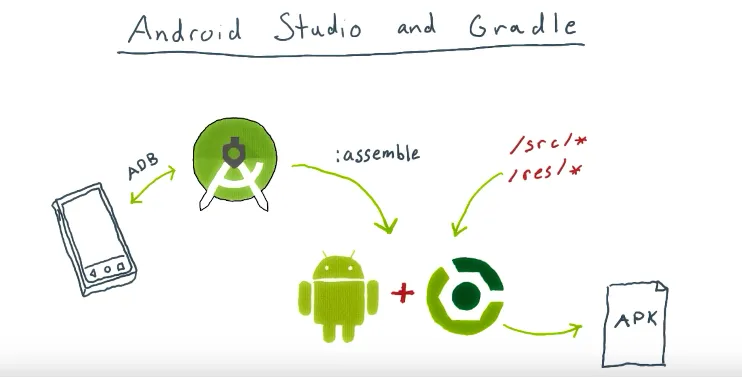
Android Studio and Gradle are two essential tools for developing Android applications. Android Studio is the official integrated development environment (IDE) for Android, while Gradle is the build system used to compile and package your code into an Android application package (APK) file.
Android Studio has an editor with sophisticated code completion and static analysis features. It also has a suite of tools for integrating with Android devices and emulators. The one thing it doesn’t have, however, is an integrated build system. Android Studio delegates the entire build process to Gradle. That’s everything that happens to turn your sources and resources into an APK that you can install on your device.
In this blog post, we’ll explore the features and benefits of Android Studio and Gradle, and how they work together to streamline the Android development process.
Android Studio and Gradle
Android Studio
Android Studio is a powerful and feature-rich IDE that provides developers with a comprehensive set of tools for designing, building, and testing Android applications. Android Studio is built on top of the IntelliJ IDEA platform, which provides a rich and flexible environment for Java and Kotlin development. Some of the key features of Android Studio include:
Layout editor: Android Studio includes a powerful layout editor that allows you to design and preview your app’s user interface (UI) using a drag-and-drop interface. The layout editor also supports a variety of UI components and layouts, making it easy to create a visually appealing and functional UI.
Code editor: Android Studio provides a code editor that supports syntax highlighting, code completion, and code navigation. The code editor also supports a variety of keyboard shortcuts and other productivity features that make coding faster and more efficient.
Debugging tools: Android Studio includes a range of debugging tools that help you identify and fix bugs in your code. The debugger allows you to set breakpoints, inspect variables, and step through your code line by line.
Emulator: Android Studio includes an emulator that allows you to test your app on a variety of virtual devices, including different screen sizes, resolutions, and API levels. The emulator also supports hardware acceleration, making it faster and more responsive than traditional emulators.
Gradle
Gradle is the build system used to compile and package your code into an APK file that can be installed on Android devices. Gradle is built on top of the Groovy programming language and provides a flexible and extensible build system that supports a variety of build configurations and dependencies. Some of the key features of Gradle include:
Build configurations: Gradle allows you to define multiple build configurations for your app, such as “debug” and “release”. Each build configuration can have its own set of build settings and dependencies, making it easy to customize your app for different environments.
Dependency management: Gradle provides a powerful dependency management system that allows you to declare dependencies on other libraries and modules. Gradle automatically downloads and configures the required dependencies, making it easy to include third-party libraries in your app.
Incremental builds:Gradle supports incremental builds, which means that only the parts of your code that have changed since the last build are recompiled. This makes the build process faster and more efficient, especially for large codebases.
Plugins: Gradle supports a variety of plugins that extend its functionality and make it easier to perform common tasks, such as building and testing your app. There are also third-party plugins available for Gradle that provide additional features and integration with other tools.
How Android Studio and Gradle Work Together?
Android Studio and Gradle work together to provide a seamless development experience for Android developers. Android Studio includes built-in support for Gradle, which means that you can easily create and manage Gradle projects within the IDE. When you create a new Android project in Android Studio, the IDE generates a basic Gradle build file that you can customize to suit your project’s needs.
The build file defines the build configurations, dependencies, and other settings for your project. When you build your project, Gradle reads the build file and compiles your code into an APK file. Android Studio provides a graphical interface for managing your Gradle build file, making it easy to configure and customize your build settings.
Android Studio and Gradle also provide a range of plugins and extensions that help you streamline your development workflow. For example, the Android Gradle plugin provides additional functionality for building and testing Android applications, such as support for the Android SDK and integration with the Google Play Store.
Conclusion
Android Studio and Gradle are essential tools for developing high-quality Android applications. Android Studio provides a powerful IDE with a range of features and tools for designing, building, and testing Android apps. Gradle provides a flexible and extensible build system that allows you to customize your app for different environments and include third-party libraries and dependencies. Together, Android Studio and Gradle provide a seamless and efficient development experience for Android developers.
Kotlin is a powerful programming language that has been gaining popularity in recent years. One of its key features is extension functions. Kotlin Extension functions allow developers to add functionality to existing classes without having to modify the original class. In this blog, we will discuss kotlin extension functions in Kotlin and provide some examples...