

When you start working with animations in Jetpack Compose, the spring() API feels intuitive at first—until you notice something odd: animations don’t seem to fully stop. They get very, very close to the target value… but technically never reach it.
That’s where visibilityThreshold quietly does some of the most important work.
This article walks you through what it is, why it matters, and how to use it correctly across different data types like Dp, Float, and Offset. Along the way, we’ll build real composable examples you can run and experiment with.
Why Spring Animations Need a Stopping Condition
Spring animations simulate real physics, Instead of moving linearly from point A to point B, they behave like a spring:
- They move toward the target
- Overshoot (depending on damping)
- Oscillate
- Gradually settle
From a math perspective, they never fully stop — they just get closer over time.
In UI, that’s not useful. We need a clear stopping point. Compose handles this using a threshold.
What is visibilityThreshold?
visibilityThreshold defines the minimum difference between the current animated value and the target value at which the animation is considered finished.
In simple terms:
- If the remaining distance is smaller than the threshold → animation stops
- If not → animation continues
How It Works for Different Types
Different types need different thresholds because “closeness” depends on the unit.
1. Dp (Density-independent pixels)
spring(
    dampingRatio = Spring.DampingRatioLowBouncy,
    stiffness = Spring.StiffnessMedium,
    visibilityThreshold = 0.5.dp
)
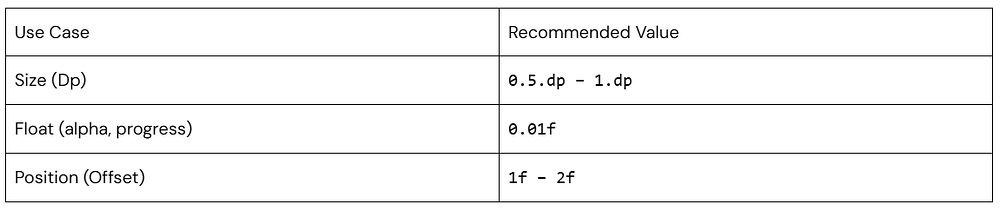
The animation stops when it’s within 0.5dp of the target.
Why this works:
- Human eyes can’t distinguish sub-pixel differences at that scale
- Prevents unnecessary micro-adjustments
2. Float (e.g., Alpha, Progress)
spring<Float>(
    dampingRatio = Spring.DampingRatioNoBouncy,
    stiffness = Spring.StiffnessMediumLow,
    visibilityThreshold = 0.01f
)
Stops when difference < 0.01
Why this matters:
- Floats are continuous values
- Without a threshold, fade animations might keep updating unnecessarily
3. Offset (Position)
spring(
    dampingRatio = Spring.DampingRatioMediumBouncy,
    stiffness = Spring.StiffnessHigh,
    visibilityThreshold = Offset(1f, 1f)
)
Stops when both X and Y are within 1 pixel
Why:
- Movement smaller than 1px is visually irrelevant
- Prevents jitter at the end of motion
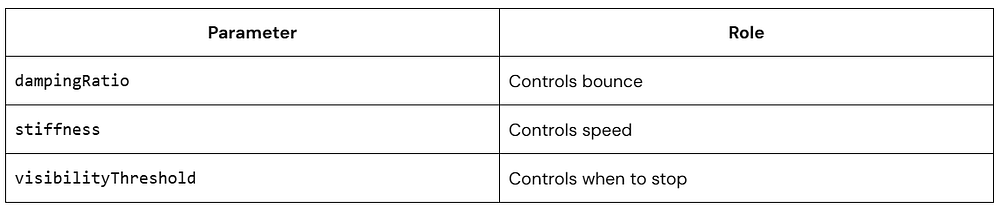
Quick Refresher on Spring Parameters
Real Examples with Composables
Example 1: Animating Size (Dp)
@Composable
fun SpringDpExample() {
    var expanded by remember { mutableStateOf(false) }

    val size by animateDpAsState(
        targetValue = if (expanded) 200.dp else 100.dp,
        animationSpec = spring(
            dampingRatio = Spring.DampingRatioLowBouncy,
            stiffness = Spring.StiffnessMedium,
            visibilityThreshold = 0.5.dp
        )
    )

    Box(
        modifier = Modifier
            .size(size)
            .background(Color.Blue)
            .clickable { expanded = !expanded }
    )
}

@Preview(showBackground = true)
@Composable
fun SpringDpExamplePreview() {
    CenteredPreview {
        SpringDpExample()
    }
}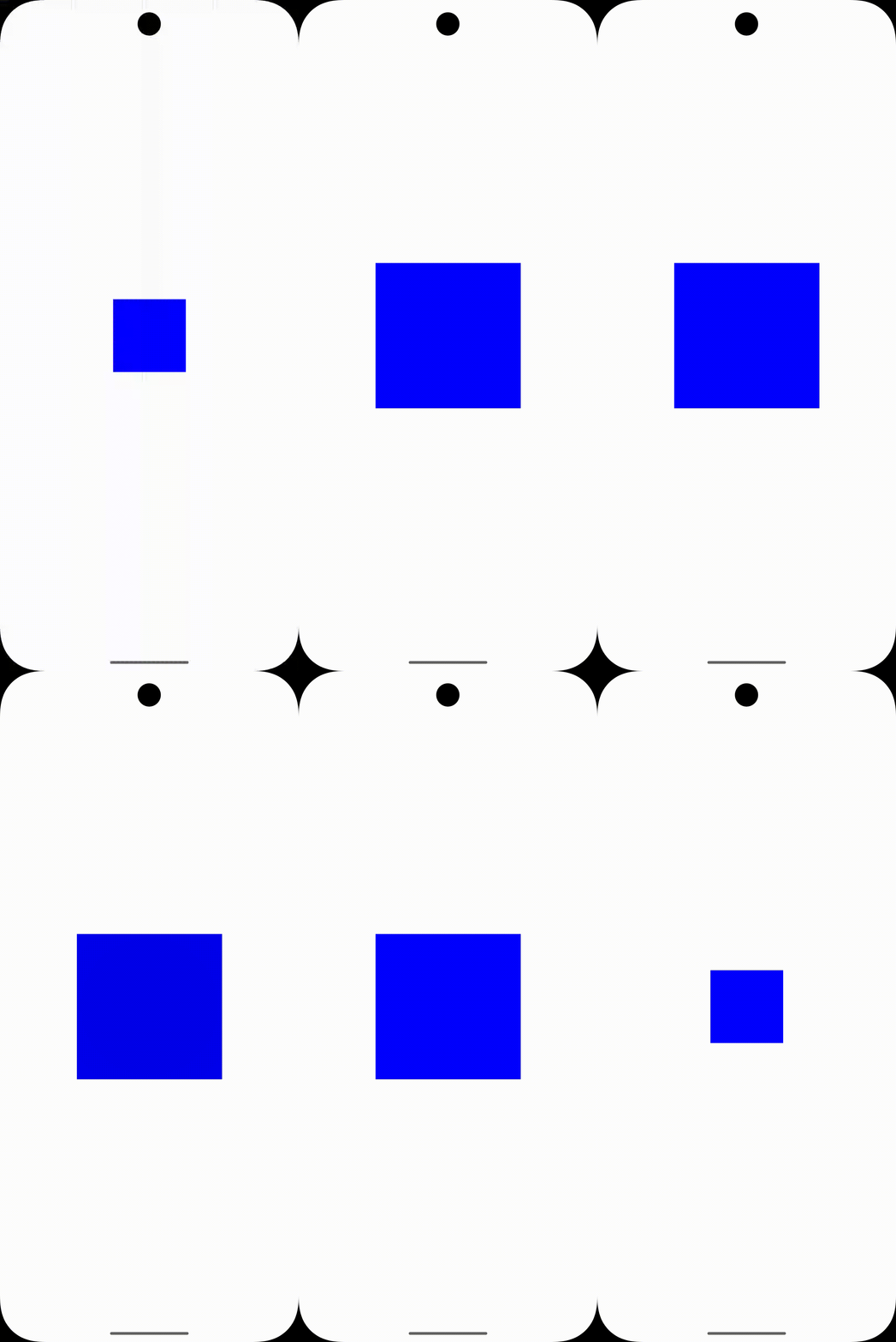
What to notice:
- Smooth expansion and contraction
- A slight bounce effect
- Clean stop without jitter
Example 2: Animating Alpha (Float)
@Composable
fun SpringFloatExample() {
    var visible by remember { mutableStateOf(true) }

    val alpha by animateFloatAsState(
        targetValue = if (visible) 1f else 0f,
        animationSpec = spring(
            dampingRatio = Spring.DampingRatioNoBouncy,
            stiffness = Spring.StiffnessMediumLow,
            visibilityThreshold = 0.01f
        )
    )

    Box(
        modifier = Modifier
            .size(150.dp)
            .background(Color.Red.copy(alpha = alpha))
            .clickable { visible = !visible }
    )
}

@Preview(showBackground = true)
@Composable
fun SpringFloatExamplePreview() {
    CenteredPreview {
        SpringFloatExample()
    }
}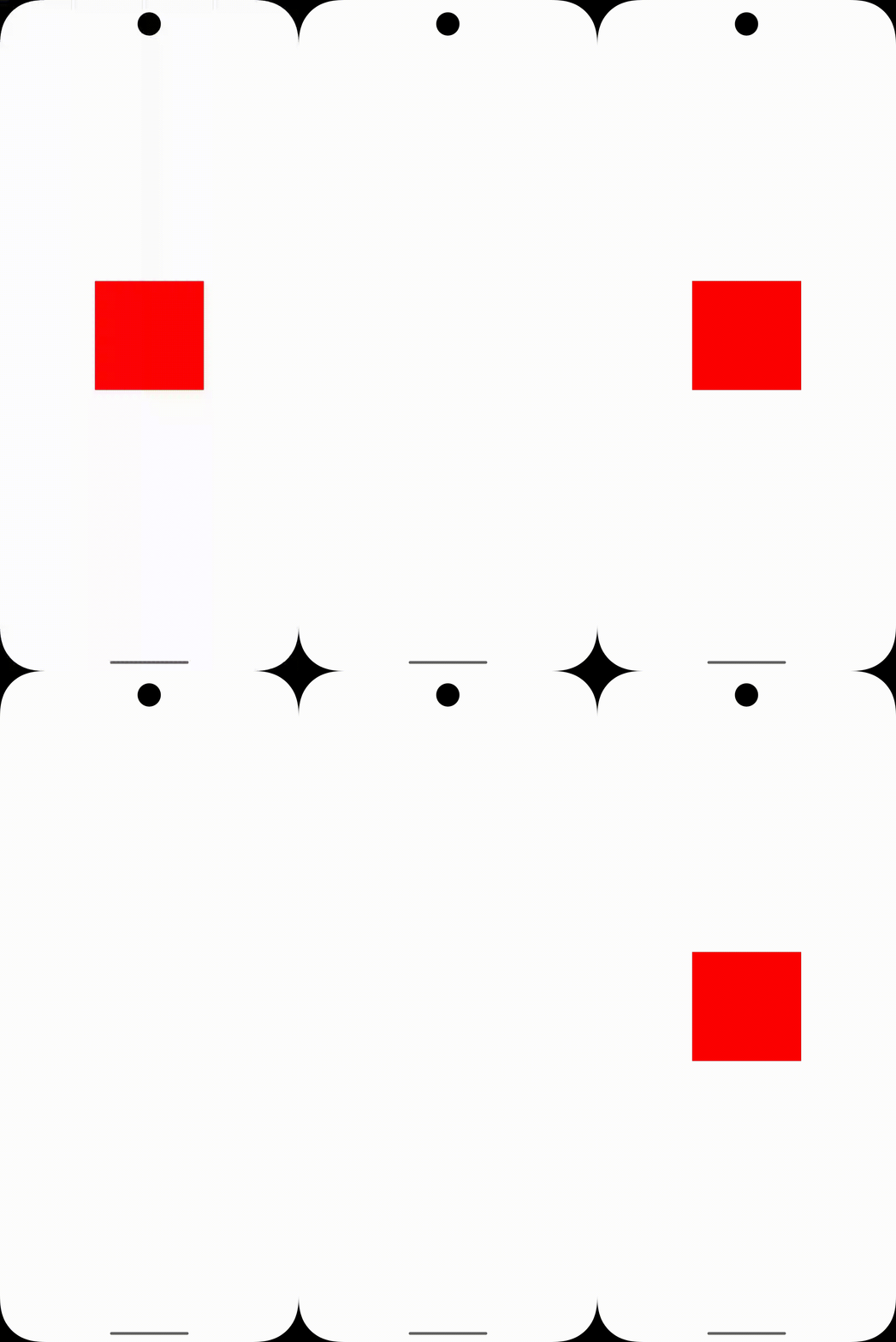
Observation:
- Clean fade without bounce
- No flickering at the end
- Efficient termination
Example 3: Animating Position (Offset)
@Composable
fun SpringOffsetExample() {
    var moved by remember { mutableStateOf(false) }

    val offset by animateOffsetAsState(
        targetValue = if (moved) Offset(300f, 300f) else Offset.Zero,
        animationSpec = spring(
            dampingRatio = Spring.DampingRatioMediumBouncy,
            stiffness = Spring.StiffnessHigh,
            visibilityThreshold = Offset(1f, 1f)
        )
    )

    Box(
        modifier = Modifier
            .offset { IntOffset(offset.x.toInt(), offset.y.toInt()) }
            .size(80.dp)
            .background(Color.Green)
            .clickable { moved = !moved }
    )
}

@Preview(showBackground = true)
@Composable
fun SpringOffsetExamplePreview() {
    CenteredPreview {
        SpringOffsetExample()
    }
}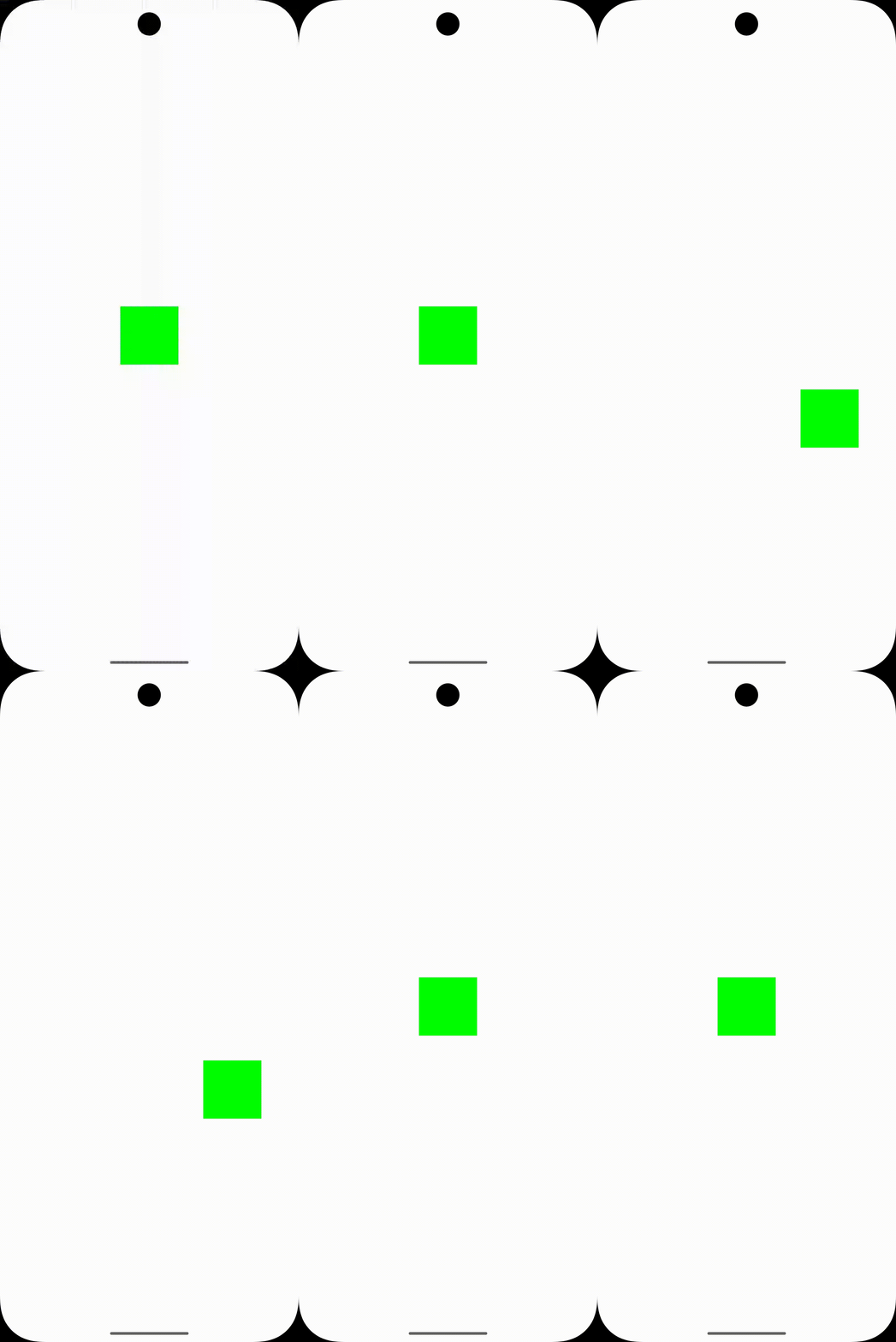
What to watch:
- Movement feels natural
- Slight bounce at destination
- Stops cleanly without micro-shakes
Why visibilityThreshold is Important
1. Performance Optimization
Without it:
- The animation engine keeps recalculating tiny differences
- Wastes CPU cycles
- Impacts battery (especially on low-end devices)
With it:
- Animation ends decisively
- Reduces recompositions
2. Visual Stability
Tiny sub-pixel movements can cause:
- Flickering
- Jitter
- Unstable UI feel
Threshold eliminates those artifacts.
3. Better UX
Users don’t perceive microscopic differences.
Ending animations early:
- Feels faster
- Feels smoother
- Improves perceived performance
Choosing the Right Threshold
Here’s a practical guideline:
Avoid:
- Too small → wasted computation
- Too large → noticeable snapping
Common Mistakes
Ignoring it completely
→ Animations run longer than needed
Using the same value everywhere
→ Different types need different precision
Setting it too high
→ Animation ends too early and looks abrupt
Conclusion
visibilityThreshold is easy to overlook, but it has a noticeable impact on how polished your animations feel.
A small tweak here can:
- Reduce unnecessary work
- Improve smoothness
- Make animations feel more intentional
It’s one of those details that separates a working UI from a well-crafted one.