

AI-powered coding assistants have completely changed how Android developers write code. Features like Gemini in Android Studio read your project files, understand your codebase structure, and suggest intelligent completions. That’s incredibly helpful — but it also raises an important question:
What exactly is the AI reading?
The answer is often “more than you think.” Configuration files, API keys stored in local .properties files, internal endpoint URLs, analytics tokens — all of these can end up in the AI’s context window if you’re not careful.
That’s exactly where the .aiexclude file comes in. It’s Android Studio’s answer to the .gitignore file, but instead of telling Git what to ignore, it tells the AI assistant what files should stay completely off-limits.
In this guide, we’ll walk you through everything you need to know about the .aiexclude file — what it is, why it matters, how to create and configure it, and real-world patterns to protect your project.
What Is the .aiexclude File?
The .aiexclude file is a plain text configuration file that tells Android Studio’s AI features which files and folders it should never index, read, or use as context when generating suggestions.
Think of it like a privacy wall between your sensitive project files and the AI. When a file is listed in the .aiexclude file, it simply becomes invisible to the AI — it won’t factor into any code completions, refactoring suggestions, or AI-assisted search results.
This feature was introduced as developers started using AI assistants more deeply in their workflows and needed a simple, declarative way to control what data gets shared.
Why Does This Matter?
Here’s a realistic scenario: You’re building a fintech app. You have a local.properties file with a Stripe API key sitting in your project root. Your .gitignore already excludes it from version control. But your AI assistant doesn’t know about .gitignore — it reads every file it can find in your project.
Without a .aiexclude file, that API key could end up in the AI’s context. With one, you can ensure it’s never touched.
Where to Place the .aiexclude File
The .aiexclude file can live in two places, and the location determines its scope:
1. Project root directory — Applies rules across the entire project.
MyAndroidApp/
├── .aiexclude          ← covers the whole project
├── app/
│   └── src/
├── local.properties
└── build.gradle
2. Inside a specific module or subdirectory — Applies rules only to that folder and its contents.
MyAndroidApp/
├── app/
│   ├── .aiexclude      ← covers only the /app module
│   └── src/
└── secrets/
    ├── .aiexclude      ← covers only /secrets
    └── api_keys.txt
You can even have multiple .aiexclude files in the same project, one per folder, with each one managing its own exclusion rules. They all work together, so there’s no conflict — Android Studio respects all of them.
How the .aiexclude File Syntax Works
The .aiexclude file uses a simple pattern syntax, very similar to .gitignore. Let’s break it down.
Basic File Exclusion
To exclude a specific file, just write its name or path:
# Exclude a specific file in the same directory
local.properties

# Exclude a file using a relative path
config/secrets.json
The # character starts a comment — anything after # on that line is ignored by the parser.
Excluding Entire Directories
Add a trailing slash / to target a whole folder:
# Exclude the entire secrets folder
secrets/

# Exclude a nested folder
app/src/main/assets/private/
Every file inside that folder — regardless of name or extension — becomes invisible to the AI.
Wildcard Patterns
Wildcards are your best friends here. The .aiexclude file supports standard glob patterns:
# Exclude all .properties files anywhere in the project
**/*.properties

# Exclude all JSON files in the config directory
config/*.json

# Exclude all files that start with "key_"
**/key_*

# Exclude everything inside any folder named "internal"
**/internal/**
The ** pattern means “match any number of directories,” so **/*.env would catch .env files no matter how deeply nested they are.
Negation with !
You can un-exclude something that was already covered by a broader rule, using !:
# Exclude all .properties files
**/*.properties

# ...but allow gradle.properties back in (it has no secrets)
!gradle.properties
Just like .gitignore, order matters here — later rules override earlier ones. So always put the negation after the broader exclusion.
Creating Your First .aiexclude File
Let’s walk through setting up a .aiexclude file from scratch in a typical Android project.
Step 1: Create the File
Right-click the project root in Android Studio’s Project view, select New → File, and name it exactly:
.aiexclude
No extension. No prefix. Just .aiexclude.
Tip: If you’re on Windows and File Explorer is hiding files starting with a dot, use Android Studio’s built-in file creation — it handles this correctly.
Step 2: Add Your Exclusion Rules
Open the newly created .aiexclude file and start adding your rules. Here’s a practical starter template:
# ─────────────────────────────────────────────
# .aiexclude — AI context exclusion rules
# Keeps sensitive and irrelevant files out of
# Android Studio's AI assistant context.
# ─────────────────────────────────────────────

# Local configuration with API keys or secrets
local.properties
*.env
*.env.*

# Keystores and signing credentials
**/*.jks
**/*.keystore
keystore.properties

# Service account and OAuth credential files
google-services-staging.json
**/credentials/
**/service_account*.json

# Internal analytics or experiment configs
**/internal_experiments/
**/ab_test_config.json

# Build outputs - not useful for AI context
build/
**/build/
.gradle/

# Auto-generated files (reduce AI noise)
**/generated/
**/*Generated.java
**/*Generated.kt

# Raw data or large asset files
**/raw/
**/*.csv
**/*.sqlite
**/*.db

# Private documentation
docs/internal/
INTERNAL_NOTES.md
Step 3: Verify It’s Working
After saving the .aiexclude file, restart Android Studio or invalidate caches (File → Invalidate Caches / Restart). The AI assistant should now skip the excluded files entirely when generating suggestions.
You can confirm this by checking whether the AI references any content from an excluded file — it shouldn’t.
Real-World Use Cases: What to Exclude and Why
Here are common scenarios where the .aiexclude file becomes genuinely essential.
Use Case 1: Protecting API Keys in local.properties
The local.properties file is the most common place Android developers store sensitive keys — Maps API keys, Firebase project IDs, payment gateway tokens. It’s excluded from Git, but not from AI by default.
# .aiexclude

# Keep the AI away from local config with secrets
local.properties
keystore.properties
Why this matters: If the AI reads local.properties, it might include your API key in a generated code snippet or log statement — even innocently, in a test file it suggests.
Use Case 2: Excluding Generated Code
Generated files (like Room database implementations, Hilt component files, or proto-generated classes) create a lot of noise for the AI. The AI might try to “help” by referencing or modifying them, even though they’re auto-generated and will be overwritten on the next build.
# .aiexclude

# Auto-generated files - don't waste AI context on these
**/generated/
**/*_Impl.kt
**/*.pb.java
Generated files can confuse the AI or cause it to suggest changes to code that isn’t meant to be manually edited. Excluding them improves suggestion quality.
Use Case 3: Excluding Proprietary Business Logic
Maybe you’re working on a module that contains proprietary algorithms or confidential business logic — something your company doesn’t want indexed anywhere outside of approved systems.
# .aiexclude placed inside /pricing-engine module

# Protect proprietary pricing logic from AI indexing
algorithms/
models/pricing/
Even if you trust the AI tool itself, having strict boundaries on what it accesses is good security hygiene — especially in regulated industries.
Use Case 4: Large Files That Hurt Performance
The AI doesn’t need to read a 50MB SQLite database file or a massive CSV dataset. Including them wastes AI context budget and can slow things down.
# .aiexclude

# Large files that don't help the AI at all
**/*.sqlite
**/*.db
**/*.csv
assets/large_dataset.json
AI context windows have limits. Keeping them focused on actual source code means better, more relevant suggestions.
Common Mistakes to Avoid with the .aiexclude File
Even experienced developers make these slip-ups when first working with the .aiexclude file. Here’s what to watch out for.
Mistake 1: Using Absolute Paths
This won’t work as expected:
# Absolute paths don't work
/Users/yourname/AndroidStudioProjects/MyApp/local.properties
Always use relative paths from the location of the .aiexclude file itself:
# Correct — relative path
local.properties
Mistake 2: Forgetting Subdirectories
This only excludes secrets.json at the root level:
# Only matches root-level file
secrets.json
If the file might exist deeper in the project:
# Matches the file anywhere in the project
**/secrets.json
Mistake 3: Not Committing the .aiexclude File to Version Control
Unlike local.properties, the .aiexclude file itself is not sensitive — it just describes what’s sensitive. You should absolutely commit it to Git so your whole team benefits from the same exclusion rules.
git add .aiexclude
git commit -m "Add .aiexclude to protect sensitive files from AI context"
Mistake 4: Over-Excluding Everything
It can be tempting to exclude huge chunks of your project “just to be safe,” but that defeats the purpose of the AI assistant. If the AI can’t see your code, it can’t help you write better code.
Be selective. Exclude what’s genuinely sensitive or noisy — not everything.
The .aiexclude File vs. .gitignore: What’s the Difference?
People often ask whether these two files overlap. Here’s a clear side-by-side comparison:
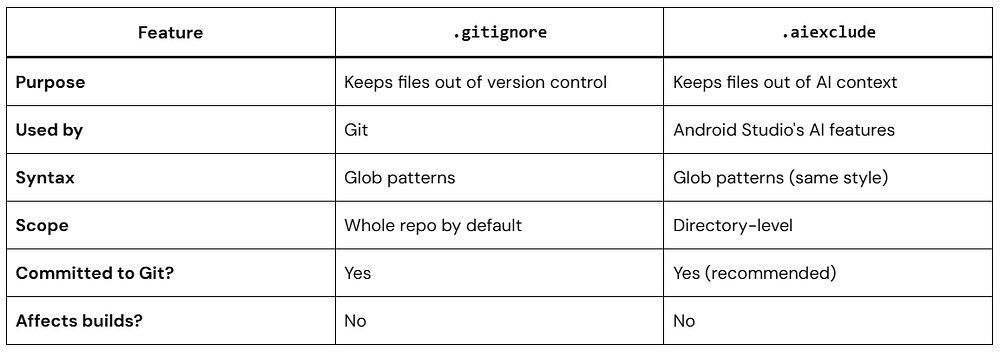
They’re complementary, not replacements for each other. A file can be in .gitignore but still readable by the AI — that’s the exact problem the .aiexclude file solves.
Team Workflow: Making .aiexclude a Team Standard
If you’re leading a team, the .aiexclude file should be part of your project setup checklist — right alongside .gitignore and EditorConfig.
Here’s how to make it a team standard:
Add it to your project template. If your team uses a custom Android project template (or a cookiecutter script), bake in a sensible default .aiexclude file from day one.
Include it in your code review checklist. When a new secret, config, or sensitive module gets added to the project, verify the .aiexclude file is updated accordingly.
Document it in your README. A single line in your project’s README explaining that the project uses a .aiexclude file helps new team members understand the setup quickly.
Treat it like a security document. Additions to the .aiexclude file should go through a quick review — just like changes to SECURITY.md or secrets management configs.
Advanced Pattern: Module-Level .aiexclude Files
In larger, multi-module Android projects, it often makes more sense to manage exclusions at the module level rather than maintaining one giant .aiexclude file at the root.
MyAndroidApp/
├── .aiexclude                    ← project-wide rules
├── app/
│   ├── .aiexclude                ← app module rules
│   └── src/
├── feature-payments/
│   ├── .aiexclude                ← payment module rules (strictest)
│   └── src/
└── feature-onboarding/
    └── src/
Project-root .aiexclude:
# Global rules
local.properties
**/*.jks
**/*.keystore
**/build/feature-payments/.aiexclude:
# Extra-strict for this module — payment logic is proprietary
src/
This hierarchical approach gives you fine-grained control without cluttering a single file.
Frequently Asked Questions About the .aiexclude File
Q: Does the .aiexclude file affect code completion outside of AI features?
No. The .aiexclude file only affects the AI assistant. Standard IntelliJ code completion, navigation, and refactoring tools are not impacted.
Q: Can I use the .aiexclude file in other JetBrains IDEs?
The .aiexclude file was introduced in the context of Android Studio’s AI integration. Support in other JetBrains IDEs may vary — check the documentation for the specific IDE.
Q: What happens if I have conflicting rules between two .aiexclude files?
Each .aiexclude file applies to its own directory and below. There’s no true “conflict” — rules from parent and child directories stack together. The most specific rule (closest to the file) generally wins, similar to .gitignore behavior.
Q: Will the .aiexclude file protect me from ALL data leakage?
The .aiexclude file is a strong first line of defense for local AI features in Android Studio. However, it does not control what happens when you use external AI tools, paste code into chat interfaces, or use other plugins. Treat it as one layer of a broader security practice.
Q: Should I exclude google-services.json?
It depends. The google-services.json that goes into your app usually contains project IDs and API keys. While it’s not as sensitive as a private key, it’s worth excluding it from AI context — especially the production variant. You might do this:
# .aiexclude
google-services.json
app/google-services.json
Quick Reference: Recommended Default .aiexclude Template
Copy this into any Android project and customize as needed:
# ─────────────────────────────────────
# .aiexclude — Recommended Default
# Android Studio AI Context Exclusions
# ─────────────────────────────────────

# Secrets and local config
local.properties
keystore.properties
*.env
*.env.*
.env.local

# Signing keystores
**/*.jks
**/*.keystore

# Firebase and Google service files
google-services.json
GoogleService-Info.plist

# Service accounts and credentials
**/credentials/
**/service_account*.json

# Build artifacts
**/build/
.gradle/
**/.gradle/

# Auto-generated code
**/generated/
**/*Generated.java
**/*Generated.kt
**/*_Impl.kt

# Large binary or data assets
**/*.sqlite
**/*.db
**/*.csv
**/*.parquet

# Internal documentation
docs/internal/
INTERNAL*.md
CONFIDENTIAL*

# IDE-specific artifacts
.idea/workspace.xml
.idea/tasks.xm
Conclusion
The .aiexclude file is a small file with a big impact. In just a few lines, it lets you control exactly what your AI assistant sees — keeping sensitive keys, proprietary logic, and noisy generated files out of its context while letting it focus on the code that actually matters.
Here’s a quick recap of what we covered:
- The .aiexclude file acts like a privacy filter between your project and the AI assistant in Android Studio.
- Place it in your project root for global rules, or in subdirectories for module-level control.
- It uses glob-style patterns very similar to
.gitignore. - Always commit it to version control so your whole team benefits.
- Combine it with other security practices — it’s one layer, not a complete solution.
If you haven’t added a .aiexclude file to your Android project yet, now’s the time. Open Android Studio, create the file, drop in the template above, and customize it for your project’s needs.
It takes five minutes and pays dividends in security, performance, and peace of mind.