

Good UI doesn’t just look nice, it moves well. Small, thoughtful animations help users understand what changed and why. In Jetpack Compose, AnimatedContent makes this surprisingly easy.
This guide walks you through how it works, when to use it, and how to keep things clean and performant.
What is AnimatedContent?
AnimatedContent is a composable in Jetpack Compose that automatically animates between different UI states.
Instead of abruptly switching content, it smoothly transitions from one state to another.
Think of it like this:
- Without AnimatedContent → content just changes
- With AnimatedContent → content transforms into the next state
When Should You Use AnimatedContent?
Use AnimatedContent when:
- You switch between UI states (loading → success → error)
- You update text, numbers, or layouts dynamically
- You want smooth transitions without managing animations manually
Basic Example of AnimatedContent
@Composable
fun SimpleAnimatedContentExample(count: Int) {
    AnimatedContent(targetState = count) { targetCount ->
        Text(
            text = "Count: $targetCount",
            fontSize = 24.sp
        )
    }
}
targetState = count→ tells Compose what state to watch- When
countchanges → animation is triggered targetCount→ the new value inside the animation block
This is the core idea of AnimatedContent.
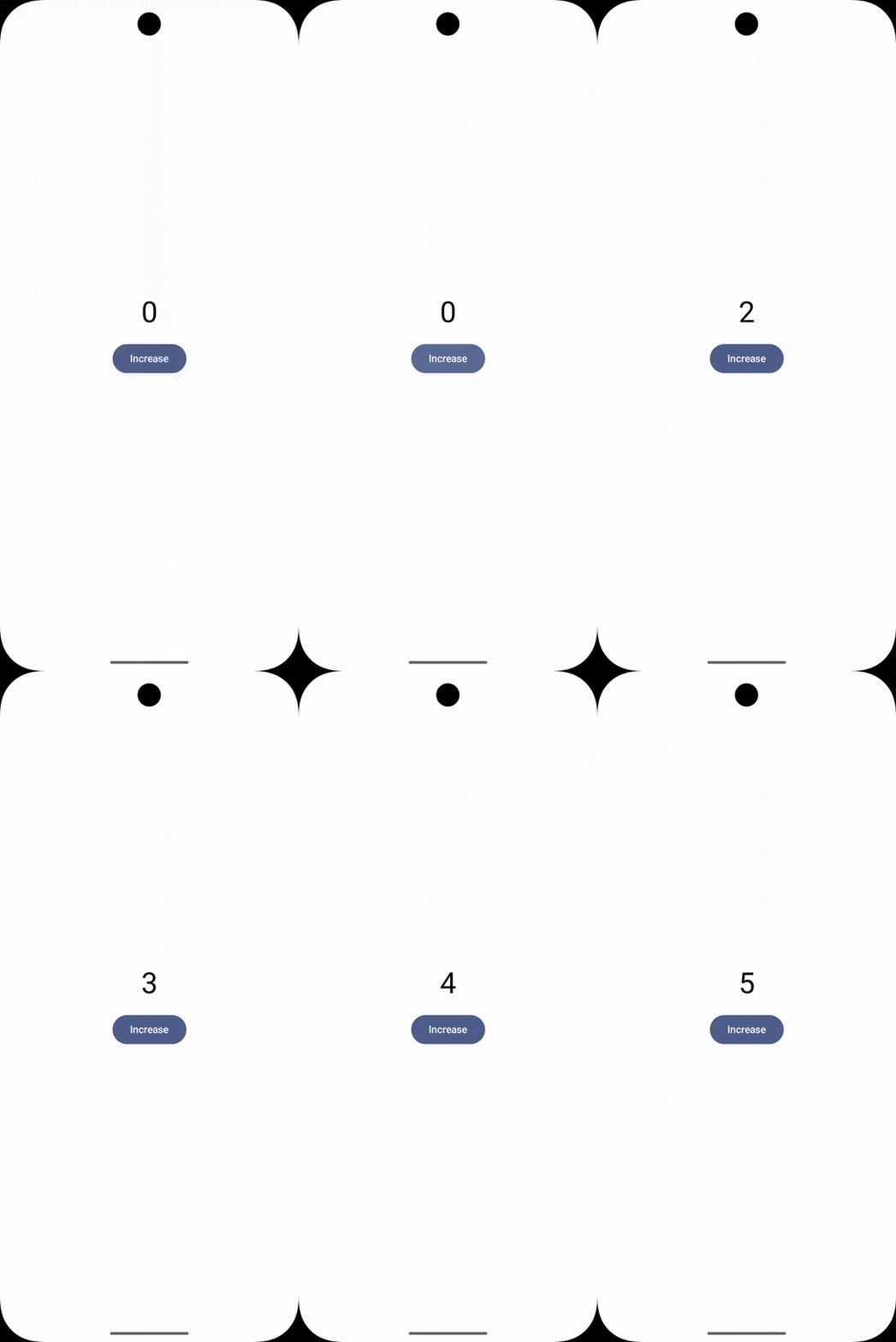
Let’s build a simple counter with animation.
@Composable
fun CounterScreen() {
    var count by remember { mutableStateOf(0) }

    Column(
        horizontalAlignment =
            Alignment.CenterHorizontally
    ) {
        AnimatedContent(targetState = count) { value ->
            Text(
                text = "$value",
                fontSize = 40.sp
            )
        }
        Spacer(modifier = Modifier.height(16.dp))

        Button(onClick = { count++ }) {
            Text("Increase")
        }
    }
}

@Preview(showBackground = true)
@Composable
fun CounterScreenPreview() {
    CenteredPreview {
        CounterScreen()
    }
}
Here,
Every time count changes:
- Old text fades/slides out
- New text animates in
No extra animation code needed.
Customizing Animation in AnimatedContent
By default, animations are nice but basic. You can customize them using transitionSpec.
Example with Slide + Fade
@Composable
fun CounterScreen() {
    var count by remember { mutableStateOf(0) }

    Column(
        horizontalAlignment = Alignment.CenterHorizontally,
        verticalArrangement = Arrangement.spacedBy(12.dp),
        modifier = Modifier.padding(16.dp)
    ) {

        // Increment
        CounterButton(
            text = "+",
            onClick = { count++ }
        )

        // Animated Counter
        RollingCounter(count = count)

        // Decrement
        CounterButton(
            text = "-",
            onClick = { if (count > 0) count-- },
            enabled = count > 0
        )
    }
}

@Composable
fun CounterButton(
    text: String,
    onClick: () -> Unit,
    enabled: Boolean = true
) {
    Button(
        onClick = onClick,
        enabled = enabled,
        shape = CircleShape,
        modifier = Modifier.size(48.dp),
        contentPadding = PaddingValues(0.dp)
    ) {
        Text(
            text = text,
            fontSize = 22.sp
        )
    }
}

@Composable
fun RollingCounter(
    count: Int,
    fontSize: TextUnit = 40.sp
) {
    val digits = count.toString().map { it.toString() }

    Row {
        digits.forEachIndexed { index, digit ->
            key(index) {
                RollingDigit(
                    digit = digit,
                    fontSize = fontSize
                )
            }
        }
    }
}

@Composable
fun RollingDigit(
    digit: String,
    fontSize: TextUnit
) {
    Box(
        modifier = Modifier
            .height(48.dp)
            .width(28.dp),
        contentAlignment = Alignment.Center
    ) {
        AnimatedContent(
            targetState = digit,
            transitionSpec = {
                if (targetState > initialState) {
                    // Increment → roll up
                    slideInVertically { it } + fadeIn() togetherWith
                            slideOutVertically { -it } + fadeOut()
                } else {
                    // Decrement → roll down
                    slideInVertically { -it } + fadeIn() togetherWith
                            slideOutVertically { it } + fadeOut()
                }
            }
        ) { targetDigit ->
            Text(
                text = targetDigit,
                fontSize = fontSize,
                fontFamily = FontFamily.Monospace
            )
        }
    }
}

@Composable
fun CenteredPreview(content: @Composable () -> Unit) {
    Box(
        modifier = Modifier.fillMaxSize(),
        contentAlignment = Alignment.Center
    ) {
        content()
    }
}

@Preview(showBackground = true)
@Composable
fun CounterPreview() {
    CenteredPreview {
        CounterScreen()
    }
}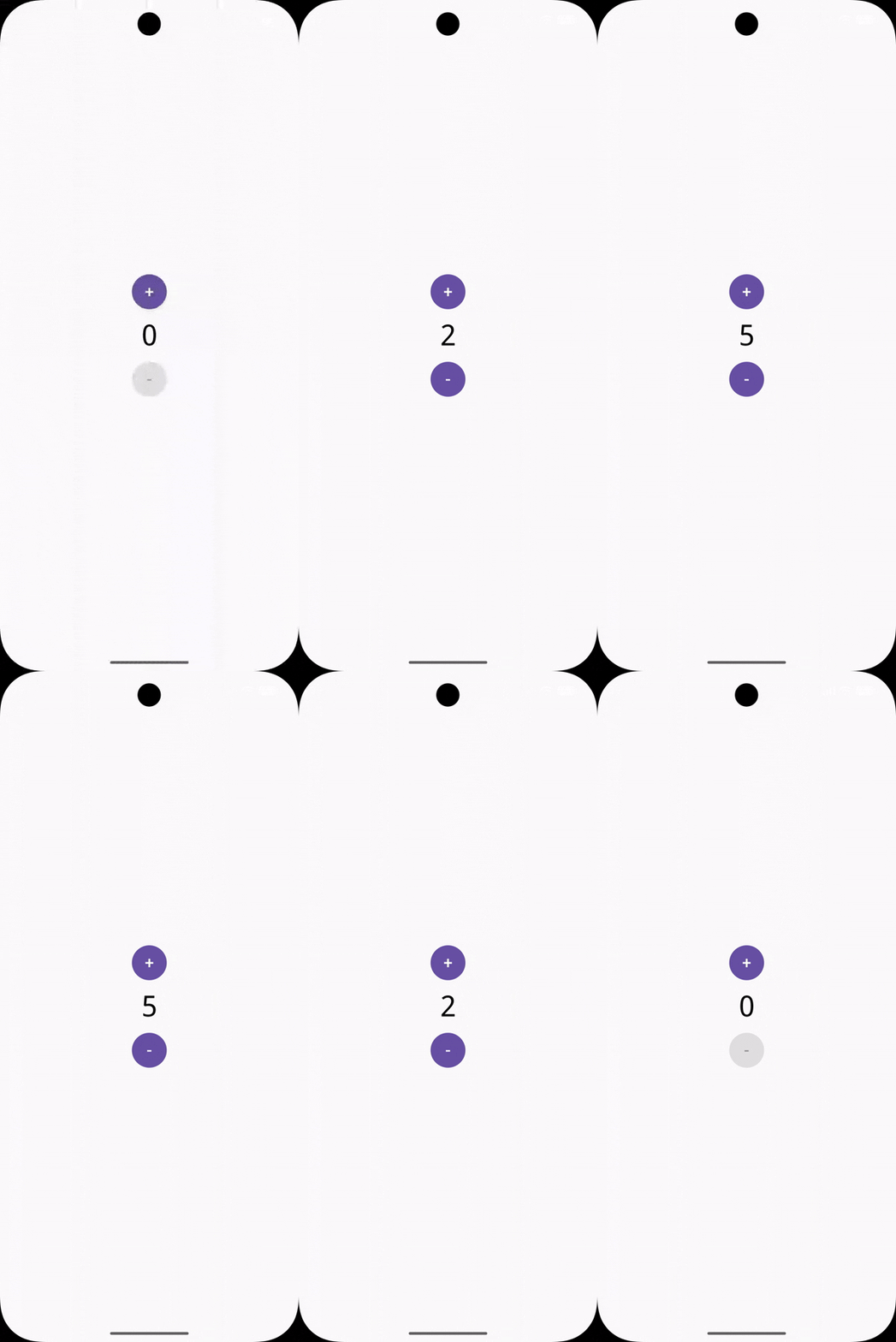
- Digit-by-digit rolling animation
- Direction-aware transitions (up/down)
- Creates a smooth vertical transition
Understanding transitionSpec (Simple Explanation)
Inside transitionSpec, you define:
- Enter animation → how new content appears
- Exit animation → how old content disappears
You combine them using:
enterAnimation togetherWith exitAnimationAdd Direction-Based Animation
You can change animation depending on state.
AnimatedContent(
    targetState = count,
    transitionSpec = {
        if (targetState > initialState) {
            slideInHorizontally { it } togetherWith
            slideOutHorizontally { -it }
        } else {
            slideInHorizontally { -it } togetherWith
            slideOutHorizontally { it }
        }
    }
) { value ->
    Text(text = "$value", fontSize = 40.sp)
}
What’s happening?
- Increasing number → slides from right
- Decreasing number → slides from left
This small detail makes your UI feel intelligent.
Example 2: Switch Between Screens
You can use AnimatedContent to switch UI states like this:
enum class ScreenState {
    LOADING, SUCCESS, ERROR
}

@Composable
fun ScreenExample(state: ScreenState) {
    Box(
        modifier = Modifier
            .fillMaxWidth()
            .height(120.dp),
        contentAlignment = Alignment.Center
    ) {
        AnimatedContent(
            targetState = state,
            label = "screen_state",
            transitionSpec = {
                when {
                    // Loading → Success
                    initialState == ScreenState.LOADING &&
                            targetState == ScreenState.SUCCESS -> {
                        slideInVertically { it } + fadeIn() togetherWith
                                slideOutVertically { -it } + fadeOut()
                    }

                    // Loading → Error
                    initialState == ScreenState.LOADING &&
                            targetState == ScreenState.ERROR -> {
                        slideInVertically { -it } + fadeIn() togetherWith
                                slideOutVertically { it } + fadeOut()
                    }

                    // Error → Loading (retry)
                    initialState == ScreenState.ERROR &&
                            targetState == ScreenState.LOADING -> {
                        fadeIn() togetherWith fadeOut()
                    }

                    // Default
                    else -> {
                        fadeIn() togetherWith fadeOut()
                    }
                }
            }
        ) { targetState ->
            when (targetState) {

                ScreenState.LOADING -> {
                    CircularProgressIndicator()
                }

                ScreenState.SUCCESS -> {
                    Text(
                        text = "Data Loaded!",
                        fontSize = 20.sp
                    )
                }

                ScreenState.ERROR -> {
                    Column(
                        horizontalAlignment = Alignment.CenterHorizontally
                    ) {
                        Text(
                            text = "Something went wrong",
                            fontSize = 20.sp
                        )
                        Spacer(modifier = Modifier.height(8.dp))
                        Button(onClick = { /* retry action */ }) {
                            Text("Retry")
                        }
                    }
                }
            }
        }
    }
}

@Composable
fun ScreenContainer() {
    var state by remember { mutableStateOf(ScreenState.LOADING) }

    Column(
        horizontalAlignment = Alignment.CenterHorizontally,
        verticalArrangement = Arrangement.spacedBy(16.dp),
        modifier = Modifier.padding(16.dp)
    ) {

        ScreenExample(state = state)

        Row(horizontalArrangement = Arrangement.spacedBy(8.dp)) {
            Button(onClick = { state = ScreenState.LOADING }) {
                Text("Loading")
            }
            Button(onClick = { state = ScreenState.SUCCESS }) {
                Text("Success")
            }
            Button(onClick = { state = ScreenState.ERROR }) {
                Text("Error")
            }
        }
    }
}

@Preview(showBackground = true)
@Composable
fun ScreenPreview() {
    CenteredPreview {
        ScreenContainer()
    }
}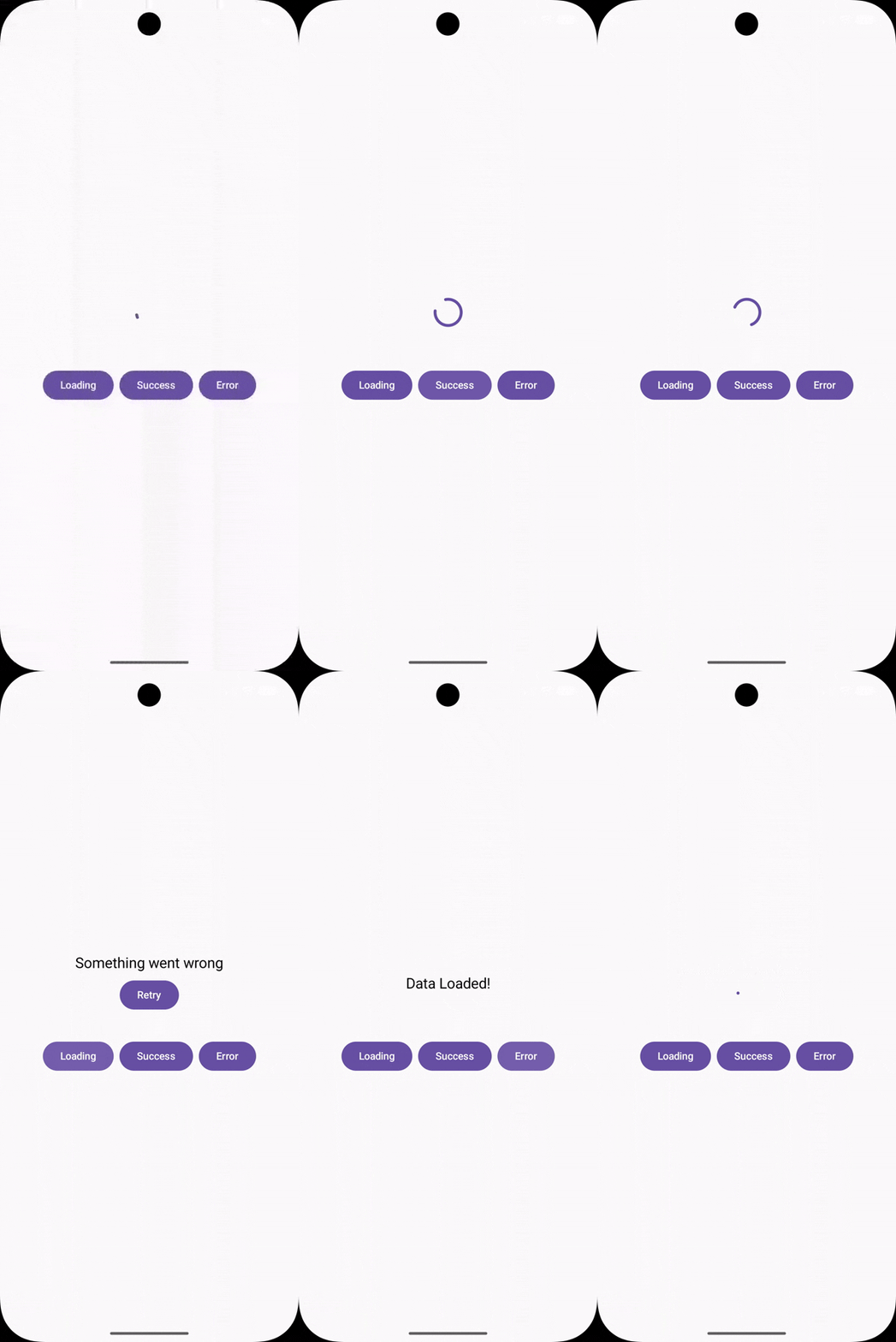
Why this is powerful
Instead of hard switching screens:
- Each state transition feels natural
- Improves UX instantly
Common Mistakes to Avoid
1. Forgetting stable state
If your targetState changes too frequently or unpredictably, animations may feel glitchy.
Tip: Use proper state management (remember, ViewModel).
2. Overusing animations
Too many animations can overwhelm users.
Keep it simple:
- Use animation where it adds clarity
- Avoid unnecessary motion
3. Heavy UI inside AnimatedContent
If your composable is too complex, animation may lag.
Solution:
- Keep UI lightweight
- Break into smaller composables
Performance Tips for AnimatedContent
- Prefer simple transitions (fade + slide)
- Avoid recomposing large layouts
- Use
rememberwisely - Test on low-end devices
Real-World Use Cases
You can use AnimatedContent for:
- Cart updates in e-commerce apps
- Switching tabs or filters
- Form step transitions
- Notifications or alerts
- Dashboard value updates
Why AnimatedContent Improves UX
Good animation:
- Guides attention
- Explains change
- Reduces confusion
AnimatedContent does this automatically, which saves time and improves quality.
Conclusion
Mastering AnimatedContent is less about memorizing APIs and more about understanding when and why to animate.
Start small:
- Animate text
- Animate numbers
- Then move to full UI transitions
Over time, you’ll naturally build smoother, more polished apps.