

Navigating through code efficiently is crucial for productive Android development. Android Studio provides powerful back and forward navigation features that help you jump between different code locations, making it easier to trace code flow, review changes, and return to previous working contexts. In this comprehensive guide, we’ll explore everything you need to know about implementing and using back and forward navigation in Android Studio.
Understanding Navigation in Android Studio
Before diving into the implementation, it’s important to understand what back and forward navigation means in the context of an IDE. Unlike web browsers where you navigate between pages, in Android Studio, navigation refers to moving between different cursor positions in your code files. Every time you jump to a method definition, search for a usage, or click on a reference, Android Studio records that location in your navigation history.
Default Navigation Shortcuts
Android Studio comes with built-in keyboard shortcuts for back and forward navigation that work out of the box. These shortcuts vary depending on your operating system.
For Windows and Linux:
- Navigate Back:
Ctrl + Alt + Left Arrow - Navigate Forward:
Ctrl + Alt + Right Arrow
For macOS:
- Navigate Back:
Cmd + [orCmd + Alt + Left Arrow - Navigate Forward:
Cmd + ]orCmd + Alt + Right Arrow
These shortcuts allow you to quickly move through your navigation history without taking your hands off the keyboard, significantly improving your coding workflow.
Using the Navigation Toolbar
If you prefer using the mouse or want visual confirmation of navigation actions, Android Studio provides toolbar buttons for back and forward navigation.
The navigation buttons are located in the main toolbar, typically near the top-left of the IDE window. They appear as left and right arrows, similar to browser navigation buttons. When you hover over these buttons, tooltips appear showing the keyboard shortcuts and the destination file or location.
To enable or customize the toolbar, go to View > Appearance > Toolbar to ensure the main toolbar is visible.

If you don’t see the navigation arrows, you may need to customize your toolbar layout.
How Navigation History Works
Understanding how Android Studio tracks your navigation history helps you use these features more effectively. The IDE maintains a stack of cursor positions that gets updated when you perform certain actions.
Actions that add to navigation history include:
- Jumping to a method or class definition using
Ctrl + ClickorCmd + Click - Using “Go to Declaration” with
Ctrl + BorCmd + B - Finding usages with
Alt + F7orCmd + F7 - Navigating to a line number with
Ctrl + GorCmd + L - Using “Go to Class,” “Go to File,” or “Go to Symbol” navigation
- Clicking on items in search results, find usages panels, or the structure view
- Navigating through bookmarks
Actions that typically don’t add to navigation history:
- Simple cursor movements with arrow keys
- Scrolling through a file
- Typing or editing code
- Moving within the same visible screen area
This intelligent tracking ensures your navigation history remains useful and doesn’t get cluttered with every minor cursor movement.
Customizing Navigation Shortcuts
If the default shortcuts don’t suit your workflow or conflict with other tools, you can customize them to your preference.
To customize navigation shortcuts, navigate to File > Settings on Windows/Linux or Android Studio > Preferences on macOS. Then follow these steps:
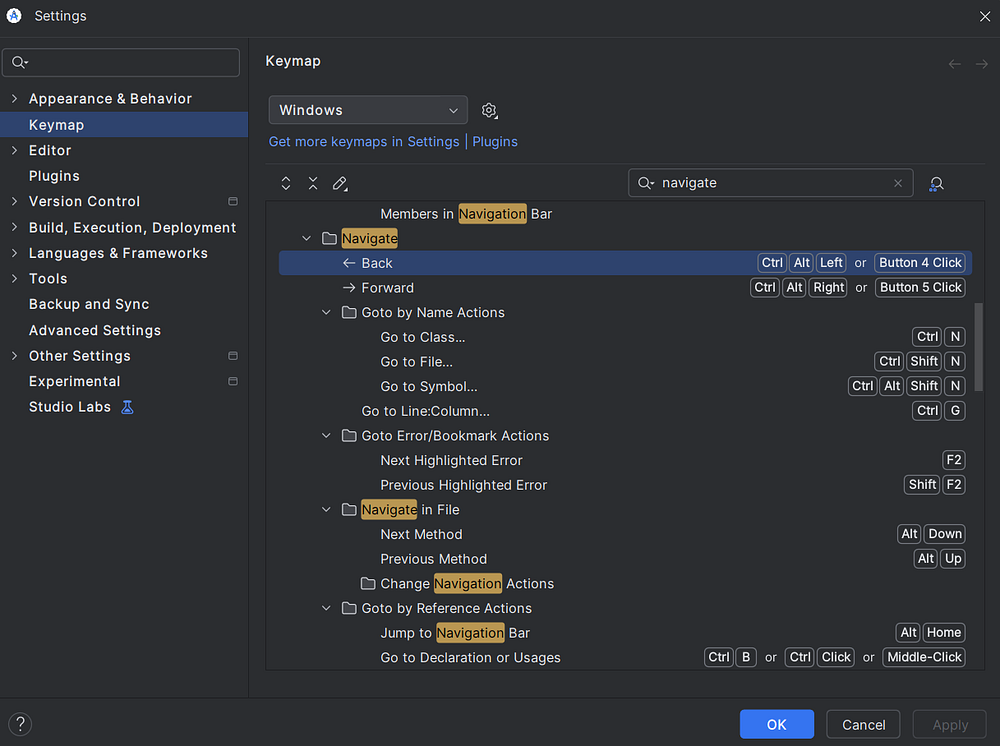
First, expand the Keymap section in the left sidebar. You’ll see a search box at the top of the keymap panel. Type “navigate / navigate back” to find the back navigation action, and “navigate / navigate forward” for the forward navigation action.
Right-click on “Back” under the Navigation category and you’ll see options to add keyboard shortcuts, mouse shortcuts, or abbreviations. Select “Add Keyboard Shortcut” and press your desired key combination.
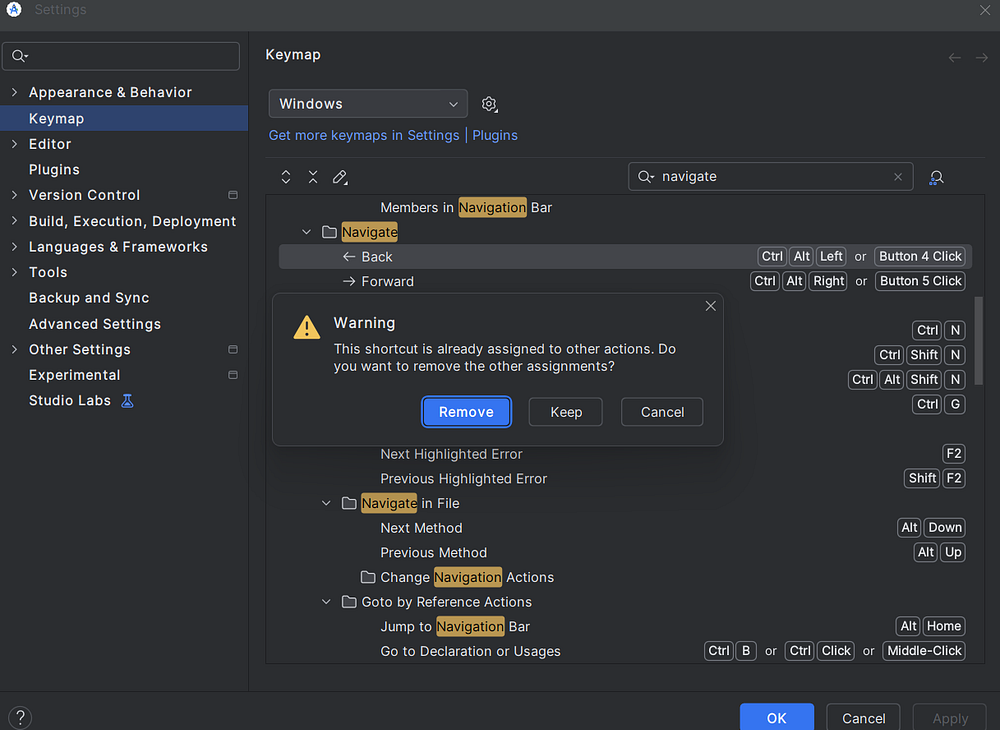
Android Studio will warn you if the shortcut is already assigned to another action, allowing you to resolve conflicts.
Repeat the same process for “Forward” navigation. Once you’ve set your preferred shortcuts, click “Apply” and “OK” to save your changes.
Advanced Navigation Techniques
Beyond basic back and forward navigation, Android Studio offers several advanced navigation features that complement these basic functions.
Recent Files Navigation: Press Ctrl + E on Windows/Linux or Cmd + E on macOS to open a popup showing recently opened files. This provides a quick way to jump to files you’ve worked on recently without going through the full navigation history.
Recent Locations: Press Ctrl + Shift + E on Windows/Linux or Cmd + Shift + E on macOS to see recent cursor locations with code context. This shows you snippets of code from locations you’ve recently visited, making it easier to find the exact spot you’re looking for.
Bookmarks: Set bookmarks at important locations in your code with F11 to create an anonymous bookmark or Ctrl + F11 or Cmd + F11 to create a numbered bookmark.

Navigate between bookmarks using Shift + F11 to see all bookmarks, providing persistent navigation points beyond your session history.
Navigate to Last Edit Location: Press Ctrl + Shift + Backspace on Windows/Linux or Cmd + Shift + Backspace on macOS to jump directly to the last place you made an edit. This is particularly useful when you’ve navigated away to check something and want to return to where you were actively coding.
Navigation in Split Editor Mode
When working with multiple editor windows in split mode, navigation becomes even more powerful. Android Studio maintains separate navigation histories for each editor pane, allowing you to navigate independently in different views.
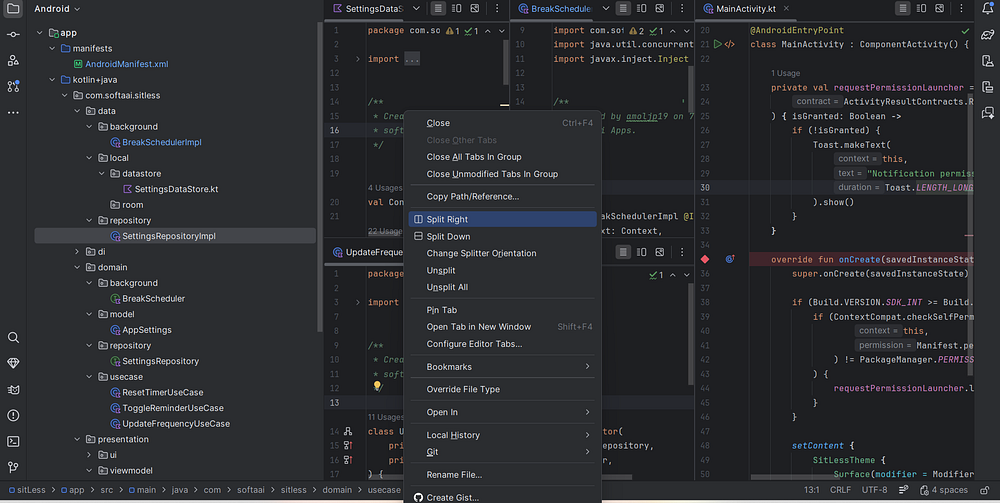
To split your editor, right-click on a file tab and select “Split Right” or “Split Down.” You can then navigate through different parts of your codebase simultaneously. The back and forward navigation shortcuts will apply to whichever editor pane currently has focus.
This is particularly useful when you’re comparing implementations, refactoring code across multiple files, or working on related components simultaneously.
Best Practices for Efficient Navigation
To make the most of Android Studio’s navigation features, consider adopting these best practices in your daily workflow.
1. Learn and use keyboard shortcuts consistently rather than relying on mouse clicks. Muscle memory for navigation shortcuts can dramatically speed up your coding process. The time invested in learning these shortcuts pays dividends in increased productivity.
2. Combine navigation with other IDE features like code search, find usages, and structure view to create efficient navigation patterns. For example, use “Find Usages” to see all references to a method, click on one to examine it, then use back navigation to return to your starting point.
3. Use bookmarks strategically for code locations you return to frequently within a project. This creates persistent reference points that survive beyond your current session.
4. Take advantage of the “Recent Locations” feature when you need to review multiple code sections you’ve recently visited. This provides more context than simple back navigation by showing code snippets.
5. When refactoring or reviewing code, use forward navigation to retrace your steps after going back. This helps you verify that you’ve addressed all necessary changes in a logical sequence.
Troubleshooting Navigation Issues
Sometimes navigation features may not work as expected. Here are common issues and their solutions.
Navigation shortcuts not working: First, check if the shortcuts are being intercepted by your operating system or other applications. On Windows, some keyboard manager utilities might capture these key combinations. On macOS, check System Preferences for conflicting shortcuts. Verify your keymap settings in Android Studio to ensure the shortcuts are properly configured.
Navigation history seems incomplete: Navigation history has limits to prevent memory issues. If you’ve navigated through many locations, older entries may be dropped. Additionally, closing and reopening files or projects may reset certain navigation states. Consider using bookmarks for locations you need to preserve across sessions.
Navigation buttons missing from toolbar: Go to View > Appearance > Toolbar to ensure the toolbar is visible. If the toolbar is visible but navigation buttons are missing, try customizing or resetting your toolbar layout or updating Android Studio to the latest version.
Navigation jumps to unexpected locations: This can happen if files have been modified externally or if you’re working with generated code that gets refreshed. Ensure your project is properly synchronized with File > Sync Project with Gradle Files and that you’re not editing generated files that get overwritten.
Navigation in Large Projects
In large Android projects with hundreds or thousands of files, efficient navigation becomes even more critical. The combination of back/forward navigation with Android Studio’s other navigation tools creates a powerful workflow.
Use the project structure view in conjunction with navigation history. When you need to explore a new area of the codebase, use “Go to Class” or “Go to File” to jump to relevant files, examine them, and then use back navigation to return to your working context.
Leverage the “Call Hierarchy” feature with Ctrl + Alt + H or Cmd + Alt + H to understand method call chains. Navigate through the hierarchy, then use back navigation to return to your starting point. This combination helps you trace execution flow in complex applications.
The “Type Hierarchy” feature, accessed with Ctrl + H or Cmd + H, works similarly for understanding class inheritance and implementations. Navigate through the hierarchy tree, and use navigation history to backtrack when needed.
Conclusion
Mastering back and forward navigation in Android Studio is essential for efficient Android development. These features, combined with the IDE’s other navigation capabilities, create a powerful toolkit for exploring codebases, understanding code flow, and maintaining productivity.
Start by memorizing the basic keyboard shortcuts for your operating system, then gradually incorporate advanced navigation techniques into your workflow. As these patterns become second nature, you’ll find yourself navigating code with confidence and speed, spending less time searching for code and more time writing it.
Remember that effective navigation is about developing habits and patterns that work for your specific coding style. Experiment with different combinations of navigation features, customize shortcuts to match your preferences, and build a navigation workflow that maximizes your productivity in Android Studio.