Android

Bundles in libs.versions.toml

Say Goodbye to Repetition: How Bundles in libs.versions.toml Simplify Android Projects

If you’re tired of repeating the same dependencies across different modules in your Android project, you’re not alone. Managing dependencies manually is error-prone, messy, and not scalable. Fortunately, Bundles in libs.versions.toml offer a clean and modern solution that saves time and reduces duplication. Let’s break it down, step by step, in a simple way.

What Is libs.versions.toml?

Starting with Gradle 7 and Android Gradle Plugin 7+, Google introduced Version Catalogs — a new way to centralize and manage dependencies. Instead of scattering dependency strings across multiple build.gradle files, you can now define everything in a single place: libs.versions.toml.

This TOML (Tom’s Obvious Minimal Language) file lives in your project’s gradle folder and acts as your master dependency list.

Here’s what a basic libs.versions.toml file looks like:

Kotlin
[versions]
kotlin = "1.9.0"
coroutines = "1.7.1"

[libraries]
kotlin-stdlib = { module = "org.jetbrains.kotlin:kotlin-stdlib", version.ref = "kotlin" }
coroutines-core = { module = "org.jetbrains.kotlinx:kotlinx-coroutines-core", version.ref = "coroutines" }

That’s great — but what if you’re using the same group of libraries in every module? Writing them out repeatedly is a waste of time. That’s where Bundles in libs.versions.toml come to the rescue.

What Are Bundles?

Bundles are a feature of version catalogs that let you group related dependencies under a single name. Think of them like playlists for your libraries. Instead of referencing each dependency one by one, you just call the bundle, and you’re done.

Why Use Bundles?

  • Clean, organized code
  • No repeated dependencies
  • Easy updates across modules
  • Better modularization

How to Create a Bundle in libs.versions.toml

Let’s say you’re using multiple Jetpack Compose libraries across several modules. Without bundles, you’d need to add each one like this:

Kotlin
implementation(libs.compose.ui)
implementation(libs.compose.material)
implementation(libs.compose.tooling)

With Bundles in libs.versions.toml, you can simplify it like this:

Step 1: Define the Libraries

Kotlin
[versions]
compose = "1.5.0"

[libraries]
compose-ui = { module = "androidx.compose.ui:ui", version.ref = "compose" }
compose-material = { module = "androidx.compose.material:material", version.ref = "compose" }
compose-tooling = { module = "androidx.compose.ui:ui-tooling", version.ref = "compose" }

Step 2: Create a Bundle

Kotlin
[bundles]
compose = ["compose-ui", "compose-material", "compose-tooling"]

How to Use Bundles in build.gradle.kts

In your module’s build.gradle.kts file, just add:

Kotlin
implementation(libs.bundles.compose)

That one-liner brings in all the Compose dependencies you need. Clean, right?

Real-World Use Case: Networking Stack

Let’s say you always use Retrofit, Moshi, and OkHttp in your data modules. Define a bundle like this:

Kotlin
[versions]
retrofit = "2.9.0"
moshi = "1.13.0"
okhttp = "4.10.0"

[libraries]
retrofit-core = { module = "com.squareup.retrofit2:retrofit", version.ref = "retrofit" }
moshi-core = { module = "com.squareup.moshi:moshi", version.ref = "moshi" }
okhttp-core = { module = "com.squareup.okhttp3:okhttp", version.ref = "okhttp" }

[bundles]
networking = ["retrofit-core", "moshi-core", "okhttp-core"]

Then in your module:

Kotlin
implementation(libs.bundles.networking)

You’ve just replaced three lines with one — and centralized version control in the process.

Common Mistakes to Avoid

  • Wrong syntax: The bundle array must reference exact keys from the [libraries] block.
  • Missing versions: Always define versions under [versions] and refer using version.ref.
  • Not reusing bundles: If two modules share the same libraries, don’t duplicate — bundle them.

Why Bundles in libs.versions.toml Matter for Android Developers

Bundles in libs.versions.toml are more than just a convenience—they’re a best practice. They improve your project structure, reduce maintenance overhead, and make scaling a breeze. Whether you’re working solo or on a large team, bundling dependencies is the smart way to manage complexity.

If you’re building modular Android apps (and let’s face it, who isn’t in 2025?), adopting bundles is a no-brainer.

Conclusion

The old way of managing dependencies is clunky and outdated. With Bundles in libs.versions.toml, you can streamline your workflow, stay DRY (Don’t Repeat Yourself), and future-proof your project.

Say goodbye to repetitive implementation lines and hello to clean, maintainable build scripts.

Start bundling today — and give your Android project the structure it deserves.

Proto DataStore

Proto DataStore in Android: How to Store Complex Objects with Protocol Buffers

Managing data on Android has evolved significantly over the years. From SharedPreferences to Room, we’ve seen the full spectrum. But when it comes to storing structured, complex data in a lightweight and efficient way, Proto DataStore steps in as a game-changer.

In this blog, we’ll walk through Proto DataStore, how it works under the hood, and how to use it with Protocol Buffers to store complex objects. We’ll also look at how it stacks up against the older SharedPreferences and why it’s the better modern choice.

Let’s break it down step by step.

What is Proto DataStore?

Proto DataStore is a Jetpack library from Google that helps you store typed objects persistently using Protocol Buffers (protobuf), a fast and efficient serialization format.

It’s:

  • Type-safe
  • Asynchronous
  • Corruption-resistant
  • Better than SharedPreferences

Unlike Preferences DataStore, which stores data in key-value pairs (similar to SharedPreferences), Proto DataStore is ideal for storing structured data models.

Why Use Proto DataStore?

Here’s why developers love Proto DataStore:

  • Strong typing — Your data models are generated and compiled, reducing runtime errors.
  • Speed — Protocol Buffers are faster and more compact than JSON or XML.
  • Safe and robust — Built-in corruption handling and data migration support.
  • Asynchronous API — Uses Kotlin coroutines and Flow, keeping your UI smooth.

Store Complex Objects with Proto DataStore

Let’s go hands-on. Suppose you want to save a user profile with fields like name, email, age, and preferences.

Step 1: Add the Dependencies

Add these to your build.gradle (app-level):

Kotlin
dependencies {
    implementation "androidx.datastore:datastore:1.1.0"
    implementation "androidx.datastore:datastore-core:1.1.0"
    implementation "com.google.protobuf:protobuf-javalite:3.25.1"
}

In your build.gradle (project-level), enable Protobuf:

Kotlin
protobuf {
    protoc {
        artifact = "com.google.protobuf:protoc:3.25.1"
    }

    generateProtoTasks {
        all().each { task ->
            task.builtins {
                java { }
            }
        }
    }
}

Also apply plugins at the top:

Kotlin
plugins {
    id 'com.google.protobuf' version '0.9.4'
    id 'kotlin-kapt'
}

Step 2: Define Your .proto File

Create a file named user.proto inside src/main/proto/:

Kotlin
syntax = "proto3";

option java_package = "com.softaai.datastore";
option java_multiple_files = true;

message UserProfile {
  string name = 1;
  string email = 2;
  int32 age = 3;
  bool isDarkMode = 4;
}

This defines a structured data model for the user profile.

Step 3: Create the Serializer

Create a Kotlin class that implements Serializer<UserProfile>:

Kotlin
object UserProfileSerializer : Serializer<UserProfile> {
    override val defaultValue: UserProfile = UserProfile.getDefaultInstance()

    override suspend fun readFrom(input: InputStream): UserProfile {
        return UserProfile.parseFrom(input)
    }

    override suspend fun writeTo(t: UserProfile, output: OutputStream) {
        t.writeTo(output)
    }
}

This handles how the data is read and written to disk using protobuf.

Step 4: Initialize the Proto DataStore

Create a DataStore instance in your repository or a singleton:

Kotlin
val Context.userProfileDataStore: DataStore<UserProfile> by dataStore(
    fileName = "user_profile.pb",
    serializer = UserProfileSerializer
)

Now you can access this instance using context.userProfileDataStore.

Step 5: Read and Write Data

Here’s how you read the stored profile using Kotlin Flow:

Kotlin
val userProfileFlow: Flow<UserProfile> = context.userProfileDataStore.data

To update the profile:

Kotlin
suspend fun updateUserProfile(context: Context) {
    context.userProfileDataStore.updateData { currentProfile ->
        currentProfile.toBuilder()
            .setName("Amol Pawar")
            .setEmail("[email protected]")
            .setAge(28)
            .setIsDarkMode(true)
            .build()
    }
}

Easy, clean, and fully type-safe.

Bonus: Handling Corruption and Migration

Handle Corruption Gracefully

You can customize the corruption handler if needed:

Kotlin
val Context.safeUserProfileStore: DataStore<UserProfile> by dataStore(
    fileName = "user_profile.pb",
    serializer = UserProfileSerializer,
    corruptionHandler = ReplaceFileCorruptionHandler {
        UserProfile.getDefaultInstance()
    }
)

Migrate from SharedPreferences

If you’re switching from SharedPreferences:

Kotlin
val Context.migratedUserProfileStore: DataStore<UserProfile> by dataStore(
    fileName = "user_profile.pb",
    serializer = UserProfileSerializer,
    produceMigrations = { context ->
        listOf(SharedPreferencesMigration(context, "old_prefs_name"))
    }
)

When to Use Proto DataStore

Use Proto DataStore when:

  • You need to persist complex, structured data.
  • You care about performance and file size.
  • You want a modern, coroutine-based data solution.

Avoid it for relational data (instead use Room) or for simple flags (Preferences DataStore may suffice).

Conclusion

Proto DataStore is the future-forward way to store structured data in Android apps. With Protocol Buffers at its core, it combines speed, safety, and type-safety into one clean package.

Whether you’re building a user profile system, app settings, or configuration storage, Proto DataStore helps you stay efficient and future-ready.

TL;DR

Q: What is Proto DataStore in Android?
 A: Proto DataStore is a modern Jetpack library that uses Protocol Buffers to store structured, type-safe data asynchronously and persistently.

Q: How do I store complex objects using Proto DataStore?
 A: Define a .proto schema, set up a serializer, initialize the DataStore, and read/write using Flow and coroutines.

Q: Why is Proto DataStore better than SharedPreferences?
 A: It’s type-safe, faster, handles corruption, and integrates with Kotlin coroutines.

Jetpack DataStore in Android

Mastering Jetpack DataStore in Android: The Modern Replacement for SharedPreferences

If you’re still using SharedPreferences in your Android app, it’s time to move forward. Google introduced Jetpack DataStore as a modern, efficient, and fully asynchronous solution for storing key-value pairs and typed objects. In this blog, we’ll break down what Jetpack DataStore is, why it’s better than SharedPreferences, and how you can use it effectively in your Android projects.

What Is Jetpack DataStore?

Jetpack DataStore is part of Android Jetpack and is designed to store small amounts of data. It comes in two flavors:

  • Preferences DataStore — stores key-value pairs, similar to SharedPreferences.
  • Proto DataStore — stores typed objects using Protocol Buffers.

Unlike SharedPreferences, Jetpack DataStore is built on Kotlin coroutines and Flow, making it asynchronous and safe from potential ANRs (Application Not Responding errors).

Why Replace SharedPreferences?

SharedPreferences has been around for a long time but comes with some baggage:

  • Synchronous API — can block the main thread.
  • Lacks error handling — fails silently.
  • Not type-safe — you can run into ClassCastExceptions easily.

Jetpack DataStore solves all of these with:

  • Coroutine support for non-blocking IO.
  • Strong typing with Proto DataStore.
  • Built-in error handling.
  • Better consistency and reliability.

Setting Up Jetpack DataStore

To start using Jetpack DataStore, first add the required dependencies to your build.gradle:

Kotlin
implementation "androidx.datastore:datastore-preferences:1.0.0"
implementation "androidx.datastore:datastore-core:1.0.0"

For Proto DataStore:

Kotlin
implementation "androidx.datastore:datastore:1.0.0"
implementation "com.google.protobuf:protobuf-javalite:3.14.0"

Also, don’t forget to apply the protobuf plugin if using Proto:

Kotlin
id 'com.google.protobuf' version '0.8.12'

Using Preferences DataStore

Step 1: Create the DataStore instance

Jetpack DataStore is designed to be singleton-scoped. The recommended way is to create it as an extension property on Context:

Kotlin
val Context.dataStore: DataStore<Preferences> by preferencesDataStore(name = "user_prefs")

Here, preferencesDataStore creates a singleton DataStore instance. This ensures you have a single DataStore instance per file, avoiding memory leaks and data corruption.

Step 2: Define keys

Kotlin
val USER_NAME = stringPreferencesKey("user_name")
val IS_LOGGED_IN = booleanPreferencesKey("is_logged_in")

stringPreferencesKey and booleanPreferencesKey help define the keys.

Step 3: Write data

To write data, use the edit function, which is fully asynchronous and safe to call from any thread:

Kotlin
suspend fun saveUserData(context: Context, name: String, isLoggedIn: Boolean) {
    context.dataStore.edit { preferences ->
        preferences[USER_NAME] = name
        preferences[IS_LOGGED_IN] = isLoggedIn
    }
}

Here, edit suspends while the data is being written, ensuring no UI thread blocking.

Step 4: Read data

To read data, use Kotlin Flows, which emit updates whenever the data changes:

Kotlin
val userNameFlow: Flow<String> = context.dataStore.data
    .map { preferences ->
        preferences[USER_NAME] ?: ""
    }

Here, data is accessed reactively using Kotlin Flow, returns a Flow<String> that emits the username whenever it changes. You can collect this Flow in a coroutine or observe it in Jetpack Compose.

Real-World Use Case: User Login State

Let’s say you want to keep track of whether a user is logged in. Here’s how you do it:

Save login state:

Kotlin
suspend fun setLoginState(context: Context, isLoggedIn: Boolean) {
    context.dataStore.edit { prefs ->
        prefs[IS_LOGGED_IN] = isLoggedIn
    }
}

Observe login state:

Kotlin
val loginState: Flow<Boolean> = context.dataStore.data
    .map { prefs -> prefs[IS_LOGGED_IN] ?: false }

This setup lets your app reactively respond to changes in the login state, such as redirecting users to the login screen or the home screen.

Migrating from SharedPreferences

Jetpack DataStore makes migration easy with SharedPreferencesMigration:

Kotlin
import androidx.datastore.preferences.SharedPreferencesMigration

val Context.dataStore by preferencesDataStore(
    name = USER_PREFERENCES_NAME,
    produceMigrations = { context ->
        listOf(SharedPreferencesMigration(context, USER_PREFERENCES_NAME))
    }
)
  • Migration runs automatically before any DataStore access.
  • Once migrated, stop using the old SharedPreferences to avoid data inconsistency.

Using Proto DataStore (Typed Data)

Proto DataStore requires you to define a .proto schema file.

Step 1: Define the Proto schema

user_prefs.proto

Kotlin
syntax = "proto3";

option java_package = "com.softaai.sitless";
option java_multiple_files = true;

message UserPreferences {
  string user_name = 1;
  bool is_logged_in = 2;
}

Step 2: Create the serializer

Kotlin
object UserPreferencesSerializer : Serializer<UserPreferences> {
    override val defaultValue: UserPreferences = UserPreferences.getDefaultInstance()

    override suspend fun readFrom(input: InputStream): UserPreferences {
        return UserPreferences.parseFrom(input)
    }

    override suspend fun writeTo(t: UserPreferences, output: OutputStream) {
        t.writeTo(output)
    }
}

Step 3: Initialize Proto DataStore

Kotlin
val Context.userPreferencesStore: DataStore<UserPreferences> by dataStore(
    fileName = "user_prefs.pb",
    serializer = UserPreferencesSerializer
)

Step 4: Update and read data

Kotlin
suspend fun updateUser(context: Context, name: String, isLoggedIn: Boolean) {
    context.userPreferencesStore.updateData { prefs ->
        prefs.toBuilder()
            .setUserName(name)
            .setIsLoggedIn(isLoggedIn)
            .build()
    }
}

val userNameFlow = context.userPreferencesStore.data
    .map { it.userName }

Best Practices

  • Use Proto DataStore when your data model is complex or needs strong typing.
  • Use Preferences DataStore for simple key-value storage.
  • Always handle exceptions using catch when collecting flows.
  • Avoid main-thread operations; DataStore is built for background execution.

Conclusion

Jetpack DataStore is not just a replacement for SharedPreferences; it’s an upgrade in every sense. With better performance, safety, and modern API design, it’s the future of local data storage in Android.

If you’re building a new Android app or refactoring an old one, now’s the perfect time to switch. By embracing Jetpack DataStore, you’re not only writing cleaner and safer code, but also aligning with best practices endorsed by Google.

Unit Testing in Kotlin

How to Do Unit Testing in Kotlin Like a Google Engineer

Unit testing in Kotlin isn’t just about making sure your code works. It’s about writing tests that prove your code works, stays reliable over time, and catches bugs before they hit production. Google engineers treat testing as a core development skill, not an afterthought. And you can do the same.

In this guide, we’ll break down unit testing in Kotlin in a simple way. We’ll show you how to write clean, maintainable tests just like a pro. Whether you’re building Android apps or server-side Kotlin applications, this blog will give you the confidence to write bulletproof unit tests.

What is Unit Testing in Kotlin?

Unit testing is the process of testing individual units of code (like functions or classes) in isolation to ensure they work as expected. Unlike integration or UI tests, unit tests focus on your own logic, not external libraries or frameworks.

Unit Test is a piece of code that is not a part of your application. It can create and call all of your application’s public classes and methods… You want to verify whether application code works as you expect.

Why Google Engineers Prioritize Unit Testing

  • Fast feedback: Tests run in milliseconds. You catch bugs fast.
  • Safe refactoring: When you change code, tests confirm nothing breaks.
  • Confidence in deployment: You ship faster because you trust your code.
  • Documents behavior: Tests show how code is supposed to work.

Now let’s get to the fun part — how to actually do this in Kotlin.

Setting Up Unit Testing in Kotlin

Most Kotlin projects use JUnit as the test framework. Android Studio and IntelliJ IDEA make setup easy:

1. Add JUnit to your project dependencies (usually already included in Android projects). Use JUnit5 for unit testing in Kotlin. It’s modern, fast, and integrates well.

Kotlin
dependencies {
    testImplementation("org.junit.jupiter:junit-jupiter:5.10.0")
    testImplementation("org.jetbrains.kotlin:kotlin-test:1.9.0")
}

test {
    useJUnitPlatform()
}

2. Create a test class for the code you want to test.

3. Write test methods using the @Test annotation.

Basic Unit Test in Kotlin

Let’s say you have a function that adds two numbers:

Kotlin
fun add(a: Int, b: Int): Int = a + b

Here’s how you write a test for it:

Kotlin
import org.junit.jupiter.api.Assertions.*
import org.junit.jupiter.api.Test

class MathUtilsTest {
    @Test
    fun `add should return sum of two numbers`() {
        val result = add(3, 4)
        assertEquals(7, result)
    }
}

What’s happening here?

  • @Test marks the method as a test case.
  • assertEquals checks the expected and actual values.
  • The function name is written in backticks for clarity.

Best Practices for Unit Testing in Kotlin

Google engineers follow these principles to ensure effective unit testing in Kotlin:

1. Keep Tests Small and Focused

Each test should verify one behavior or scenario. This makes tests easy to read and maintain.

2. Use Immutable Test Data

Initialize objects as val and avoid mutating shared state between tests. This prevents flaky tests and makes debugging easier.

3. Leverage Kotlin Features

Kotlin’s concise syntax (like data classes and extension functions) makes tests more readable and expressive.

4. Test Lifecycle Annotations

  • @Before: Setup code before each test.
  • @After: Cleanup after each test.
  • @TestInstance(Lifecycle.PER_CLASS): Reuse test class instance for all tests (avoids static members).

5. Mock Dependencies

Use libraries like MockK or Mockito to replace dependencies with mock objects, so you only test your own code’s logic.

Testing with Mocks in Kotlin

Sometimes, your code depends on external systems (like APIs or databases). For true unit testing in Kotlin, you should mock those dependencies.

Use MockK — a Kotlin-first mocking library.

Add MockK to Your Project

Kotlin
dependencies {
    testImplementation("io.mockk:mockk:1.13.8")
}

Example with MockK

Kotlin
interface UserRepository {
    fun getUser(id: Int): String
}

class UserService(private val repository: UserRepository) {
    fun getUsername(id: Int): String = repository.getUser(id).uppercase()
}

class UserServiceTest {
    private val repository = mockk<UserRepository>()
    private val service = UserService(repository)
    @Test
    fun `getUsername returns uppercased username`() {
        every { repository.getUser(1) } returns "amol"
        val result = service.getUsername(1)
        assertEquals("AMOL", result)
    }
}

Key Points

  • mockk<UserRepository>() creates a mock object.
  • every { ... } returns ... defines behavior for the mock.
  • Test checks the result of the service method in isolation.

Testing Coroutines in Kotlin

Kotlin’s coroutines make asynchronous code easier, but they require special handling in tests.

Example: Testing a Coroutine Function

Suppose you have:

Kotlin
suspend fun fetchData(): String {
    delay(1000) // Simulate network call
    return "Data"
}

Test with runBlocking:

Kotlin
import kotlinx.coroutines.runBlocking
import org.junit.Test
import org.junit.Assert.assertEquals

class DataFetchTest {
    @Test
    fun fetchDataReturnsCorrectValue() = runBlocking {
        val result = fetchData()
        assertEquals("Data", result)
    }
}

Tips:

  • Use runBlocking to execute suspending functions in tests.
  • For more advanced coroutine testing, use CoroutineTestRule and TestCoroutineDispatcher to control coroutine execution and skip delays.

Running and Maintaining Tests

  • Run tests frequently: Use your IDE or command line to run all tests after every change.
  • Fix failing tests immediately: Don’t ignore red tests.
  • Refactor tests as needed: Keep them clean and up-to-date as your code evolves.

Tips for Writing Great Unit Tests

  1. Name tests clearly: Describe what the test checks.
  2. Test one thing at a time: Keep tests focused.
  3. Keep tests fast: No real network/database.
  4. Avoid logic in tests: Use literal values.
  5. Use setup methods for repetitive boilerplate.

Common Mistakes to Avoid

  • Testing too much in one test
  • Using real APIs in unit tests
  • Not asserting outcomes
  • Ignoring failed tests
  • Skipping tests because “it works on my machine

Conclusion

Unit Testing in Kotlin isn’t just for Google engineers — it’s a superpower for every developer. By writing small, focused tests, leveraging Kotlin’s features, and using the right tools, you’ll catch bugs early and build robust applications with confidence. 

Start small, keep practicing, and soon unit testing will be second nature..!

How to Handle Room Database Migrations Like a Pro

How to Handle Room Database Migrations Like a Pro: Avoiding Data Loss

Room is one of the most popular persistence libraries for Android developers. It abstracts away a lot of boilerplate and gives us an easy way to work with SQLite. But when your app evolves and your database schema changes, you need to handle Room Database Migrations properly — or you risk losing your users’ data.

This guide shows you how to manage Room Database Migrations like a pro. We’ll keep it simple, clear, and practical, and explain everything you need to know to avoid headaches and, more importantly, data loss.

Why Room Database Migrations Matter

When you update your database schema (say, add a new column or table), Room requires a migration strategy. If you skip this, the app may crash or wipe the existing data.

You don’t want this:

Kotlin
java.lang.IllegalStateException: A migration from 1 to 2 was required but not found.

That error is telling you that Room has no idea how to safely move from your old schema (version 1) to the new one (version 2). That’s where migrations come in.

Plan Your Schema Changes

Before you touch a line of code, plan your changes. Think about:

  • What tables or columns are being added, removed, or modified?
  • How will existing data map to the new structure?
  • Are there any relationships or foreign keys to update?

Planning ahead reduces surprises and makes your migrations safer.

How to Handle Migrations in Room

Let’s walk through a clean and simple approach to Room Database Migrations.

1. Set Up Room With Versioning

Start by defining your Room database with a version number:

Kotlin
@Database(entities = [User::class], version = 2)
abstract class AppDatabase : RoomDatabase() {
    abstract fun userDao(): UserDao
}

When you change your schema (say, add a column), increment the version.

2. Define a Migration Object

Create a Migration object that tells Room how to go from the old version to the new one:

Kotlin
val MIGRATION_1_2 = object : Migration(1, 2) {
    override fun migrate(database: SupportSQLiteDatabase) {
        database.execSQL("ALTER TABLE User ADD COLUMN age INTEGER NOT NULL DEFAULT 0")
    }
}

This runs a raw SQL command. In this case, we’re adding a new column age to the User table.

3. Add the Migration When Building the Database

Now pass the migration object when building your Room database:

Kotlin
Room.databaseBuilder(context, AppDatabase::class.java, "app-db")
    .addMigrations(MIGRATION_1_2)
    .build()

Without this step, Room won’t know how to migrate and will crash or wipe data.

Pro Tips to Avoid Data Loss

Here are some best practices to help you stay safe during Room Database Migrations:

1. Never Use fallbackToDestructiveMigration() in Production

Kotlin
Room.databaseBuilder(context, AppDatabase::class.java, "app-db")
    .fallbackToDestructiveMigration()

This will destroy the old database and create a new one — which means all data is lost. Great for prototyping. Terrible for real users.

2. Use Migration Testing

Use Room’s migration testing support to ensure your migrations work.

Kotlin
@RunWith(AndroidJUnit4::class)
class MigrationTest {
    private val TEST_DB = "migration-test"

    @Test
    fun migrate1To2() {
        val helper = MigrationTestHelper(
            InstrumentationRegistry.getInstrumentation(),
            AppDatabase::class.java.canonicalName,
            FrameworkSQLiteOpenHelperFactory()
        )
        // Create database with version 1 schema
        helper.createDatabase(TEST_DB, 1).apply {
            close()
        }
        // Run migration and validate schema
        Room.databaseBuilder(
            ApplicationProvider.getApplicationContext(),
            AppDatabase::class.java,
            TEST_DB
        ).addMigrations(MIGRATION_1_2).build().apply {
            openHelper.writableDatabase.close()
        }
    }
}

This ensures your migration script actually works before hitting users.

3. Keep Migrations in Version Order

Always write migration paths sequentially: 1 to 2, then 2 to 3, and so on. Room will chain them automatically.

4. Document Schema Changes

Leave comments in code or maintain a changelog. Know why a change was made and when.

Advanced: Manual Data Transformation

Sometimes you need more than just SQL.

Example: If you’re renaming a column, you can’t just ALTER TABLE. SQLite doesn’t support renaming columns directly.

Workaround:

Kotlin
val MIGRATION_2_3 = object : Migration(2, 3) {
    override fun migrate(database: SupportSQLiteDatabase) {
        database.execSQL("CREATE TABLE User_new (id INTEGER PRIMARY KEY NOT NULL, name TEXT, age INTEGER NOT NULL)")
        database.execSQL("INSERT INTO User_new (id, name, age) SELECT id, name, age FROM User")
        database.execSQL("DROP TABLE User")
        database.execSQL("ALTER TABLE User_new RENAME TO User")
    }
}

This way, you restructure the table safely and migrate data manually.

Handling More Complex Room Database Migrations

For advanced scenarios — like splitting tables, changing foreign keys, or migrating large datasets — break the migration into steps:

  • Create new tables if needed
  • Copy data from old to new tables
  • Drop or rename old tables
  • Update relationships and foreign keys

Always test each step individually to ensure nothing is lost or corrupted.

Auto Migration: When to Use It

Room supports auto migration for simple schema changes, like adding a column. Just declare the migration in your database class:

Kotlin
@Database(
    version = 2,
    entities = [User::class],
    autoMigrations = [
        AutoMigration(from = 1, to = 2)
    ]
)
abstract class AppDatabase : RoomDatabase()

Auto migration is fast and easy, but for anything more complex, manual migrations are safer and more flexible

Conclusion

Room Database Migrations are powerful — but only if you use them correctly. Here’s your checklist:

  • Always bump the version when schema changes.
  • Write a proper Migration object.
  • Add migrations to databaseBuilder().
  • Never use fallbackToDestructiveMigration() in production.
  • Test migrations before deploying.
  • Document and keep migration paths clear.

With these practices, you can handle Room Database Migrations like a pro and protect your users’ data every step of the way.

Why Side-Effect APIs Matter in Jetpack Compose

Why Side-Effect APIs Matter in Jetpack Compose — And How to Use Them the Right Way

Jetpack Compose has completely changed how we build Android UIs. With its declarative approach, you just describe what your UI should look like, and Compose takes care of the rest. But here’s the thing: your app isn’t only about drawing screens.

There are things like showing a toast, requesting a permission, or launching a background task. These aren’t UI elements, but they’re essential for real app behavior. That’s where Side-Effect APIs in Jetpack Compose come into the picture.

If you use them the wrong way, you could run into bugs, sluggish performance, or actions triggering more often than they should. But when used correctly, your app behaves smoothly and predictably.

In this post, we’ll walk through what side-effects are, why they matter, and how to use these APIs the right way — with clear examples and tips that make sense even if you’re new to Compose.

What Is a Side-Effect in Jetpack Compose?

In Compose, a side-effect is any operation that affects or relies on something outside the scope of the composable function itself. These operations should not happen during recomposition. Examples include:

  • Showing a snackbar
  • Launching a coroutine
  • Reading from a database or shared preferences
  • Navigating to another screen

Since composables can recompose multiple times, these side-effects need to be controlled to avoid repeating them unnecessarily. That’s exactly what the Side-Effect APIs in Jetpack Compose are designed for.

The Core Side-Effect APIs in Jetpack Compose

1. LaunchedEffect

Use this when you want to launch a coroutine tied to a specific key or lifecycle. It cancels and relaunches if the key changes.

Kotlin
@Composable
fun GreetingScreen(userId: String) {
    LaunchedEffect(userId) {
        val user = fetchUserFromApi(userId)
        println("Fetched user: $user")
    }
    Text("Welcome!")
}

Here, the API call only runs when userId changes. If the composable recomposes but userId stays the same, the effect won’t run again.

2. rememberCoroutineScope

This gives you a stable coroutine scope to launch coroutines in response to user actions.

Kotlin
@Composable
fun ButtonWithAction() {
    val scope = rememberCoroutineScope()

    Button(onClick = {
        scope.launch {
            delay(1000)
            println("Action complete")
        }
    }) {
        Text("Click Me")
    }
}

Why it matters: Avoids relaunching the coroutine on every recomposition, and keeps your coroutine tied to the UI lifecycle.

3. SideEffect

Use this to perform an action after every successful recomposition. It’s mostly useful for synchronizing with external systems.

Kotlin
@Composable
fun LogRecomposition() {
    SideEffect {
        println("Recomposition happened!")
    }
    Text("Observe recomposition")
}

When to use it: When you need to trigger updates outside of Compose, like analytics or logging.

4. DisposableEffect

Perfect for setting up and cleaning up resources.

Kotlin
@Composable
fun TrackLifecycle(lifecycleOwner: LifecycleOwner) {
    DisposableEffect(lifecycleOwner) {
        val observer = LifecycleEventObserver { _, event ->
            println("Lifecycle event: $event")
        }
        lifecycleOwner.lifecycle.addObserver(observer)
        onDispose {
            lifecycleOwner.lifecycle.removeObserver(observer)
        }
    }
}

Why it’s powerful: Ensures cleanup is done properly when the composable leaves the composition.

5. rememberUpdatedState

Helps prevent stale data in coroutines or callbacks by always using the latest value.

Kotlin
@Composable
fun Timer(onTimeout: () -> Unit) {
    val currentOnTimeout = rememberUpdatedState(onTimeout)
    LaunchedEffect(Unit) {
        delay(5000)
        currentOnTimeout.value()
    }
}

Use case: Passing latest lambdas to long-lived effects like coroutines without triggering unnecessary re-launches.

Best Practices for Side-Effect APIs in Jetpack Compose

  1. Don’t run side-effects in composables directly. Always use the appropriate API.
  2. Avoid using LaunchedEffect with Unit unless you really need a one-time effect.
  3. Use keys wisely. The key in LaunchedEffect or DisposableEffect controls when the effect restarts.
  4. Use remember for state you don’t want to reset on recomposition.

Common Pitfalls and How to Avoid Them

  • Mistake: Triggering network requests during every recomposition. Fix: Wrap the request in LaunchedEffect with a proper key.
  • Mistake: Memory leaks from observers or listeners. Fix: Use DisposableEffect and onDispose to clean up.
  • Mistake: Stale references inside LaunchedEffect. Fix: Use rememberUpdatedState to always get the latest values.

Conclusion

Side-Effect APIs in Jetpack Compose are critical tools that help you manage real-world app behavior safely and efficiently. They prevent bugs, improve performance, and keep your UI logic clean and reactive.

Learning how and when to use them correctly is one of the key steps to becoming proficient in Jetpack Compose.

Stay declarative, stay clean, and let side-effects do the heavy lifting — the right way.

Demystifying SideEffect, LaunchedEffect & DisposableEffect in Jetpack Compose

Demystifying SideEffect, LaunchedEffect & DisposableEffect in Jetpack Compose

Jetpack Compose, Android’s modern UI toolkit, introduces a declarative approach to building user interfaces. With this shift comes a new way of thinking about side effects — operations that interact with the outside world or perform actions outside the scope of a composable function. Understanding how to manage these side effects properly is crucial to building reliable, efficient, and reactive Compose applications. 

In this article, we’ll dive into three key APIs provided by Compose for handling side effects: SideEffect, LaunchedEffect, and DisposableEffect. Each serves a distinct purpose and understanding their differences can help you write cleaner, more predictable UI code.

What Are Side Effects in Jetpack Compose?

In Jetpack Compose, a side effect is any change that happens outside the scope of a composable function. This might include updating a database, logging analytics, showing a toast, or triggering a network call. Because composable functions can be re-executed (recomposed) frequently and unpredictably — whenever state or parameters change — running side-effect code directly inside them can lead to bugs or performance issues, such as duplicate network requests or inconsistent UI states.

Why Do We Need Side-Effect APIs in Jetpack Compose?

The declarative paradigm means you describe what the UI should look like, and Compose decides how and when to update it. However, this also means you can’t control exactly when your composable functions run. If you place side-effect code (like a network call) directly in a composable, it might run multiple times — once for every recomposition — which is usually not what you want.

Side-Effect APIs in Jetpack Compose are designed to solve this problem. They provide safe, predictable ways to perform actions that reach outside the Compose runtime, such as:

  • Triggering one-time operations
  • Cleaning up resources
  • Synchronizing Compose state with external systems

Key Side-Effect APIs in Jetpack Compose

Let’s explore the most commonly used Side-Effect APIs in Jetpack Compose, when to use each, and see them with simple code examples.

1. SideEffect

What it does:

Runs code after every successful recomposition of the parent composable.

When to use:

  • For actions that should happen every time the UI updates, like logging or updating analytics.
  • When you need to synchronize Compose state with an external system, but not for heavy or asynchronous operations.

Example: Logging Analytics on Recomposition

Kotlin
@Composable
fun ExampleSideEffect(name: String) {
    Text("Hello, $name")
    SideEffect {
        Log.d("ExampleSideEffect", "Composed with name: $name")
    }
}

Here, every time the name parameter changes and ExampleSideEffect recomposes, the log statement runs—perfect for analytics or debug logging.

2. LaunchedEffect

What it does:

Launches a coroutine tied to the lifecycle of the composable. Runs only when the specified key(s) change.

When to use:

  • For one-off or asynchronous operations, like fetching data from a network or starting animations.
  • When you want to avoid running code on every recomposition.

Example: Fetching Data Once

Kotlin
@Composable
fun FetchDataScreen(userId: String) {
    var data by remember { mutableStateOf<String?>(null) }

    LaunchedEffect(userId) {
        data = fetchDataFromNetwork(userId)
    }
    Text(text = data ?: "Loading...")
}

Here,
LaunchedEffect ensures the network call runs only when userId changes—not on every recomposition—preventing duplicate requests and wasted resources.

3. DisposableEffect

What it does:

Performs setup and cleanup logic tied to the lifecycle of the composable. Runs setup when the key(s) change, and cleanup when the composable leaves the composition.

When to use:

  • For managing resources like listeners, callbacks, or broadcast receivers that need explicit teardown.
  • When you want to perform cleanup when a composable is removed from the UI tree.

Example: Registering and Unregistering a Listener

Kotlin
@Composable
fun LifecycleAwareComponent() {
    val lifecycleOwner = LocalLifecycleOwner.current

    DisposableEffect(lifecycleOwner) {
        val observer = LifecycleEventObserver { _, event ->
            if (event == Lifecycle.Event.ON_RESUME) {
                // Do something when resumed
            }
        }
        lifecycleOwner.lifecycle.addObserver(observer)
        onDispose {
            lifecycleOwner.lifecycle.removeObserver(observer)
        }
    }
}

This ensures the observer is added when the composable enters the composition and removed when it leaves, preventing memory leaks.

Common Mistakes and How to Avoid Them

  • Running Expensive Operations in SideEffect:
    Avoid using SideEffect for network calls or other heavy operations—it runs on every recomposition, which can lead to performance issues and duplicate work.
  • Ignoring Cleanup:
    If you add listeners or callbacks, always use DisposableEffect to remove them when the composable is disposed.
  • Not Using Keys Properly:
    For LaunchedEffect and DisposableEffect, always specify appropriate keys to control when effects should re-run.

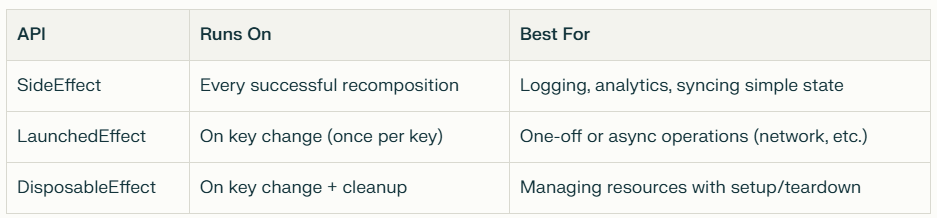
Choosing the Right Side-Effect API

Conclusion

Side-Effect APIs in Jetpack Compose are essential for bridging the gap between declarative UI and imperative side effects. By understanding and using SideEffect, LaunchedEffect, and DisposableEffect correctly, you can:

  • Prevent bugs and performance issues caused by unwanted repeated side effects
  • Build responsive, robust, and maintainable Compose apps
  • Ensure your app interacts safely with the outside world

Remember:

  • Use SideEffect for lightweight, repeatable actions after recomposition
  • Use LaunchedEffect for one-time or asynchronous tasks
  • Use DisposableEffect for managing resources with setup and teardown

Mastering these tools will help you write cleaner, more reliable Compose code — and take your Android apps to the next level.

Android Automotive OS Architecture

Android Automotive OS Architecture: A High‑Level Overview

Android Automotive OS is Google’s in‑car operating system that runs directly on a vehicle’s hardware. Not to be confused with Android Auto (a phone projection platform), Android Automotive OS Architecture is a complete software stack, ready for infotainment, driver assistance apps, and full vehicle integration. 

Let’s dive into its main layers.

Android Automotive Architecture

A high-level architecture diagram of the Android Automotive OS is given below.

It consists of the following four main generic components:

Application Framework

Application Framework layer, also known as the HMI (Human-Machine Interface) is responsible for providing the user interface for the car’s infotainment system. It includes both user applications, such as music players and navigation apps, as well as system applications, such as the car’s settings and the voice assistant.

It is important to design applications in this layer with most core business functions moved to the Services layer. This approach ensures scalability and easy updates for the future.

The Application Framework layer contains further parts, which are as follows:

1. Android Open Source Project (AOSP): The Android Open Source Project (AOSP) is the base software for Android devices. It includes all the necessary components like system apps, application frameworks, system services, and HAL interfaces. These components are organized as “GIT-tree packages.”

In AOSP, you find generic system apps like the default launcher, contacts app, and clock app. The application framework provides tools for app development. System services manage important functions like network connectivity and security. HAL interfaces help interact with device-specific hardware.

When you install Android on a device, all these components are stored in the /system partition, which is like the “core” of the Android system. Custom ROMs replace these files to offer different features and optimizations.

2. OEM and 3rd party applications: The OEM and 3rd party applications are the “face” of the car’s infotainment system. They’re the things that people see and interact with. The HMI is the way that people interact with those applications. And the application background services are the things that keep the whole system running smoothly.

BTW, What is OEM?

OEM stands for Original Equipment Manufacturer. In general, an OEM is a company that manufactures products that are sold under another company’s brand name. For example, Bose is an OEM for sound systems. They make sound systems that are sold under the brand names of other companies, such as Toyota, Ford, and Honda.

In other words, Bose is the company that actually makes the sound system, but Toyota, Ford, and Honda are the companies that sell the sound system to their customers.

In the context of Android Automotive OS architecture, an OEM is a car manufacturer that uses the Android Automotive OS as the operating system for its car’s infotainment system.

OEMs have a lot of flexibility in how they use the Android Automotive OS. They can customize the look and feel of the system, add their own applications, and integrate the system with their car’s other systems.

Here are some examples of OEMs that use the Android Automotive OS:

Volvo: Volvo is a Swedish car manufacturer that uses the Android Automotive OS in its XC40 Recharge electric car.

Renault: Renault is a French car manufacturer that uses the Android Automotive OS in its Megane E-Tech electric car.

Honda: Honda is a Japanese car manufacturer that uses the Android Automotive OS in its e:NS1 electric car.

These components are stored in the /product partition on the car’s hard drive. This is a separate partition from the /system partition, which contains the Android operating system itself. This separation allows OEMs and developers to customize the car’s infotainment system without affecting the underlying Android operating system.

Android Automotive System Services

This layer contains all the important System services that handle various essential functions in the Android Automotive system, like managing network connections, power, and security features.

One interesting aspect of this layer is that it acts like a protective shield of security for the system. Instead of allowing applications to directly communicate with the hardware through the Hardware Abstraction Layer (HAL), they interact with the System services. These services act as an intermediary between the applications and the hardware.

This approach has a significant advantage in terms of security. By using the Services layer as a middleman, OEMs can ensure that the hardware’s sensitive functionalities are accessed and controlled in a secure manner. It prevents direct access to the hardware from regular applications, reducing the risk of potential vulnerabilities or unauthorized access.

The Android Automotive System Services layer contains further parts, which are as follows:

1. Car Services: Car services are an important part of the Android Automotive Architecture Service Layer. They provide a consistent, secure, and efficient way for applications to interact with the car’s hardware and software. Some examples of these services include CarPropertyService, CarAudioService, CarClimateControlService, and CarNavigationService.

2. Car Managers: Car managers are a set of system managers that provide access to the car’s hardware and software. They are implemented as a set of classes, each of which is responsible for a specific area of the car, such as the audio system, the climate control system, or the navigation system.

Overview of the different Car Managers along with their respective descriptions

Hardware Abstraction Layer (HAL)

The Hardware Abstraction Layer (HAL) plays a crucial role. It acts as a bridge between the vehicle’s hardware, specifically the Electronic Control Units (ECUs), and the rest of the system, including the application framework and system services.

The HAL’s main purpose is to expose standardized interfaces that the system services can use to communicate with the different hardware components inside the vehicle. This creates a “vehicle-agnostic” architecture, meaning that the Android Automotive system doesn’t need to know the specific details of each car’s hardware.

By using the HAL, the system services can interact with the vehicle’s hardware in a consistent and standardized way. This enables data exchange and control of various car functionalities, such as handling sensors, managing displays, and controlling audio and climate systems.

Vehicle HAL: Vehicle HAL is a crucial component in Android Automotive architecture. Its main purpose is to provide a standardized and adaptable way for the system services to communicate with car-specific hardware and functionalities.

The Vehicle HAL provides access to a variety of car-specific features, including:

  • Signals to/from the ECUs in the vehicle: The ECUs (Electronic Control Units) are the electronic brains of the car. They control everything from the engine to the climate control system. The Vehicle HAL provides access to the signals that are sent between the ECUs, which allows the Android Automotive system to monitor and control the car’s systems.
  • Signals generated from the vehicle microcontroller unit to the IVI OS: The IVI OS (In-Vehicle Infotainment Operating System) is the software that runs on the car’s infotainment system. The Vehicle HAL provides access to the signals that are generated by the car’s microcontroller unit, which allows the IVI OS to interact with the car’s hardware.
  • Access to service-oriented functions available on the vehicle network (e.g.: SOME-IP): SOME-IP is a standard for service-oriented communication in vehicles. The Vehicle HAL provides access to the SOME-IP services that are available on the car’s network, which allows the Android Automotive system to communicate with other devices in the car.

Board Support Package (BSP)

In the Android Automotive architecture, BSP stands for “Board Support Package.” It is a crucial component that plays a vital role in making the Android Automotive system compatible with specific hardware configurations, especially System on a Chip (SoC) devices.

System on a Chip (SoC) refers to a type of semiconductor integrated circuit(IC) that incorporates multiple essential components of a computer or electronic system onto a single chip. It is a complete computing system on a single chip, including the central processing unit (CPU), memory, graphics processing unit (GPU), input/output interfaces, and various other components.

System on Chip (SoC): Brain of Smartphones, tablets, laptops, TVs, and cars.

The BSP is an important part of the Android Automotive architecture because it allows the operating system to interact with the car’s hardware. This is necessary for the operating system to run and for applications to function properly.

The BSP is also important because it allows OEMs to customize the car’s infotainment system. OEMs can extend the BSP with their own code and applications, which allows them to add features that are specific to their car.

The BSP is typically developed by the SoC vendor or by an OEM. It is then provided to the Android Automotive team, who integrate it into the Android Automotive operating system.

Linux Kernel: The BSP typically contains the Linux kernel image, which is the core of the operating system. The Linux kernel handles hardware interactions and provides a foundation for running Android on the given hardware platform.

AIDL & HIDL

In the Android Automotive architecture, both AIDL (Android Interface Definition Language) and HIDL (HAL Interface Definition Language) play essential roles in enabling communication between different components of the system.

AIDL (Android Interface Definition Language):

  • AIDL is a communication interface used primarily for inter-process communication (IPC) between applications running on the Android system.
  • In Android Automotive, AIDL is used for communication between user applications and system services. It enables apps to interact with system services and access certain functionalities provided by the Android framework.
  • AIDL is commonly used for remote method invocation, where one application can request services from another application running in a different process.

HIDL (HAL Interface Definition Language):

  • HIDL is a communication interface used for interacting with the Hardware Abstraction Layer (HAL).
  • In Android Automotive, HIDL allows system services and other components to communicate with the hardware-specific functionalities of the vehicle.
  • The HAL abstracts the hardware-specific details and exposes standardized interfaces through HIDL, allowing the rest of the system to interact with the vehicle’s hardware in a consistent manner.

So, AIDL is used for communication between user applications and system services, while HIDL facilitates communication between the Android system services and the Hardware Abstraction Layer (HAL).

Conclusion 

This high-level walkthrough of the Android Automotive OS architecture explained how each layer — from apps down to car hardware — connects and interacts. You’ve seen how vehicle data is accessed in a clean and structured way. Whether you’re an OEM building new car platforms or a developer creating in-vehicle apps, this architecture provides a powerful, secure, and modern foundation.

Fragment add() vs replace()

Fragment add() vs replace(): The Ultimate Guide for Android Developers

If you’ve been working with Android and Fragments, you’ve probably faced this decision: should I use add() or replace() when switching Fragments?

It might sound simple — but the difference between FragmentTransaction.add() and FragmentTransaction.replace() can lead to bugs, memory leaks, or even unexpected UI behavior if misunderstood.

This guide breaks it down clearly and aligns with modern best practices, especially if you’re using Kotlin and Jetpack components.

What Are add() and replace() in Fragment Transactions?

When working with FragmentManager, you use FragmentTransaction to display Fragments in your app. Two core methods you’ll come across:

  • add(containerViewId, fragment)
  • replace(containerViewId, fragment)

Both methods attach a Fragment to your UI, but they do so differently under the hood.

Let’s see how.

add() — Append, Don’t Replace

Kotlin
supportFragmentManager.beginTransaction()
    .add(R.id.fragment_container, FirstFragment())
    .addToBackStack(null)
    .commit()

What it does:

  • Places the new Fragment on top of the existing one.
  • The old Fragment is still in memory, and still part of the FragmentManager.
  • It doesn’t destroy or detach the previous Fragment.

It’s like stacking one card on top of another — the card below is still there, just not visible.

Pros:

  • Keeps the previous Fragment state
  • Useful when you want to come back to the previous Fragment without recreation
  • Ideal for flows where back navigation is important (e.g., form wizards, onboarding)

Cons:

  • Can lead to multiple Fragments overlapping, if you’re not careful
  • May consume more memory if you stack too many

replace() — Out With the Old, In With the New

Kotlin
supportFragmentManager.beginTransaction()
    .replace(R.id.fragment_container, SecondFragment())
    .addToBackStack(null)
    .commit()

What it does:

  • Removes the existing Fragment from the container.
  • Destroys its view hierarchy.
  • Adds the new Fragment in its place.

Think of swapping one picture frame for another — the old one is removed completely.

Pros:

  • Keeps the Fragment stack cleaner
  • Avoids UI overlap
  • Saves memory in complex flows

Cons:

  • Destroys previous Fragment’s state (unless manually handled)
  • Recreates the old Fragment if you navigate back

So When Should You Use add() or replace()?

Use add() when:

  • You need to preserve the previous Fragment’s state.
  • You’re building a flow where users can go back to the same exact screen without reloading it.
  • You have multiple Fragment layers (like dialogs, bottom sheets, or nested flows).

Use replace() when:

  • You want a clean switch without preserving the old Fragment.
  • You don’t need to reuse the previous Fragment state.
  • You’re swapping between main tabs or screens (e.g., Home → Profile → Settings).

A Quick Reference: add() vs replace()

Featureadd()replace()
Keeps previous FragmentYesNo
Overlaps FragmentsPossibleNo
Back stack behaviorPreserves allCan restore, but recreates
Memory usageHigherLower
Ideal forWizard flows, multi-layer UITab switching, top-level views

Pro Tips for Using Fragment add() and replace()

1. Always use addToBackStack() if you want to support back navigation. Without it, pressing back will exit the activity.

2. With add(), make sure to hide() or detach() previous Fragments if you don’t want visual overlap.

Kotlin
val transaction = supportFragmentManager.beginTransaction()
transaction.hide(currentFragment)
transaction.add(R.id.fragment_container, newFragment)
transaction.addToBackStack(null)
transaction.commit()

3. If you’re using Jetpack Navigation Component, add() and replace() are abstracted — but under the hood, it still uses replace() behavior.

4. Avoid memory leaks: If using add(), remember that Fragments left in memory can still hold references to Views, Context, etc. Clean them up..!

5. Keep fragment tags consistent when using add() so you can retrieve them via findFragmentByTag() later.

Jetpack Compose Developers — Does This Still Matter?

If you’ve switched to Jetpack Compose, and you’re using NavHost with Navigation Compose, you’re no longer directly dealing with add() or replace().

Compose’s navigation system manages screen state using a backstack model, more akin to replace(). But understanding this topic still matters if:

  • You’re migrating from legacy Views to Compose.
  • You’re using Fragments to host Compose screens in a hybrid setup.

Final Verdict: Fragment add() vs replace() — Choose Wisely

Choosing between Fragment add() or replace() is more than just a technical decision — it’s about managing user experience, performance, and memory.

  • If you’re building dynamic UIs with nested Flows — lean on add() with careful state management.
  • If you’re keeping your app lean and focused — replace() is your friend.

The key is knowing what each does under the hood, so your Fragment transactions are intentional, predictable, and maintainable.

Over to You

Next time you write a FragmentTransaction, ask yourself:

Do I need the old Fragment to stick around, or not?

That one question will guide you every time.

TL;DR 

  • add() → Keeps old Fragment, good for preserving state.
  • replace() → Destroys old Fragment, cleaner transitions.
  • Be careful with overlapping Fragments when using add()
  • Use addToBackStack() if you want back navigation.
  • Prefer replace() for main screens, add() for layered UIs.
How Android ViewModel Survives Configuration Changes

How Android ViewModel Survives Configuration Changes and the Role of HashMap Behind the Curtain

In the world of Android development, configuration changes are one of those things that often trip up even seasoned developers. You rotate your device, and suddenly your Activity is destroyed and recreated — poof! That counter you were tracking? Gone. Thankfully, Android ViewModel has your back. In this article, we’ll dive deep into how Android ViewModel survives...

Membership Required

You must be a member to access this content.

View Membership Levels

Already a member? Log in here
error: Content is protected !!