Jetpack Compose continues to evolve, and one of the most interesting updates is the new Ripple API. If you’ve been building modern Android UIs, you’ve probably used ripple effects to give users visual feedback when they tap on buttons, cards, or other interactive elements. That subtle wave animation plays a big role in making interactions...
AI-powered coding assistants have completely changed how Android developers write code. Features like Gemini in Android Studio read your project files, understand your codebase structure, and suggest intelligent completions. That’s incredibly helpful — but it also raises an important question: What exactly is the AI reading? The answer is often “more than you think.” Configuration files, API...
If you’ve been in the mobile and cross-platform world lately, you’ve probably heard a lot about Compose Multiplatform (CMP). It’s one of the fastest-growing ways to build apps that run on Android, iOS and the Web using a single shared UI approach. But what exactly is CMP? And why are developers increasingly choosing it over...
If you build Android apps, you’ve probably seen the term ABI in Android at least once. It shows up in Gradle settings, Play Console warnings, and NDK documentation. But what does it actually mean? And why does it affect your APK size and app performance? Let’s break it down. What Is ABI in Android? ABI stands...
If you’ve ever uploaded an Android App Bundle to the Google Play Console and seen a warning about a missing Debug Symbol File, you’re not alone. A lot of developers hit this message and wonder: What exactly is a Debug Symbol File? Why does Google Play Console need it? Is it mandatory? How do I...
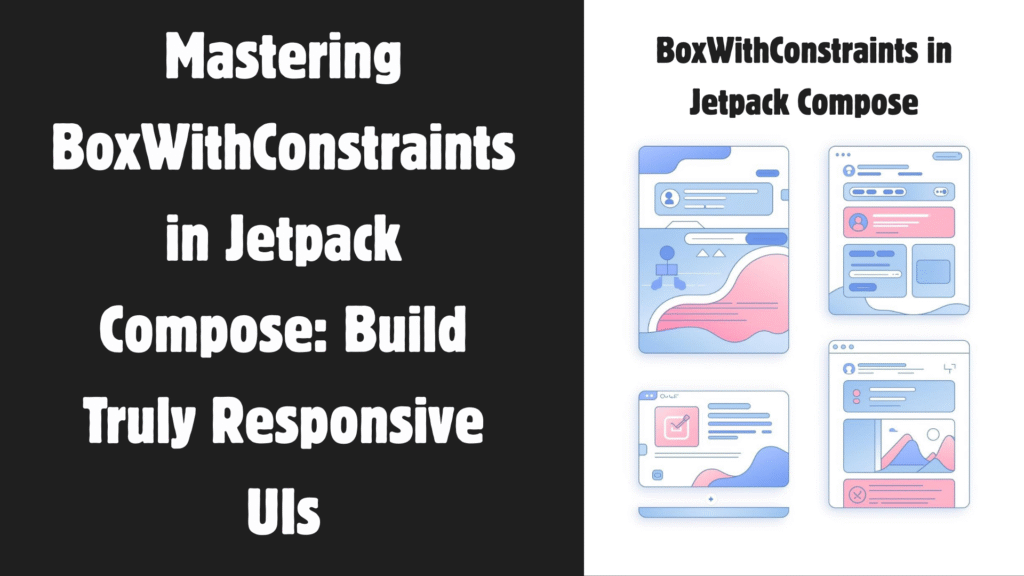
Modern Android apps run on phones, tablets, foldables, Chromebooks, and even desktop environments. If your layout only looks good on one screen size, users will notice. That’s where BoxWithConstraints in Jetpack Compose becomes powerful. In this guide, you’ll learn what it is, when to use it, how it works internally, and how to build truly...
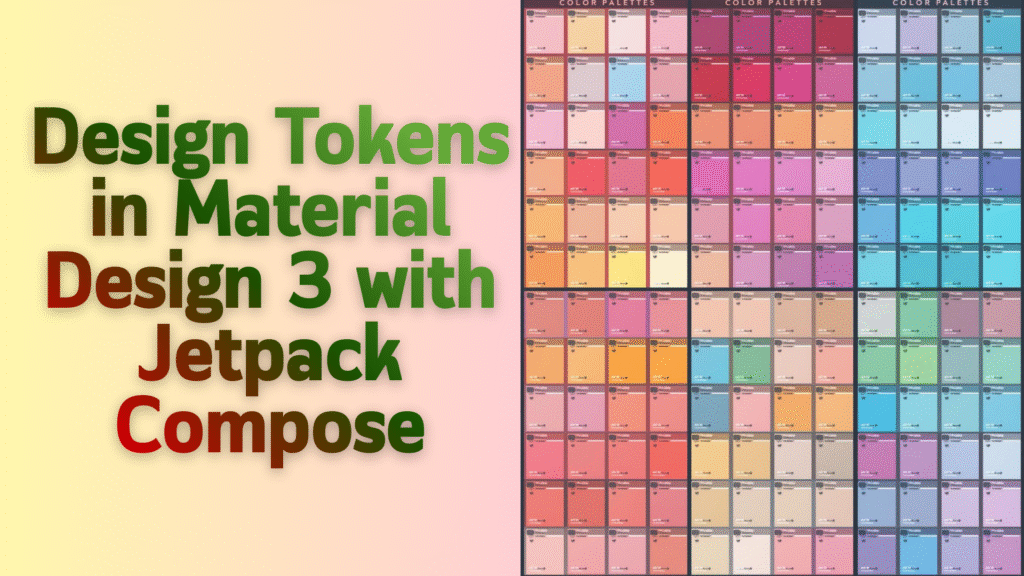
If you’ve been diving into modern Android development, you’ve probably heard the buzz about Material Design 3 (also known as Material You) and Jetpack Compose. Today, we’re going to explore one of the most powerful yet underappreciated features that ties them together: Design Tokens. Understanding Design Tokens in Material 3 and Jetpack Compose will transform...
Creating a polished Android app starts with one crucial decision: your app’s visual identity. If you’ve been wondering how to make your Jetpack Compose app look consistent and professional across every screen, you’re in the right place. In this guide, I’ll walk you through building a Custom App Theme in Jetpack Compose using Material 3....
When building apps with Jetpack Compose, you’ll often pass data down through multiple layers of composables. At first, this feels fine. But as your UI grows, you may find yourself passing the same parameter through five or six functions just to reach a deeply nested child. That pattern is called prop drilling. It works, but...
Have you ever wondered how Android apps magically match your wallpaper colors? Or how Material Design creates those perfectly harmonious color palettes that just work?
That’s the magic of Material 3’s dynamic color system, and today, we’re diving deep into how it all comes together using Kotlin and Jetpack Compose.
By the end of this guide, you’ll understand exactly how the Material 3 colorScheme works, how to implement it in your Android apps with Kotlin, and how to harness the power of dynamic theming to create stunning user interfaces that feel personal and cohesive.
Let’s get started..!
What Is Material 3 ColorScheme?
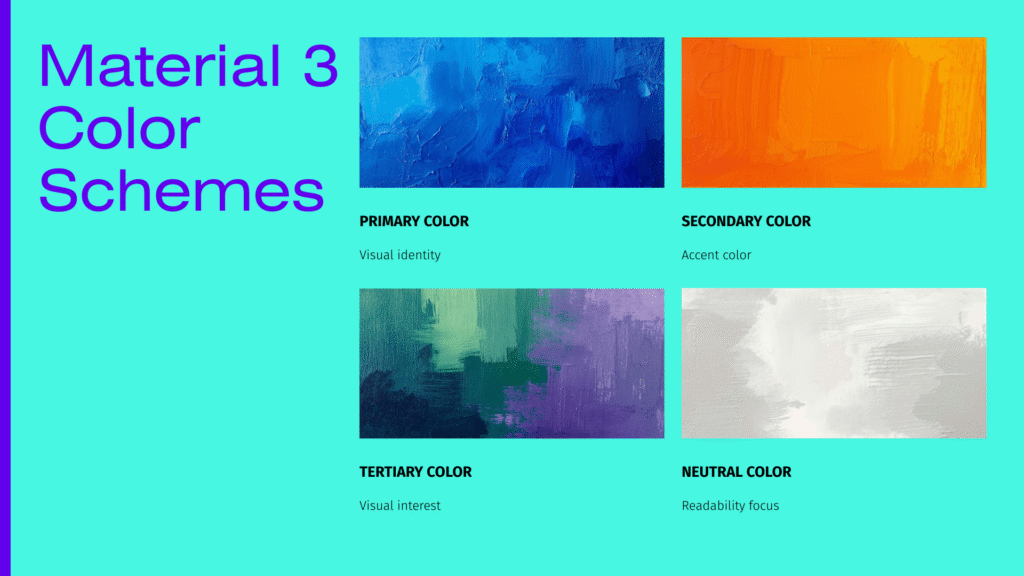
The Material 3 colorScheme is Google’s revolutionary approach to app theming that goes way beyond simple primary and secondary colors. Think of it as a complete color system that automatically generates a harmonious palette of colors designed to work together beautifully.
Here’s what makes it special:
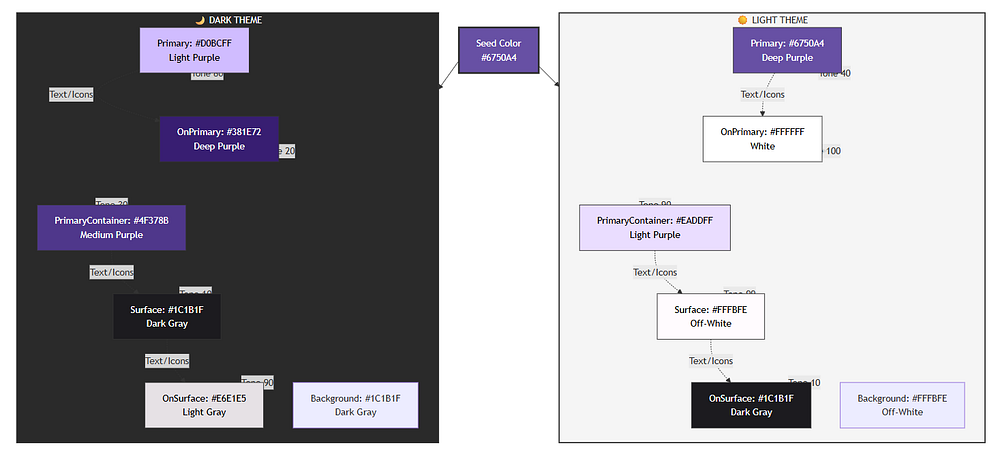
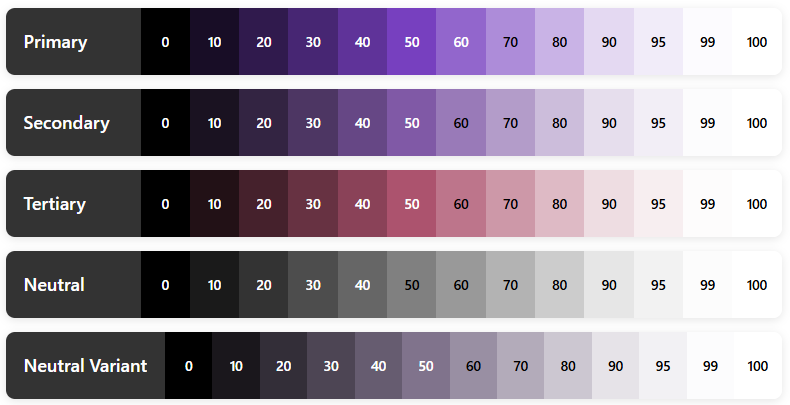
Dynamic Color Generation: Instead of manually picking dozens of color shades, the Material 3 colorScheme generates an entire palette from a single seed color. This means you get consistent, accessible, and visually appealing colors without the guesswork.
Adaptive Theming: The system automatically adjusts for light and dark modes, ensuring your app looks great in any setting.
Wallpaper Integration: On Android 12 and above, your app can automatically extract colors from the user’s wallpaper, creating a truly personalized experience.
Accessibility Built-In: Every color in the Material 3 colorScheme meets WCAG (Web Content Accessibility Guidelines) accessibility standards when used correctly, so you don’t have to worry about contrast ratios.
Understanding Dynamic Color: The Foundation
Dynamic color is the heart of Material 3 on Android. But what exactly is it?
Imagine your phone’s wallpaper is a beautiful sunset with warm orange and purple tones. With dynamic color, your apps can extract those colors and build their entire theme around them. It’s personalization taken to the next level.
How Dynamic Color Works on Android
The process is actually quite elegant:
Color Extraction: The system analyzes your wallpaper using the Monet color system
Palette Generation: Using color science algorithms, it creates a full tonal palette
Role Assignment: Colors are assigned to specific UI roles (more on this shortly)
Adaptation: The scheme automatically adapts for light and dark themes
The beauty of the Material 3 colorScheme is that all this complexity is handled for you in Jetpack Compose. You just need to understand how to use it.
The Color Roles: Your New Best Friends
Here’s where Material 3 gets really interesting. Instead of thinking in terms of “primary,” “secondary,” and “tertiary” colors alone, the Material 3 colorScheme introduces color roles.
Think of color roles as jobs that colors perform in your UI. Let’s break down the main players:
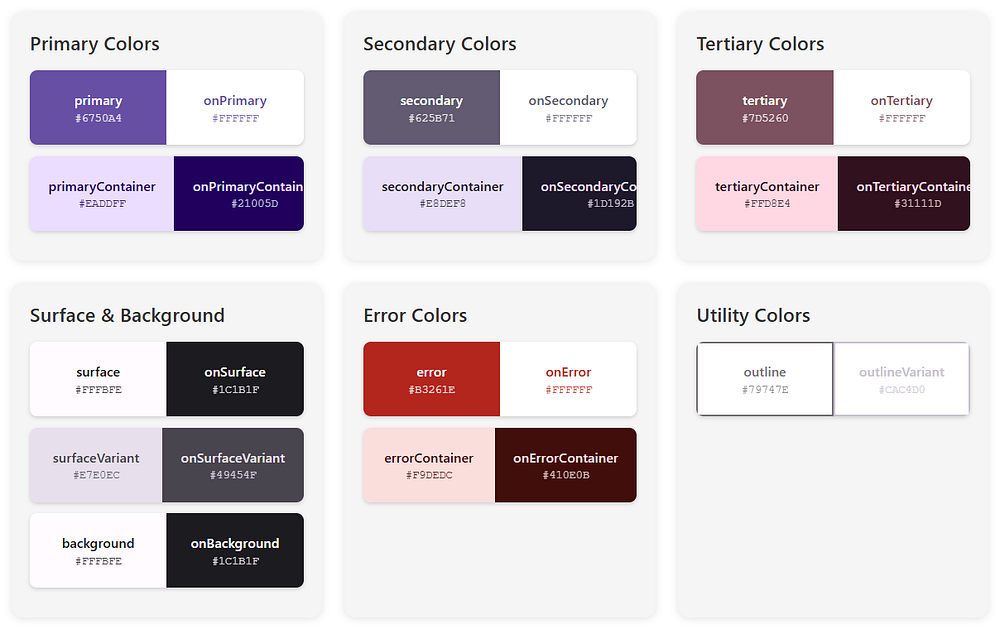
Primary Colors
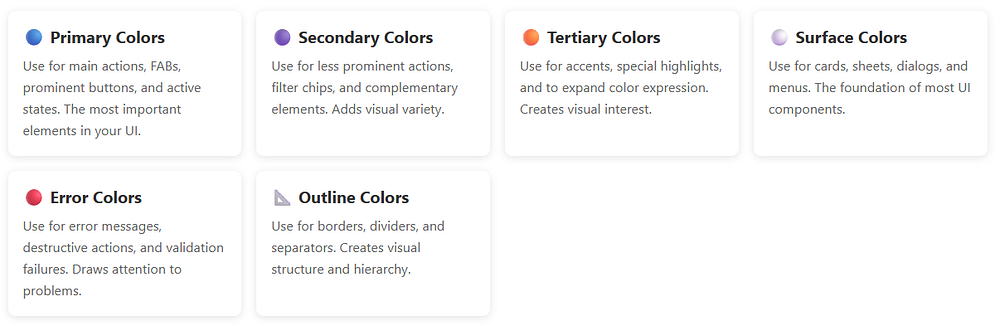
Primary: This is your brand color, the star of the show. It appears on prominent buttons and active states.
OnPrimary: Text and icons that sit on top of the primary color. The Material 3 colorScheme ensures this has enough contrast to be readable.
PrimaryContainer: A lighter (or darker in dark mode) version used for less prominent components.
OnPrimaryContainer: Text that appears on primary containers.
Secondary Colors
Secondary: Provides visual variety and highlights less prominent components.
OnSecondary: You guessed it — text on secondary colors.
SecondaryContainer: For chips, cards, and other contained elements.
OnSecondaryContainer: Text on those containers.
Tertiary Colors
Tertiary: Adds even more variety, often used for accents and special highlights.
OnTertiary, TertiaryContainer, OnTertiaryContainer: Following the same pattern.
Surface and Background Colors
Surface: The background color for cards, sheets, and menus.
OnSurface: Text and icons on surfaces.
SurfaceVariant: Alternative surface with subtle differences.
OnSurfaceVariant: Text with lower emphasis.
Background: The main background of your app.
OnBackground: Primary text on the background.
Error Colors
Error: For error states and destructive actions.
OnError: Text on error colors.
ErrorContainer: Background for error messages.
OnErrorContainer: Text in error containers.
Special Roles
Outline: Borders and dividers.
OutlineVariant: Subtle borders.
Scrim: Semi-transparent overlays.
InverseSurface, InverseOnSurface, InversePrimary: For high-contrast elements like tooltips.
SurfaceTint: Used for elevation overlays in Material 3.
Phew! That’s a lot of colors, right..?
But here’s the magic: the Material 3 colorScheme generates all of these automatically, ensuring they work harmoniously together.
In short, a typical Material 3 colorScheme includes:
primary – main brand color
onPrimary – content placed on primary
secondary – supporting color
tertiary – optional accent color
background – app background
surface – cards and sheets
error – error states
onSurface – text/icons on surfaces
Each color has a paired onColor to guarantee readability.
This pairing is key to accessibility.
Setting Up Your Kotlin Project
Before we dive into code, let’s make sure your Android project is ready for Material 3.
Adding Dependencies
First, add the necessary dependencies to your build.gradle.kts (Module level):
Kotlin
dependencies {// Jetpack Compose BOM (Bill of Materials)implementation(platform("androidx.compose:compose-bom:2024.02.00"))// Material 3implementation("androidx.compose.material3:material3")// Other Compose dependenciesimplementation("androidx.compose.ui:ui")implementation("androidx.compose.ui:ui-tooling-preview")implementation("androidx.activity:activity-compose:1.8.2")// Core KTXimplementation("androidx.core:core-ktx:1.12.0")// Lifecycleimplementation("androidx.lifecycle:lifecycle-runtime-ktx:2.7.0")}
Problem: Compose previews show incorrect or default colors.
Solution: Always wrap preview content in your theme:
Kotlin
@Preview@ComposablefunMyComposablePreview() {MyAppTheme { // Never forget the theme wrapper!MyComposable() }}
Issue 4: System Bars Not Matching Theme
Problem: Status bar and navigation bar don’t match app theme.
Solution: Update system bars in your theme composable:
Kotlin
val view = LocalView.currentif (!view.isInEditMode) {SideEffect {val window = (view.context as Activity).window// Set status bar color window.statusBarColor = colorScheme.surface.toArgb()// Set navigation bar color window.navigationBarColor = colorScheme.surface.toArgb()// Adjust icon colors WindowCompat.getInsetsController(window, view).apply { isAppearanceLightStatusBars = !darkTheme isAppearanceLightNavigationBars = !darkTheme } }}
Issue 5: Gradle Build Errors
Problem: Cannot resolve Material 3 symbols.
Solution: Ensure you have the correct dependencies:
Kotlin
dependencies {// Use BOM for version managementimplementation(platform("androidx.compose:compose-bom:2024.02.00"))implementation("androidx.compose.material3:material3")// Or specify version explicitlyimplementation("androidx.compose.material3:material3:1.2.0")}
val colorScheme = MaterialTheme.colorScheme// Primary colorscolorScheme.primary // Main brand colorcolorScheme.onPrimary // Text on primarycolorScheme.primaryContainer // Lighter primary variantcolorScheme.onPrimaryContainer // Text on primary container// Secondary colorscolorScheme.secondary // Secondary accentcolorScheme.onSecondary // Text on secondarycolorScheme.secondaryContainer // Lighter secondarycolorScheme.onSecondaryContainer // Text on secondary container// Tertiary colorscolorScheme.tertiary // Third accent colorcolorScheme.onTertiary // Text on tertiarycolorScheme.tertiaryContainer // Lighter tertiarycolorScheme.onTertiaryContainer // Text on tertiary container// Surface and backgroundcolorScheme.surface // Card/sheet backgroundcolorScheme.onSurface // Text on surfacescolorScheme.surfaceVariant // Alternative surfacecolorScheme.onSurfaceVariant // Text on surface variantcolorScheme.background // Main app backgroundcolorScheme.onBackground // Text on background// Error colorscolorScheme.error // Error state colorcolorScheme.onError // Text on errorcolorScheme.errorContainer // Error message backgroundcolorScheme.onErrorContainer // Text in error messages// Utility colorscolorScheme.outline // Borders and dividerscolorScheme.outlineVariant // Subtle borderscolorScheme.surfaceTint // Elevation tint (usually primary)colorScheme.scrim // Semi-transparent overlays// Inverse colors (for tooltips, snackbars)colorScheme.inverseSurface // High-contrast surfacecolorScheme.inverseOnSurface // Text on inverse surfacecolorScheme.inversePrimary // Primary color on inverse surface
The Material 3 colorScheme is a game-changer for Android app theming. It takes the complexity out of color design and gives you a robust, accessible, and beautiful color system right out of the box.
Here’s what we’ve covered:
Understanding: The Material 3 colorScheme generates complete, harmonious palettes from seed colors or wallpaper
Color Roles: Semantic color names ensure accessibility and visual consistency
Implementation: Simple Kotlin setup with Jetpack Compose and dynamic color support
Dynamic Color: Apps automatically match user wallpapers on Android 12+ for personalized experiences
Best Practices: Use semantic colors, test both themes, provide fallbacks, and optimize performance
Real Examples: Production-ready Kotlin code you can use in your projects immediately
Troubleshooting: Solutions to common issues developers face
The beauty of the Material 3 colorScheme is that it makes professional color design accessible to everyone. You don’t need to be a color theory expert to create stunning, accessible Android apps.
Getting Started Today
Start your next Android project by:
Adding Dependencies: Include Material 3 in your build.gradle.kts
Creating Your Theme: Set up lightColorScheme() and darkColorScheme() in Theme.kt
Enabling Dynamic Color: Support Android 12+ wallpaper theming
Using Semantic Colors: Reference MaterialTheme.colorScheme throughout your composables
Testing Thoroughly: Preview in both light and dark modes
The Material 3 colorScheme handles the complexity of color science, accessibility, and harmonization so you can focus on building amazing user experiences. And that’s what makes it so powerful.