Ktor framework is a powerful framework for building asynchronous servers and clients in Kotlin. It’s designed to be simple, efficient, and highly customizable, making it a popular choice for building modern web applications, microservices, and APIs. In this blog, we will cover both the Ktor server and Ktor client frameworks, providing code examples with detailed explanations...
Hey, Kotlin lovers and code warriors! If you’ve ever dabbled in web development with Kotlin, you’ve probably heard of Ktor. If not, no worries—today we’re diving headfirst into this amazing framework that makes web development fun, easy, and less likely to send you spiraling into a Java-induced existential crisis. And hey, if the term ‘web...
So, you’ve just sat down to build an Android app, and naturally, you want to execute some background tasks. Perhaps you’re thinking, ‘Should I use a Thread? Maybe AsyncTask? No, wait—that’s deprecated!’ Don’t worry, we’ve all been there. In the wild, vast world of Android development, managing background tasks is like trying to control a...
Android development has evolved significantly over the years, driven by advances in technology and the increasing expectations of users. To succeed as an Android developer today, it’s crucial to keep up with the latest tools, techniques, and best practices. In this guide I will walk you through the key aspects of modern Android development, breaking...
In this blog, we’ll walk through a practical use case for Kotlin Multiplatform Mobile (KMM) by creating a simple News Application. This app will fetch and display the latest news articles from a remote API, with shared business logic across Android and iOS platforms, but with platform-specific UI components to maintain the native look and...
Kotlin Multiplatform Mobile (KMM) is making waves in cross-platform development. It allows you to write shared code for both Android and iOS apps, eliminating the need to duplicate functionality across two separate codebases. While you can still include platform-specific code where necessary, KMM lets you handle most of the app logic in one place. This...
In today’s digital world, getting your content indexed by Google and making it easily searchable is crucial. This is where Google Search Console (GSC) comes into play. By using GSC, website owners can monitor and maintain their site’s presence in Google search results. However, before using the tool, you need to verify ownership of the site. Additionally, Google offers an Instant Indexing API for quick indexing of content, which can be particularly beneficial for time-sensitive content.
In this blog, we’ll dive deep into:
What is Google Search Console?
How to verify ownership in Google Search Console?
What is the Instant Indexing API?
How to use the Instant Indexing API?
Let’s break it down in an easy-to-understand way!
What is Google Search Console (GSC)?
Google Search Console is a free tool offered by Google that helps webmasters, SEOs, and content creators manage the appearance of their website in Google search results. Some of its key features include:
Performance Reports: Shows how well your site is performing in search results.
URL Inspection Tool: Allows you to check how Google sees a specific URL on your site.
Coverage Reports: Helps you fix indexing issues.
Sitemaps Submission: Enables submission of your XML sitemap to Google.
But before accessing these powerful tools, you first need to verify that you own the website.
How to Verify Ownership in Google Search Console?
Verifying ownership tells Google that you are authorized to access the website’s search data. There are several methods to verify your site:
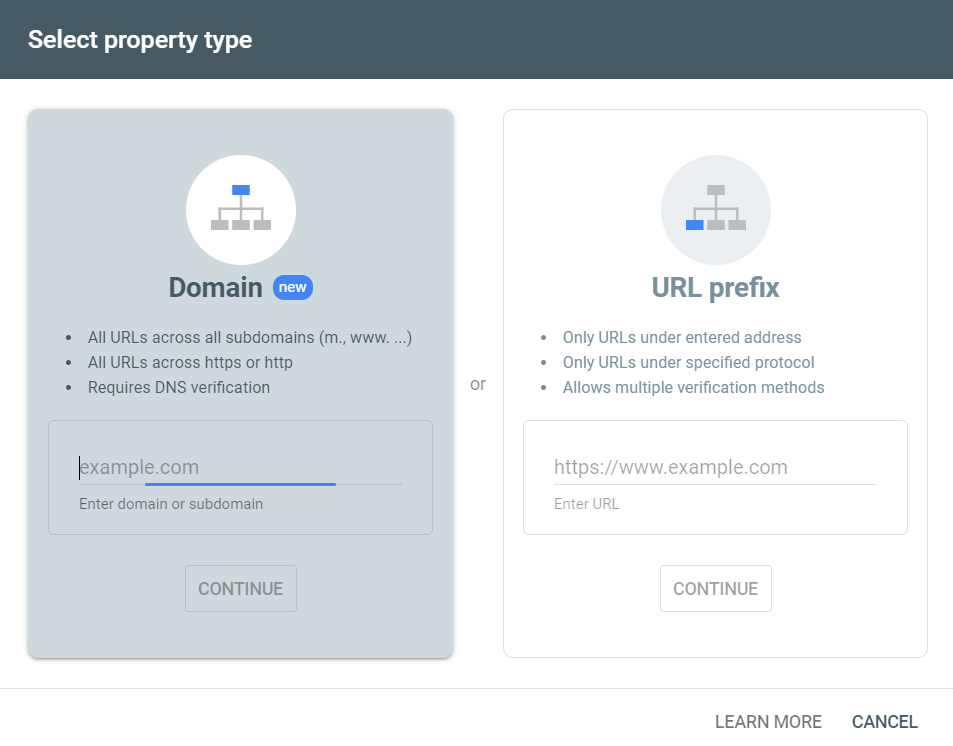
Enter the URL of your site (choose either domain or URL-prefix).
Step 2: Choose a Verification Method
Google offers several methods for verifying your website ownership. The common methods are:
HTML File Upload:
Download the verification file provided by Google.
Upload this file to the root directory of your website using FTP or your file manager.
Once uploaded, go back to GSC and click Verify.
Meta Tag:
Copy the meta tag provided by Google.
Paste this meta tag inside the <head> section of your homepage’s HTML code.
Save the changes and click Verify in GSC.
DNS TXT Record:
If you have access to your domain’s DNS settings, this method works well.
Copy the TXT record provided by GSC.
Go to your domain registrar (e.g., GoDaddy, Namecheap) and add this TXT record to your DNS configuration.
Once added, click Verify.
Google Tag Manager or Google Analytics: You can verify your ownership if these tools are already set up on your site.
Step 3: Verification Process
Once the file, meta tag, or DNS record has been added, click Verify in Google Search Console.
If everything is correctly set up, Google will confirm your ownership, and you’ll gain access to GSC.
What is the Google Instant Indexing API?
The Instant Indexing API is a service provided by Google that allows website owners to instantly notify Google when pages on their website are added, updated, or deleted. This is particularly useful for content-heavy websites or news publishers who need to ensure that new content is indexed as quickly as possible.
In the past, websites had to wait for Googlebot to crawl their site, which could take days or weeks. With the Instant Indexing API, you can push your new content to Google almost immediately.
Some ideal use cases include:
News articles that need to be indexed right away.
Updating existing content where timely changes are crucial.
Pages related to job postings or time-sensitive offers.
How to Set Up the Google Instant Indexing API?
Let’s now walk through how to use the Instant Indexing API step-by-step.
Click on the project dropdown at the top and select New Project.
Give it a name (e.g., “Instant Indexing API Project”) and click Create.
Step 2: Enable the Indexing API
In the Cloud Console, go to API & Services > Library.
Search for Indexing API and click Enable.
Step 3: Create Credentials (OAuth 2.0)
Navigate to API & Services > Credentials.
Click Create Credentials and select OAuth 2.0 Client IDs.
Set up the OAuth consent screen (fill in the required details).
Once done, download the JSON file with your client credentials.
Step 4: Authorize and Obtain Access Token
You need a tool like Postman or a simple Python script to authorize yourself and get an access token using the credentials from the JSON file.
Here’s a Python script to authenticate:
Python
from google.oauth2 import service_accountfrom google.auth.transport.requests import AuthorizedSessionimport requests# Load your JSON credentialsSCOPES = ["https://www.googleapis.com/auth/indexing"]JSON_KEY_FILE = "path/to/your-json-file.json"# Make sure this is the correct path# Get credentialscredentials = service_account.Credentials.from_service_account_file(JSON_KEY_FILE, scopes=SCOPES)session = AuthorizedSession(credentials)# Function to send a URL for indexingdefindex_url(url): ENDPOINT = "https://indexing.googleapis.com/v3/urlNotifications:publish" headers = {"Content-Type": "application/json"} data = {"url": url,"type": "URL_UPDATED" } response = session.post(ENDPOINT, headers=headers, json=data)# Check response statusif response.status_code == 200:print("URL successfully submitted for indexing:", url)else:print(f"Error {response.status_code}: {response.text}")# Example usageindex_url("https://yourdomain.com/your-new-post")
Step 5: Push URLs for Indexing
After the authentication is complete, use the above Python code to send your new or updated URLs to Google for indexing. This script pushes the URL_UPDATED type, which tells Google that the page has been updated. You can also use URL_DELETED if the page has been removed.
Best Practices for Using the Instant Indexing API
Limit Your Requests: Google allows a limited number of API requests per day (around 200), so only send URLs that really need immediate indexing.
Focus on Important Pages: Use the API for critical pages (e.g., blog posts, product updates, or time-sensitive pages).
Maintain a Sitemap: Continue to maintain and submit your XML sitemap. The Instant Indexing API should complement your existing SEO strategy, not replace it.
Conclusion
Both Google Search Console and the Instant Indexing API are invaluable tools for webmasters. While GSC offers the ability to monitor and optimize your website’s presence in search results, the Instant Indexing API provides a quick and efficient way to notify Google of new or updated content, ensuring your pages are indexed without delay.
By combining both tools, you can significantly enhance your website’s SEO, reduce the time it takes for your content to appear in search results, and ensure your site is always visible to potential visitors.
If you’ve been working on a project and decided to uninstall and later reinstall Git on your Windows machine(There are many reasons; mostly, we do it due to corrupted installations, upgrade issues, configuration errors, switching installation methods, or problems with path/environment variables), you might encounter some unexpected issues when trying to push or pull from your repository. These problems can include Git detecting many modified or new files, or even Git configurations being reset. Here, I will walk you through the steps to troubleshoot and resolve these problems, ensuring that your Git setup works smoothly again.
Why Problems Arise After Reinstalling Git
Uninstalling Git does not affect your existing project repositories since Git stores repository information inside each project’s .git folder. However, after reinstalling, certain configurations and settings might be different from what you had before. Here are some common reasons for issues:
Line Ending Differences: Git’s line-ending conversion settings may have changed, causing Git to detect file modifications.
Missing or Reset Configuration: Global Git configurations, such as username, email, or credential helper settings, might be missing or reset.
Ignored Files: Files that were previously ignored may now appear as untracked if .gitignore was altered or its behavior changed.
Stale Credentials: Git might require you to re-enter your authentication details if you are using HTTPS or SSH credentials.
Let’s dive into how to resolve each of these.
Step 1: Verify Git Installation
After reinstalling Git, you should first verify whether it is installed correctly.
Run the following command in your terminal:
Bash
git--version
This should display the current version of Git. If it returns a version number, then Git is properly installed.
Step 2: Check Your Global Git Configurations
You may need to reconfigure Git’s global settings, like your username and email. These are required when you commit to any Git repository. Check your current global Git configurations:
Bash
gitconfig--global--list
If you don’t see your user.name or user.email, you can set them like this:
These settings are essential for Git to know who is making the commits.
Step 3: Line Ending Issues (CRLF vs. LF)
One of the most common issues after reinstalling Git is a change in how line endings are handled. Windows uses CRLF (Carriage Return and Line Feed) for new lines, while Linux and macOS use LF (Line Feed). If your project collaborates across different operating systems, Git’s line-ending conversion setting (core.autocrlf) may cause many files to appear modified after reinstalling Git.
Check Your Line Ending Settings:
To check your current line-ending conversion setting, run:
Bash
gitconfig--globalcore.autocrlf
This will return one of the following values:
true: Git converts LF to CRLF when checking out code on Windows.
false: Git does not change line endings.
input: Git converts CRLF to LF when committing.
Set the Appropriate Line Ending Setting:
If you’re working on Windows and want to ensure consistency, it’s usually best to set core.autocrlf to true:
Bash
gitconfig--globalcore.autocrlftrue
Or, if you’re working on a cross-platform project, you can set it to input to avoid modifying line endings on commits:
Bash
gitconfig--globalcore.autocrlfinput
Once you’ve set this, reset the changes detected in your working directory:
Bash
gitreset--hard
This will reset any uncommitted changes, reverting your files to the state of the last commit.
Step 4: Handling Modified and New Files
After reinstalling Git, you might see many modified or new files when you run git status, even if you didn’t actually change these files. This often happens due to changes in .gitignore or configurations.
Check .gitignore:
Ensure your .gitignore file is correctly configured. Git might now be tracking files that should be ignored. Open the .gitignore file in the root of your project directory and check whether all unwanted files or directories (e.g., logs, build files) are listed.
Run Git Check-Ignore:
To see which files should be ignored, you can use:
Bash
gitcheck-ignore*
This command will output the files that Git is ignoring. If something is missing from .gitignore, add it and then run:
Bash
gitadd.gitignoregitcommit-m"Updated .gitignore"
Step 5: Recommit or Discard Local Changes
If the changes detected by Git are legitimate, you can either commit them or discard them if they aren’t necessary.
If You Want to Keep the Changes:
If you believe the changes are valid and need to be saved, you can stage and commit them:
Bash
gitadd.gitcommit-m"Commit changes after reinstalling Git"gitpushoriginmaster (or anycurrentfeaturebranch)
This will save the changes and push them to the remote repository.
If You Want to Discard the Changes:
If the changes are unwanted or were caused by line-ending issues, you can discard them using:
Bash
gitreset--hard
This will reset your local files to the last committed state, removing any uncommitted modifications.
Note – Even after resetting, Git is showing “untracked files” because git reset --hard only affects tracked files, not untracked files. Untracked files are new files that haven’t been staged or committed to the repository yet. These files remain even after a hard reset.
Why git reset --hard Leaves Untracked Files
The git reset --hard command only resets tracked files (files that are already part of the repository and have been committed). It doesn’t touch untracked files, which are new files Git hasn’t started tracking yet. If you want to make your repository completely clean (removing all untracked files as well), you’ll need to take an additional step.
Removing Untracked Files to Clean the Repository
To make the repository completely clean, you need to remove all untracked files. Here’s how you can do that:
Option 1: Use git clean
git clean is used to remove untracked files. Be very cautious when using this command, as it will delete files that are not part of the repository.
First, check what will be removed (dry run):
Bash
gitclean-n
If you’re sure you want to remove those files, run:
Bash
gitclean-f
This removes all untracked files. If you also want to remove untracked directories, run:
Bash
gitclean-fd
Option 2: Discard Only Specific Untracked Files
If there are specific untracked files you want to remove, you can manually delete them, or you can use:
Bash
gitrm--cached <file>
This will remove only the selected untracked file from the staging area.
Full Command to Clean the Repository
To fully clean your repository, including resetting all changes and removing untracked files, follow these commands:
Reset tracked files to the last commit:
Bash
gitreset--hard
Clean untracked files:
Bash
gitclean-fd
Now, when you run git status, it should say that there’s nothing to commit, and no untracked files should be listed. Your repository will be in a clean state, just like when you cloned it or after a fresh commit.
Step 6: Reconfigure Credentials (If Necessary)
If you used HTTPS or SSH for Git authentication, you might need to re-enter your credentials after reinstalling Git. To avoid entering your username and password every time you push or pull, you can configure Git’s credential helper.
For HTTPS Authentication:
Bash
gitconfig--globalcredential.helperwincred
This stores your credentials securely using the Windows Credential Manager.
For SSH Authentication:
Make sure your SSH key is correctly added. Run:
Bash
ssh-add-l
If no SSH keys are listed, you’ll need to re-add them using:
Bash
ssh-add~/.ssh/id_rsa
The command ssh-add ~/.ssh/id_rsa is used to add a private SSH key to the SSH authentication agent (ssh-agent). Here’s a breakdown:
ssh-add: A command that adds private SSH keys to ssh-agent, which manages your private keys and stores them securely in memory.
~/.ssh/id_rsa: This is the path to your private SSH key (in this case, the default file id_rsa stored in the ~/.ssh directory). The ~ represents the home directory of the current user.
By running this command, you’re telling ssh-agent to hold the private key in memory, allowing you to authenticate with SSH servers without needing to enter your passphrase for each connection.
Note – If your SSH key was reset, you may need to regenerate it and add it to your Git hosting service (GitHub, Bitbucket, etc.).
Conclusion
Reinstalling Git on your Windows machine can sometimes lead to unexpected behavior in your repositories, such as detecting modified files, resetting configurations, or needing to reconfigure credentials. By following the steps outlined above, you can troubleshoot and resolve these issues to get Git working smoothly again.
Remember to verify your Git installation, check your global configuration, review line-ending settings, and ensure that ignored files are still ignored. In most cases, resetting line-ending settings and recommitting or discarding changes will solve the issue.
By taking these steps, you can confidently continue working with Git after reinstalling it on your machine, without losing any data or productivity.
Design patterns are the cornerstone of software design, providing standardized solutions to common problems. Among the Gang of Four (GoF) design patterns, creational design patterns are particularly crucial as they focus on object creation mechanisms. In this blog, we will delve into the five GoF creational design patterns in Kotlin: Singleton, Factory Method, Abstract Factory,...
The Cloneable interface in Kotlin is a topic that often confuses beginners and even intermediate developers. While Kotlin is designed to be more concise and expressive than Java, it still has to work seamlessly with Java libraries and frameworks. One such interoperability concern is the Cloneable interface, which originates from Java and is used to...