In today’s connected car world, balancing functionality with driver safety is non-negotiable. That’s exactly why Android Automotive OS (AAOS) was designed with a “safety-first” philosophy. Unlike smartphones, AAOS runs directly on a vehicle’s infotainment system, where distractions can literally cost lives. In this post, let’s explore how Android Automotive minimizes distractions and ensures road safety...
If you’re trying to speed up your website, you’ve probably come across the term CSS Minification. It’s a simple yet powerful optimization trick that can make your site load faster, especially on slower connections. But what is it exactly? And how does it actually improve performance?
Let’s break it down.
What Is CSS Minification?
CSS Minification is the process of removing all unnecessary characters from a CSS file without affecting how the styles work. That includes:
Whitespace
Comments
Line breaks
Extra semicolons
Unused code
The goal is to reduce the file size so that it loads faster when someone visits your site.
Here’s a quick before-and-after example:
Original CSS
CSS
body {background-color: white;color: #333;font-family: Arial, sans-serif;}
Functionally, they do the same thing. But the minified version is smaller and faster to download.
Why Does CSS Minification Matter?
Every time someone visits your website, their browser has to download all your CSS files. The bigger those files are, the longer it takes. Especially on mobile networks or slower connections, that delay can be noticeable.
CSS Minification helps by cutting down the size of those files. Smaller files = faster downloads = better performance.
Benefits of CSS Minification:
Faster page load times
Improved user experience
Lower bounce rates
Better scores on tools like Google PageSpeed Insights
Potential SEO boost
Google and other search engines factor in page speed when ranking sites. So a faster site isn’t just better for users — it’s better for your visibility, too.
How To Minify CSS
You can minify CSS manually, but that’s not practical for large or frequently updated stylesheets. Thankfully, there are tools and plugins that handle it automatically.
Use caching: Once downloaded, browsers can store your minified CSS.
Optimize delivery: Load critical CSS first, defer the rest.
Keep code clean: Start with clean, modular CSS so minification is smooth.
Does Minification Break CSS?
Not if it’s done correctly. Minifiers are built to preserve the functionality of your code. However, issues can arise if your CSS has syntax errors or relies on uncommon hacks. Always validate your styles before minifying.
CSS Minification is one of those “quick wins” in web performance optimization. It doesn’t take much effort, but the payoff can be big. Faster load times, better SEO, and a smoother experience for your visitors.
In today’s fast-paced, mobile-first world, every kilobyte counts. Minify your CSS, and you’ll be one step closer to a faster, more efficient website.
If you’re learning JavaScript, you’ve probably wondered what’s really happening when your code runs. What does the browser do with your console.log()? How does JavaScript know what to execute — and when? This post will break it all down in a simple way.
JavaScript is a high-level, interpreted programming language. It’s mostly used in web development to add interactivity — like animations, popups, and dynamic content — to websites.
It runs in the browser (like Chrome or Firefox) using something called a JavaScript engine. Every major browser has its own engine:
Chrome uses V8
Firefox uses SpiderMonkey
Safari uses JavaScriptCore
JavaScript Is Single-Threaded
This is one of the most important things to understand.
JavaScript can only do one thing at a time. That’s what “single-threaded” means.
Think of it like a to-do list. JavaScript goes through it from top to bottom, step by step. If one item takes a while, the rest have to wait. This is why asynchronous code is so important in JavaScript — but we’ll get to that shortly.
The JavaScript Engine
So, how does JavaScript actually run?
JavaScript code runs in a specific process inside the browser. Here’s the simplified flow:
Parsing: The engine reads your code and turns it into a structure called an Abstract Syntax Tree (AST).
Compilation: JavaScript is compiled using something called Just-In-Time (JIT) compilation.
Execution: The compiled code is then executed, line by line.
Let’s walk through a basic example.
JavaScript
functiongreet() {console.log("Hello!");}greet();
What’s going on here:
The engine sees the greet function and stores it.
When it reaches greet(), it calls the function.
Inside the function, it runs console.log("Hello!") and prints it to the console.
Behind the scenes, the engine has parsed, compiled, and executed all of this.
JavaScript Building Blocks
To understand how JavaScript works, you need to know its foundational components:
1. Memory Heap
This is where JavaScript stores data like variables, objects, and functions. It’s a general-purpose memory pool.
JavaScript
letuser = { name:"amol" };
Here, the object { name: "amol" } is stored in the heap.
2. Call Stack
This tracks which functions are currently being run. Think of it like a stack of dishes — you add one on top, and remove the top one when it’s done.
console.log("1") and console.log("4") run immediately.
Promise.then() uses the microtask queue, which runs before the callback queue.
setTimeout goes into the callback queue (macrotask) and waits its turn.
This shows how JavaScript prioritizes tasks — synchronous first, then microtasks (promises), then callback tasks (timeouts, events). The event loop gives microtasks priority over macrotasks.
Final Thoughts: How JavaScript Works
Understanding how JavaScript works under the hood helps you write better, faster, and safer code. Here’s a quick recap:
JavaScript runs one thing at a time (single-threaded).
It uses a call stack to track function calls.
Async tasks are handled using Web APIs, callback queues, and the event loop.
Modern engines use JIT compilation for speed.
Knowing how memory and the stack work helps prevent bugs and optimize performance.
FAQs
Q: Why is JavaScript single-threaded? Because it was originally designed for simple web interactions. A single thread avoids complex race conditions and keeps the user experience smooth.
Q: What’s the difference between microtasks and macrotasks? Microtasks (like promises) run before macrotasks (like setTimeout). They go into different queues, and the event loop checks microtasks first.
Q: Is JavaScript the same in Node.js and browsers? The language is the same, but the runtime environment is different. Node.js uses V8 too, but its APIs are server-focused.
Conclusion
Now that you understand how JavaScript works behind the scenes, you’ll find it easier to debug, optimize, and write more efficient code. Whether you’re working in the browser or with Node.js, these principles are the foundation of how JavaScript runs your code.
If this helped clear things up, share it with a friend who’s still puzzled by setTimeout() delays and stack overflows 😉
If you’ve ever minified your CSS and then noticed your layout suddenly falling apart, you’re not alone. While minifying CSS is essential for speeding up your site, doing it wrong can cause more harm than good. In this guide, we’ll break down the best practices to minify CSS without breaking your layout. We’ll keep it...
When it comes to optimizing website performance, how you load JavaScript files can make a big difference. One of the most common questions developers ask is: “Defer vs Async — which should I use to load scripts?” In this guide, we’ll show you how both work, and help you choose the right one.
Why Script Loading Matters
JavaScript is powerful, but if it’s not loaded properly, it can slow down your site. When a browser encounters a <script> tag, it has to decide whether to load it immediately or continue parsing the HTML.
Traditionally, scripts block the rendering of the page. That means users wait longer to see content. This is where defer and async come in.
Understanding the Basics
There are three common ways to load external scripts in HTML:
Each one tells the browser something different about when and how to load the JavaScript.
Default Script Loading
Without any attribute, the browser stops parsing HTML, fetches the script, executes it, and then continues. This can block rendering and slow down the perceived load time.
What Is defer?
The defer attribute tells the browser to download the script in the background while parsing the HTML. Once the HTML is fully parsed, the script executes in the order it appears.
In this case, first.js will always run before second.js, even if it finishes downloading later.
Best used for: Scripts that need the HTML content to be fully loaded before they run, especially if they depend on specific elements on the page or must run in a certain order.
What Is async?
The async attribute tells the browser to download and execute the script as soon as it’s ready, without waiting for HTML parsing to finish.
HTML
<scriptsrc="analytics.js"async></script>
Scripts load independently and run as soon as they’re available. There’s no guaranteed order.
Good for: Independent scripts like analytics or ads that don’t interact with the DOM or other scripts.
Defer vs Async: Key Differences
Feature
defer
async
Download timing
In parallel with HTML
In parallel with HTML
Execution timing
After HTML is fully parsed
As soon as it’s downloaded
Order of execution
Preserved
Not guaranteed
Blocks HTML parsing
No
No
Use case
DOM-dependent scripts, multiple files
Third-party, standalone scripts
Code Example: Defer vs Async in Action
Here’s a simple HTML snippet to show how defer and async behave differently:
HTML
<!DOCTYPEhtml><html><head><title>Defer vs Async</title><scriptsrc="script1.js"defer></script><scriptsrc="script2.js"defer></script></head><body><h1>Hello, world!</h1></body></html>
With defer, both script1.js and script2.js are downloaded while the HTML is parsed, then executed in order after parsing completes.
These scripts may execute in any order once they’re downloaded. If one script depends on the other, things could break.
Best Practices: When to Use What
Use defer for scripts that manipulate the DOM or depend on other scripts.
Use async for scripts that run independently, like Google Analytics or ad networks.
Avoid mixing defer and async for scripts that are interdependent.
SEO and Performance Considerations
Google recommends using defer to improve page speed without delaying content rendering. Since search engines now render pages like a browser, optimizing script loading helps both user experience and SEO.
Tools like Lighthouse and PageSpeed Insights will flag render-blocking scripts. Using defer or async resolves these issues.
Conclusion: Defer vs Async — What’s the Best Way?
There’s no one-size-fits-all answer, but here’s the quick takeaway:
Use defer when script order matters or DOM is involved.
Use async when script independence is guaranteed.
In the defer vs async debate, it really comes down to what your script is doing. Understand their behavior, and you’ll write faster, more efficient websites.
Need more speed? Combine defer/async with script minification, bundling, and lazy loading for even better performance.
If you’re aiming for a faster website, better SEO rankings, and a smoother user experience, you can’t afford to ignore Critical CSS. This often-overlooked technique can make a real difference in how fast your pages load — especially on mobile. But what is Critical CSS, and how can you use it to your advantage? Let’s break it...
Kotlin Coroutines have revolutionized how we handle asynchronous programming in Android and server-side applications. They provide a structured and efficient way to manage background tasks without blocking threads. This in-depth guide explores Coroutines, their execution model, dispatchers, structured concurrency, and best practices with real-world examples. Why Kotlin Coroutines? Traditionally, Java developers relied on Threads, Executors,...
Variance determines how subtyping relationships work in a type hierarchy. There are two key types of variance in Kotlin:
Covariance (Out-projected types): A subtype can replace a supertype when reading values.
Contravariance (In-projected types): A supertype can replace a subtype when writing values.
Function Types and Variance
Kotlin functions can be represented as types, for example:
Kotlin
val func: (String) -> Int = { it.length }
Here, func is a function type that takes a String as input and returns an Int. Function types in Kotlin have two parts:
Parameter type(s) — What the function takes in.
Return type — What the function returns.
The variance in function types applies differently to parameters and return types.
Return types are covariant (out).
Parameter types are contravariant (in).
Now, let’s explore how these apply to Kotlin’s function type variance.
Covariance and Contravariance in Kotlin’s Function Types
In Kotlin, a class or interface can be covariant on one type parameter and contravariant on another. One of the classic examples of this is the Function interface. Let’s take a look at the declaration of the Function1 interface, which represents a one-parameter function:
To make the notation more readable, Kotlin provides an alternative syntax (P) -> R to represent Function1<P, R>. In this syntax, you’ll notice that P (the parameter type) is used only in the in position and is marked with the in keyword, while R (the return type) is used only in the out position and is marked with the out keyword.
This means that the subtyping relationship for the function type is reversed for the first type argument (P) and preserved for the second type argument (R).
For example, let’s say you have a higher-order function called enumerateCats that accepts a lambda function taking a Cat parameter and returning a Number:
Kotlin
funenumerateCats(f: (Cat) -> Number) { ... }
Now, suppose you have a function called getIndex defined in the Animal class that returns an Int. You can pass Animal::getIndex as an argument to enumerateCats:
Kotlin
funAnimal.getIndex(): Int = ...enumerateCats(Animal::getIndex) // This code is legal in Kotlin. Animal is a supertype of Cat, and Int is a subtype of Number
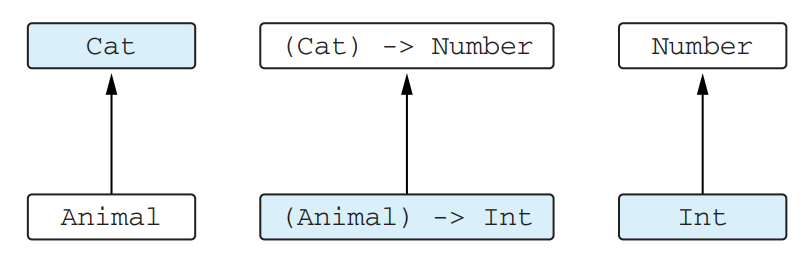
In this case, the Animal::getIndex function is accepted because Animal is a supertype of Cat, and Int is a subtype of Number, the function type’s subtyping relationship allows it.
The function (T) -> R is contravariant on its argument and covariant on its return type
This illustration demonstrates how subtyping works for function types. The arrows indicate the subtyping relationship.
Function Type Variance in Kotlin’s Type System
As you now know, when working with function types in Kotlin, variance is explicitly defined:
This aligns with the natural logic of function type variance.
Conclusion
So in summary,
Covariance (out) applies to return types – A function returning a subtype can be assigned to a function returning a supertype.
Contravariance (in) applies to parameter types – A function taking a supertype can be assigned to a function taking a subtype.
Kotlin enforces these rules to ensure type safety and prevent runtime errors.
Understanding Kotlin’s Function Type Variance helps write flexible, reusable, and type-safe code, especially when designing APIs, lambda functions, and higher-order functions.
Kotlin has a robust type system, but one of the trickiest concepts to grasp is contravariance. If you’ve ever scratched your head wondering how contravariance works and why it’s useful, you’re in the right place. This blog will break it down in simple terms with examples so you can fully understand Kotlin contravariance and use...
Kotlin provides powerful collection functions that make data manipulation intuitive and efficient. Among them, fold and filter stand out as essential tools for transforming and processing collections. In this guide, we’ll explore these functions in depth, providing detailed explanations and practical examples to help you leverage their full potential. Understanding the fold Function in Kotlin The...