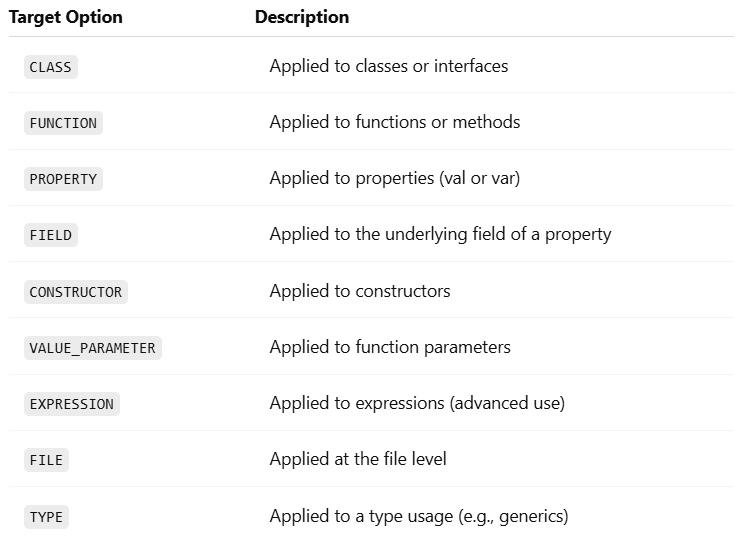
In Kotlin, annotations can target multiple elements of a declaration — such as a field, getter, or constructor parameter. When you apply an annotation without explicitly specifying a use-site target (e.g., @MyAnnotation instead of @field:MyAnnotation), Kotlin tries to infer the most appropriate placement.
This default behavior often works well — but in some cases, especially when interoperating with Java frameworks, it can produce unexpected results. Let’s dive into how it works, and what’s changing with Kotlin 2.2.0.
Default Target Inference in Kotlin (Before 2.2.0)
If the annotation supports multiple targets (defined via its @Target declaration), Kotlin infers where to apply the annotation based on context. This is especially relevant for primary constructor properties.
In this case, Kotlin might apply @MyAnnotation to the constructor parameter, property, or field—depending on what @MyAnnotation allows.
Approximate Priority Order:
When multiple targets are applicable, Kotlin historically followed a rough order of priority:
param – Constructor parameter
property – The Kotlin property itself
field – The backing field generated in bytecode
But this is not a strict rule — the behavior varies by context and Kotlin version.
Interop with Java Frameworks: Why Target Matters
Kotlin properties can generate several elements in Java bytecode:
A backing field
A getter method (and setter for var)
A constructor parameter (for primary constructor properties)
Java frameworks (like Jackson, Spring, Hibernate) often look for annotations in specific places — typically on the field or getter. If Kotlin places the annotation somewhere else (e.g., the property), the framework might not recognize it.
Kotlin
classUser(@JsonProperty("username") val name: String)
If @JsonProperty is placed on the property instead of the field, Jackson may not detect it correctly. The fix is to use an explicit target:
Only the targets supported in the annotation’s @Target list will be applied.
Best Practices
Here’s how to work with Kotlin annotations effectively:
Scenario
Recommendation
Using annotations with Java frameworks
Use explicit use-site targets (@field:, @get:)
Want consistent defaulting
Enable -Xannotation-default-target=param-property
Want broad annotation coverage
Use @all: (if supported by the annotation)
Unsure where an annotation is being applied
Use the Kotlin compiler flag -Xemit-jvm-type-annotations and inspect bytecode or decompiled Java
Conclusion
While Kotlin’s inferred annotation targets are convenient, they don’t always align with Java’s expectations. Starting with Kotlin 2.2.0, you get more control and predictability with:
Explicit use-site targets
A refined defaulting flag (-Xannotation-default-target)
The @all: meta-target for multi-component coverage
By understanding and controlling annotation placement, you’ll avoid hidden bugs and ensure smooth Kotlin–Java interop.
Annotations are a powerful feature in Kotlin that let you add metadata to your code. Whether you’re working with frameworks like Spring, Dagger, or Jetpack Compose, or building your own tools, knowing how to apply annotations in Kotlincan drastically improve your code’s readability, structure, and behavior.
In this guide, we’ll walk through everything step by step, using real examples to show how annotations work in Kotlin. You’ll see how to use them effectively, with clean code and clear explanations along the way..
What Are Annotations in Kotlin?
Annotations are like sticky notes for the compiler. They don’t directly change the logic of your code but tell tools (like compilers, IDEs, and libraries) how to handle certain elements.
If you use @JvmStatic, Kotlin will generate a static method that Java can call without needing to create an object. It helps bridge Kotlin and Java more smoothly.?
This makes printMessage() callable from Java without creating an instance of Utils.
How to Apply Annotations in Kotlin
To apply an annotation in Kotlin, you use the @ symbol followed by the annotation’s name at the beginning of the declaration you want to annotate. You can apply annotations to functions, classes, and other code elements. Let’s see some examples:
Here’s an example using the JUnit framework, where a test method is marked with the @Test annotation:
In Kotlin, annotations can have parameters. Let’s take a look at the @Deprecated annotation as a more interesting example. It has a replaceWith parameter, which allows you to provide a replacement pattern to facilitate a smooth transition to a new version of the API. The following code demonstrates the usage of annotation arguments, including a deprecation message and a replacement pattern:
In this case, when someone uses the remove function in their code, the IDE will not only show a suggestion to use removeAt instead, but it will also offer a quick fix to automatically replace the remove function with removeAt. This makes it easier to update your code and follow the recommended practices.
Annotations in Kotlin can have arguments of specific types, such as primitive types, strings, enums, class references, other annotation classes, and arrays of these types. The syntax for specifying annotation arguments is slightly different from Java:
To specify a class as an annotation argument, use the ::class syntax:
When you want to specify a class as an argument for an annotation, you can use the ::class syntax.
Kotlin
@MyAnnotation(MyClass::class)
In this case, let’s say you have a custom annotation called @MyAnnotation, and you want to pass a class called MyClass as an argument to that annotation. In this case, you can use the ::class syntax like this: @MyAnnotation(MyClass::class).
By using ::class, you are referring to the class itself as an object. It allows you to pass the class reference as an argument to the annotation, indicating which class the annotation is associated with.
To specify another annotation as an argument, don’t use the @ character before the annotation name:
when specifying an annotation as an argument for another annotation, you don’t need to use the “@” symbol before the annotation name.
In the above example, the @Deprecated annotation. It allows you to provide a replacement pattern using the ReplaceWith annotation. In this case, you simply specify the ReplaceWith annotation without the “@” symbol when using it as an argument for @Deprecated .
By omitting the “@” symbol, you indicate that the argument is another annotation.
To specify an array as an argument, use the arrayOf function:
if you want to specify an array as an argument for an annotation, you can use the arrayOf function.
For example, let’s say you have an annotation called @RequestMapping with a parameter called path, and you want to pass an array of strings ["/foo", "/bar"] as the value for that parameter. In this case, you can use the arrayOf function like this:
Kotlin
@RequestMapping(path = arrayOf("/foo", "/bar"))
However, if the annotation class is declared in Java, you don’t need to use the arrayOf function. In Java, the parameter named value in the annotation is automatically converted to a vararg parameter if necessary. This means you can directly provide the values without using the arrayOf function.
To use a property as an annotation argument, you need to mark it with a const modifier:
In Kotlin, annotation arguments need to be known at compile time, which means you cannot refer to arbitrary properties as arguments. However, you can use the const modifier to mark a property as a compile-time constant, allowing you to use it as an annotation argument.
To use a property as an annotation argument, follow these steps:
Declare the property using the const modifier at the top level of a file or inside an object.
Initialize the property with a value of a primitive type or a String.
Here’s an example using JUnit’s @Test annotation that specifies a timeout for a test:
In this example, TEST_TIMEOUT is declared as a const property with a value of 100L. The timeout parameter of the @Test annotation is then set to the value of TEST_TIMEOUT. This allows you to specify the timeout value as a constant that can be reused and easily changed if needed.
Remember that properties marked with const need to be declared at the top level of a file or inside an object, and they must be initialized with values of primitive types or String. Using regular properties without the const modifier will result in a compilation error with the message “Only ‘const val’ can be used in constant expressions.”
Best Practices for Using Annotations
Using annotations the right way keeps your Kotlin code clean and powerful. Here are some tips:
1. Use Target and Retention Wisely
@Target specifies where your annotation can be applied: classes, functions, properties, etc.
@Retention controls how long the annotation is kept: source code only, compiled classes, or runtime.
Use RUNTIME if your annotation will be read by reflection.
2. Keep Annotations Lightweight
Avoid stuffing annotations with too many parameters. Use defaults whenever possible to reduce clutter.
Kotlin
annotationclassAudit(val user: String = "system")
3. Document Custom Annotations
Treat annotations like part of your public API. Always include comments and KDoc.
Kotlin
/** * Indicates that the method execution time should be logged. */@Target(AnnotationTarget.FUNCTION)@Retention(AnnotationRetention.RUNTIME)annotationclassLogExecutionTime
Example: Logging Execution Time
Let’s say you want to log how long your functions take to execute. You can create a custom annotation and use reflection to handle it.
Here, @Module, @Provides, and @InstallIn drive the dependency injection system. Once you learn how to apply annotations in Kotlin, libraries like Dagger become far less intimidating.
Conclusion
Annotations in Kotlin are more than decoration — they’re metadata with a purpose. Whether you’re customizing behavior, interfacing with Java, or using advanced frameworks, knowing how to apply annotations in Kotlin gives you a real edge.
Quick Recap:
Use annotations to add metadata.
Apply built-in annotations to boost interoperability and performance.
Create your own annotations for clean, reusable logic.
Follow best practices: target, retention, defaults, and documentation.
With the right approach, annotations make your Kotlin code smarter, cleaner, and easier to scale.
Kotlin has quickly become a developer favorite for its expressiveness and safety features. One powerful but often overlooked feature is Kotlin Use-Site Target Annotations. While annotations in Kotlin are commonly used, specifying a use-site target adds precision to how these annotations behave. Whether you’re building Android apps or backend services, understanding this feature can help...
Kotlin is known for being expressive, concise, and fully interoperable with Java. But when working with annotations in Kotlin, especially when defining your own, you might encounter something called @Target. If you’re wondering what @Target in Kotlin is, why it matters, and how to use it effectively—this guide is for you.
Let’s break it down, step-by-step.
What Is @Target in Kotlin?
In Kotlin, @Target is a meta-annotation. That means it’s an annotation used to annotate other annotations. It specifies where your custom annotation can be applied in the code.
For example, can your annotation be used on a class? A function? A property? That’s what @Target defines.
Kotlin uses the AnnotationTarget enum to list all possible valid locations.
This lets you use @AuditLog on multiple types of declarations.
Example: Creating a Custom Annotation
Let’s say you’re building a system where you want to mark certain functions as “experimental”.
Step 1: Define the Annotation
Kotlin
@Target(AnnotationTarget.FUNCTION)@Retention(AnnotationRetention.RUNTIME)annotationclassExperimentalFeature(val message: String = "This is experimental")
@Target(AnnotationTarget.FUNCTION): Only allows this annotation on functions.
@Retention(RUNTIME): Keeps the annotation at runtime (optional but useful).
Step 2: Use the Annotation
Kotlin
@ExperimentalFeature("Might be unstable in production")funnewAlgorithm() {println("Running experimental algorithm...")}
Step 3: Read the Annotation at Runtime (Optional)
Kotlin
funcheckExperimentalAnnotations() {val method = ::newAlgorithmvalannotation = method.annotations.find { it is ExperimentalFeature } as? ExperimentalFeatureif (annotation != null) {println("Warning: ${annotation.message}") }}
This prints:
Kotlin
Warning: Mightbeunstableinproduction
Tips for Using @Target in Kotlin
Be specific: The more targeted your annotation, the less chance of misuse.
Use multiple targets wisely: Don’t overgeneralize.
Pair with @Retention: Decide whether your annotation should be available at runtime, compile time, or source level.
Think Java Interop: If you’re interoperating with Java, know that @Target in Kotlin maps to @Target in Java too.
Conclusion
@Target in Kotlin is more than just a syntactic detail. It controls how annotations behave, where they’re valid, and how your tools (including the compiler and IDE) handle them.
If you’re building libraries, frameworks, or just want clean annotation usage, understanding @Target in Kotlin is essential. With the right @Target settings, your custom annotations stay safe, purposeful, and powerful.
Object-Oriented Programming (OOP) has been the backbone of software development for decades. It gave us a way to model real-world entities, encapsulate behavior, and promote reuse through inheritance and polymorphism.
But as codebases grow, some problems start slipping through the cracks. Enter Aspect-Oriented Programming (AOP). If you’ve ever found yourself copying the same logging, security checks, or error handling into multiple places, AOP might be what your codebase needs.
In this post, we’ll walk you through the transition from OOP to AOP, showing how AOP can declutter your logic, improve maintainability, and make cross-cutting concerns a breeze.
Looks okay? Maybe. But what happens when multiple services require permission checks, logging, and notifications? You start repeating code.
This kind of duplication violates the DRY (Don’t Repeat Yourself) principle and tangles business logic with infrastructural concerns. This is where OOP starts to fall short.
What Is AOP?
Aspect-Oriented Programming is a programming paradigm that allows you to separate cross-cutting concerns from core business logic.
Think of it like this: OOP organizes code around objects, AOP organizes code around aspects.
An aspect is a module that encapsulates a concern that cuts across multiple classes — like logging, security, or transactions.
From OOP to AOP: The Transition
Here’s what our earlier PaymentService might look like with AOP in action (using Spring AOP as an example):
Java
publicclassPaymentService {publicvoidprocessPayment() {// Just the core logicSystem.out.println("Processing payment..."); }}
Logging: Record every action with minimal intrusion.
Performance Monitoring: Measure execution time of critical methods.
Error Handling: Catch and handle exceptions in one aspect.
Transaction Management: Wrap DB operations in transactions automatically.
Is AOP a Replacement for OOP?
Not at all. Think of it as an enhancement. AOP complements OOP by modularizing concerns that OOP struggles to cleanly separate.
Most modern frameworks like Spring (Java), PostSharp (.NET), and AspectJ support AOP, so the ecosystem is mature and battle-tested.
Best Practices When Using AOP
Don’t Overuse It: Not every piece of logic needs to be an aspect.
Be Transparent: Make sure team members understand the aspects being applied.
Use Descriptive Naming: So it’s easy to trace what each aspect does.
Log Wisely: Avoid logging sensitive data in aspects.
Conclusion
Making the leap from OOP to AOP isn’t about abandoning what works. It’s about recognizing when your code needs a little help separating concerns. AOP helps you write cleaner, more modular, and maintainable code.
If you’re tired of boilerplate and want your business logic to shine, exploring AOP might be your next best move.
New to Kotlin and wondering what the @ symbol means? That symbol introduces Kotlin annotations — a simple yet powerful feature that adds useful metadata to your code, making it smarter, cleaner, and easier to manage.
This quick guide will show you what Kotlin annotations are, why they matter, and how to use them effectively. No complex jargon, just the essentials — all in under 10 minutes.
What Are Kotlin Annotations?
Annotations in Kotlin are a way to attach metadata to code elements such as classes, functions, properties, and parameters. Metadata is like extra information about the code that can be used by the compiler, libraries, or even runtime frameworks.
Think of Kotlin annotations as digital sticky notes. They’re not actual instructions for logic, but they tell tools how to treat your code.
Kotlin
@Deprecated("Use newFunction() instead", ReplaceWith("newFunction()"))funoldFunction() {println("This function is deprecated.")}
Here,
@Deprecated tells both the developer and the compiler that oldFunction() shouldn’t be used.
@Nullable and @NonNull — help with null safety, especially in Java interop.
@Parcelize — works with Kotlin’s Parcelize plugin to simplify Parcelable implementation.
Kotlin
@ParcelizedataclassUser(val name: String, val age: Int) : Parcelable
This eliminates boilerplate, making Android dev smoother.
Best Practices When Using Kotlin Annotations
Be intentional. Don’t slap annotations on everything. Know what they do.
Check retention policies. Source-retained annotations won’t be available at runtime.
Avoid clutter. Annotations should clarify, not complicate.
Test interop. If you’re writing code to be used in Java, test how annotations behave.
Conclusion
Kotlin annotations might seem like just extra syntax, but they play a powerful role in shaping how your code behaves, communicates, and integrates with other systems.
They reduce boilerplate, enforce contracts, and help the compiler help you.
Whether you’re building Android apps, writing libraries, or just learning the ropes, understanding Kotlin annotations will make you a stronger, more fluent Kotlin developer.
Unit testing in Kotlin isn’t just about making sure your code works. It’s about writing tests that prove your code works, stays reliable over time, and catches bugs before they hit production. Google engineers treat testing as a core development skill, not an afterthought. And you can do the same.
In this guide, we’ll break down unit testing in Kotlin in a simple way. We’ll show you how to write clean, maintainable tests just like a pro. Whether you’re building Android apps or server-side Kotlin applications, this blog will give you the confidence to write bulletproof unit tests.
What is Unit Testing in Kotlin?
Unit testing is the process of testing individual units of code (like functions or classes) in isolation to ensure they work as expected. Unlike integration or UI tests, unit tests focus on your own logic, not external libraries or frameworks.
“Unit Test is a piece of code that is not a part of your application. It can create and call all of your application’s public classes and methods… You want to verify whether application code works as you expect.”
Why Google Engineers Prioritize Unit Testing
Fast feedback: Tests run in milliseconds. You catch bugs fast.
Safe refactoring: When you change code, tests confirm nothing breaks.
Confidence in deployment: You ship faster because you trust your code.
Documents behavior: Tests show how code is supposed to work.
Now let’s get to the fun part — how to actually do this in Kotlin.
Setting Up Unit Testing in Kotlin
Most Kotlin projects use JUnit as the test framework. Android Studio and IntelliJ IDEA make setup easy:
1. Add JUnit to your project dependencies (usually already included in Android projects). Use JUnit5 for unit testing in Kotlin. It’s modern, fast, and integrates well.
2. Create a test class for the code you want to test.
3. Write test methods using the @Test annotation.
Basic Unit Test in Kotlin
Let’s say you have a function that adds two numbers:
Kotlin
funadd(a: Int, b: Int): Int = a + b
Here’s how you write a test for it:
Kotlin
import org.junit.jupiter.api.Assertions.*import org.junit.jupiter.api.TestclassMathUtilsTest {@Testfun`add should return sum of two numbers`() {val result = add(3, 4)assertEquals(7, result) }}
What’s happening here?
@Test marks the method as a test case.
assertEquals checks the expected and actual values.
The function name is written in backticks for clarity.
Best Practices for Unit Testing in Kotlin
Google engineers follow these principles to ensure effective unit testing in Kotlin:
1. Keep Tests Small and Focused
Each test should verify one behavior or scenario. This makes tests easy to read and maintain.
2. Use Immutable Test Data
Initialize objects as val and avoid mutating shared state between tests. This prevents flaky tests and makes debugging easier.
3. Leverage Kotlin Features
Kotlin’s concise syntax (like data classes and extension functions) makes tests more readable and expressive.
4. Test Lifecycle Annotations
@Before: Setup code before each test.
@After: Cleanup after each test.
@TestInstance(Lifecycle.PER_CLASS): Reuse test class instance for all tests (avoids static members).
5. Mock Dependencies
Use libraries like MockK or Mockito to replace dependencies with mock objects, so you only test your own code’s logic.
Testing with Mocks in Kotlin
Sometimes, your code depends on external systems (like APIs or databases). For true unit testing in Kotlin, you should mock those dependencies.
Use runBlocking to execute suspending functions in tests.
For more advanced coroutine testing, use CoroutineTestRule and TestCoroutineDispatcher to control coroutine execution and skip delays.
Running and Maintaining Tests
Run tests frequently: Use your IDE or command line to run all tests after every change.
Fix failing tests immediately: Don’t ignore red tests.
Refactor tests as needed: Keep them clean and up-to-date as your code evolves.
Tips for Writing Great Unit Tests
Name tests clearly: Describe what the test checks.
Test one thing at a time: Keep tests focused.
Keep tests fast: No real network/database.
Avoid logic in tests: Use literal values.
Use setup methods for repetitive boilerplate.
Common Mistakes to Avoid
Testing too much in one test
Using real APIs in unit tests
Not asserting outcomes
Ignoring failed tests
Skipping tests because “it works on my machine”
Conclusion
Unit Testing in Kotlin isn’t just for Google engineers — it’s a superpower for every developer. By writing small, focused tests, leveraging Kotlin’s features, and using the right tools, you’ll catch bugs early and build robust applications with confidence.
Start small, keep practicing, and soon unit testing will be second nature..!
Room is one of the most popular persistence libraries for Android developers. It abstracts away a lot of boilerplate and gives us an easy way to work with SQLite. But when your app evolves and your database schema changes, you need to handle Room Database Migrations properly — or you risk losing your users’ data.
This guide shows you how to manage Room Database Migrations like a pro. We’ll keep it simple, clear, and practical, and explain everything you need to know to avoid headaches and, more importantly, data loss.
Why Room Database Migrations Matter
When you update your database schema (say, add a new column or table), Room requires a migration strategy. If you skip this, the app may crash or wipe the existing data.
That error is telling you that Room has no idea how to safely move from your old schema (version 1) to the new one (version 2). That’s where migrations come in.
Plan Your Schema Changes
Before you touch a line of code, plan your changes. Think about:
What tables or columns are being added, removed, or modified?
How will existing data map to the new structure?
Are there any relationships or foreign keys to update?
Planning ahead reduces surprises and makes your migrations safer.
How to Handle Migrations in Room
Let’s walk through a clean and simple approach to Room Database Migrations.
1. Set Up Room With Versioning
Start by defining your Room database with a version number:
Kotlin
@Database(entities = [User::class], version = 2)abstractclassAppDatabase : RoomDatabase() {abstractfunuserDao(): UserDao}
When you change your schema (say, add a column), increment the version.
2. Define a Migration Object
Create a Migration object that tells Room how to go from the old version to the new one:
Kotlin
val MIGRATION_1_2 = object : Migration(1, 2) {overridefunmigrate(database: SupportSQLiteDatabase) { database.execSQL("ALTER TABLE User ADD COLUMN age INTEGER NOT NULL DEFAULT 0") }}
This runs a raw SQL command. In this case, we’re adding a new column age to the User table.
3. Add the Migration When Building the Database
Now pass the migration object when building your Room database:
This will destroy the old database and create a new one — which means all data is lost. Great for prototyping. Terrible for real users.
2. Use Migration Testing
Use Room’s migration testing support to ensure your migrations work.
Kotlin
@RunWith(AndroidJUnit4::class)classMigrationTest {privateval TEST_DB = "migration-test"@Testfunmigrate1To2() {val helper = MigrationTestHelper( InstrumentationRegistry.getInstrumentation(), AppDatabase::class.java.canonicalName,FrameworkSQLiteOpenHelperFactory() )// Create database with version 1 schema helper.createDatabase(TEST_DB, 1).apply {close() }// Run migration and validate schema Room.databaseBuilder( ApplicationProvider.getApplicationContext(), AppDatabase::class.java, TEST_DB ).addMigrations(MIGRATION_1_2).build().apply { openHelper.writableDatabase.close() } }}
This ensures your migration script actually works before hitting users.
3. Keep Migrations in Version Order
Always write migration paths sequentially: 1 to 2, then 2 to 3, and so on. Room will chain them automatically.
4. Document Schema Changes
Leave comments in code or maintain a changelog. Know why a change was made and when.
Advanced: Manual Data Transformation
Sometimes you need more than just SQL.
Example: If you’re renaming a column, you can’t just ALTER TABLE. SQLite doesn’t support renaming columns directly.
Workaround:
Kotlin
val MIGRATION_2_3 = object : Migration(2, 3) {overridefunmigrate(database: SupportSQLiteDatabase) { database.execSQL("CREATE TABLE User_new (id INTEGER PRIMARY KEY NOT NULL, name TEXT, age INTEGER NOT NULL)") database.execSQL("INSERT INTO User_new (id, name, age) SELECT id, name, age FROM User") database.execSQL("DROP TABLE User") database.execSQL("ALTER TABLE User_new RENAME TO User") }}
This way, you restructure the table safely and migrate data manually.
Handling More Complex Room Database Migrations
For advanced scenarios — like splitting tables, changing foreign keys, or migrating large datasets — break the migration into steps:
Create new tables if needed
Copy data from old to new tables
Drop or rename old tables
Update relationships and foreign keys
Always test each step individually to ensure nothing is lost or corrupted.
Auto Migration: When to Use It
Room supports auto migration for simple schema changes, like adding a column. Just declare the migration in your database class:
Kotlin
@Database( version = 2, entities = [User::class], autoMigrations = [AutoMigration(from = 1, to = 2) ])abstractclassAppDatabase : RoomDatabase()
Auto migration is fast and easy, but for anything more complex, manual migrations are safer and more flexible
Conclusion
Room Database Migrations are powerful — but only if you use them correctly. Here’s your checklist:
Always bump the version when schema changes.
Write a proper Migration object.
Add migrations to databaseBuilder().
Never use fallbackToDestructiveMigration() in production.
Test migrations before deploying.
Document and keep migration paths clear.
With these practices, you can handle Room Database Migrations like a pro and protect your users’ data every step of the way.
If you’ve ever built an Android app with multiple fragments and activities, you’ve probably faced the challenge of keeping data in sync across different parts of your UI. Enter the Shared ViewModel in Android — a modern, robust solution that makes data sharing between your activity and its fragments seamless, efficient, and lifecycle-aware.
Let’s break down what a Shared ViewModel is, why it’s the best way to sync data, and how you can implement it in your own Android projects.
What is a Shared ViewModel in Android?
A Shared ViewModel in Android is simply a ViewModel instance that is scoped to an activity, allowing all fragments within that activity to access and share the same data. This approach leverages the lifecycle-aware nature of ViewModels, ensuring that your data survives configuration changes (like screen rotations) and is always up to date for all observers.
Why Use a Shared ViewModel?
Decouples Fragments: Fragments don’t need to know about each other. They communicate through the shared data in the ViewModel, keeping your architecture clean and modular.
Lifecycle Awareness: Data persists through configuration changes and is automatically cleaned up when the activity is destroyed.
Simplifies Communication: No more messy interfaces or direct fragment references. Everything flows through the Shared ViewModel in Android.
Syncs Data Instantly: Any change in the ViewModel is immediately observed by all registered fragments and the activity, ensuring your UI is always up to date.
Common Use Cases
Master-Detail Screens: Selecting an item in one fragment updates the details in another.
Global UI Changes: A toggle in one fragment affects the UI across the activity.
Search and Filters: User input in one fragment updates lists or content in others.
How to Implement a Shared ViewModel in Android
Let’s walk through a practical example: syncing a message between two fragments using a Shared ViewModel.
1. Add Required Dependencies
Make sure you have these in your build.gradle.kts:
Whenever sendMessage() is called, textViewReceiver updates instantly with the new message.
Sharing Data with the Activity
The activity can also observe and update the Shared ViewModel in Android. Just retrieve the ViewModel with:
Kotlin
val sharedViewModel: SharedViewModelbyviewModels()
Or, if you want the activity to share the same instance as its fragments, use:
Kotlin
val sharedViewModel: SharedViewModelbyactivityViewModels()
This lets you coordinate UI changes or data updates across the entire screen, not just between fragments.
Tips and Best Practices
Scope Matters: Always use requireActivity() or activityViewModels() to ensure fragments share the same instance. Using this or requireParentFragment() creates a new ViewModel instance, breaking the shared behavior.
Keep ViewModels Lean: Store only UI-related data. Avoid holding references to Views or Context to prevent memory leaks.
Use LiveData: LiveData ensures updates are only sent to active UI components, preventing crashes from background updates.
Real-World Example: Search Screen
Imagine a search screen with a search bar in the activity and two fragments: one showing clubs, the other showing news. When the user types a query, the activity updates the Shared ViewModel. Both fragments observe the query and update their lists accordingly — no direct communication needed.
Why Shared ViewModel in Android is the Best Solution
Simplicity: No need for interfaces, event buses, or manual data passing.
Reliability: Data survives configuration changes and is always up to date.
Scalability: Add more fragments or features without rewriting communication logic.
Conclusion
The Shared ViewModel in Android is the gold standard for syncing data between activities and fragments. It’s clean, efficient, and leverages the best of Android’s architecture components. Whether you’re building a simple app or a complex UI, adopting Shared ViewModel in Android will make your code more maintainable and your user experience smoother.
Happy Coding..! and may your data always be in sync..!
Gradle has long been the go-to build tool for JVM projects, especially Android. But if you’ve been around for a while, you probably remember the old Groovy-based build.gradle files. They got the job done, but let’s be honest—they were hard to read, easy to mess up, and even harder to debug.
Now, Kotlin DSL (Domain-Specific Language) is becoming the new standard for writing Gradle scripts. In this post, we’ll break down why Kotlin DSL is taking over, how it improves your development experience, and how to start using it today — even if you’re new to Gradle.
What Is Kotlin DSL?
Kotlin DSL lets you write your Gradle build scripts in Kotlin instead of Groovy. That means you get all the benefits of a statically typed language, including smart autocompletion, better IDE support, and fewer runtime errors.
So instead of this Groovy-based Gradle file:
Kotlin
plugins { id 'com.android.application' id 'kotlin-android'}
The syntax is cleaner, the tooling is smarter, and the benefits are real.
Why Kotlin DSL Is Winning
1. IDE Autocompletion and Type Safety
With Kotlin DSL, your IDE (like IntelliJ IDEA or Android Studio) can understand your build scripts. You get real-time suggestions, error checking, and documentation pop-ups. No more guessing what properties are available or what their types are.
2. Better Refactoring Support
Refactoring a Groovy-based script is often risky. You don’t know if changes will break until runtime. Kotlin DSL is type-safe, so changes are validated during development.
3. Unified Language for App and Build
If you’re already writing your app in Kotlin, using Kotlin for build scripts keeps everything consistent. No context switching between Groovy and Kotlin.
4. Readable and Maintainable Scripts
Groovy is powerful but can be cryptic. Kotlin DSL is more verbose in a good way — your scripts become easier to understand and maintain.
Getting Started with Kotlin DSL
Ready to switch? Here’s how to get started with Kotlin DSL in a new or existing Gradle project.
1. Use the Right File Extension
Replace your build.gradle files with build.gradle.kts. The .kts extension tells Gradle to treat them as Kotlin scripts.
2. Update Your settings.gradle File
This file should also be renamed to settings.gradle.kts:
Kotlin
rootProject.name = "MyApp"include(":app")
3. Convert Plugin Declarations
Old Groovy:
Kotlin
plugins { id 'java'}
Kotlin DSL:
Kotlin
plugins {id("java")}
Or for plugins with versions:
Kotlin
plugins {id("org.jetbrains.kotlin.jvm") version "1.9.0"}
You get autocompletion on configurations (implementation, testImplementation, etc.) and even on group IDs and versions if using a buildSrc setup.
5. Customize Build Logic
Using tasks in Kotlin DSL is straightforward:
Kotlin
tasks.register("hello") {doLast {println("Hello from Kotlin DSL!") }}
The register method is preferred over create for lazy configuration, improving performance.
Migrating an Existing Project
Switching from Groovy to Kotlin DSL can be done gradually. Start by converting one module at a time. Gradle allows mixing Groovy and Kotlin DSL in a multi-module project, so you don’t need to do it all at once.
Also, check out IntelliJ’s “Convert to Kotlin DSL” tool for basic migration. But review the changes manually — the conversion isn’t always perfect.
Common Pitfalls (And How to Avoid Them)
Syntax Confusion: Kotlin is stricter than Groovy. Be sure to wrap strings with " and use parentheses correctly.
Plugin Resolution: Some plugins behave differently in Kotlin DSL. Double-check the plugin documentation.
Tooling Bugs: Kotlin DSL support has improved, but bugs still happen. Make sure you’re using the latest Gradle and Android Studio versions.
Conclusion
Kotlin DSL is the future of Gradle scripting. It’s cleaner, safer, and integrates better with modern development tools. Whether you’re building Android apps or JVM libraries, switching to Kotlin DSL will make your builds easier to manage and debug.
And the best part is..! Once you get used to it, you’ll never want to go back.