Amol Pawar

WSL2

What Is WSL2? A Beginner’s Guide to Running Linux on Windows

If you’ve ever wanted to run Linux on your Windows machine without installing a virtual machine or dual-booting, WSL2 (Windows Subsystem for Linux 2) is here to make your life easier. Microsoft introduced WSL to bridge the gap between Windows and Linux, and WSL2 takes it a step further by offering a real Linux kernel inside Windows. This makes it faster, more powerful, and more compatible than its predecessor.

In this beginner-friendly guide, we’ll walk through what WSL2 is, why it’s useful, and how you can get started with it.

What Is WSL2?

WSL2 stands for Windows Subsystem for Linux (Version 2). It’s a compatibility layer created by Microsoft that allows you to run Linux distributions natively on Windows 10 and Windows 11. Unlike the first version (WSL1), which translated Linux system calls into Windows system calls, WSL2 actually uses a lightweight virtual machine with a real Linux kernel.

This means you get better performance, full system call compatibility, and the ability to run tools like Docker natively within Linux.

WSL2 vs. WSL1

  • WSL1: Uses a compatibility layer to mimic Linux — great, but not perfect; some programs didn’t work.
  • WSL2: Runs a real Linux kernel in a lightweight VM; better compatibility, faster, and supports more advanced features like running Docker natively.

Why Use WSL2?

Here are some key benefits of WSL2:

  • Performance Boost: File system operations and commands run much faster than in WSL1.
  • Real Linux Kernel: Enables running more Linux apps, servers, and development tools.
  • Docker Support: You can run Docker Desktop with WSL2 without needing heavy virtual machines.
  • Developer Friendly: Perfect for developers working on cross-platform projects.
  • Seamless Integration: Access Linux files from Windows and vice versa.

How to Install WSL2

Installing WSL2 is simple. Let’s walk through the steps:

Prerequisite

First, open PowerShell as an administrator, then run:

Bash
dism.exe /online /enable-feature /featurename:Microsoft-Windows-Subsystem-Linux /all /norestart

This command turns on the WSL feature.

Still in PowerShell, enter:

Bash
dism.exe /online /enable-feature /featurename:VirtualMachinePlatform /all /norestart

This allows Windows to run the virtualization tech WSL2 needs.

Turn Windows features on or off

You can do this in Windows by searching for “Turn Windows features on or off,” then find the respective feature and enable it.

Step 1: Enable WSL

Open PowerShell as Administrator and run:

Bash
wsl - install

This command installs WSL and sets WSL2 as the default version.

If you already have WSL installed, you can update it to WSL2 with:

Bash
wsl - set-default-version 2

Step 2: Install a Linux Distribution

After enabling WSL2, you need to install a Linux distribution (like Ubuntu). You can get it from the Microsoft Store:

  1. Open Microsoft Store
  2. Search for Ubuntu, Debian, or another preferred distro
  3. Click Install

Step 3: Launch Linux

Once installed, open your distribution by searching it in the Start Menu. The first time you launch it, you’ll be asked to create a username and password for your Linux environment.

Using WSL2: Basic Commands

Here are a few useful commands to manage WSL2:

  • List installed distributions:
Bash
wsl - list - verbose

This shows your installed distros and whether they’re using WSL1 or WSL2.

  • Set default distribution:
Bash
wsl - set-default <DistroName>
  • Switch a distro to WSL2:
Bash
wsl - set-version <DistroName> 2
  • Access Linux from Windows: You can find Linux files in Windows Explorer under:

 1. Open File Explorer.

 2. Type \\wsl$\Ubuntu in the address bar.

 3. Press Enter → you’ll see your Linux files (/home, /etc, etc.) from Windows. 

Bash
// or use below command

explorer.exe .
  • Run Linux commands directly in PowerShell:
Bash
wsl ls -la
  • ls → lists files and directories.
  • -l → shows a long listing format (permissions, owner, group, size, modified date).
  • -a → shows all files, including hidden ones (those starting with a . like .bashrc).

Means,

Run the Linux command ls -la inside WSL from Windows PowerShell/Command Prompt.

It will list the contents of your Linux home directory (~) by default, with detailed info and hidden files.

Bash
drwxr-xr-x 1 user user 4096 Aug 18 09:00 .
drwxr-xr-x 1 root root 4096 Aug 18 08:55 ..
-rw-r--r-- 1 user user  220 Aug 18 08:55 .bash_logout
-rw-r--r-- 1 user user 3771 Aug 18 08:55 .bashrc
drwx------ 2 user user 4096 Aug 18 09:01 .ssh

Key difference:

  • Inside a WSL shell (Ubuntu, Debian, etc.):
Bash
ls -la

runs directly because you’re already in a Linux environment.

  • From Windows PowerShell or Command Prompt (without entering WSL):
Bash
wsl ls -la

tells Windows to invoke the ls -la command inside the default WSL distribution.

Extra notes:

  • If you have multiple distros installed, you can specify which one with:
Bash
wsl -d Ubuntu-22.04 ls -la
  • If you want to just enter the WSL shell instead of running one-off commands:
Bash
wsl

Tip: Keep your WSL2 and Linux distribution updated regularly using:

Bash
sudo apt update && sudo apt upgrade

Example: Running a Web Server on WSL2

Let’s say you want to run a simple web server using Python inside WSL2:

Open your Linux terminal (e.g., Ubuntu)

Navigate to your project folder:

Bash
cd ~/myproject

Start a simple Python HTTP server:

Bash
python3 -m http.server 8080

Open your browser in Windows and visit:

Bash
http://localhost:8080

And just like that, your Linux-based web server is accessible on Windows!

WSL2 vs. Virtual Machines

A common question is: Why not just use VirtualBox or VMware?

  • Lightweight: WSL2 uses fewer resources than full virtual machines.
  • Faster Startup: No need to boot an entire OS.
  • Tighter Integration: Access files seamlessly between Windows and Linux.

If you need a full Linux desktop experience, a VM might still be better. But for most developers, WSL2 is more than enough.

Conclusion

WSL2 is a game-changer for developers, system administrators, and anyone curious about Linux. It brings the power of Linux into Windows without the headaches of dual-booting or managing virtual machines. Whether you want to experiment with Linux commands, run development environments, or use tools like Docker, WSL2 makes it incredibly simple.

So if you haven’t tried it yet, give it a shot. With just a few commands, you’ll have the best of both worlds — Windows and Linux — running side by side.
AIDL

AIDL Explained: How Android Handles Communication Between Apps and Services

When building Android apps, one common need is to let different components talk to each other — especially when they run in separate processes. That’s where AIDL (Android Interface Definition Language) comes in. It’s Android’s way of handling inter-process communication (IPC).

If that sounds complex, don’t worry. This guide breaks it down in simple, clear terms — with real code and explanations that make sense even if you’re not an Android expert.

What is AIDL?

AIDL stands for Android Interface Definition Language. It’s a tool that helps you define the interface for communication between an app and a bound service running in another process.

In simple terms: if you have two parts of your app (or two separate apps) that need to talk to each other, but they don’t share the same memory space, AIDL lets them exchange data.

This is different from regular method calls in Java, because those only work inside the same process. AIDL helps Android handle cross-process calls safely and efficiently.

Why Use AIDL?

You need AIDL when:

  • Your service runs in a separate process (often defined with android:process in the manifest).
  • Your app needs to perform complex interactions, like sending objects, callbacks, or repeated commands.
  • You want to allow other apps to use your service through a public interface.

For simpler cases (like one-way communication or using Messenger), AIDL might be overkill. But when two-way communication and performance matter — AIDL is the way to go.

How AIDL Works

The basic flow looks like this:

  1. You define the interface using the .aidl file.
  2. Android generates stub and proxy classes automatically.
  3. You implement the service-side logic.
  4. The client binds to the service and uses the interface to call methods as if they were local.

Even though the client and the service live in different processes, AIDL handles all the IPC under the hood.

Creating a Simple AIDL Example

Let’s build a simple example where the client asks a remote service to add two numbers.

1. Define the AIDL Interface

Create a new file called ICalculator.aidl:

Java
// ICalculator.aidl
package com.softaai.calculator;

interface ICalculator {
    int add(int a, int b);
}

This file defines the contract. Android will use this to generate the necessary code.

Tip: Keep AIDL files in the same package on both client and server sides.

2. Implement the Service

Now let’s create a CalculatorService class that implements this interface.

Java

// CalculatorService.java
package com.softaai.calculator;

import android.app.Service;
import android.content.Intent;
import android.os.IBinder;
import android.os.RemoteException;

public class CalculatorService extends Service {
    private final ICalculator.Stub binder = new ICalculator.Stub() {

        @Override
        public int add(int a, int b) throws RemoteException {
            return a + b;
        }
    };

    @Override
    public IBinder onBind(Intent intent) {
        return binder;
    }
}

This service runs in the background and handles add(a, b) requests from clients.

3. Register the Service in AndroidManifest.xml

Make sure to register your service and specify it runs in a separate process:

Java
<service
    android:name=".CalculatorService"
    android:exported="true"
    android:process=":remote" >
    <intent-filter>
        <action android:name="com.softaai.calculator.CALCULATE" />
    </intent-filter>
</service>

4. Connect to the Service from a Client App

Here’s how a client app can bind to the remote service and use the AIDL interface.

Java
// MainActivity.java (Client)
package com.softaai.client;

import android.content.ComponentName;
import android.content.Intent;
import android.content.ServiceConnection;
import android.os.Bundle;
import android.os.IBinder;
import android.os.RemoteException;
import androidx.appcompat.app.AppCompatActivity;
import com.softaai.calculator.ICalculator;

public class MainActivity extends AppCompatActivity {
    private ICalculator calculator;

    private final ServiceConnection connection = new ServiceConnection() {

        @Override
        public void onServiceConnected(ComponentName name, IBinder service) {
            calculator = ICalculator.Stub.asInterface(service);
            try {
                int result = calculator.add(5, 3);
                System.out.println("Result from remote service: " + result);
            } catch (RemoteException e) {
                e.printStackTrace();
            }
        }

        @Override
        public void onServiceDisconnected(ComponentName name) {
            calculator = null;
        }
    };

    @Override
    protected void onStart() {
        super.onStart();
        Intent intent = new Intent("com.softaai.calculator.CALCULATE");
        intent.setPackage("com.softaai.calculator"); // Target service's package
        bindService(intent, connection, BIND_AUTO_CREATE);
    }

    @Override
    protected void onStop() {
        super.onStop();
        unbindService(connection);
    }
}

This client uses bindService() to connect to the remote service and then uses the AIDL interface just like a local method call.

AIDL Best Practices

  • Keep methods simple: Use primitive types and Parcelable objects.
  • Minimize IPC calls: They’re slower than in-process calls.
  • Handle errors properly: Always consider RemoteException.
  • Keep interfaces stable: Changing the AIDL interface requires client updates.

When Not to Use AIDL

Avoid AIDL if:

  • You don’t need two-way communication.
  • Your service is local to the same app and process.
  • You can get by with simpler approaches like Messenger, BroadcastReceiver, or JobScheduler.

AIDL is powerful — but only reach for it when you actually need that power.

Real-World Use Cases of AIDL

  • Media playback apps where UI and service are in different processes.
  • Third-party SDKs offering services to other apps (e.g., payment gateways).
  • System-level apps or services that expose APIs to other apps.

Conclusion

AIDL might sound like low-level magic, but once you see it in action, it’s surprisingly straightforward. It’s all about defining a contract, and letting Android handle the heavy lifting of IPC.

Whether you’re building multi-process apps or exposing services to others, understanding how AIDL works gives you serious power and flexibility.

TL;DR

Avoid it for simple, same-process communication.

AIDL helps Android apps/services communicate across processes.

You define an .aidl file, implement the interface in a Service, and bind to it from a Client.

Use it when you need two-way, high-performance IPC between apps or processes.

Encoding–Decoding

Encoding–Decoding Explained: From Human Conversations to Digital Signals

When we talk to each other, our brains are constantly performing an amazing trick —encoding thoughts into words and decoding words back into thoughts. Computers and digital devices do something similar, but instead of words and emotions, they deal with bits, bytes, and signals.

In this blog, we’ll break down the Encoding–Decoding concept, explore how it works in both human communication and digital systems, and even look at a simple Kotlin example to make things crystal clear.

What Is Encoding–Decoding?

Encoding–Decoding is a process of converting information from one form into another so it can be transmitted or stored, and then converting it back to its original form.

Think of it like sending a message in a secret code:

  • Encoding → Writing your message in the secret code.
  • Transmission → Sending it to your friend.
  • Decoding → Your friend translating it back into the original message.

In humans, encoding happens when you put your thoughts into words. Decoding happens when someone hears those words and interprets their meaning. In computers, it’s about transforming data into a machine-readable format and then back to human-readable form.

Everyday Examples of Encoding–Decoding

1. Human Conversation

  • Encoding: You think “I’m hungry” and say, “Let’s get pizza.”
  • Decoding: Your friend hears you and understands you want to eat pizza.

2. Digital Communication

  • Encoding: Your phone takes your typed message “Hello” and turns it into binary (like 01001000 01100101 01101100 01101100 01101111).
  • Transmission: The binary data travels over a network.
  • Decoding: The receiver’s phone converts the binary back into the word “Hello” on their screen.

Why Encoding–Decoding Matters

Without encoding, we wouldn’t be able to store files, send emails, or stream videos. Without decoding, the information would remain an unreadable jumble of data. It’s the bridge that makes communication — whether human or digital — possible.

Encoding–Decoding also ensures:

  • Compatibility: Data can be read across devices and platforms.
  • Efficiency: Compressed encoding makes file sizes smaller.
  • Security: Encryption is a special kind of encoding to protect information.

Encoding–Decoding in Digital Systems

In computers, encoding can be text encoding (like UTF-8), image encoding (like JPEG), or audio encoding (like MP3). Decoding is the reverse process.

For example:

  • When you save a .txt file, your computer encodes the letters into numbers based on a standard like ASCII or Unicode.
  • When you open that file, your computer decodes the numbers back into readable text.

Kotlin Example: Encoding and Decoding Text

Let’s look at a simple Kotlin program that encodes a string into Base64 and decodes it back. Base64 is a common encoding method used to safely transmit text data over systems that may not handle binary data well.

Kotlin
import java.util.Base64

fun main() {
    val originalText = "Encoding–Decoding in Kotlin"
    
    // Encoding the text to Base64
    val encodedText = Base64.getEncoder()
        .encodeToString(originalText.toByteArray(Charsets.UTF_8))
    println("Encoded Text: $encodedText")
    
    // Decoding the Base64 back to the original text
    val decodedText = String(
        Base64.getDecoder().decode(encodedText),
        Charsets.UTF_8
    )
    println("Decoded Text: $decodedText")
}
  1. Import the Base64 library
     Kotlin uses Java’s built-in Base64 class for encoding and decoding.
  2. Original Text
     We start with a string: "Encoding–Decoding in Kotlin".

Encoding

  • originalText.toByteArray(Charsets.UTF_8) converts the text into bytes.
  • Base64.getEncoder().encodeToString(...) transforms those bytes into a Base64-encoded string.

Decoding

  • Base64.getDecoder().decode(encodedText) converts the Base64 string back into bytes.
  • String(..., Charsets.UTF_8) turns those bytes back into readable text.

Output might look like:

Kotlin
Encoded Text: RW5jb2RpbmfigJlkZWNvZGluZyBpbiBLb3RsaW4=
Decoded Text: Encoding–Decoding in Kotlin

Beyond Base64: Other Types of Encoding–Decoding

  • Text Encoding: ASCII, UTF-8, UTF-16
  • Data Compression: GZIP, ZIP
  • Encryption: AES, RSA (for security)
  • Media Encoding: JPEG, MP4, MP3

Each has its own purpose — some focus on compatibility, some on storage efficiency, and others on privacy.

Conclusion

Whether it’s two friends talking over coffee or two computers sending gigabytes of data across the globe, Encoding–Decoding is the invisible hero of communication.

By understanding it, you not only get a peek into how humans share ideas but also into the magic that powers your favorite apps, websites, and devices.

If you’re learning programming, experimenting with encoding and decoding in Kotlin is a great way to bridge the gap between theory and practice.

Generate All Permutations of a String

How to Generate All Permutations of a String in Kotlin — Fast O(n) Approach (Handles Duplicates + Large Input Tips)

When most developers search for Generate All Permutations of a String, they find solutions that work but are often slow, overly complex, or hard to read.

Today, we’re going to cut through the noise and build a simple, fast, and easy-to-understand Kotlin solution that runs in O(n) time per permutation — which is as efficient as it gets.

We’ll cover:

  • What permutations actually are
  • Why naive solutions are slow
  • The O(n) approach using in-place swapping
  • Clean Kotlin code with full explanation

What Is a String Permutation?

A permutation is simply a different arrangement of the same characters.

For example, the string "ABC" has these permutations:

Kotlin
ABC, ACB, BAC, BCA, CAB, CBA

If a string has n unique characters, there are exactly n! permutations.

e.g 4!=4×3×2×1=24

That means 3 characters → 6 permutations, 4 characters → 24 permutations, and so on.

Why We Need an O(n) Approach

Many beginner solutions to generate all permutations of a string use recursion with string concatenation. That works, but it creates a lot of unnecessary string objects in memory — making it slow for larger strings.

We can do better by:

  • Avoiding extra strings (working on a mutable list of characters instead)
  • Swapping in-place to generate permutations
  • Recursing efficiently without repeated slicing or copying

This gives us O(n) work per permutation instead of heavier O(n²) string-building overhead.

The In-Place Swapping Algorithm

Here’s the idea:

  1. Convert the string into a mutable character array.
  2. Recursively swap the current index with each possible next character.
  3. When we reach the end, print or store the permutation.
  4. Swap back to restore the original state (backtracking).

By doing swaps in-place, we avoid creating new arrays or strings at each step.

Kotlin Implementation

Kotlin
fun generateUniquePermutations(str: String) {
    val chars = str.toCharArray().sortedArray() // Sort to group duplicates
    permuteUnique(chars, 0)
}

private fun permuteUnique(chars: CharArray, index: Int) {
    if (index == chars.size - 1) {
        println(String(chars))
        return
    }

    val seen = mutableSetOf<Char>()

    for (i in index until chars.size) {
        if (chars[i] in seen) continue // Skip duplicate characters
        seen.add(chars[i])
        swap(chars, index, i)          // Place chosen char at 'index'
        permuteUnique(chars, index + 1) // Recurse
        swap(chars, index, i)          // Backtrack
    }
}

private fun swap(chars: CharArray, i: Int, j: Int) {
    val temp = chars[i]
    chars[i] = chars[j]
    chars[j] = temp
}

fun main() {
    generateUniquePermutations("AAB")
}

How This Code Works

Let’s break it down:

generatePermutations

  • Converts the input string to a CharArray so we can modify it directly.
  • Starts recursion from the first index.

permute

  • Base case: If index is at the last character, we’ve found a full permutation, so we print it.
  • Loop: Swap the current index with every possible position (including itself).
  • Recursion: Move to the next index and repeat.
  • Backtrack: Swap back so the next iteration starts with the original order.

swap

  • Simple character swap using a temporary variable.
  • Works in constant time O(1).

Time Complexity

This program generates all permutations of a given string.
 If the string length is n:

  • The number of permutations = n!

For each permutation, the code does:

  • A series of swaps (O(1) each)
  • Recursive calls that together visit all permutations.

The total work is proportional to n × n! because:

  • At each permutation, you spend O(n) to print the result (constructing String(chars) is O(n)).
  • The recursive structure ensures we visit all n! permutations.

So:

T(n)=O(n×n!)

Space Complexity

There are two aspects:

Auxiliary space (call stack):

  • The recursion depth is n (one frame for each index position).
  • Each frame holds constant space aside from parameters and local variables.
  • So the recursion stack = O(n).

Extra storage:

  • You store the characters in a CharArray (size n).
  • No extra big data structures are used.
  • Output printing doesn’t count toward auxiliary space complexity (it’s external).

Thus:

S(n)=O(n)

(excluding the space needed for the output itself).

Why This Is O(n) Per Permutation

Each recursive level only requires:

  • One swap (O(1))
  • One swap back (O(1))
  • A constant amount of work for printing or storing

That’s O(n) for each permutation generated, which is optimal — you can’t generate n! permutations faster than that.

Benefits of This Approach

 Fast — avoids extra string copies
 Memory efficient — works in-place
 Readable — short and clear code
 Scalable — handles larger strings without choking your CPU

Output

Running generatePermutations("ABC") gives:

Kotlin
ABC
ACB
BAC
BCA
CBA
CAB

Exactly all possible permutations — no duplicates, no missing ones.

Handling Duplicate Characters

Without extra care, "AAB" will produce duplicate outputs.

To fix this:

  • Sort the characters first so duplicates are adjacent.
  • At each recursion level, use a Set<Char> to skip duplicates.

Kotlin Implementation (Fast + Duplicate-Safe)

Kotlin
fun generateUniquePermutations(str: String) {
    val chars = str.toCharArray().sortedArray() // Sort to group duplicates
    permuteUnique(chars, 0)
}

private fun permuteUnique(chars: CharArray, index: Int) {
    if (index == chars.size - 1) {
        println(String(chars))
        return
    }

    val seen = mutableSetOf<Char>()

    for (i in index until chars.size) {
        if (chars[i] in seen) continue // Skip duplicate characters
        seen.add(chars[i])
        swap(chars, index, i)          // Place chosen char at 'index'
        permuteUnique(chars, index + 1) // Recurse
        swap(chars, index, i)          // Backtrack
    }
}

private fun swap(chars: CharArray, i: Int, j: Int) {
    val temp = chars[i]
    chars[i] = chars[j]
    chars[j] = temp
}

fun main() {
    generateUniquePermutations("AAB")
}

For "AAB", output is:

Kotlin
AAB
ABA
BAA

— unique, no duplicates.

Wait, what if we used all 26 characters? Hmm… actually, let’s just go with 25. 

There are a few limitations we need to talk about.

Limitations & Large Input Handling

Even with an O(n) per permutation algorithm, the total permutations grow as n! (factorial).


 For "ABCDEFGHIJKLMNOPQRSTUWXYZ" (25 characters):

25!≈1.55×10²⁵ permutations

This number is so huge that:

  • You can’t generate all permutations in your lifetime.
  • You can’t store them — it would require trillions of terabytes.
  • Even printing them will eventually cause OutOfMemoryError in the JVM because the output stream and StringBuilder can’t keep up.

How to Avoid Crashes for Large Strings

  1. Generate Lazily (Streaming)
     Use Kotlin sequences to yield one permutation at a time:
Kotlin
fun permutationsSequence(chars: CharArray, index: Int = 0): Sequence<String> = sequence {
    if (index == chars.size - 1) {
        yield(String(chars))
    } else {
        for (i in index until chars.size) {
            swap(chars, index, i)
            yieldAll(permutationsSequence(chars, index + 1))
            swap(chars, index, i)
        }
    }
}

With this, you process each permutation immediately, instead of storing them.

2. Limit Output
 If you just need the first k permutations:

Kotlin
var count = 0
val maxCount = 1000
for (p in permutationsSequence("ABCDEFGHIJKLMNOP".toCharArray())) {
    println(p)
    if (++count >= maxCount) break
}

3. Use Next-Permutation Algorithm
 Instead of generating all permutations at once, generate only the next one on demand — useful for lexicographic iteration without memory blow-up.

Why This Approach Stands Out

O(n) time per permutation — optimal.
Memory-friendly with in-place swaps.
Duplicate-safe.
Large input advice so you don’t crash your program.

Conslusion

If you need to generate all permutations of a string in Kotlin, the in-place swapping method is your best friend for performance and readability. But remember — factorial growth is unavoidable, so for very large strings, think streaming, limiting, or on-demand generation instead of trying to produce everything at once.

With this, you’ve got a production-ready, safe, and scalable solution for permutations in Kotlin.

HIDL

How HIDL Works in Android: A Simple Explanation for Complex Hardware Layers

When we think about Android, we usually picture apps, screens, and the user interface. But underneath all of that lies a powerful system that allows apps to interact with the actual hardware — the camera, GPS, Bluetooth, sensors, and more.

One key player in this hidden world is HIDL, short for HAL Interface Definition Language. If you’re wondering what it is and how it works, don’t worry. We’re going to break it down in the simplest way possible.

What is HIDL in Android?

HIDL stands for Hardware Abstraction Layer Interface Definition Language. It was introduced in Android 8 (Oreo) to help the Android operating system talk to the hardware in a clean, modular way.

Imagine HIDL as a translator between the Android framework and device-specific hardware implementations. This ensures that the Android OS doesn’t need to know exactly how a particular chip or sensor works — it just knows how to ask for something in a standardized way.

Why HIDL Was Introduced

Before HIDL, Android used a more rigid and less flexible HAL (Hardware Abstraction Layer) structure written in C/C++. This created challenges:

  • Difficult upgrades: Updating Android required reworking low-level drivers.
  • Vendor lock-in: Device manufacturers had to heavily modify AOSP (Android Open Source Project) to support their hardware.
  • Lack of modularity: Everything was tightly coupled.

HIDL changed that by enabling a stable interface between Android and the hardware, allowing manufacturers to update Android without rewriting HALs every time.

How HIDL Works Under the Hood

Let’s walk through what HIDL actually does in a real-world Android device.

1. Interface Definition

The first step is defining the HIDL interface. This is written using the .hal file format — a simple syntax that defines what services or data types the hardware provides.

Here’s a basic HIDL interface example for a hypothetical LED controller:

Java
package vendor.softaai.hardware.led@1.0;

interface ILed {
    setLedValue(int32_t value) generates (bool success);
    getLedValue() generates (int32_t value);
};

What this does:

  • Defines a package version (@1.0)
  • Declares two methods: setLedValue() and getLedValue()
  • Uses generates to define what response each method will return

2. Interface Compilation

This .hal file is then compiled using the HIDL compiler (hidl-gen) into two parts:

  • Stub code: For the vendor to implement (the actual driver logic)
  • Proxy and binder code: For the Android framework to call into

This code is placed in a shared location so both the system and vendor sides can use it.

3. Service Implementation

On the vendor side, the manufacturer writes the actual code that controls the hardware.

Example (pseudo-code in C++):

Java
Return<bool> Led::setLedValue(int32_t value) {
    // Code to control actual LED hardware
    if (writeToLedDriver(value)) {
        return true;
    }
    return false;
}

This implementation is then registered as a service:

Java
int main() {
    android::sp<ILed> service = new Led();
    configureRpcThreadpool(1, true);
    service->registerAsService();
    joinRpcThreadpool();
}

4. Calling the HAL from Android Framework

On the framework side, Android can call this interface via the Binder IPC mechanism.

A Java service in Android might look like:

Java
ILed ledService = ILed.getService();
ledService.setLedValue(1); // Turns on the LED

The magic here is that the Java code doesn’t need to know the internal details — just that there’s a standard way to talk to the hardware. That’s the power of HIDL.

HIDL vs AIDL: What’s the Difference?

You might also hear about AIDL (Android Interface Definition Language). Here’s the key difference:

FeatureHIDLAIDL
Use caseHardware abstraction layerApp and system services
Language.hal files.aidl files
Language supportC++Java/Kotlin
TransportBinder IPCBinder IPC
Introduced inAndroid 8Android 1.0

How HIDL Fits into Treble Architecture

In Android 8, Google introduced Project Treble — a major rearchitecture of Android to separate the hardware implementation from the Android OS framework. HIDL is the core part of this architecture.

With Treble:

  • Vendors implement HALs using HIDL
  • Android OS uses the stable HIDL interface to communicate
  • Devices can receive Android updates faster, since the hardware interface doesn’t change

Real-Life Example: Camera HAL with HIDL

Let’s say you’re using the camera app. Here’s how HIDL helps:

  1. The Camera app calls the Camera API in the Android framework.
  2. The framework uses the HIDL-defined interface to talk to the Camera HAL.
  3. The Camera HAL interacts with the actual camera sensor and returns the image data.
  4. You see the photo.

This whole chain happens seamlessly — thanks to HIDL’s modular structure.

HIDL Code Directory Structure in AOSP

If you’re exploring AOSP, HIDL-related files are found in:

Java
hardware/interfaces/
    └── camera/
         └── 1.0/
              └── ICameraDevice.hal

You’ll also see versioned directories (like 1.0, 1.1, etc.) because HIDL supports backward-compatible interface upgrades — a big win for long-term Android support.

Benefits of HIDL (At a Glance)

  • Modularity: Separates hardware and OS layers
  • Reusability: Code can evolve without breaking the interface
  • Stability: A stable contract between vendor and framework
  • Faster Updates: Key part of Project Treble for quicker Android upgrades
  • Security: HIDL uses Binder, which is robust and secure

Wrapping Up: Why HIDL Still Matters

HIDL might not be something end-users see, but it’s critical for Android’s stability, modularity, and long-term ecosystem health. For developers, it provides a clean, structured, and maintainable way to support hardware — without tying the Android framework to specific implementations.

As Android continues to evolve (especially with newer HAL models like AIDL for newer HALs), HIDL remains a foundational piece for millions of devices globally.

So the next time your phone’s camera, flashlight, or fingerprint sensor works perfectly — remember there’s a humble HIDL interface making it all happen behind the scenes.

Bonus Tips for Android Developers

  • Use hidl-gen to compile your .hal files.
  • Test your HIDL services using vts (Vendor Test Suite).
  • Keep interfaces versioned and backward compatible.
  • Consider migrating to AIDL-based HALs for new projects (Android 10+ recommendation).
aosp

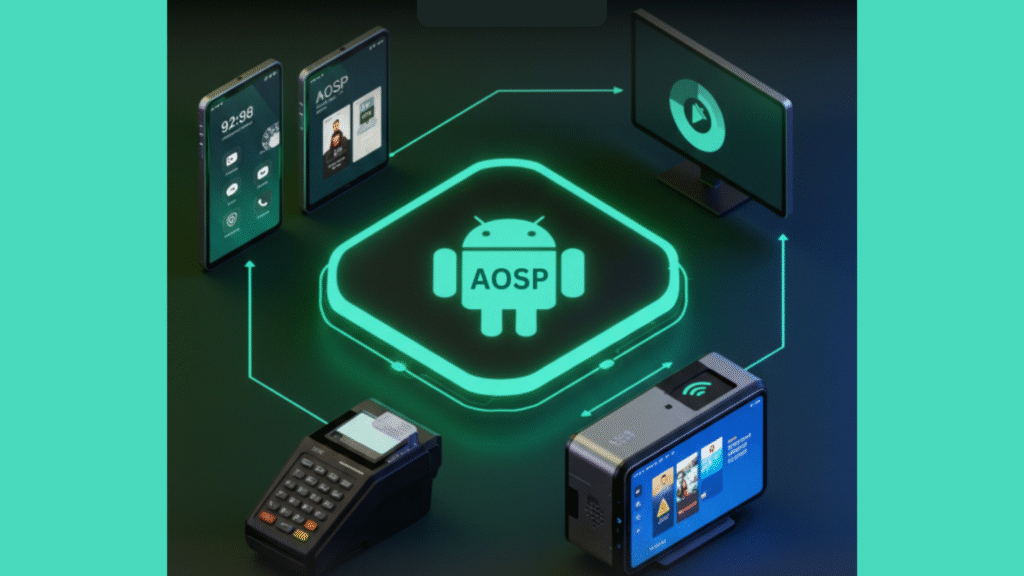
AOSP Explained: How Google’s Android Without Google Actually Works

If you’ve ever wondered what powers Android at its core, you’ve probably stumbled across the term AOSP — short for Android Open Source Project.

It’s Android… but without Google.
 Sounds strange, right? Let’s unpack what that really means, why it exists, and how it works in practice.

What is AOSP?

At its simplest, AOSP is the open-source base of Android. It’s the version of Android that Google publishes for anyone to use, modify, and build on — all under the Apache 2.0 open-source license.

Think of it like a barebones Android:

  • It has the operating system code.
  • It has basic apps like a simple dialer, messaging app, and browser.
  • It has the kernel (based on Linux) and system frameworks.

What it doesn’t have: Google’s proprietary services and apps — like Gmail, Google Maps, YouTube, or the Google Play Store. Those are separate from AOSP and require Google licensing.

Why Does AOSP Exist?

When Google first created Android, the goal was to make it free and open so device makers could adapt it to different screen sizes, hardware types, and use cases.

AOSP is Google’s way of ensuring:

  1. Openness: Developers and manufacturers can use Android without asking for permission.
  2. Standardization: There’s a single, consistent base for all Android devices.
  3. Innovation: The community can modify and experiment with Android’s code.

AOSP vs. “Google Android”

Most Android phones you buy (Samsung, Pixel, OnePlus) run a Google-certified Android build, which is AOSP + Google Mobile Services (GMS).

Here’s the difference:

In short: AOSP is the foundation; GMS is the layer of Google extras.

Where is AOSP Used Without Google?

Not every Android device needs Google. Examples include:

  • Custom ROMs like LineageOS, /e/OS, and GrapheneOS.
  • Chinese smartphones (due to lack of Google licensing).
  • Embedded systems like car dashboards, TVs, and kiosks.
  • Android forks for specialized industries.

These systems use AOSP as a clean slate and replace Google services with their own or open-source alternatives.

How AOSP is Built and Used

The AOSP source code is hosted publicly on android.googlesource.com. Anyone can clone it and build it.

Here’s a simplified example of how a developer might build AOSP for a device:

Bash
# Install required packages
sudo apt-get update
sudo apt-get install git openjdk-11-jdk

# Download the repo tool
mkdir ~/bin
curl https://storage.googleapis.com/git-repo-downloads/repo > ~/bin/repo
chmod a+x ~/bin/repo

# Initialize the AOSP source for Android 14
repo init -u https://android.googlesource.com/platform/manifest -b android-14.0.0_r1

# Download the source code (this will take a while)
repo sync

# Build the system image
source build/envsetup.sh
lunch aosp_arm64-eng
make -j$(nproc)
  • repo init sets up which Android version you’re working with.
  • repo sync downloads all the AOSP code.
  • lunch selects the target device configuration.
  • make compiles the OS into a system image you can flash.

But Without Google, What’s Missing?

Running pure AOSP is like having a new phone without the “modern conveniences.”

  • No Play Store (you’ll need F-Droid or Aurora Store instead).
  • No Google account syncing.
  • Some apps won’t work if they depend on Google Play Services.

This is why most people using pure AOSP need replacement apps and services.

Why AOSP Matters

Even though most people never use plain AOSP, it’s crucial for:

  • Freedom: Developers can create custom systems without being locked into Google’s ecosystem.
  • Security & Privacy: Privacy-focused ROMs strip out tracking features.
  • Innovation: New Android features often start as AOSP experiments.

Without AOSP, Android wouldn’t be the flexible, global platform it is today.

Conclusion

AOSP is Android’s open heart — the part that anyone can see, modify, and improve. It’s the foundation that makes Android the most widely used mobile OS in the world, while still leaving room for choice between a Google-powered experience or something entirely different.

If you’ve ever thought about building your own OS, customizing an old device, or exploring privacy-first alternatives, AOSP is where that journey begins.

Fibonacci in Kotlin Using Dynamic Programming

Fibonacci in Kotlin Using Dynamic Programming: The Ultimate Guide

If you’ve ever dived into programming, chances are you’ve come across the famous Fibonacci sequence. It’s a classic problem that teaches us a lot about algorithms and optimization techniques. In this ultimate guide, we’ll explore Fibonacci in Kotlin Using Dynamic Programming in a friendly and easy-to-understand way. Whether you’re a beginner or an experienced Kotlin...

Membership Required

You must be a member to access this content.

View Membership Levels

Already a member? Log in here
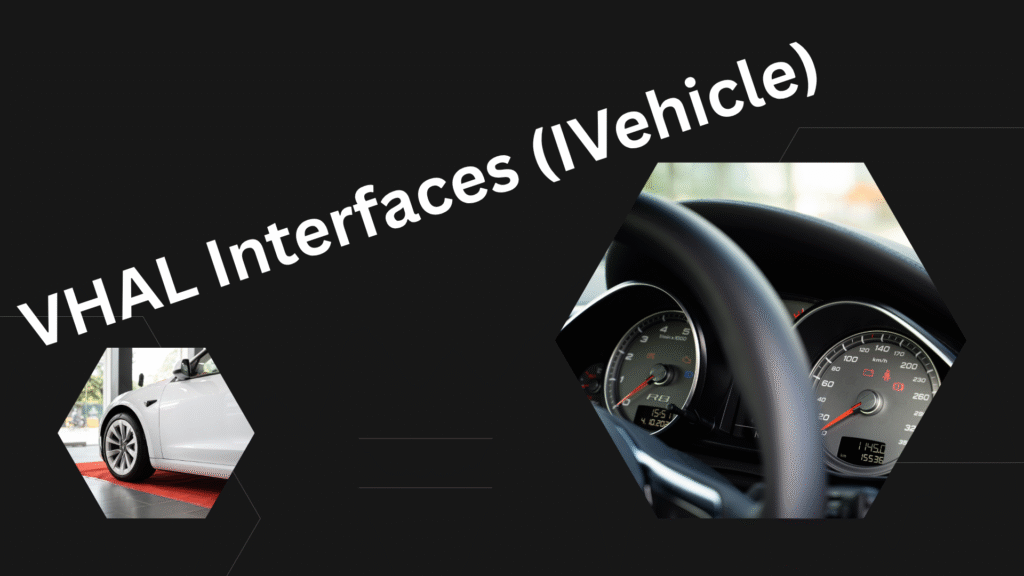
VHAL Interfaces (IVehicle)

Understanding VHAL Interfaces (IVehicle): The Backbone of Android Automotive Integration

Android Automotive OS is powering a growing number of infotainment systems, and at the heart of its vehicle interaction lies a critical component: VHAL Interfaces (IVehicle). These interfaces are what allow Android to talk to your car’s hardware. From reading the speedometer to turning on climate control, everything hinges on this system.

In this post, we’ll break down how VHAL Interfaces (IVehicle) work, why they’re essential, and how developers can work with them to build automotive apps that actually connect with vehicle systems.

What Is VHAL?

VHAL stands for Vehicle Hardware Abstraction Layer. Think of it as a translator between Android and the car’s underlying ECUs (Electronic Control Units). Cars have multiple ECUs controlling everything from brakes to lights, and Android Automotive needs a way to communicate with them.

That’s where VHAL Interfaces (IVehicle) come in. They define how Android gets and sets data to and from the vehicle hardware.

The Role of IVehicle Interface

In Android Automotive, IVehicle is the AIDL (Android Interface Definition Language) interface that enables communication between the Vehicle HAL and the framework.

You can think of IVehicle as a contract. It defines methods the Android system can call to:

  • Get vehicle property values (e.g., speed, fuel level)
  • Set values (e.g., adjust HVAC settings)
  • Subscribe to updates

This interface must be implemented by car manufacturers or Tier-1 suppliers so that Android can access real-time vehicle data.

Anatomy of IVehicle Interface

Here’s a simplified look at what an IVehicle interface might look like:

Java
interface IVehicle {
    VehiclePropValue get(in VehiclePropGetRequest request);
    StatusCode set(in VehiclePropValue value);
    void subscribe(in IVehicleCallback callback, in SubscribeOptions[] options);
    void unsubscribe(in IVehicleCallback callback, in int[] propIds);
}

Here,

  • get(): Used to read a vehicle property.
  • set(): Used to write or modify a property (like setting temperature).
  • subscribe(): Listen for changes (like speed updates).
  • unsubscribe(): Stop listening to property changes.

These methods form the foundation of vehicle interaction in Android Automotive.

What Is a Vehicle Property?

A vehicle property is any data point Android can interact with. Each has a unique ID, data type, and permission level. For example:

  • VehicleProperty::PERF_VEHICLE_SPEED: Car speed
  • VehicleProperty::HVAC_TEMPERATURE_SET: Climate control temperature
  • VehicleProperty::FUEL_LEVEL: Fuel level

Each property is defined in the VehicleProperty.aidl file.

Implementing a Custom VHAL

Let’s say you’re a car maker. You want Android to read your custom battery voltage data. You’d do something like this:

1. Define the Property

Java
#define VEHICLE_PROPERTY_CUSTOM_BATTERY_VOLTAGE (0x12345678)

2. Add It to Your Property List

Java
VehiclePropConfig config = {
    .prop = VEHICLE_PROPERTY_CUSTOM_BATTERY_VOLTAGE,
    .access = VehiclePropertyAccess::READ,
    .changeMode = VehiclePropertyChangeMode::ON_CHANGE,
    .configArray = {},
    .configString = "Custom Battery Voltage",
};

3. Implement Logic in get()

Java
VehiclePropValue get(const VehiclePropGetRequest& request) override {
    VehiclePropValue value = {};
    if (request.prop == VEHICLE_PROPERTY_CUSTOM_BATTERY_VOLTAGE) {
        value.prop = request.prop;
        value.value.floatValues = {12.6};
    }
    return value;
}

And that’s it. Now Android can read your custom battery voltage.

Why Are VHAL Interfaces (IVehicle) Important?

Without VHAL, Android is blind to the vehicle. These interfaces power key services like:

  • HVAC control UI
  • Instrument cluster apps
  • Battery status for EVs
  • Safety features

By standardizing communication, VHAL Interfaces (IVehicle) make it possible for third-party developers to build real, vehicle-aware apps. That’s a game-changer.

Example: Reading Vehicle Speed

Let’s look at a code snippet that reads the vehicle speed.

Requesting Speed in Framework (Java)

Java
VehiclePropertyValue speed = vehicle.get(VehicleProperty.PERF_VEHICLE_SPEED);
float currentSpeed = speed.getValue().getFloatValue();

Here,

  • The Java API calls the get() method on the IVehicle AIDL interface.
  • This request travels through the HAL to the car’s CAN bus or hardware.
  • The current speed is returned as a float.

Best Practices for Working with VHAL

  1. Don’t poll: Use subscribe() instead of calling get() in a loop.
  2. Permission-aware: Some properties require special permissions.
  3. Optimize data flow: Avoid flooding the system with updates.
  4. Test on real hardware: Simulators are helpful, but actual ECUs may behave differently.

Conclusion

If you want to build or integrate automotive systems with Android Automotive OS, you must understand how VHAL Interfaces (IVehicle) work. They’re the core pathway between Android and the car’s brain.

With the right implementation, you can create apps that do more than just run in the dashboard — they interact with the vehicle in real-time, improving safety, convenience, and experience.

VHAL Interfaces (IVehicle) are not just another Android abstraction. They’re what make Android truly automotive.

Fibonacci Using Loops in Kotlin

Fibonacci Using Loops in Kotlin: A Simple & Efficient Approach

If you’ve just started learning Kotlin and want to practice loops in a real-world example, generating the Fibonacci series is a perfect choice. It’s simple enough to grasp, yet teaches you how to handle variables, loops, and logic in Kotlin efficiently.

In this guide, we’ll explore Fibonacci Using Loops in Kotlin, break down the code step-by-step, and keep it beginner-friendly — without skipping important details.

What is the Fibonacci Sequence?

The Fibonacci sequence is a series of numbers where each number is the sum of the two before it.

It starts like this:

Kotlin
0, 1, 1, 2, 3, 5, 8, 13, 21, 34...

Mathematically:

Kotlin
F(n) = F(n-1) + F(n-2)

Where:

  • F(0) = 0
  • F(1) = 1

Why Use Loops Instead of Recursion?

While recursion can generate Fibonacci numbers, it’s less efficient for large sequences because:

  • It repeats calculations unnecessarily.
  • It uses more memory due to function calls.

Using loops in Kotlin:
 Saves memory.
 Runs faster.
 Easier to understand for beginners.

That’s why Fibonacci Using Loops in Kotlin is both simple and efficient.

Kotlin Program for Fibonacci Using Loops

Here’s the complete Kotlin code:

Kotlin
fun main() {
    val terms = 10  // Number of Fibonacci numbers to print
    var first = 0
    var second = 1

    println("Fibonacci Series using loops:")

    for (i in 1..terms) {
        print("$first ")
        // Calculate the next number
        val next = first + second
        first = second
        second = next
    }
}

Step-by-Step Code Explanation

Let’s break it down so you truly understand:

1. Declaring Variables

Kotlin
fun main() {
    val terms = 10  // Number of Fibonacci numbers to print
    var first = 0
    var second = 1

    println("Fibonacci Series using loops:")

    for (i in 1..terms) {
        print("$first ")
        // Calculate the next number
        val next = first + second
        first = second
        second = next
    }
}
  • terms → how many numbers you want to print.
  • first and second → the first two Fibonacci numbers.

2. Using a Loop

Kotlin
for (i in 1..terms) {
    print("$first ")
    val next = first + second
    first = second
    second = next
}
  • Loop runs from 1 to terms → controls how many numbers are printed.
  • print("$first ") → displays the current number.
  • val next = first + second → calculates the next Fibonacci number.

We then shift the values:

  • first becomes the old second.
  • second becomes the new next.

Not clear — let’s dry run it for better understanding.

Iteration 1 (i = 1)

  • Print first → prints 0
  • next = first + second = 0 + 1 = 1
  • Update:
     first = second = 1
     second = next = 1

Output: 0

Iteration 2 (i = 2)

  • Print first → prints 1
  • next = 1 + 1 = 2
  • Update:
     first = 1
     second = 2

Output: 0 1

Iteration 3 (i = 3)

  • Print first → prints 1
  • next = 1 + 2 = 3
  • Update:
     first = 2
     second = 3

Output: 0 1 1

Iteration 4 (i = 4)

  • Print first → prints 2
  • next = 2 + 3 = 5
  • Update:
     first = 3
     second = 5

Output: 0 1 1 2

Iteration 5 (i = 5)

  • Print first → prints 3
  • next = 3 + 5 = 8
  • Update:
     first = 5
     second = 8

Output: 0 1 1 2 3

Iteration 6 (i = 6)

  • Print first → prints 5
  • next = 5 + 8 = 13
  • Update:
     first = 8
     second = 13

Output: 0 1 1 2 3 5

Iteration 7 (i = 7)

  • Print first → prints 8
  • next = 8 + 13 = 21
  • Update:
     first = 13
     second = 21

Output: 0 1 1 2 3 5 8

Iteration 8 (i = 8)

  • Print first → prints 13
  • next = 13 + 21 = 34
  • Update:
     first = 21
     second = 34

Output: 0 1 1 2 3 5 8 13

Iteration 9 (i = 9)

  • Print first → prints 21
  • next = 21 + 34 = 55
  • Update:
     first = 34
     second = 55

Output: 0 1 1 2 3 5 8 13 21

Iteration 10 (i = 10)

  • Print first → prints 34
  • next = 34 + 55 = 89
  • Update:
     first = 55
     second = 89

Output: 0 1 1 2 3 5 8 13 21 34

Final Output

If terms = 10, output will be:

Kotlin
Fibonacci Series using loops:
0 1 1 2 3 5 8 13 21 34

Tips to Make It Even Better

  • User Input: Instead of hardcoding terms, ask the user how many numbers they want.
Kotlin
print("Enter the number of terms: ")
   
val n = readLine()!!.toInt()
  • Formatting: Add commas or line breaks for readability.
  • Performance: This loop method already runs in O(n) time, making it efficient even for large terms.

Why This Approach Works Well

The Fibonacci Using Loops in Kotlin approach is ideal for:

  • Beginners learning loops.
  • Anyone needing quick and efficient Fibonacci generation.
  • Avoiding recursion stack overflow for large sequences.

It’s clean, easy to debug, and performs well.

Conclusion

The Fibonacci sequence is a timeless example for learning programming logic. By using loops in Kotlin, you get the perfect balance between simplicity and efficiency. Whether you’re practicing for interviews or just improving your coding skills, this method will serve you well.

Next time you think about Fibonacci, remember — you don’t always need recursion. A good old loop can do the job beautifully.

Encoding

What Is Encoding? Types, Uses, and How It Works in Technology

When we talk about technology, “encoding” is one of those buzzwords that pops up in various contexts — from data storage and communication to programming and multimedia. But what exactly is encoding? How does it work? And why is it so essential in computing and communication today? 

Let’s break it down in a simple way so everyone can understand this vital concept, even if you’re new to tech.

What Is Encoding?

Encoding is the process of converting information from one form or format into another. Usually, this transformation is done so that the data can be efficiently stored, transmitted, or processed by computers and other devices. Think of it as translating a message into a language that the receiver or system understands best.

For instance, when you type a letter on your keyboard, the computer doesn’t see the letter itself — it sees a number (binary code). The process of converting that letter into this numeric form is encoding.

Why Is Encoding Important?

  • Data Storage: Computers store data as numbers in binary. Encoding allows different types of data (text, images, sound) to be represented in binary.
  • Data Transmission: Whether it’s sending a message over the internet or streaming a video, encoding helps in packaging the data so it travels accurately and efficiently.
  • Compatibility: Encoding ensures that data created on one system can be read correctly on another, even if the two use different hardware or software.
  • Security: Encoding can also refer to techniques that protect data, like encryption (though encryption is a specialized, secure form of encoding).

Types of Encoding in Technology

Encoding takes many forms depending on the type of data and its use. Let’s look at the most common types:

1. Character Encoding

This is about converting characters (letters, numbers, symbols) into binary so computers can understand and display text.

  • ASCII: One of the earliest encoding schemes, representing English characters using 7 bits.
  • UTF-8: A popular encoding today for most languages worldwide, supporting many characters and emojis.
  • Unicode: A universal character set that assigns unique codes to virtually every character in every language.

2. Audio and Video Encoding

Encoding multimedia makes files smaller and manageable for storage or streaming.

  • MP3, AAC: Audio encoding formats that compress sound files.
  • H.264, H.265: Video encoding standards for compressing video.

3. Data Encoding for Communication

Ensures data can be transmitted over networks reliably.

  • Base64: Encodes binary data into text format to send via email or web.
  • URL Encoding: Converts special characters in URLs into a format that browsers can handle safely.

How Does Encoding Work?

Encoding depends on rules or standards agreed upon by both sender and receiver.

Imagine sending a handwritten note in a secret code: you and your friend must know what each symbol means. Similarly, computers use encoding schemes — predefined ways to map data into codes.

Basic Steps in Encoding:

  1. Input: Original data (text, image, sound).
  2. Convert: Use an encoding scheme or algorithm to translate data into a new format (often binary).
  3. Output: Encoded data ready for storage, transmission, or processing.

Encoding in Kotlin

Kotlin, a modern programming language, handles string encoding and decoding easily. Here’s a simple example, encoding a string into Base64 (a common encoding to represent binary data as plain text) and then decoding it back.

Kotlin
import java.util.Base64

fun main() {
    val originalString = "Hello, Kotlin Encoding!"
    println("Original String: $originalString")

    // Encoding the string to Base64
    val encodedString = Base64.getEncoder().encodeToString(originalString.toByteArray())
    println("Encoded String (Base64): $encodedString")

    // Decoding the Base64 string back to original
    val decodedBytes = Base64.getDecoder().decode(encodedString)
    val decodedString = String(decodedBytes)

    println("Decoded String: $decodedString")
}

Here,

  • We import Java’s built-in Base64 encoder and decoder (Kotlin runs on the Java Virtual Machine, so it can use Java libraries).
  • originalString contains the text we want to encode.
  • toByteArray() converts the string into bytes, which are then encoded to Base64 using encodeToString().
  • The encoded result is a string safe for transmission or storage where binary data might cause issues.
  • To get the original text back, we decode the Base64 string using decode() and then convert the byte array back into a string.

So, encoding here changes the representation of data, making it suitable for different purposes, while decoding reverses the process.

Uses of Encoding in Real Life

  • Web Browsing: URL encoding handles special characters in website addresses.
  • Email: Base64 encoding allows attachments to travel safely through mail servers.
  • Streaming: Video and audio encoding compress media for smooth playback.
  • File Storage: Encoding formats help save files in compact and accessible ways.
  • Programming: Encodings allow for consistent string handling across apps worldwide.

Conclusion

Encoding is a fundamental process that makes modern technology work seamlessly by transforming data into formats suitable for storage, transmission, and processing. From character encoding that keeps our text readable across devices to complex multimedia and network encoding techniques, encoding surrounds us in everyday digital life.

Understanding encoding — even with simple code examples in Kotlin, like Base64 encoding — gives you insight into how computers and programs communicate and handle data efficiently.

Whether you’re a developer, student, or just curious about tech, encoding is one key piece of the puzzle that makes digital communication possible.

error: Content is protected !!