

If you’ve been building UI with Jetpack Compose for more than a week, you already know the drill. You write a clean Composable — maybe a PrimaryButton, or a UserProfileCard — and then you immediately have to write something like this below it:
@Preview(showBackground = true)
@Composable
fun PrimaryButtonPreview() {
    PrimaryButton(
        text = "Click Me",
        onClick = {}
    )
}
Doesn’t look like much, right..? Nine lines.
But think about how many Composables you build across a full project. Ten screens, each with five or six components — that’s fifty-plus preview functions you’re hand-typing (or copy-pasting and then refactoring). The mental cost isn’t the typing itself; it’s the context switching. You just nailed your component logic, and now you have to stop, copy the function name, jump below, paste, rename, and restructure. It breaks the creative flow completely.
The good news: Android Studio already has a built-in system designed exactly for this. You just need to set it up once.
Quick answer for the impatient: Go to Settings → Editor → Live Templates, create a new template with the abbreviation
prev(or use the one already available in Android Studio), and paste the template code from the next section. That’s it. The rest of this post goes deeper into why and when to use each approach.
Live Templates — The Fastest Fix You’re Not Using
Live Templates are one of Android Studio’s most underused features. They’re essentially smart text snippets that expand when you type a short abbreviation and press Tab. IntelliJ has had them for years — Android Studio inherits them from the same codebase. Kotlin developers who come from other editors sometimes have no idea this exists.
For @Preview specifically, the goal is: you type prev, hit Tab, and the entire preview scaffold appears with your cursor already positioned inside it, ready to fill in any needed parameters.
Setting Up Your First Preview Live Template
Here’s the exact step-by-step process — no skipping ahead:
1. Open Settings
On macOS press ⌘ ,.
On Windows/Linux go to File → Settings.
In the search bar, type “Live Templates” to jump straight to it.
2. Create a new Template Group
In the Live Templates panel, click the + button on the right → select Template Group→ name it something like Compose. This keeps things organized and separate from Android Studio’s built-in templates.
3. Add a new Live Template
With your new Compose group selected, click + again → this time select Live Template.
4. Fill in the abbreviation and description
Set Abbreviation to prev and give it a Description like “Compose @Preview function”. The description shows up in autocomplete hints, so keep it readable.
5. Paste the template text
This is the core part. Paste the code below exactly as shown — the $VARIABLE$ syntax is how Android Studio knows where to place your cursor and what to ask you to fill in.
Template Code — Basic Preview
Live Template Text
@Preview(showBackground = true)
@Composable
fun $COMPOSABLE_NAME$Preview() {
    $COMPOSABLE_NAME$($END$)
}
The $COMPOSABLE_NAME$ variable is smart — when you tab into the template, Android Studio highlights every occurrence at once. Type the name once and it fills in both places simultaneously (the function name and the call inside it). The $END$ marker tells the editor where to park your cursor after you’re done naming — right inside the parentheses where you’d add parameters.
If you want, you can wrap it in your existing app theme or a Material theme like this:
@Preview(showBackground = true)
@Composable
fun $COMPOSABLE_NAME$Preview() {
    MaterialTheme {
      $COMPOSABLE_NAME$($END$)
    }
}
6. Define the applicable context
At the bottom of the template editor, click Define and check Kotlin. Without this step, the template won’t activate inside .kt files.
7. Hit OK and test it
Open any Kotlin file, type prev, and press Tab. The scaffold should appear.
What It Looks Like In Practice
Before & After
// You write this composable first:
@Composable
fun UserProfileCard(
    name: String,
    avatarUrl: String,
    isOnline: Boolean
) {
    // ... your component logic
}


// Then type "prev" + Tab, type "UserProfileCard", Tab again:

@Preview(showBackground = true)
@Composable
fun UserProfileCardPreview() {
    UserProfileCard(
        // ← cursor lands here, ready for sample data
    )
}
One thing to remember: The template inserts the composable name as a plain text call. If your Composable has required parameters, Android Studio won’t auto-fill them — you’ll need to add sample data yourself. That’s expected and by design; previews should use meaningful placeholder values, not auto-generated garbage.
Multi-Variant Previews: Light, Dark, and Different Screen Sizes
A single light-mode preview is fine for early development. But before you ship anything, you want to see your component in at least two states: light theme and dark theme. You might also want to check it on a compact phone screen vs a larger device. Doing this manually every time is even more tedious than writing a basic preview.
There are two solid ways to handle this in Compose. The cleaner of the two is a custom annotation that stacks multiple @Preview declarations — this keeps your composable files lean and consistent across your entire project.
Approach A: Custom Multi-Preview Annotation
Create a single annotation class in a shared file (something like PreviewAnnotations.kt in your UI module’s utils package):
PreviewAnnotations.kt
import android.content.res.Configuration
import androidx.compose.ui.tooling.preview.Preview

@Preview(
    name = "Light Mode",
    showBackground = true
)
@Preview(
    name = "Dark Mode",
    showBackground = true,
    uiMode = Configuration.UI_MODE_NIGHT_YES
)
@Preview(
    name = "Small Phone",
    showBackground = true,
    widthDp = 320
)
@Retention(AnnotationRetention.BINARY)
@Target(AnnotationTarget.ANNOTATION_CLASS, AnnotationTarget.FUNCTION)
@Preview
annotation class DevicePreviews
Now your preview functions become genuinely compact. One annotation, three rendered variants:
Usage
@DevicePreviews
@Composable
fun UserProfileCardPreview() {
    YourAppTheme {
        UserProfileCard(
            name = "Priya Rao",
            avatarUrl = "https://softaai.com/avatar.jpg",
            isOnline = true
        )
    }
}
Approach B: Multi-Variant Live Template
If you prefer keeping everything in Live Templates instead of a shared annotation file, create a second template with abbreviation prevmulti:
Live Template Text — prevmulti
@Preview(name = "Light", showBackground = true)
@Preview(
    name = "Dark",
    showBackground = true,
    uiMode = Configuration.UI_MODE_NIGHT_YES
)
@Composable
fun $COMPOSABLE_NAME$Preview() {
    $APP_THEME$ {
        $COMPOSABLE_NAME$($END$)
    }
}
Between these two approaches, the custom annotation (Approach A) is better for teams and larger projects. It lives in source control, everyone uses the same preview config automatically, and updating it once updates every preview across the codebase. Live Templates are per-developer and per-machine — great for solo work, less ideal for shared codebases.
Note: Instead of defining custom
@DevicePreviewslike above, you can use the built-in@PreviewScreenSizes.
File Templates: Scaffold Both the Composable and Preview at Once
Live Templates solve the in-file boilerplate problem. But what if your workflow always starts with creating a new file? If you find yourself doing File → New → Kotlin File/Class and then manually typing the @Composable and @Preview blocks from scratch, File Templates take this even further.
A File Template is a pre-defined structure that Android Studio uses when you create a new file through the right-click menu. You can define your own and make “New Composable File” a real option.
1. Open Settings → File and Code Templates
Navigate to Editor → File and Code Templates. You’ll see the default list of templates on the left (Kotlin File, Interface, Class, etc.).
2. Click + to create a new template
Name it something like Composable, set the extension to kt.
3. Paste the template body
Use the $NAME variable — Android Studio prompts the user to fill this in when they create the file.
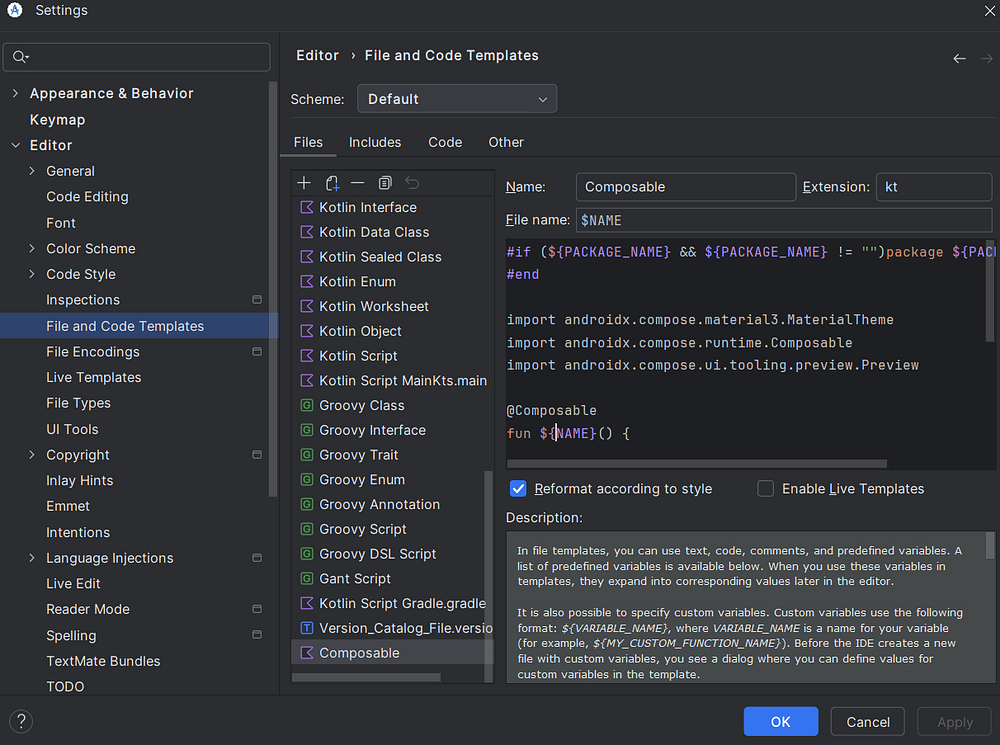
File Template Body
File Template — Composable.kt
#if (${PACKAGE_NAME} && ${PACKAGE_NAME} != "")package ${PACKAGE_NAME}
#end

import androidx.compose.material3.MaterialTheme
import androidx.compose.runtime.Composable
import androidx.compose.ui.tooling.preview.Preview

@Composable
fun ${NAME}() {

}

@Preview(showBackground = true)
@Composable
fun ${NAME}Preview() {
    MaterialTheme {
       ${NAME}()
    }
}
After saving this, right-clicking any package in your project tree will show New → Composable in the menu. You type the component name once, and you get a file with proper package declaration, imports, a blank composable, and its preview — all ready to go.
Which Approach Should You Actually Use?
The honest answer: it depends on your context. Here’s a clear breakdown to help you decide without overthinking it.
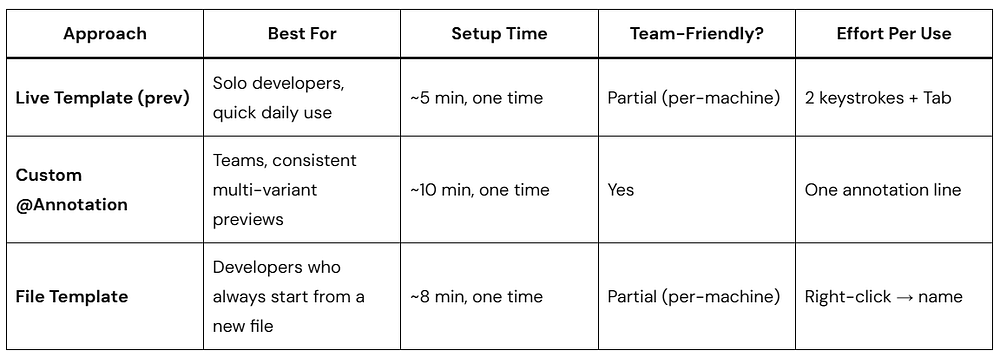
For most individual developers: start with a Live Template. It takes five minutes, pays off immediately, and you don’t need to touch it again. If you’re working on a team or a long-lived codebase, invest the extra ten minutes to set up a custom @DevicePreviews annotation and commit it to the repo. That way the entire team benefits without any individual setup.
Conclusion
The friction of writing @Preview boilerplate is real, but it’s entirely self-imposed. Android Studio has the tools to make this near-instant — you just need to spend fifteen minutes setting them up once. A Live Template handles the basic case in two keystrokes. A custom annotation handles multi-variant previews for teams. File Templates handle the new-file workflow.
Pick the one that fits your current workflow and set it up today. The next time you build a Composable, you’ll feel the difference immediately.