

Have you ever wondered how Android apps magically match your wallpaper colors? Or how Material Design creates those perfectly harmonious color palettes that just work?
That’s the magic of Material 3’s dynamic color system, and today, we’re diving deep into how it all comes together using Kotlin and Jetpack Compose.
By the end of this guide, you’ll understand exactly how the Material 3 colorScheme works, how to implement it in your Android apps with Kotlin, and how to harness the power of dynamic theming to create stunning user interfaces that feel personal and cohesive.
Let’s get started..!
What Is Material 3 ColorScheme?
The Material 3 colorScheme is Google’s revolutionary approach to app theming that goes way beyond simple primary and secondary colors. Think of it as a complete color system that automatically generates a harmonious palette of colors designed to work together beautifully.
Here’s what makes it special:
Dynamic Color Generation: Instead of manually picking dozens of color shades, the Material 3 colorScheme generates an entire palette from a single seed color. This means you get consistent, accessible, and visually appealing colors without the guesswork.
Adaptive Theming: The system automatically adjusts for light and dark modes, ensuring your app looks great in any setting.
Wallpaper Integration: On Android 12 and above, your app can automatically extract colors from the user’s wallpaper, creating a truly personalized experience.
Accessibility Built-In: Every color in the Material 3 colorScheme meets WCAG (Web Content Accessibility Guidelines) accessibility standards when used correctly, so you don’t have to worry about contrast ratios.
Understanding Dynamic Color: The Foundation
Dynamic color is the heart of Material 3 on Android. But what exactly is it?
Imagine your phone’s wallpaper is a beautiful sunset with warm orange and purple tones. With dynamic color, your apps can extract those colors and build their entire theme around them. It’s personalization taken to the next level.
How Dynamic Color Works on Android
The process is actually quite elegant:
- Color Extraction: The system analyzes your wallpaper using the Monet color system
- Palette Generation: Using color science algorithms, it creates a full tonal palette
- Role Assignment: Colors are assigned to specific UI roles (more on this shortly)
- Adaptation: The scheme automatically adapts for light and dark themes
The beauty of the Material 3 colorScheme is that all this complexity is handled for you in Jetpack Compose. You just need to understand how to use it.
The Color Roles: Your New Best Friends
Here’s where Material 3 gets really interesting. Instead of thinking in terms of “primary,” “secondary,” and “tertiary” colors alone, the Material 3 colorScheme introduces color roles.
Think of color roles as jobs that colors perform in your UI. Let’s break down the main players:
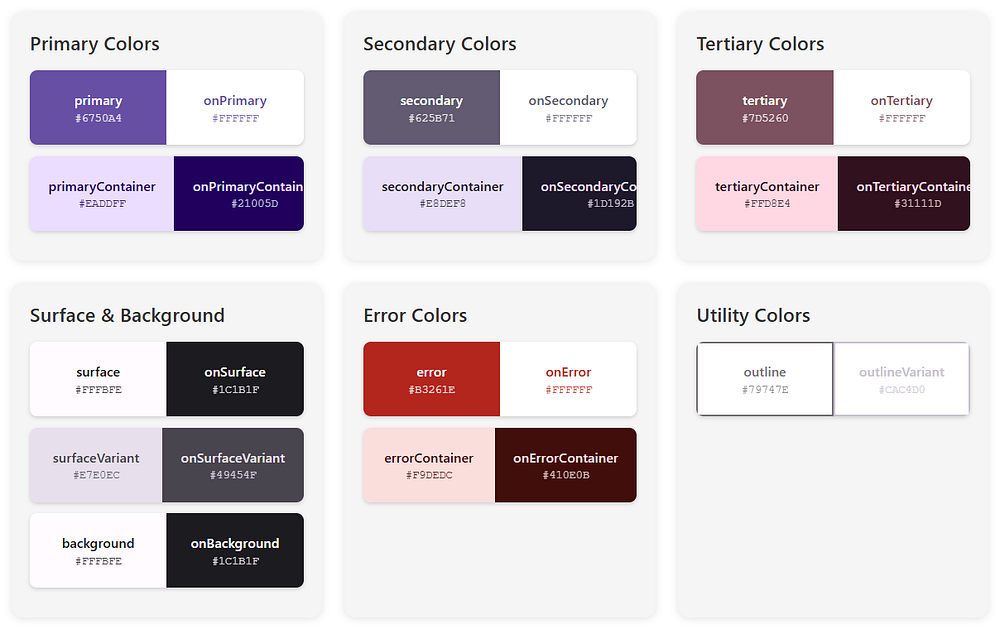
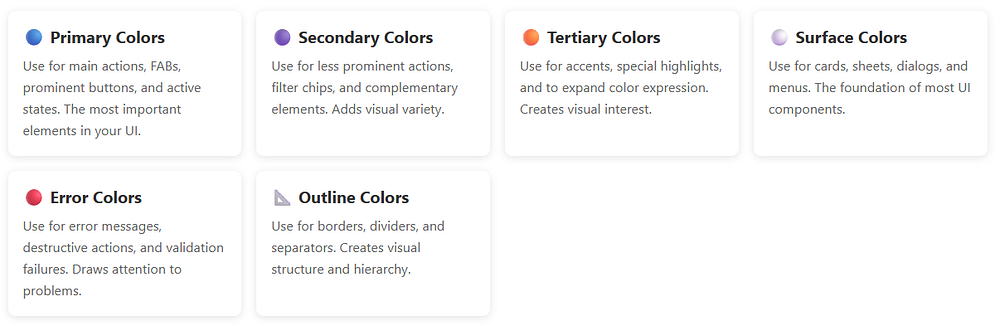
Primary Colors
Primary: This is your brand color, the star of the show. It appears on prominent buttons and active states.
OnPrimary: Text and icons that sit on top of the primary color. The Material 3 colorScheme ensures this has enough contrast to be readable.
PrimaryContainer: A lighter (or darker in dark mode) version used for less prominent components.
OnPrimaryContainer: Text that appears on primary containers.
Secondary Colors
Secondary: Provides visual variety and highlights less prominent components.
OnSecondary: You guessed it — text on secondary colors.
SecondaryContainer: For chips, cards, and other contained elements.
OnSecondaryContainer: Text on those containers.
Tertiary Colors
Tertiary: Adds even more variety, often used for accents and special highlights.
OnTertiary, TertiaryContainer, OnTertiaryContainer: Following the same pattern.
Surface and Background Colors
Surface: The background color for cards, sheets, and menus.
OnSurface: Text and icons on surfaces.
SurfaceVariant: Alternative surface with subtle differences.
OnSurfaceVariant: Text with lower emphasis.
Background: The main background of your app.
OnBackground: Primary text on the background.
Error Colors
Error: For error states and destructive actions.
OnError: Text on error colors.
ErrorContainer: Background for error messages.
OnErrorContainer: Text in error containers.
Special Roles
Outline: Borders and dividers.
OutlineVariant: Subtle borders.
Scrim: Semi-transparent overlays.
InverseSurface, InverseOnSurface, InversePrimary: For high-contrast elements like tooltips.
SurfaceTint: Used for elevation overlays in Material 3.
Phew! That’s a lot of colors, right..?
But here’s the magic: the Material 3 colorScheme generates all of these automatically, ensuring they work harmoniously together.
In short, a typical Material 3 colorScheme includes:
primary– main brand coloronPrimary– content placed on primarysecondary– supporting colortertiary– optional accent colorbackground– app backgroundsurface– cards and sheetserror– error statesonSurface– text/icons on surfaces
Each color has a paired onColor to guarantee readability.
This pairing is key to accessibility.
Setting Up Your Kotlin Project
Before we dive into code, let’s make sure your Android project is ready for Material 3.
Adding Dependencies
First, add the necessary dependencies to your build.gradle.kts (Module level):
dependencies {
    // Jetpack Compose BOM (Bill of Materials)
    implementation(platform("androidx.compose:compose-bom:2024.02.00"))

    // Material 3
    implementation("androidx.compose.material3:material3")

    // Other Compose dependencies
    implementation("androidx.compose.ui:ui")
    implementation("androidx.compose.ui:ui-tooling-preview")
    implementation("androidx.activity:activity-compose:1.8.2")

    // Core KTX
    implementation("androidx.core:core-ktx:1.12.0")

    // Lifecycle
    implementation("androidx.lifecycle:lifecycle-runtime-ktx:2.7.0")
}
What each dependency does:
compose-bom: Manages Compose versions automaticallymaterial3: The Material 3 components and colorScheme systemuiandui-tooling-preview: Core Compose UI and preview supportactivity-compose: Integration with Android activities
Update Your Theme File
Create a new file called Theme.kt in your ui.theme package:
package com.softaai.myapp.ui.theme

import android.app.Activity
import android.os.Build
import androidx.compose.foundation.isSystemInDarkTheme
import androidx.compose.material3.MaterialTheme
import androidx.compose.material3.darkColorScheme
import androidx.compose.material3.dynamicDarkColorScheme
import androidx.compose.material3.dynamicLightColorScheme
import androidx.compose.material3.lightColorScheme
import androidx.compose.runtime.Composable
import androidx.compose.runtime.SideEffect
import androidx.compose.ui.graphics.toArgb
import androidx.compose.ui.platform.LocalContext
import androidx.compose.ui.platform.LocalView
import androidx.core.view.WindowCompat

@Composable
fun MyAppTheme(
    darkTheme: Boolean = isSystemInDarkTheme(),
    dynamicColor: Boolean = true,
    content: @Composable () -> Unit
) {
    // We'll fill this in shortly!
}
This is your foundation. Now let’s build on it!
Implementing Material 3 ColorScheme in Kotlin
Let’s start with the simplest implementation and work our way up to more advanced features.
Basic Static ColorScheme
Here’s how to create a basic Material 3 colorScheme with custom colors:
import androidx.compose.material3.darkColorScheme
import androidx.compose.material3.lightColorScheme
import androidx.compose.ui.graphics.Color

// Light theme colors
private val LightColorScheme = lightColorScheme(
    primary = Color(0xFF6750A4),
    onPrimary = Color(0xFFFFFFFF),
    primaryContainer = Color(0xFFEADDFF),
    onPrimaryContainer = Color(0xFF21005D),
    secondary = Color(0xFF625B71),
    onSecondary = Color(0xFFFFFFFF),
    secondaryContainer = Color(0xFFE8DEF8),
    onSecondaryContainer = Color(0xFF1D192B),
    tertiary = Color(0xFF7D5260),
    onTertiary = Color(0xFFFFFFFF),
    tertiaryContainer = Color(0xFFFFD8E4),
    onTertiaryContainer = Color(0xFF31111D),
    error = Color(0xFFB3261E),
    onError = Color(0xFFFFFFFF),
    errorContainer = Color(0xFFF9DEDC),
    onErrorContainer = Color(0xFF410E0B),
    background = Color(0xFFFFFBFE),
    onBackground = Color(0xFF1C1B1F),
    surface = Color(0xFFFFFBFE),
    onSurface = Color(0xFF1C1B1F),
    surfaceVariant = Color(0xFFE7E0EC),
    onSurfaceVariant = Color(0xFF49454F),
    outline = Color(0xFF79747E),
    outlineVariant = Color(0xFFCAC4D0),
    scrim = Color(0xFF000000),
    inverseSurface = Color(0xFF313033),
    inverseOnSurface = Color(0xFFF4EFF4),
    inversePrimary = Color(0xFFD0BCFF),
)

// Dark theme colors
private val DarkColorScheme = darkColorScheme(
    primary = Color(0xFFD0BCFF),
    onPrimary = Color(0xFF381E72),
    primaryContainer = Color(0xFF4F378B),
    onPrimaryContainer = Color(0xFFEADDFF),
    secondary = Color(0xFFCCC2DC),
    onSecondary = Color(0xFF332D41),
    secondaryContainer = Color(0xFF4A4458),
    onSecondaryContainer = Color(0xFFE8DEF8),
    tertiary = Color(0xFFEFB8C8),
    onTertiary = Color(0xFF492532),
    tertiaryContainer = Color(0xFF633B48),
    onTertiaryContainer = Color(0xFFFFD8E4),
    error = Color(0xFFF2B8B5),
    onError = Color(0xFF601410),
    errorContainer = Color(0xFF8C1D18),
    onErrorContainer = Color(0xFFF9DEDC),
    background = Color(0xFF1C1B1F),
    onBackground = Color(0xFFE6E1E5),
    surface = Color(0xFF1C1B1F),
    onSurface = Color(0xFFE6E1E5),
    surfaceVariant = Color(0xFF49454F),
    onSurfaceVariant = Color(0xFFCAC4D0),
    outline = Color(0xFF938F99),
    outlineVariant = Color(0xFF49454F),
    scrim = Color(0xFF000000),
    inverseSurface = Color(0xFFE6E1E5),
    inverseOnSurface = Color(0xFF313033),
    inversePrimary = Color(0xFF6750A4),
)
Now let’s use these in your theme:
@Composable
fun MyAppTheme(
    darkTheme: Boolean = isSystemInDarkTheme(),
    content: @Composable () -> Unit
) {
    val colorScheme = if (darkTheme) DarkColorScheme else LightColorScheme

    MaterialTheme(
        colorScheme = colorScheme,
        typography = Typography,
        content = content
    )
}
Here,
- We defined two complete Material 3 colorScheme objects (light and dark)
- The theme composable selects the appropriate scheme based on system settings
MaterialThemeapplies the colorScheme to your entire app- Every color role is explicitly defined for maximum control
This is the manual approach. But there’s a much easier way..!
Dynamic Color: The Android 12+ Magic
Here’s where things get really exciting. On Android 12 (API 31) and above, you can use dynamic color to automatically match the user’s wallpaper.
Implementing Dynamic Color
@Composable
fun MyAppTheme(
    darkTheme: Boolean = isSystemInDarkTheme(),
    dynamicColor: Boolean = true, // Enable/disable dynamic color
    content: @Composable () -> Unit
) {
    val context = LocalContext.current

    // Determine which colorScheme to use
    val colorScheme = when {
        // Use dynamic color if available (Android 12+)
        dynamicColor && Build.VERSION.SDK_INT >= Build.VERSION_CODES.S -> {
            if (darkTheme) dynamicDarkColorScheme(context)
            else dynamicLightColorScheme(context)
        }
        // Fall back to custom dark colors
        darkTheme -> DarkColorScheme
        // Fall back to custom light colors
        else -> LightColorScheme
    }

    // Update the system bars to match theme
    val view = LocalView.current
    if (!view.isInEditMode) {
        SideEffect {
            val window = (view.context as Activity).window
            window.statusBarColor = colorScheme.surface.toArgb()
            WindowCompat.getInsetsController(window, view)
                .isAppearanceLightStatusBars = !darkTheme
        }
    }

    MaterialTheme(
        colorScheme = colorScheme,
        typography = Typography,
        content = content
    )
}
Let’s break down what’s happening:
- Version Check: We check if the device runs Android 12+ (API 31+)
- Dynamic ColorScheme: If supported, we use
dynamicDarkColorScheme()ordynamicLightColorScheme() - Fallback: On older devices, we fall back to our custom color schemes
- System Bars: We update the status bar color to match our theme
- Edge-to-Edge: The window insets controller adjusts the status bar appearance
That’s it..!
Your app now supports dynamic theming with the Material 3 colorScheme.
Using the Theme in Your MainActivity
Don’t forget to wrap your content in the theme:
class MainActivity : ComponentActivity() {
    override fun onCreate(savedInstanceState: Bundle?) {
        super.onCreate(savedInstanceState)
        setContent {
            MyAppTheme {
                // Your app content here
                Surface(
                    modifier = Modifier.fillMaxSize(),
                    color = MaterialTheme.colorScheme.background
                ) {
                    ProfileScreen()
                }
            }
        }
    }
}
Important points:
MyAppThemewraps all your composablesSurfaceusescolorScheme.backgroundfor the base color- Everything inside automatically has access to the Material 3 colorScheme
Accessing Colors in Your Composables
Now that you have your Material 3 colorScheme set up, how do you actually use these colors in your UI?
The Easy Way: Built-in Components
Material 3 components automatically use the appropriate colors from your colorScheme:
@Composable
fun AutomaticColorExample() {

    Column(
        modifier = Modifier.padding(16.dp),
        verticalArrangement = Arrangement.spacedBy(8.dp)
    ) {
        // Primary button - automatically uses primary color
        Button(onClick = { /* Do something */ }) {
            Text("Primary Button")
        }

        // Tonal button - uses primaryContainer
        FilledTonalButton(onClick = { /* Do something */ }) {
            Text("Tonal Button")
        }

        // Outlined button - uses outline color
        OutlinedButton(onClick = { /* Do something */ }) {
            Text("Outlined Button")
        }

        // Card - automatically uses surface color
        Card {
            Text(
                text = "This card uses surface colors",
                modifier = Modifier.padding(16.dp)
            )
        }
    }
}
No manual color assignment needed..! The Material 3 colorScheme handles it automatically.
The Manual Way: Direct Access
Sometimes you need direct access to specific colors:
@Composable
fun ManualColorExample() {
    // Access the current Material 3 colorScheme
    val colorScheme = MaterialTheme.colorScheme

    Box(
        modifier = Modifier
            .fillMaxWidth()
            .background(colorScheme.primaryContainer)
            .padding(16.dp)
    ) {
        Text(
            text = "Custom colored container",
            color = colorScheme.onPrimaryContainer,
            style = MaterialTheme.typography.headlineSmall
        )
    }
}
Key points:
- Use
MaterialTheme.colorSchemeto access all color roles - Always pair surfaces with their corresponding “on” colors
- The Material 3 colorScheme ensures all combinations are accessible
Building Real UI with Material 3 ColorScheme
Let’s create some practical examples that showcase the Material 3 colorScheme in action.
Custom Button with ColorScheme
@Composable
fun ThemedButton(
    text: String,
    onClick: () -> Unit,
    modifier: Modifier = Modifier,
    isPrimary: Boolean = true
) {
    val colorScheme = MaterialTheme.colorScheme

    // Choose colors based on button type
    val backgroundColor = if (isPrimary) {
        colorScheme.primary
    } else {
        colorScheme.secondary
    }

    val contentColor = if (isPrimary) {
        colorScheme.onPrimary
    } else {
        colorScheme.onSecondary
    }

    Button(
        onClick = onClick,
        modifier = modifier,
        colors = ButtonDefaults.buttonColors(
            containerColor = backgroundColor,
            contentColor = contentColor
        )
    ) {
        Text(text)
    }
}

// Usage
@Composable
fun ButtonExample() {
    Column(
        modifier = Modifier.padding(16.dp),
        verticalArrangement = Arrangement.spacedBy(8.dp)
    ) {
        ThemedButton(
            text = "Primary Action",
            onClick = { /* Handle click */ },
            isPrimary = true
        )

        ThemedButton(
            text = "Secondary Action",
            onClick = { /* Handle click */ },
            isPrimary = false
        )
    }
}
Here,
- We’re accessing the Material 3 colorScheme directly
- Colors automatically adjust for light/dark mode and dynamic color
- Accessibility is maintained through proper color role usage
Status Card with Conditional Colors
@Composable
fun StatusCard(
    title: String,
    message: String,
    isError: Boolean = false,
    modifier: Modifier = Modifier
) {
    val colorScheme = MaterialTheme.colorScheme

    // Choose colors based on status
    val containerColor = if (isError) {
        colorScheme.errorContainer
    } else {
        colorScheme.primaryContainer
    }

    val contentColor = if (isError) {
        colorScheme.onErrorContainer
    } else {
        colorScheme.onPrimaryContainer
    }

    val iconColor = if (isError) {
        colorScheme.error
    } else {
        colorScheme.primary
    }

    Card(
        modifier = modifier.fillMaxWidth(),
        colors = CardDefaults.cardColors(
            containerColor = containerColor
        )
    ) {
        Row(
            modifier = Modifier.padding(16.dp),
            horizontalArrangement = Arrangement.spacedBy(12.dp),
            verticalAlignment = Alignment.CenterVertically
        ) {
            Icon(
                imageVector = if (isError) {
                    Icons.Default.Error
                } else {
                    Icons.Default.CheckCircle
                },
                contentDescription = null,
                tint = iconColor,
                modifier = Modifier.size(32.dp)
            )

            Column {
                Text(
                    text = title,
                    style = MaterialTheme.typography.titleMedium,
                    color = contentColor,
                    fontWeight = FontWeight.Bold
                )
                Spacer(modifier = Modifier.height(4.dp))
                Text(
                    text = message,
                    style = MaterialTheme.typography.bodyMedium,
                    color = contentColor
                )
            }
        }
    }
}

// Usage
@Composable
fun StatusCardExample() {
    Column(
        modifier = Modifier.padding(16.dp),
        verticalArrangement = Arrangement.spacedBy(12.dp)
    ) {
        StatusCard(
            title = "Success",
            message = "Your profile has been updated successfully",
            isError = false
        )

        StatusCard(
            title = "Error",
            message = "Failed to save changes. Please try again.",
            isError = true
        )
    }
}
This example shows how the Material 3 colorScheme adapts to different UI states seamlessly.
Complete Profile Screen
Let’s build a realistic profile screen using the Material 3 colorScheme:
@Composable
fun ProfileScreen() {
    val colorScheme = MaterialTheme.colorScheme

    Scaffold(
        topBar = {
            TopAppBar(
                title = { Text("Profile") },
                colors = TopAppBarDefaults.topAppBarColors(
                    containerColor = colorScheme.surface,
                    titleContentColor = colorScheme.onSurface
                )
            )
        }
    ) { paddingValues ->
        Column(
            modifier = Modifier
                .fillMaxSize()
                .background(colorScheme.background)
                .padding(paddingValues)
                .padding(16.dp),
            verticalArrangement = Arrangement.spacedBy(16.dp)
        ) {
            // Profile Header Card
            Card(
                modifier = Modifier.fillMaxWidth(),
                colors = CardDefaults.cardColors(
                    containerColor = colorScheme.primaryContainer
                )
            ) {
                Column(
                    modifier = Modifier
                        .fillMaxWidth()
                        .padding(20.dp),
                    horizontalAlignment = Alignment.CenterHorizontally
                ) {
                    // Profile Image
                    Surface(
                        modifier = Modifier.size(100.dp),
                        shape = CircleShape,
                        color = colorScheme.primary
                    ) {
                        Icon(
                            imageVector = Icons.Default.Person,
                            contentDescription = "Profile Picture",
                            modifier = Modifier
                                .fillMaxSize()
                                .padding(20.dp),
                            tint = colorScheme.onPrimary
                        )
                    }

                    Spacer(modifier = Modifier.height(16.dp))

                    Text(
                        text = "Amol Pawar",
                        style = MaterialTheme.typography.headlineMedium,
                        color = colorScheme.onPrimaryContainer,
                        fontWeight = FontWeight.Bold
                    )

                    Text(
                        text = "[email protected]",
                        style = MaterialTheme.typography.bodyMedium,
                        color = colorScheme.onPrimaryContainer.copy(alpha = 0.8f)
                    )
                }
            }

            // Settings Section
            Card(
                modifier = Modifier.fillMaxWidth(),
                colors = CardDefaults.cardColors(
                    containerColor = colorScheme.surface
                )
            ) {
                Column {
                    SettingsItem(
                        icon = Icons.Default.Notifications,
                        title = "Notifications",
                        onClick = { /* Handle click */ }
                    )

                    HorizontalDivider(color = colorScheme.outlineVariant)

                    SettingsItem(
                        icon = Icons.Default.Security,
                        title = "Privacy & Security",
                        onClick = { /* Handle click */ }
                    )

                    HorizontalDivider(color = colorScheme.outlineVariant)

                    SettingsItem(
                        icon = Icons.Default.Help,
                        title = "Help & Support",
                        onClick = { /* Handle click */ }
                    )
                }
            }

            // Action Buttons
            Button(
                onClick = { /* Edit profile */ },
                modifier = Modifier.fillMaxWidth(),
                colors = ButtonDefaults.buttonColors(
                    containerColor = colorScheme.primary,
                    contentColor = colorScheme.onPrimary
                )
            ) {
                Text("Edit Profile")
            }

            OutlinedButton(
                onClick = { /* Sign out */ },
                modifier = Modifier.fillMaxWidth(),
                colors = ButtonDefaults.outlinedButtonColors(
                    contentColor = colorScheme.error
                ),
                border = BorderStroke(1.dp, colorScheme.error)
            ) {
                Text("Sign Out")
            }
        }
    }
}

@Composable
fun SettingsItem(
    icon: ImageVector,
    title: String,
    onClick: () -> Unit
) {
    val colorScheme = MaterialTheme.colorScheme

    Surface(
        onClick = onClick,
        color = Color.Transparent
    ) {
        Row(
            modifier = Modifier
                .fillMaxWidth()
                .padding(16.dp),
            horizontalArrangement = Arrangement.SpaceBetween,
            verticalAlignment = Alignment.CenterVertically
        ) {
            Row(
                horizontalArrangement = Arrangement.spacedBy(16.dp),
                verticalAlignment = Alignment.CenterVertically
            ) {
                Icon(
                    imageVector = icon,
                    contentDescription = null,
                    tint = colorScheme.primary
                )
                Text(
                    text = title,
                    style = MaterialTheme.typography.bodyLarge,
                    color = colorScheme.onSurface
                )
            }

            Icon(
                imageVector = Icons.AutoMirrored.Filled.KeyboardArrowRight,
                contentDescription = "Navigate",
                tint = colorScheme.onSurfaceVariant
            )
        }
    }
}- Every color comes from the Material 3 colorScheme
- Semantic color names ensure accessibility
- Works perfectly in light and dark modes
- Adapts to dynamic colors automatically
- Zero hard-coded color values
Advanced ColorScheme Techniques
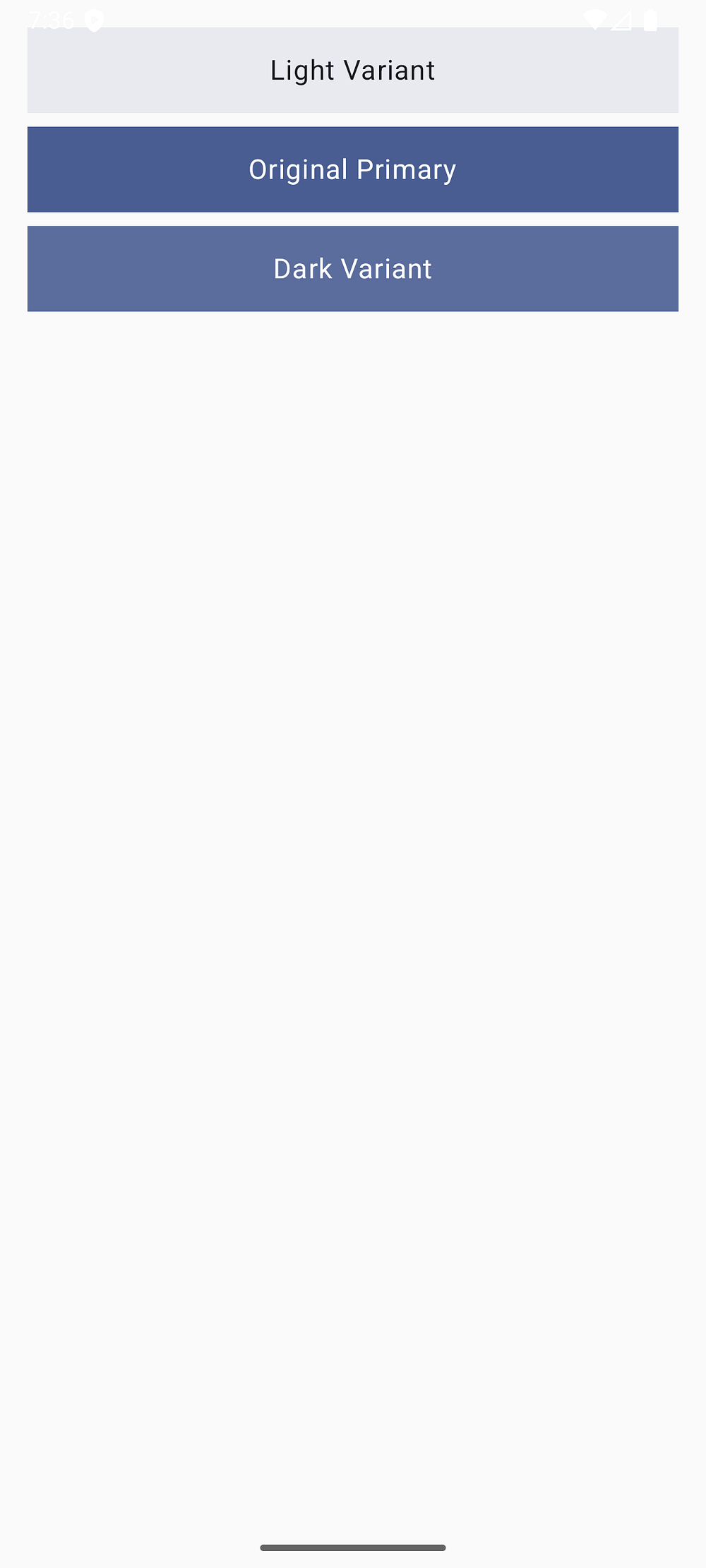
Creating Color Variants
Sometimes you need variations of your Material 3 colorScheme colors:
@Composable
fun ColorVariantExample() {
    val colorScheme = MaterialTheme.colorScheme

    // Create lighter or darker variants using alpha
    val primaryLight = colorScheme.primary.copy(alpha = 0.1f)
    val primaryDark = colorScheme.primary.copy(alpha = 0.9f)

    Column(
        modifier = Modifier.padding(16.dp),
        verticalArrangement = Arrangement.spacedBy(8.dp)
    ) {
        // Light variant
        Surface(
            modifier = Modifier
                .fillMaxWidth()
                .height(50.dp),
            color = primaryLight
        ) {
            Box(contentAlignment = Alignment.Center) {
                Text(
                    "Light Variant",
                    color = colorScheme.onSurface
                )
            }
        }

        // Original color
        Surface(
            modifier = Modifier
                .fillMaxWidth()
                .height(50.dp),
            color = colorScheme.primary
        ) {
            Box(contentAlignment = Alignment.Center) {
                Text(
                    "Original Primary",
                    color = colorScheme.onPrimary
                )
            }
        }

        // Dark variant
        Surface(
            modifier = Modifier
                .fillMaxWidth()
                .height(50.dp),
            color = primaryDark
        ) {
            Box(contentAlignment = Alignment.Center) {
                Text(
                    "Dark Variant",
                    color = colorScheme.onPrimary
                )
            }
        }
    }
}
Composing with Surface Tint
Material 3 introduces surface tint for elevation. Here’s how to use it:
@Composable
fun ElevatedCardExample() {
    val colorScheme = MaterialTheme.colorScheme

    Column(
        modifier = Modifier.padding(16.dp),
        verticalArrangement = Arrangement.spacedBy(12.dp)
    ) {
        // Card with different elevation levels
        listOf(0.dp, 2.dp, 4.dp, 6.dp).forEach { elevation ->
            Card(
                modifier = Modifier.fillMaxWidth(),
                elevation = CardDefaults.cardElevation(
                    defaultElevation = elevation
                ),
                colors = CardDefaults.cardColors(
                    containerColor = colorScheme.surface
                )
            ) {
                Text(
                    text = "Elevation: $elevation",
                    modifier = Modifier.padding(16.dp),
                    color = colorScheme.onSurface
                )
            }
        }
    }
}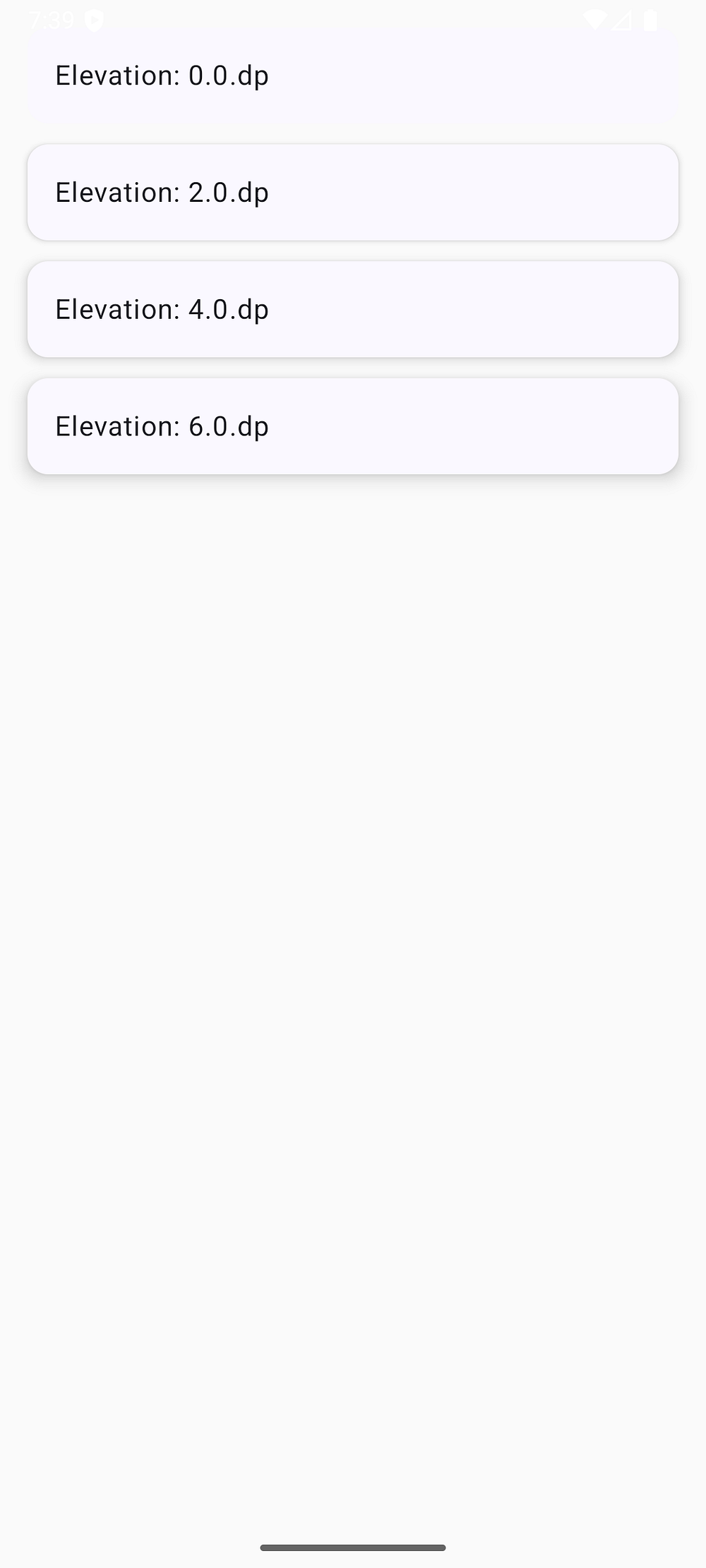
The Material 3 colorScheme automatically applies surfaceTint (usually the primary color) to create subtle elevation effects.
Creating Theme Toggle
Let users switch between light and dark themes:
@Composable
fun ThemeToggleExample() {
    var isDarkTheme by remember { mutableStateOf(false) }

    MyAppTheme(darkTheme = isDarkTheme) {
        val colorScheme = MaterialTheme.colorScheme

        Scaffold { paddingValues ->
            Column(
                modifier = Modifier
                    .fillMaxSize()
                    .padding(paddingValues)
                    .background(colorScheme.background)
                    .padding(16.dp)
            ) {
                Card(
                    modifier = Modifier.fillMaxWidth(),
                    colors = CardDefaults.cardColors(
                        containerColor = colorScheme.surfaceVariant
                    )
                ) {
                    Row(
                        modifier = Modifier
                            .fillMaxWidth()
                            .padding(16.dp),
                        horizontalArrangement = Arrangement.SpaceBetween,
                        verticalAlignment = Alignment.CenterVertically
                    ) {
                        Row(
                            horizontalArrangement = Arrangement.spacedBy(12.dp),
                            verticalAlignment = Alignment.CenterVertically
                        ) {
                            Icon(
                                imageVector = if (isDarkTheme) {
                                    Icons.Default.DarkMode
                                } else {
                                    Icons.Default.LightMode
                                },
                                contentDescription = null,
                                tint = colorScheme.onSurfaceVariant
                            )
                            Text(
                                text = "Dark Mode",
                                style = MaterialTheme.typography.bodyLarge,
                                color = colorScheme.onSurfaceVariant
                            )
                        }

                        Switch(
                            checked = isDarkTheme,
                            onCheckedChange = { isDarkTheme = it },
                            colors = SwitchDefaults.colors(
                                checkedThumbColor = colorScheme.primary,
                                checkedTrackColor = colorScheme.primaryContainer
                            )
                        )
                    }
                }
            }
        }
    }
}
Material Theme Builder Integration
Want to generate a complete Material 3 colorScheme visually..? Google provides an amazing tool called Material Theme Builder.
Using Material Theme Builder
- Visit Material Theme Builder
- Choose your primary color or upload an image
- Customize secondary and tertiary colors if desired
- Click “Export” and select “Jetpack Compose (Theme.kt)”
The tool generates complete Kotlin code.
Just copy this code into your Theme.kt file and you’re done..!
Pro tip: The Material Theme Builder ensures all colors are harmonious and accessible, saving you hours of manual color picking.
Best Practices for Material 3 ColorScheme
1. Always Use Semantic Names
Use the semantic color roles instead of hard-coded values:
// Good: Uses Material 3 colorScheme
Box(
    modifier = Modifier.background(MaterialTheme.colorScheme.surface)
)

// Bad: Hard-coded color
Box(
    modifier = Modifier.background(Color.White)
)
Why this matters: Semantic names adapt automatically to light/dark mode and dynamic color.
2. Pair Colors Correctly
Always use the “on” variant for text on colored surfaces:
// Good: Proper pairing ensures readability
Card(
    colors = CardDefaults.cardColors(
        containerColor = colorScheme.primaryContainer
    )
) {
    Text(
        text = "Accessible text",
        color = colorScheme.onPrimaryContainer
    )
}

// Bad: Might have contrast issues
Card(
    colors = CardDefaults.cardColors(
        containerColor = colorScheme.primaryContainer
    )
) {
    Text(
        text = "Poor contrast",
        color = colorScheme.secondary // Wrong pairing!
    )
}
3. Provide Dynamic Color Fallbacks
Always have a backup for devices that don’t support dynamic color:
val colorScheme = when {
    dynamicColor && Build.VERSION.SDK_INT >= Build.VERSION_CODES.S -> {
        if (darkTheme) dynamicDarkColorScheme(context)
        else dynamicLightColorScheme(context)
    }
    darkTheme -> DarkColorScheme // Fallback
    else -> LightColorScheme     // Fallback
}
4. Test Both Themes
Always test your UI in both light and dark modes:
@Preview(
    name = "Light Mode",
    showBackground = true
)
@Preview(
    name = "Dark Mode",
    showBackground = true,
    uiMode = Configuration.UI_MODE_NIGHT_YES
)
@Composable
fun PreviewProfileScreen() {
    MyAppTheme {
        ProfileScreen()
    }
}
5. Leverage Preview Parameters
Use preview parameters to test different scenarios:
@Preview(name = "Light - No Dynamic Color", showBackground = true)
@Composable
fun LightStaticPreview() {
    MyAppTheme(darkTheme = false, dynamicColor = false) {
        MyComposable()
    }
}

@Preview(name = "Dark - No Dynamic Color", showBackground = true)
@Composable
fun DarkStaticPreview() {
    MyAppTheme(darkTheme = true, dynamicColor = false) {
        MyComposable()
    }
}
Understanding Color Harmonization
The Material 3 colorScheme uses advanced color science to ensure harmony. Here’s what happens under the hood:
HCT Color Space
Material 3 uses HCT (Hue, Chroma, Tone) instead of RGB or HSL:
- Hue: The color type (0–360 degrees)
- Chroma: The colorfulness or saturation (0–120+)
- Tone: The perceived lightness (0–100)
Tonal Palettes
When you provide a seed color, the Material 3 colorScheme:
- Converts it to HCT color space
- Generates tonal palettes at specific chroma levels
- Maps tones to color roles based on their purpose
- Ensures all combinations meet WCAG contrast requirements
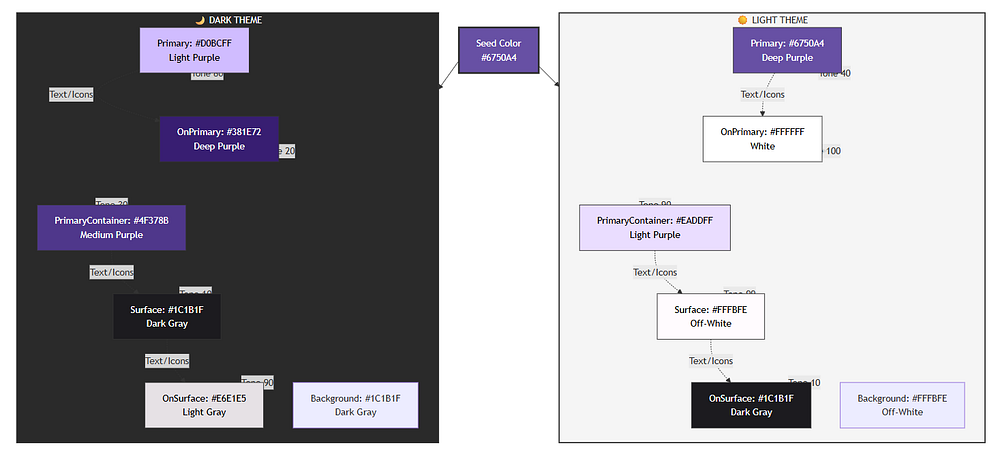
Example of Tone Mapping
Primary Palette (High Chroma):
- primary: tone 40 (light) / tone 80 (dark)
- onPrimary: tone 100 (light) / tone 20 (dark)
- primaryContainer: tone 90 (light) / tone 30 (dark)

Neutral Palette (Low Chroma):
- surface: tone 99 (light) / tone 10 (dark)
- onSurface: tone 10 (light) / tone 90 (dark)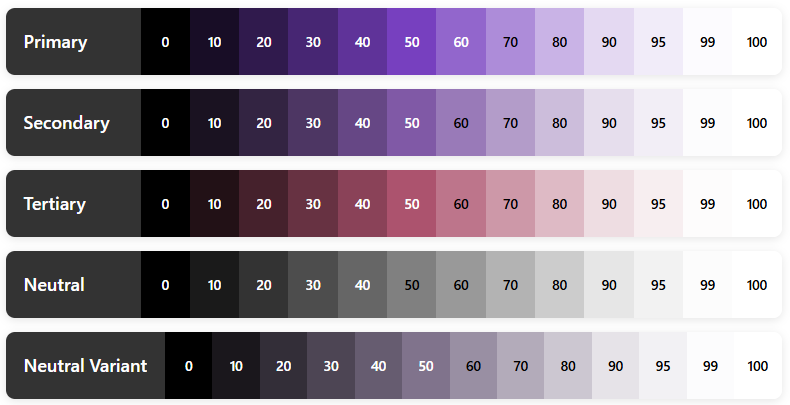
You don’t need to understand all the math — just know that it works beautifully..!
Troubleshooting Common Issues
Issue 1: Colors Not Updating
Problem: Changes to colorScheme don’t appear in the UI.
Solution: Make sure you’re wrapping your content in the theme:
setContent {
    MyAppTheme {  // Essential wrapper!
        Surface(
            modifier = Modifier.fillMaxSize(),
            color = MaterialTheme.colorScheme.background
        ) {
            MyApp()
        }
    }
}
Issue 2: Dynamic Colors Not Working
Problem: App doesn’t match wallpaper colors.
Solution: Check these points:
- Device Version: Dynamic color requires Android 12+ (API 31+)
- Feature Flag: Ensure
dynamicColor = truein your theme - Wallpaper: Try changing your wallpaper to trigger update
- Build Version: Verify
Build.VERSION.SDK_INT >= Build.VERSION_CODES.S
// Debug logging
val colorScheme = when {
    dynamicColor && Build.VERSION.SDK_INT >= Build.VERSION_CODES.S -> {
        Log.d("Theme", "Using dynamic colors from wallpaper")
        if (darkTheme) dynamicDarkColorScheme(context)
        else dynamicLightColorScheme(context)
    }
    else -> {
        Log.d("Theme", "Using static fallback colors")
        if (darkTheme) DarkColorScheme else LightColorScheme
    }
}
Issue 3: Wrong Colors in Previews
Problem: Compose previews show incorrect or default colors.
Solution: Always wrap preview content in your theme:
@Preview
@Composable
fun MyComposablePreview() {
    MyAppTheme {  // Never forget the theme wrapper!
        MyComposable()
    }
}
Issue 4: System Bars Not Matching Theme
Problem: Status bar and navigation bar don’t match app theme.
Solution: Update system bars in your theme composable:
val view = LocalView.current
if (!view.isInEditMode) {
    SideEffect {
        val window = (view.context as Activity).window
        // Set status bar color
        window.statusBarColor = colorScheme.surface.toArgb()
        // Set navigation bar color
        window.navigationBarColor = colorScheme.surface.toArgb()
        // Adjust icon colors
        WindowCompat.getInsetsController(window, view).apply {
            isAppearanceLightStatusBars = !darkTheme
            isAppearanceLightNavigationBars = !darkTheme
        }
    }
}
Issue 5: Gradle Build Errors
Problem: Cannot resolve Material 3 symbols.
Solution: Ensure you have the correct dependencies:
dependencies {
    // Use BOM for version management
    implementation(platform("androidx.compose:compose-bom:2024.02.00"))
    implementation("androidx.compose.material3:material3")

    // Or specify version explicitly
    implementation("androidx.compose.material3:material3:1.2.0")
}
Complete Working Example
Here’s a complete, copy-paste-ready example:
build.gradle.kts (Module)
plugins {
    id("com.android.application")
    id("org.jetbrains.kotlin.android")
}

android {
    namespace = "com.softaai.myapp"
    compileSdk = 34

    defaultConfig {
        applicationId = "com.softaai.myapp"
        minSdk = 21
        targetSdk = 34
        versionCode = 1
        versionName = "1.0"
    }

    buildFeatures {
        compose = true
    }

    composeOptions {
        kotlinCompilerExtensionVersion = "1.5.8"
    }

    kotlinOptions {
        jvmTarget = "1.8"
    }
}

dependencies {
    implementation(platform("androidx.compose:compose-bom:2024.02.00"))
    implementation("androidx.compose.material3:material3")
    implementation("androidx.compose.ui:ui")
    implementation("androidx.compose.ui:ui-tooling-preview")
    implementation("androidx.activity:activity-compose:1.8.2")
    implementation("androidx.core:core-ktx:1.12.0")
    implementation("androidx.lifecycle:lifecycle-runtime-ktx:2.7.0")

    debugImplementation("androidx.compose.ui:ui-tooling")
}
Theme.kt
package com.softaai.myapp.ui.theme

import android.app.Activity
import android.os.Build
import androidx.compose.foundation.isSystemInDarkTheme
import androidx.compose.material3.MaterialTheme
import androidx.compose.material3.darkColorScheme
import androidx.compose.material3.dynamicDarkColorScheme
import androidx.compose.material3.dynamicLightColorScheme
import androidx.compose.material3.lightColorScheme
import androidx.compose.runtime.Composable
import androidx.compose.runtime.SideEffect
import androidx.compose.ui.graphics.Color
import androidx.compose.ui.graphics.toArgb
import androidx.compose.ui.platform.LocalContext
import androidx.compose.ui.platform.LocalView
import androidx.core.view.WindowCompat

private val LightColorScheme = lightColorScheme(
    primary = Color(0xFF6750A4),
    onPrimary = Color(0xFFFFFFFF),
    primaryContainer = Color(0xFFEADDFF),
    onPrimaryContainer = Color(0xFF21005D),
    secondary = Color(0xFF625B71),
    onSecondary = Color(0xFFFFFFFF),
    secondaryContainer = Color(0xFFE8DEF8),
    onSecondaryContainer = Color(0xFF1D192B),
    tertiary = Color(0xFF7D5260),
    onTertiary = Color(0xFFFFFFFF),
    tertiaryContainer = Color(0xFFFFD8E4),
    onTertiaryContainer = Color(0xFF31111D),
    error = Color(0xFFB3261E),
    onError = Color(0xFFFFFFFF),
    errorContainer = Color(0xFFF9DEDC),
    onErrorContainer = Color(0xFF410E0B),
    background = Color(0xFFFFFBFE),
    onBackground = Color(0xFF1C1B1F),
    surface = Color(0xFFFFFBFE),
    onSurface = Color(0xFF1C1B1F),
    surfaceVariant = Color(0xFFE7E0EC),
    onSurfaceVariant = Color(0xFF49454F),
    outline = Color(0xFF79747E),
    outlineVariant = Color(0xFFCAC4D0),
    scrim = Color(0xFF000000),
    inverseSurface = Color(0xFF313033),
    inverseOnSurface = Color(0xFFF4EFF4),
    inversePrimary = Color(0xFFD0BCFF),
)

private val DarkColorScheme = darkColorScheme(
    primary = Color(0xFFD0BCFF),
    onPrimary = Color(0xFF381E72),
    primaryContainer = Color(0xFF4F378B),
    onPrimaryContainer = Color(0xFFEADDFF),
    secondary = Color(0xFFCCC2DC),
    onSecondary = Color(0xFF332D41),
    secondaryContainer = Color(0xFF4A4458),
    onSecondaryContainer = Color(0xFFE8DEF8),
    tertiary = Color(0xFFEFB8C8),
    onTertiary = Color(0xFF492532),
    tertiaryContainer = Color(0xFF633B48),
    onTertiaryContainer = Color(0xFFFFD8E4),
    error = Color(0xFFF2B8B5),
    onError = Color(0xFF601410),
    errorContainer = Color(0xFF8C1D18),
    onErrorContainer = Color(0xFFF9DEDC),
    background = Color(0xFF1C1B1F),
    onBackground = Color(0xFFE6E1E5),
    surface = Color(0xFF1C1B1F),
    onSurface = Color(0xFFE6E1E5),
    surfaceVariant = Color(0xFF49454F),
    onSurfaceVariant = Color(0xFFCAC4D0),
    outline = Color(0xFF938F99),
    outlineVariant = Color(0xFF49454F),
    scrim = Color(0xFF000000),
    inverseSurface = Color(0xFFE6E1E5),
    inverseOnSurface = Color(0xFF313033),
    inversePrimary = Color(0xFF6750A4),
)

@Composable
fun MyAppTheme(
    darkTheme: Boolean = isSystemInDarkTheme(),
    dynamicColor: Boolean = true,
    content: @Composable () -> Unit
) {
    val context = LocalContext.current

    val colorScheme = when {
        dynamicColor && Build.VERSION.SDK_INT >= Build.VERSION_CODES.S -> {
            if (darkTheme) dynamicDarkColorScheme(context)
            else dynamicLightColorScheme(context)
        }
        darkTheme -> DarkColorScheme
        else -> LightColorScheme
    }

    val view = LocalView.current
    if (!view.isInEditMode) {
        SideEffect {
            val window = (view.context as Activity).window
            window.statusBarColor = colorScheme.surface.toArgb()
            window.navigationBarColor = colorScheme.surface.toArgb()
            WindowCompat.getInsetsController(window, view).apply {
                isAppearanceLightStatusBars = !darkTheme
                isAppearanceLightNavigationBars = !darkTheme
            }
        }
    }

    MaterialTheme(
        colorScheme = colorScheme,
        typography = Typography,
        content = content
    )
}
MainActivity.kt
package com.softaai.myapp

import android.os.Bundle
import androidx.activity.ComponentActivity
import androidx.activity.compose.setContent
import androidx.compose.foundation.layout.fillMaxSize
import androidx.compose.material3.MaterialTheme
import androidx.compose.material3.Surface
import androidx.compose.ui.Modifier
import com.softaai.myapp.ui.theme.MyAppTheme
class MainActivity : ComponentActivity() {
    override fun onCreate(savedInstanceState: Bundle?) {
        super.onCreate(savedInstanceState)
        setContent {
            MyAppTheme {
                Surface(
                    modifier = Modifier.fillMaxSize(),
                    color = MaterialTheme.colorScheme.background
                ) {
                    // Your app content here
                    ProfileScreen()
                }
            }
        }
    }
}
Quick Reference Guide
Essential ColorScheme Properties
val colorScheme = MaterialTheme.colorScheme

// Primary colors
colorScheme.primary                // Main brand color
colorScheme.onPrimary              // Text on primary
colorScheme.primaryContainer       // Lighter primary variant
colorScheme.onPrimaryContainer     // Text on primary container

// Secondary colors
colorScheme.secondary              // Secondary accent
colorScheme.onSecondary            // Text on secondary
colorScheme.secondaryContainer     // Lighter secondary
colorScheme.onSecondaryContainer   // Text on secondary container

// Tertiary colors
colorScheme.tertiary               // Third accent color
colorScheme.onTertiary             // Text on tertiary
colorScheme.tertiaryContainer      // Lighter tertiary
colorScheme.onTertiaryContainer    // Text on tertiary container

// Surface and background
colorScheme.surface                // Card/sheet background
colorScheme.onSurface              // Text on surfaces
colorScheme.surfaceVariant         // Alternative surface
colorScheme.onSurfaceVariant       // Text on surface variant
colorScheme.background             // Main app background
colorScheme.onBackground           // Text on background

// Error colors
colorScheme.error                  // Error state color
colorScheme.onError                // Text on error
colorScheme.errorContainer         // Error message background
colorScheme.onErrorContainer       // Text in error messages

// Utility colors
colorScheme.outline                // Borders and dividers
colorScheme.outlineVariant         // Subtle borders
colorScheme.surfaceTint            // Elevation tint (usually primary)
colorScheme.scrim                  // Semi-transparent overlays

// Inverse colors (for tooltips, snackbars)
colorScheme.inverseSurface         // High-contrast surface
colorScheme.inverseOnSurface       // Text on inverse surface
colorScheme.inversePrimary         // Primary color on inverse surface
Common Usage Patterns
// Primary button
Button(
    onClick = { },
    colors = ButtonDefaults.buttonColors(
        containerColor = MaterialTheme.colorScheme.primary,
        contentColor = MaterialTheme.colorScheme.onPrimary
    )
) {
    Text("Click Me")
}

// Surface card
Card(
    colors = CardDefaults.cardColors(
        containerColor = MaterialTheme.colorScheme.surface
    )
) {
    Text(
        text = "Card Content",
        color = MaterialTheme.colorScheme.onSurface,
        modifier = Modifier.padding(16.dp)
    )
}

// Custom background
Box(
    modifier = Modifier
        .background(MaterialTheme.colorScheme.primaryContainer)
        .padding(16.dp)
) {
    Text(
        text = "Custom Container",
        color = MaterialTheme.colorScheme.onPrimaryContainer
    )
}

// Error state
Surface(
    color = MaterialTheme.colorScheme.errorContainer,
    modifier = Modifier.padding(8.dp)
) {
    Text(
        text = "Error message",
        color = MaterialTheme.colorScheme.onErrorContainer,
        modifier = Modifier.padding(16.dp)
    )
}
Conclusion
The Material 3 colorScheme is a game-changer for Android app theming. It takes the complexity out of color design and gives you a robust, accessible, and beautiful color system right out of the box.
Here’s what we’ve covered:
Understanding: The Material 3 colorScheme generates complete, harmonious palettes from seed colors or wallpaper
Color Roles: Semantic color names ensure accessibility and visual consistency
Implementation: Simple Kotlin setup with Jetpack Compose and dynamic color support
Dynamic Color: Apps automatically match user wallpapers on Android 12+ for personalized experiences
Best Practices: Use semantic colors, test both themes, provide fallbacks, and optimize performance
Real Examples: Production-ready Kotlin code you can use in your projects immediately
Troubleshooting: Solutions to common issues developers face
The beauty of the Material 3 colorScheme is that it makes professional color design accessible to everyone. You don’t need to be a color theory expert to create stunning, accessible Android apps.
Getting Started Today
Start your next Android project by:
- Adding Dependencies: Include Material 3 in your
build.gradle.kts - Creating Your Theme: Set up
lightColorScheme()anddarkColorScheme()inTheme.kt - Enabling Dynamic Color: Support Android 12+ wallpaper theming
- Using Semantic Colors: Reference
MaterialTheme.colorSchemethroughout your composables - Testing Thoroughly: Preview in both light and dark modes
The Material 3 colorScheme handles the complexity of color science, accessibility, and harmonization so you can focus on building amazing user experiences. And that’s what makes it so powerful.
Additional Resources
Official Documentation:
Tools:
- Material Theme Builder — Visual theme generator with Kotlin export
- Material Color Utilities — Color science library
Sample Projects:
- Now in Android — Google’s official Material 3 sample app
- Compose Samples — Official Jetpack Compose examples
Now go build something beautiful with the Material 3 colorScheme in Kotlin..!