Amol Pawar

Resume Sender App

Hack Your Job Search: Use a Resume Sender App to Apply for Jobs on LinkedIn Faster

Looking for a job can be time-consuming, especially when you’re applying manually to each listing. However, with a resume sender app, you can streamline your LinkedIn job search and automate job applications, making the process much more efficient. In this guide, I’ll show you how to apply for jobs on LinkedIn faster using smart techniques and job search automation tools.

The Hidden Job Market on LinkedIn

Many job opportunities never make it to traditional LinkedIn job postings. Instead, recruiters and hiring managers often post open positions as status updates, which can be easily missed if you’re only checking official job listings. By using the right search techniques, you can tap into hidden job opportunities and get ahead of other applicants.

How to Find Hidden Job Listings on LinkedIn

To uncover these opportunities, follow these simple steps:

1. Go to the LinkedIn search bar at the top.

2. Type a query using the format: {job role} AND (“hiring” OR “requirement”). For example: Software Developer AND ("hiring" OR "requirement")

3. Hit enter.

4. Select the “Posts” filter from the result page.

5. Sort by “Latest”.

Now, you will see recent job requirements that are not listed on LinkedIn’s official job board. 

LinkedIn unlisted job posts

This method allows you to connect directly with recruiters and send resumes on LinkedIn without competition from hundreds of applicants.

Using a Resume Sender App to Apply Faster

Once you have found recruiters or hiring managers looking for candidates, the next step is to apply quickly and efficiently. A resume sender app helps you send your CV to multiple HR managers in a single click, saving you hours of manual work.

Steps to Send Resumes Using a Resume Sender App

1. Collect HR Emails

  • Go through the LinkedIn job posts and pick out the email IDs of recruiters.
Pick out the email ID From Job post
  • Copy the email addresses into a comma-separated list using Notepad or any text editor.

2. Open the Resume Sender App

  • Navigate to the “Send To Anyone” screen.
Send To Anyone Screen
  • Paste the collected HR emails into the email IDs field.
Paste the HR emails
  • Enter your job application subject line and message body.

3. Attach Your Resume

  • The first time you use the app, set your resume file path through the settings.
  • You can also manually select your resume before sending applications.

4. Send Applications in Seconds

  • Click the “Send” button, and your resume will be sent to multiple recruiters instantly.
Confirmation: Resume PDF Sent

Note: Sender’s email ID is hidden for security reasons.

Confirmation of Multiple Submissions

The latest update of the Resume Sender app improves email handling. Now, when an email ID allows sending (such as from LinkedIn, WhatsApp, Instagram, or a Career Webpage), tapping or selecting it will open the ‘Send To Anyone’ screen with the selected email.

This method eliminates the need to manually send emails one by one, making your job search more efficient and allowing you to apply for jobs faster than ever.

Why Use a Resume Sender App?

1. Save Time and Effort

Manually sending job applications can be exhausting. Job search automation lets you focus on networking and preparing for interviews instead.

2. Increase Application Reach

Since job search automation allows you to send resumes to multiple recruiters quickly, you cover more opportunities in less time.

3. Avoid Missed Opportunities

With this job search hack, you can reach out to recruiters as soon as they post job openings, before they even list them officially.

4. Personalized Yet Automated

You can still customize your email content, ensuring each application feels personal while benefiting from automation.

Pro Tips for Job Search Success

  • Optimize Your LinkedIn Profile: A well-structured LinkedIn profile increases the chances of recruiters responding to you.
  • Use Keywords in Your Resume: Make sure your CV includes industry-relevant job search keywords for better visibility.
  • Follow Up with Recruiters: If you don’t get a response, send a polite follow-up message after a few days.
  • Network Actively: Engage with recruiters and hiring managers by commenting on their posts and sending connection requests.

Take Your Job Search to the Next Level

Finding a job on LinkedIn doesn’t have to be slow or tedious. By leveraging job application tools like a resume submission app, you can automate applications, reach out to more recruiters, and increase your chances of landing a job faster than traditional methods.

Start using a resume sender app today and take control of your LinkedIn job applications with career automation tools that save time and boost efficiency. 

Happy job hunting..!

Studio Ghibli Style

Decoding Studio Ghibli Style Art with AI: Can Deep Learning Capture Its Magic?

Studio Ghibli’s art style is iconic—soft, hand-drawn aesthetics, rich colors, and breathtaking landscapes that transport us to whimsical worlds. But can AI, with all its deep learning capabilities, truly replicate the magic of Studio Ghibli style? Let’s explore how AI is trying to understand and recreate this unique artistry.

What Defines the Studio Ghibli Style?

Before diving into AI, it’s important to break down what makes Studio Ghibli’s visuals so captivating:

  1. Hand-drawn softness – Unlike hyper-realistic CGI, Ghibli animation embraces organic lines and watercolor-like textures.
  2. Lush backgrounds – Detailed environments create an immersive world full of depth and emotion.
  3. Expressive characters – Subtle facial animations and movement enhance storytelling without excessive realism.
  4. Natural color palettes – Soft, pastel shades blend seamlessly to evoke nostalgia and warmth.

These elements make Ghibli films visually distinct. But can AI learn to reproduce them?

Using AI to Replicate Studio Ghibli Style

AI art generation has made massive strides with models like GANs (Generative Adversarial Networks) and diffusion models, but capturing the organic essence of hand-drawn animation is a challenge.

Training AI on Ghibli-Inspired Datasets

To train an AI model, we first need a dataset. This typically includes:

  • Frames from various Ghibli films (fair use considerations apply)
  • Artwork inspired by the Ghibli aesthetic
  • Color palettes extracted from Ghibli scenes

Using this data, AI learns patterns, textures, and color harmonies unique to Ghibli’s visuals.

Implementing Style Transfer

One way to apply the Studio Ghibli style to new images is through Neural Style Transfer (NST). This technique enables AI to overlay Ghibli-like textures and colors onto regular images.

Here’s an example using Python and TensorFlow:

Python
import tensorflow as tf
import tensorflow_hub as hub
import matplotlib.pyplot as plt
import cv2
import numpy as np

def load_image(image_path, max_dim=512):
    img = tf.io.read_file(image_path)
    img = tf.image.decode_image(img, channels=3)
    img = tf.image.resize(img, (max_dim, max_dim))
    img = img / 255.0  # Normalize
    return tf.expand_dims(img, axis=0)

# Load pre-trained style transfer model
style_transfer_model = hub.load('https://tfhub.dev/google/magenta/arbitrary-image-stylization-v1-256/2')

# Load content and style images
content_image = load_image('your_photo.jpg')
style_image = load_image('ghibli_style_reference.jpg')

# Apply style transfer
stylized_image = style_transfer_model(content_image, style_image)[0]

# Display the result
plt.imshow(stylized_image[0])
plt.axis('off')
plt.show()

Here,

  1. We load a regular image as the content image.
  2. We load a Ghibli-style frame as the style reference.
  3. The AI model transfers the artistic features of Ghibli’s aesthetic onto the content image.

This method works well for static images, but animation requires more refinement to maintain fluidity and consistency.

Can AI Truly Capture Ghibli’s Magic?

While AI can mimic the visual traits of the Studio Ghibli style, it struggles with the soul of the animation. Ghibli’s magic lies in:

  • Hand-crafted imperfections that AI struggles to reproduce.
  • Emotional storytelling woven into every frame, beyond just aesthetics.
  • Human touch that gives characters life and depth.

Deep learning can assist in automating certain artistic processes, but it cannot replace the creative intuition of Studio Ghibli’s artists.

The Future of AI and Ghibli-Inspired Art

As AI evolves, we might see:

  • Better AI models trained specifically on anime and hand-drawn art.
  • Interactive tools for artists to generate Ghibli-style backgrounds faster.
  • AI-assisted animation that keeps the human touch while automating repetitive tasks.

For now, AI can help recreate Studio Ghibli style in still images and concept art, but animation remains a deeply human craft.

Circular Dependencies

Resolving Circular Dependencies in Gradle: A Complete Guide

If you’re working on a multi-module Gradle project, encountering circular dependencies can be a frustrating roadblock. You may see an error like this: KotlinCircular dependency between the following tasks: :javaModule:compileJava +--- :kotlinModule:compileJava | +--- :javaModule:compileJava (*) | \--- :kotlinModule:compileKotlin | \--- :javaModule:compileJava (*) \--- :kotlinModule:compileKotlin (*) This error occurs when two modules depend on each...

Membership Required

You must be a member to access this content.

View Membership Levels

Already a member? Log in here
inline properties

How Inline Properties Improve Performance in Kotlin

Kotlin is known for its modern and expressive syntax, making development smoother and more efficient. One of the lesser-known but powerful features of Kotlin is inline properties, which can significantly impact performance. In this article, we’ll explore how inline properties improve performance in Kotlin, understand their implementation with examples, and see why they matter in real-world applications.

What Are Inline Properties?

Inline properties in Kotlin allow property accessors (getters and setters) to be inlined at the call site. This eliminates method call overhead and improves execution speed. Essentially, when you mark a property accessor as inline, the compiler replaces the function call with its actual code during compilation, resulting in a more efficient bytecode.

Why Use Inline Properties?

When you define a property with custom getters or setters in Kotlin, the compiler generates a function behind the scenes. Every time the property is accessed, this function is called. While this is usually not a problem, it can introduce unnecessary method call overhead, especially in performance-critical applications. Inline properties help optimize performance by removing this overhead.

Syntax of Inline Properties

To make a property’s accessor inline, you use the inline modifier with the getter or setter:

Kotlin
class User(val firstName: String, val lastName: String) {
    val fullName: String
        inline get() = "$firstName $lastName"
}

fun main() {
    val user = User("amol", "pawar")
    println(user.fullName)  // Output: amol pawar
}

Here,

  • The fullName property has a custom getter that concatenates firstName and lastName.
  • The inline keyword ensures that when fullName is accessed, the compiler replaces the function call with its actual expression.
  • This improves performance by avoiding a method call at runtime.

How Inline Properties Improve Performance

Reduces Method Call Overhead

When a property accessor is inlined, the function call is replaced with the actual code. This removes the overhead of method calls, reducing execution time.

Without Inline Properties

Kotlin
class Rectangle(val width: Int, val height: Int) {
    val area: Int
        get() = width * height
}

fun main() {
    val rect = Rectangle(5, 10)
    println(rect.area)  // Generates a method call
}
  • Here, area is accessed using a generated getter function, which results in a method call.

With Inline Properties

Kotlin
class Rectangle(val width: Int, val height: Int) {
    val area: Int
        inline get() = width * height
}

fun main() {
    val rect = Rectangle(5, 10)
    println(rect.area)  // No method call, inlined at compile-time
}
  • The getter is inlined, meaning the multiplication happens directly where area is accessed, eliminating an extra function call.

Better Performance in Loops

If a property is accessed multiple times in a loop, an inline getter prevents redundant function calls, optimizing performance.

Kotlin
class Person(val age: Int) {
    val isAdult: Boolean
        inline get() = age >= 18
}

fun main() {
    val people = List(1_000_000) { Person(it % 50) }
    val adults = people.count { it.isAdult }  // More efficient with inline properties
    println("Number of adults: $adults")
}
  • With inline properties, isAdult is evaluated without generating function calls in each iteration, making large computations faster.

Reduces Bytecode Size

Inlining properties reduces the number of generated methods, resulting in smaller bytecode size and potentially lower memory usage.

When to Use Inline Properties

They are beneficial when:

  • The property is frequently accessed and has a simple getter or setter.
  • You want to optimize performance in high-frequency operations like loops.
  • You need to eliminate function call overhead for small computations.

However, avoid using them when:

  • The getter or setter contains complex logic.
  • The property returns large objects (inlining could increase code size).
  • The function involves recursion (since inline functions cannot be recursive).

Best Practices for Inline Properties

  1. Use them for lightweight operations — Keep the logic simple to maximize performance gains.
  2. Avoid inline properties with large return types — This can lead to increased bytecode size.
  3. Test performance improvements — Profile your code to ensure that inlining provides actual benefits.
  4. Be mindful of code readability — Excessive inlining can make debugging harder.

Explore the complete breakdown here: [Main Article URL]

Conclusion

Inline properties in Kotlin are a simple yet powerful feature that can improve performance by removing method call overhead, reducing bytecode size, and optimizing loops. While they should be used wisely, they offer significant benefits in performance-critical applications.

By understanding and leveraging inline properties, you can write more efficient Kotlin code, ensuring faster execution and better resource utilization.

stress testing

Stress Testing in Concurrent Programming (Kotlin): A Deep Dive

In software development, ensuring that applications run smoothly under normal conditions isn’t enough. Systems often face extreme workloads, concurrent processing, and unexpected spikes in demand. This is where stress testing comes into play. Stress testing helps uncover performance bottlenecks, concurrency issues, and system stability problems that might not be evident under standard usage. In this...

Membership Required

You must be a member to access this content.

View Membership Levels

Already a member? Log in here
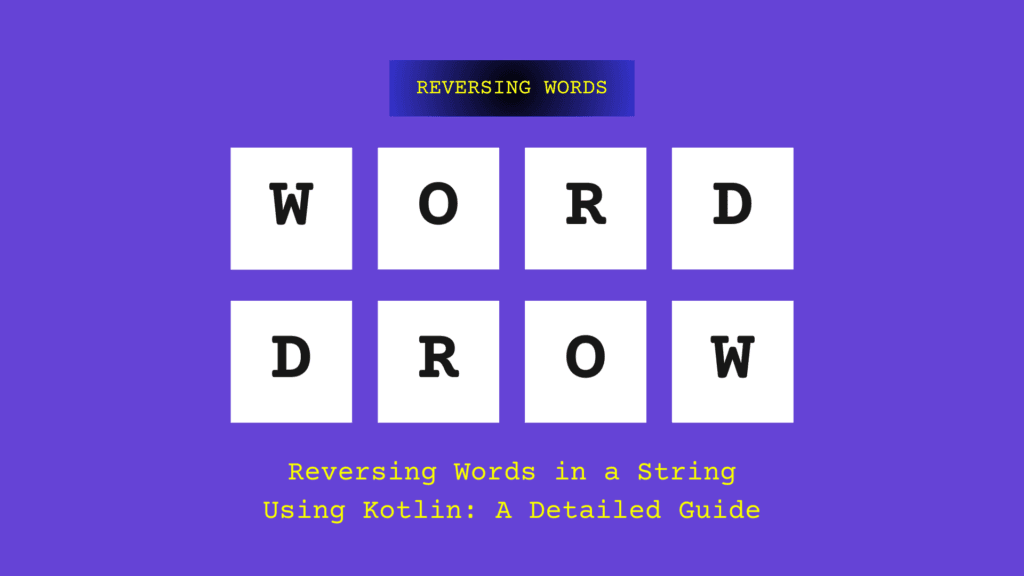
Reversing Words in kotlin String

Reversing Words in a String Using Kotlin: A Detailed Guide

Reversing words in a sentence is a common programming task often used in coding interviews and algorithm-based challenges. In this blog, we’ll break down a Kotlin function that reverses the order of words in a given string. We’ll analyze each part of the code, identify potential improvements, and present an optimized version.

Reversing Words: Problem Statement

Given an input string containing multiple words separated by spaces, we need to reverse the order of words while maintaining their original form.

Input:

Kotlin
"Hello India Pune World"

Output:

Kotlin
"World Pune India Hello"

Understanding the Kotlin Code

Let’s analyze the following Kotlin function that reverses the order of words in a string:

Kotlin
fun reverseInputStatement(input: String): String {
    val wordList = input.split(" ")
    val mutableWordList = wordList.toMutableList()
    
    var indexFromEnd = mutableWordList.size - 1
    
    for (indexFromStart in mutableWordList.indices) {
        if (indexFromStart < indexFromEnd) {
            val temp = mutableWordList[indexFromStart]
            mutableWordList[indexFromStart] = mutableWordList[indexFromEnd]
            mutableWordList[indexFromEnd] = temp
        }
        indexFromEnd -= 1
    }
    
    return mutableWordList.toString()
}

Step-by-Step Breakdown

Step 1: Splitting the Input String into Words

Kotlin
val wordList = input.split(" ")
  • The split(" ") function divides the input string into a list of words based on spaces.
  • For the input “Hello India Pune World”, the output will be:
  • ["Hello", "India", "Pune", "World"]

Step 2: Converting to a Mutable List

Kotlin
val mutableWordList = wordList.toMutableList()   
  • Since lists in Kotlin are immutable by default, we convert it to a mutable list to allow modifications.

Step 3: Swapping Words to Reverse Their Order

Kotlin
var indexFromEnd = mutableWordList.size - 1
  • indexFromEnd is initialized to the last index of the list.

The loop performs word swaps to reverse the order:

Kotlin
for (indexFromStart in mutableWordList.indices) {
    if (indexFromStart < indexFromEnd) {
        val temp = mutableWordList[indexFromStart]
        mutableWordList[indexFromStart] = mutableWordList[indexFromEnd]
        mutableWordList[indexFromEnd] = temp
    }
    indexFromEnd -= 1
}

Here,

  • The loop iterates through the list from both the beginning (indexFromStart) and the end (indexFromEnd).
  • The words are swapped until they meet in the middle.

Here is the how the list changes at each iteration:

Before swapping: ["Hello", "India", "Pune", "World"]

  • Step 1: Swap Hello and World → ["World", "India", "Pune", "Hello"]
  • Step 2: Swap India and Pune → ["World", "Pune", "India", "Hello"]

Loop stops as words are fully reversed.

Step 4: Converting Back to a String

Kotlin
return mutableWordList.toString()

This returns the reversed list, but the output will be formatted as:

Kotlin
[World, pune, india, Hello]

This isn’t a properly formatted sentence, so let’s fix this issue.

Optimizing the Code

The existing function works, but it can be significantly simplified using Kotlin’s built-in functions:

Kotlin
fun reverseInputStatement(input: String): String {
    return input.split(" ").reversed().joinToString(" ")
}

Why is This Better?

  • split(" "): Splits the input string into a list of words.
  • reversed(): Reverses the list.
  • joinToString(" "): Joins the list back into a properly formatted string.
  • More readable and concise compared to manually swapping elements.

Final Output

For the input:

Kotlin
"Hello India Pune World"

The output will be:

Kotlin
"World Pune India Hello"

Key Takeaways

  1. Use Kotlin’s built-in functions (split(), reversed(), joinToString()) for cleaner and more efficient code.
  2. Avoid unnecessary manual swapping unless specifically required.
  3. Understand how lists work — mutable and immutable lists impact how you modify data in Kotlin.
  4. Code readability is important — the optimized version is much easier to understand and maintain.

Conclusion

Reversing words in a string is a simple yet insightful exercise in Kotlin. The initial approach using a loop and swapping elements works but is not the most efficient solution. By leveraging Kotlin’s built-in functions, we can achieve the same result with cleaner and more readable code.

Understanding such basic transformations is crucial for improving problem-solving skills, especially in coding interviews and real-world applications.

tailrec modifier

How Kotlin’s tailrec Modifier Optimizes Recursive Functions

Recursion is a powerful concept in programming that allows functions to call themselves to solve problems. However, recursive functions can sometimes lead to stack overflow errors if they have deep recursion levels. Kotlin provides the tailrec modifier to optimize recursive functions and convert them into an efficient iterative version under the hood. This helps in...

Membership Required

You must be a member to access this content.

View Membership Levels

Already a member? Log in here
Gradle Dependency Configurations

Android Gradle Dependency Configurations: 8 Key Types, Differences & Best Practices

Gradle is an essential build tool for Android development, managing dependencies and automating the build process. One of the critical aspects of Gradle is its dependency configurations, which control how dependencies are included in a project. In this article, we will explore different Gradle dependency configurations in Android, explaining their usage with Kotlin DSL (build.gradle.kts)...

Membership Required

You must be a member to access this content.

View Membership Levels

Already a member? Log in here
Material 3

Android UI Themes with Material 3 Design: A Comprehensive Guide

Material 3 (also referred to as Material You) is Google’s latest design system that focuses on creating adaptable, personalized, and visually consistent interfaces. At its core, Material 3 introduces enhanced theming capabilities, allowing developers to craft user interfaces that dynamically adapt to the user’s preferences, device settings, and environments. In this blog, we will dive...

Membership Required

You must be a member to access this content.

View Membership Levels

Already a member? Log in here
testImplementation in Gradle

Mastering testImplementation in Gradle: 3 Key Differences & Best Practices

Gradle provides different dependency configurations to manage libraries and dependencies for building and testing applications. When working with tests in a Gradle-based project, three key dependency configurations are commonly used: testImplementation – Used for compiling and running tests. testCompileOnly – Used only for compiling tests, not available at runtime. testRuntimeOnly – Used only at test...

Membership Required

You must be a member to access this content.

View Membership Levels

Already a member? Log in here
error: Content is protected !!